
How to Perform a Battery Cycle Reset

Alex Diaz-Kokaisl and 3 other contributors
Last updated on Aug 17, 2026
Views: 152K
View statistics:
- Past 24 Hours:
- 219
- Past 7 Days:
- 1,600
- Past 30 Days:
- 7,019
- All Time:
- 152,339
Comments: 73
17 comments on steps, 56 guide comments.
Go to guide commentsCompleted: 27 28
27 people have marked this guide "completed." Will you be next?
28 people have marked this guide "completed." Including you — great job!
Favorites: 4 5
4 people have favorited (and subscribed to) this guide. Will you be next?
5 people have favorited (and subscribed to) this guide — including you!
Introduction
Go to step 1 ↓Use this guide to perform a battery cycle reset on your Samsung phone or tablet. You should perform this reset whenever you change the battery for your Samsung device.
Tested Devices (Samsung Remote Test Lab):
- Supported S Phones: S20, S20+, S20 Ultra, S21, S21+, S21 Ultra, S21 FE, S22, S22+, S22 Ultra, S23, S23+, S23 Ultra, S23 FE, S24, S24+, S24 Ultra, S24 FE, S25, S25+, S25 Ultra, S25 FE, S26, S26+, S26 Ultra
- Supported A Phones: A04, A05, A13, A13 5G, A14, A15, A16, A17, A23, A24, A25, A26, A32, A32 5G, A33, A34, A35 5G, A36, A37, A52s, A53 5G, A54, A55, A56, A57, A72, A73
- Supported Note Phones: Note 20, Note 20 Ultra
- Supported Z Fold Phones: Z Fold 2, Z Fold 3, Z Fold 4, Fold5, Z Fold6, Z Fold7, Z Fold8, Z Fold8 Ultra, Z TriFold, Z Fold Special Edition
- Supported Z Flip Phones: Z Flip, Z Flip3, Z Flip 4, Z Flip5, Z Flip6, Z Flip7, Z Flip8
- Supported S Tablets: Tab S7 FE, Tab S7+, Tab S8, Tab S8+, Tab S8 Ultra, Tab S9, Tab S9+, Tab S9 Ultra, Tab S9 FE, Tab S9 FE+
- Supported A Tablets: Tab A9+
- Unsupported S Phones: S20 FE
- Unsupported A Phones: A06, A22, A31, A42 5G, A82 5G
- Unsupported Note Phones:
- Unsupported Z Fold Phones: Z Fold1
- Unsupported Z Flip Phones:
- Unsupported S Tablets: Tab S7, Tab S10 Lite, Tab S10 FE, Tab S10 FE+, Tab S10+, Tab S10 Ultra, Tab S11, Tab S11 Ultra
- Unsupported A Tablets: Tab A7 Lite, Tab A11
For more information, refer to the Samsung Self-Repair document.
Note: the device used is a Samsung Galaxy Tab S7+, but the procedure is identical across all Samsung devices.
Note:Samsung account required.
Note: 2.0.17 and newer requires a Samsung battery serial number for which you can either use this: GH43-05243B+AA1Y102KS+05183K as an example for an S25 Ultra, or by searching for a new Samsung battery in Google images. Also, it doesn't even have to be for your model device. This serial number check is local to your device, so the same serial could be used even across different accounts and devices, and will work as long as it's a genuine Samsung serial. Although you need to use a different one to reset the cycle count again in the future on the same device. After using that second new one, the previous one you used will work again. Essentially, allowing you to cycle between the two as needed.
Download the Self Repair Assistant app. Check both, since the one with the newest version switches back and forth over time. Also I use an S26 Ultra as an example but all devices on SamsungParts.com have the exact same Self Repair Assistant apk version.
-
-
 Ask FixBot
-
-
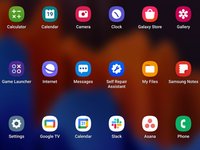
Select the app on the right side of the screen.
-
Select "Install" to confirm the app's installation.
-
Skip the next two steps.
-
-
-
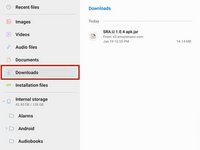
Navigate to the "Downloads" tab on the left side of the screen.
-
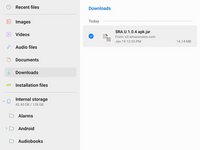
Long press the download file until an orange checkmark appears to the left of it.
-
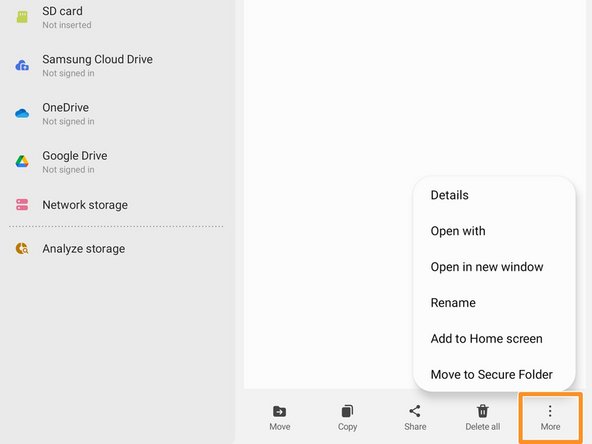
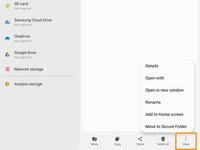
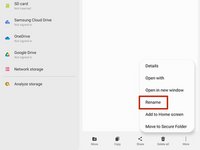
Navigate to the bottom of the screen and select the "More" option.
-
-
-
-
-
Select "Agree" to accept the Terms and Conditions.
-
-
-
-
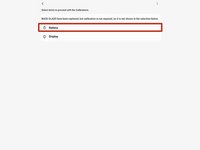
Select the "Battery" icon.
-
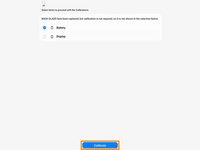
Select "Calibrate" to continue.
-
-
-
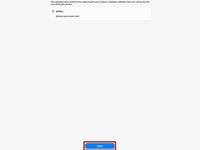
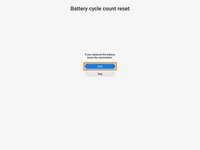
Select the "Start" button.
-
Select the "Start" button again.
-
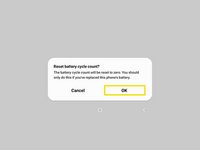
Select "Ok" to finalize the battery cycle reset.
-
Wait until the battery cycle reset finishes.
-










Cancel: I did not complete this guide.
27 other people completed this guide.

Team

56 Guide Comments
Dead link to Samsung Self-Repair document.
Thanks for catching that! I fixed the link in the introduction.
I installed the galaxy cal app on an S20 and when opening the app I get a message to try again after getting new version
I have the same. Do you know how to fix this now?
