Introduction
Trackpad prerequisite without the reassembly instructions.
What you need
-
-
-
Use a T3 Torx driver to remove the two 1.8 mm screws securing the trackpad cable connector bracket.
 Ask FixBot
-
-
Tool used on this step:Tweezers$4.99
-
Remove the trackpad cable connector bracket with a pair of tweezers.
-
-
-
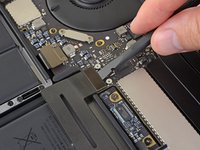
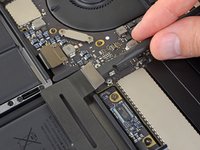
Use a spudger to disconnect the trackpad ribbon cable by gently prying its connector straight up from the logic board.
-
-
-
-
Prepare an iOpener and lay it on top of the trackpad ribbon cable for about a minute, in order to soften the adhesive securing the trackpad ribbon cable to the top of the battery.
-
If you don't have an iOpener, use a hair dryer to warm up the cable instead. The cable should be warm, but not too hot to touch. Be careful not to overheat the battery.
-
-
-
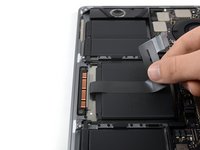
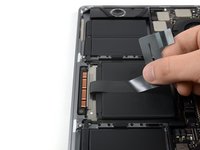
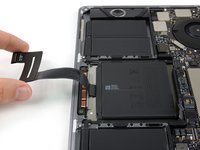
Carefully peel the trackpad ribbon cable up off the battery, and push it out of the way.
-
-
-
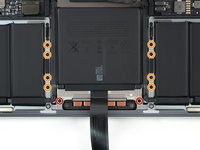
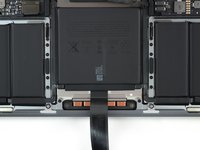
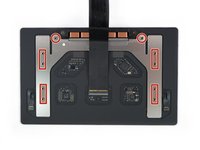
Use a T5 Torx driver to remove the ten screws securing the trackpad assembly:
-
Two 4.3 mm screws
-
Eight 5.8 mm screws
-
-
-
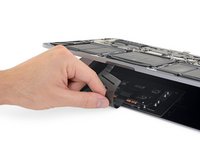
Swing the display open slightly to access the trackpad.
-
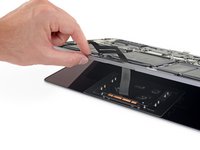
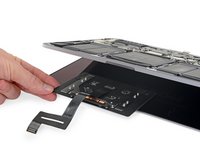
Carefully thread the trackpad ribbon cable out through the hole in the MacBook Pro's frame.
-
-
-
Remove the trackpad assembly.
-
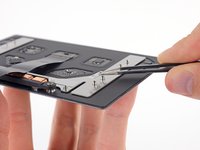
Be sure not to lose the six small washers (two circular and four rectangular) resting on the underside of the trackpad.
-
-










To reassemble your device, follow these instructions in reverse order.

Team

Tobias Isakeit - Repairability Engineer Member of Tobias Isakeit - Repairability Engineer
Business
1 Member
2,265 Guides authored
