Free Shipping on Domestic Orders $75+

Switch Pro Controller Motherboard Replacement

What you need

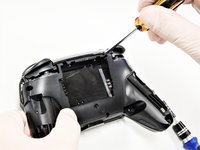
  1. Switch Pro Controller Motherboard Replacement, Remove the screws: step 1, image 1 of 1
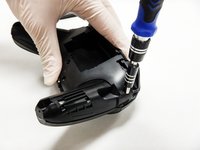
    • Flip the controller over so the model stickers face the ceiling.

    • Use a JIS #00 screwdriver to remove the two black 8.4 mm screws that secure the handles, located at the ends of the handles.

    Ask FixBot

    Add Comment

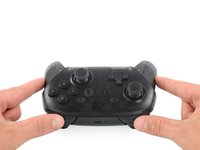
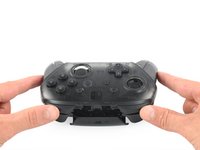
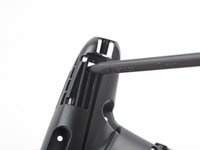
  2. Switch Pro Controller Motherboard Replacement, Remove the handle covers: step 2, image 1 of 3 Switch Pro Controller Motherboard Replacement, Remove the handle covers: step 2, image 2 of 3 Switch Pro Controller Motherboard Replacement, Remove the handle covers: step 2, image 3 of 3
    • Carefully remove the handle covers by pulling them away from the main body.

    Ask FixBot

    Add Comment

  3. Switch Pro Controller Motherboard Replacement, Remove the screws: step 3, image 1 of 1
    • Use a JIS #00 screwdriver to remove the four silver 6.8 mm screws that secure the clear back plastic cover.

    Ask FixBot

    Add Comment

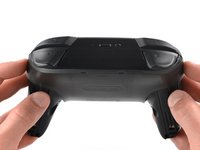
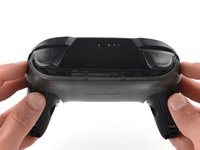
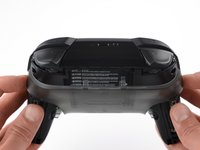
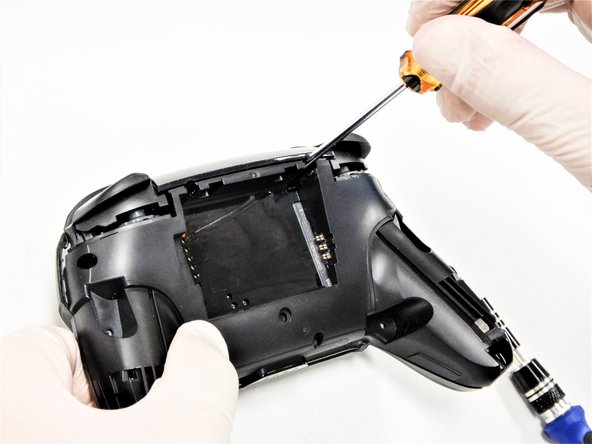
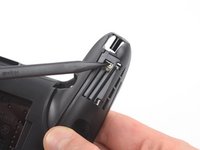
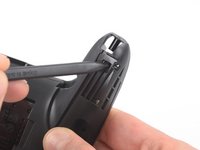
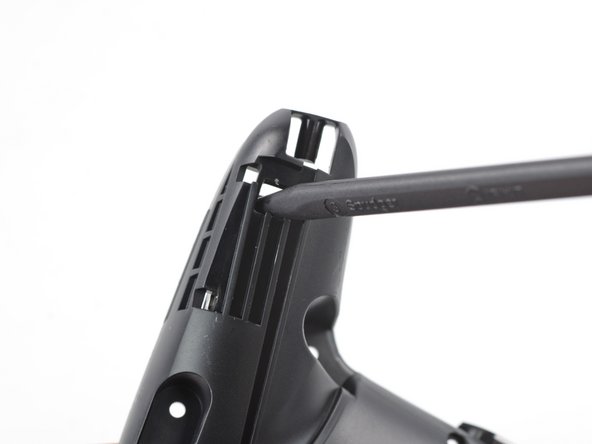
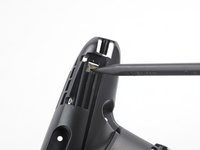
  4. Switch Pro Controller Motherboard Replacement, Unclip the plastic cover: step 4, image 1 of 3 Switch Pro Controller Motherboard Replacement, Unclip the plastic cover: step 4, image 2 of 3 Switch Pro Controller Motherboard Replacement, Unclip the plastic cover: step 4, image 3 of 3
    • Carefully pry away the clear plastic cover using your fingernail.

    Ask FixBot

    Add Comment

  5. Switch Pro Controller Motherboard Replacement, Remove the clear plastic cover: step 5, image 1 of 1
    • Remove the clear plastic cover.

    Ask FixBot

    Add Comment

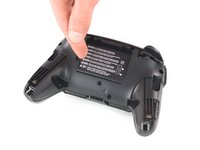
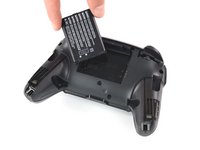
  6. Switch Pro Controller Motherboard Replacement, Remove the battery: step 6, image 1 of 3 Switch Pro Controller Motherboard Replacement, Remove the battery: step 6, image 2 of 3 Switch Pro Controller Motherboard Replacement, Remove the battery: step 6, image 3 of 3
    • Remove the lithium-ion battery by using a fingernail or plastic opening tool to pry it up on the left side.

    • Only a small amount of force is needed.

    Ask FixBot

    Add Comment

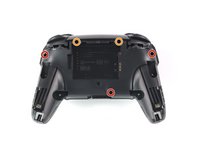
  7. Switch Pro Controller Motherboard Replacement, Remove the screws: step 7, image 1 of 3 Switch Pro Controller Motherboard Replacement, Remove the screws: step 7, image 2 of 3 Switch Pro Controller Motherboard Replacement, Remove the screws: step 7, image 3 of 3
    • Use a Phillips #1 screwdriver to remove the five 5 mm screws from the back of the controller.

    • The two case screws above the handgrips and the single case screw below the battery bay have a shallow seat. These three screws can be easily removed.

    • The two case screws adjacent to the ZR and ZL shoulder buttons have a deep seat. Use an extension or a narrow PH1 Phillips screwdriver with a longer shaft to reach these screws.

    Ask FixBot

    Add Comment

  8. Switch Pro Controller Motherboard Replacement: step 8, image 1 of 3 Switch Pro Controller Motherboard Replacement: step 8, image 2 of 3 Switch Pro Controller Motherboard Replacement: step 8, image 3 of 3
    • There's an adhesive pad located in the center of each handle. It will require a bit of force to pry away the front cover, but be mindful of the attached ribbon cable.

    • Delicately take off the plastic cover from the controller.

    • Don't completely remove the front cover just yet, as it's still attached to the motherboard via a white ribbon cable.

    Ask FixBot

    Add Comment

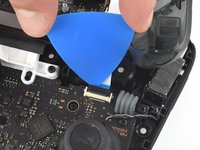
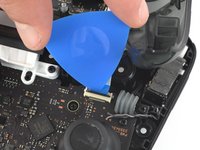
  9. Switch Pro Controller Motherboard Replacement, Open the flap: step 9, image 1 of 2 Switch Pro Controller Motherboard Replacement, Open the flap: step 9, image 2 of 2
    • Use the tip of an opening pick to open the black flap of the ZIF connector by pushing it upwards.

    Ask FixBot

    Add Comment

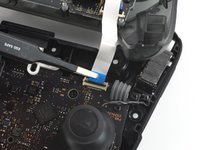
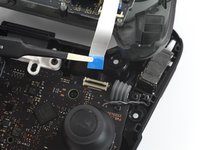
  10. Switch Pro Controller Motherboard Replacement, Disconnect the interconnect cable: step 10, image 1 of 2 Switch Pro Controller Motherboard Replacement, Disconnect the interconnect cable: step 10, image 2 of 2
    Tool used on this step:
    Tweezers
    $4.99
    Buy
    • Use your fingers or a pair of blunt nose tweezers to disconnect the interconnect cable from its connector.

    Ask FixBot

    Add Comment

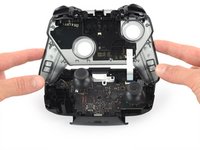
  11. Switch Pro Controller Motherboard Replacement, Remove the front case: step 11, image 1 of 1
    • Remove the front case.

    Ask FixBot

    Add Comment

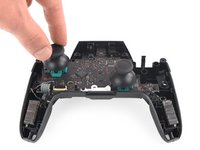
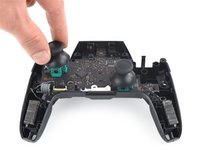
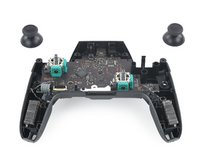
  12. Switch Pro Controller Motherboard Replacement, Remove the joystick caps: step 12, image 1 of 3 Switch Pro Controller Motherboard Replacement, Remove the joystick caps: step 12, image 2 of 3 Switch Pro Controller Motherboard Replacement, Remove the joystick caps: step 12, image 3 of 3
    • With light force pull the two joystick caps off of the controller.

    Ask FixBot

    Add Comment

  13. Switch Pro Controller Motherboard Replacement, Loosen the adhesive: step 13, image 1 of 2 Switch Pro Controller Motherboard Replacement, Loosen the adhesive: step 13, image 2 of 2
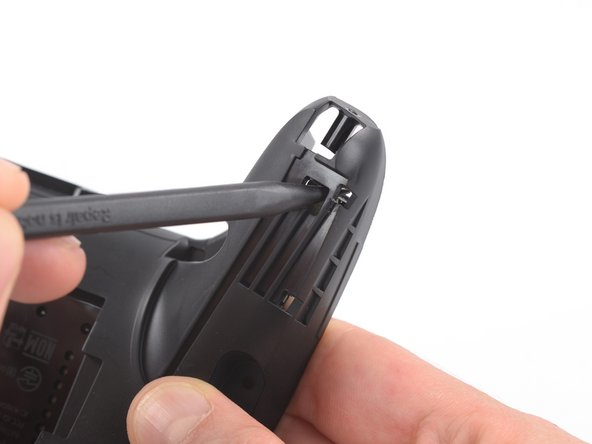
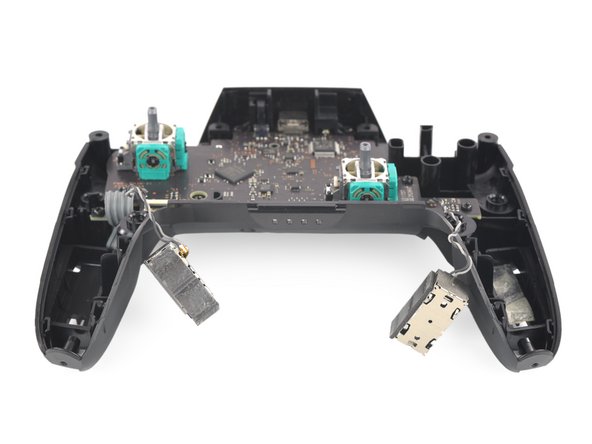
    • Insert the tip of a spudger from the back into the hole on the right controller handle.

    • Push the spudger through the hole to loosen the adhesive which is holding rumble modules in their places.

    Ask FixBot

    Add Comment

  14. Switch Pro Controller Motherboard Replacement, Loosen the adhesive: step 14, image 1 of 2 Switch Pro Controller Motherboard Replacement, Loosen the adhesive: step 14, image 2 of 2
    • Insert the tip of a spudger from the back into the hole on the left controller handle.

    • Push the spudger through the hole to loosen the adhesive which is holding rumble modules in their places.

    Ask FixBot

    Add Comment

  15. Switch Pro Controller Motherboard Replacement, Lift the modules: step 15, image 1 of 2 Switch Pro Controller Motherboard Replacement, Lift the modules: step 15, image 2 of 2
    Tool used on this step:
    Tweezers
    $4.99
    Buy
    • Use a pair tweezers to lift the modules out of their places.

    Ask FixBot

    Add Comment

  16. Switch Pro Controller Motherboard Replacement, Unscrew the motherboard: step 16, image 1 of 1
    • Use a Phillips #1 screwdriver to remove the four 5 mm-long screws securing the motherboard.

    Ask FixBot

    Add Comment

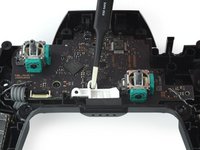
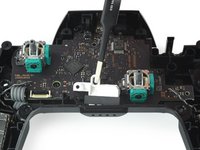
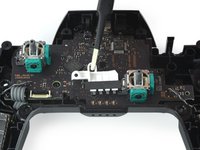
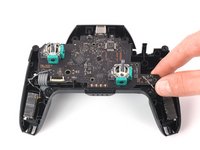
  17. Switch Pro Controller Motherboard Replacement, Remove the LED light: step 17, image 1 of 3 Switch Pro Controller Motherboard Replacement, Remove the LED light: step 17, image 2 of 3 Switch Pro Controller Motherboard Replacement, Remove the LED light: step 17, image 3 of 3
    • Use your thumb or a pair of tweezers to to take off the white LED light housing.

    Ask FixBot

    Add Comment

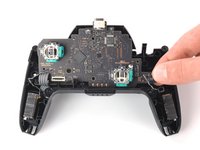
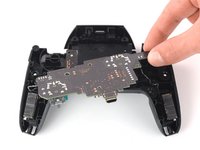
  18. Switch Pro Controller Motherboard Replacement, Lift the motherboard: step 18, image 1 of 3 Switch Pro Controller Motherboard Replacement, Lift the motherboard: step 18, image 2 of 3 Switch Pro Controller Motherboard Replacement, Lift the motherboard: step 18, image 3 of 3
    • Lift the motherboard carefully as to not damage the wires and flip it to reveal the backside.

    Ask FixBot

    Add Comment

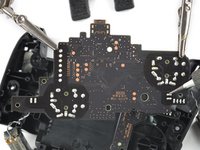
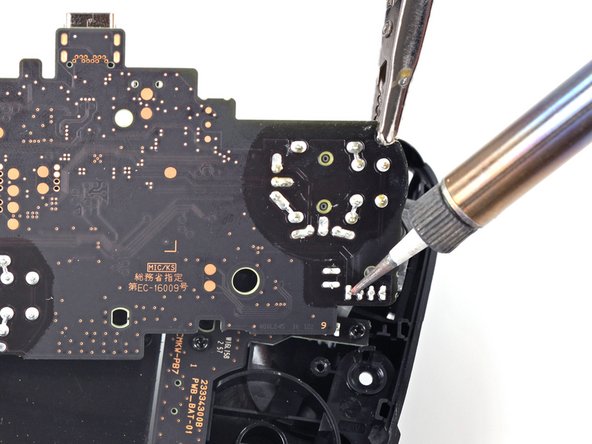
  19. Switch Pro Controller Motherboard Replacement, Desolder the rumble modules: step 19, image 1 of 3 Switch Pro Controller Motherboard Replacement, Desolder the rumble modules: step 19, image 2 of 3 Switch Pro Controller Motherboard Replacement, Desolder the rumble modules: step 19, image 3 of 3
    • Desolder the rumble motor solder points on either side of the motherboard.

    • Remove the rumble modules.

    • Refer to the following solder guide if necessary: How to Solder

    • Solder the new rumble modules into the same pins.

    Ask FixBot

    Add Comment

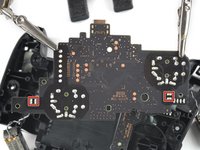
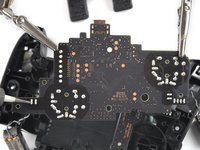
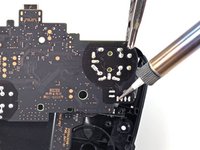
  20. Switch Pro Controller Motherboard Replacement, Desolder the main power cable: step 20, image 1 of 2 Switch Pro Controller Motherboard Replacement, Desolder the main power cable: step 20, image 2 of 2
    • Remove the main power cable from the highlighted pins by de-soldering them.

    • Remove the motherboard.

    • Refer to the following solder guide if necessary: How to Solder.

    Ask FixBot

    Add Comment

Conclusion

To reassemble your device, follow these instructions in reverse order.

Cancel: I did not complete this guide.

6 other people completed this guide.

1 Guide Comment

maybe a tutorial about how you change the usb c port since there are no videos about the pro controller replacement anywhere

Del Meg - Reply Share

Add Comment

View Statistics:

Past 24 Hours: 18

Past 7 Days: 128

Past 30 Days: 411

All Time: 25,200