
iMac G3 Model M4984 Video Ram Replacement

Chris Green and 3 other contributors
Last updated on Oct 20, 2015
Views: 9.7K
View statistics:
- Past 24 Hours:
- 2
- Past 7 Days:
- 40
- Past 30 Days:
- 130
- All Time:
- 9,688
Comments: 2
1 comment on steps, 1 guide comment.
Go to guide commentsCompleted: 7 8
7 people have marked this guide "completed." Will you be next?
8 people have marked this guide "completed." Including you — great job!
Favorites: 6 7
6 people have favorited (and subscribed to) this guide. Will you be next?
7 people have favorited (and subscribed to) this guide — including you!
Introduction
Go to step 1 ↓The iMac G3 had onboard video which usually means no upgrade-ability. The iMac developers found a way to allow video upgrade-ability (sort of); they built 2MB on to the logic board to power the ATI 3D Rage Pro Turbo PCI, and added a video ram DIMM slot on the motherboard allowing users to upgrade their video ram using proprietary Apple DIMMs.
What you need
Tools


-
-
-
The iMac G3. This was a great computer for the time, and had plenty of features.
 Ask FixBot
-
-
-
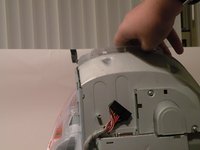
Start by flipping the iMac upside-down. It may help to lay it on a towel, so you don't damage the screen, or scratch the face.
-
-
-
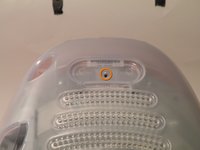
Remove this Phillips screw.
-
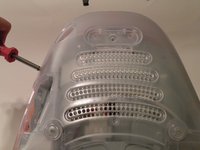
Using a flathead screwdriver, work your way around the bottom cover, until it comes off.
-
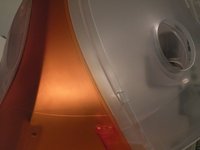
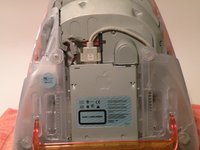
Then, lift the bottom cover up and out, and set it aside.
-
-
-
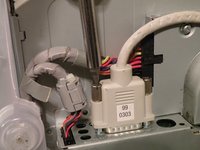
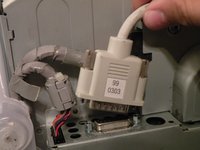
Now, remove the DB-15 Video connector from the logic board.
-
It may be helpful to use a Phillips screwdriver to remove the thumbscrews.
-
-
-
-
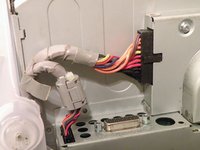
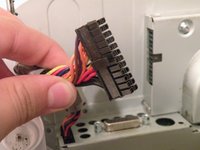
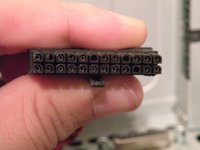
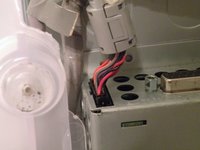
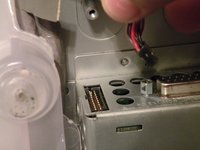
Remove the front panel connector. (You may also need to remove an additional screw that connects the front panel connector to the logic board assembly).
-
-
-
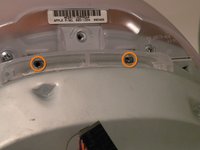
Now, remove these Phillips screws.
-
Now, grab the logic board assembly by the piece of plastic, and lift it out.
-
-
-
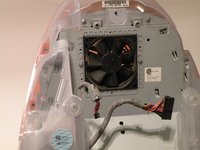
The logic board assembly. This is the heart of the computer, it contains the motherboard, CPU, RAM, V-RAM, PRAM battery, the hard drive, and the optical drive.
-
-
-
-
-
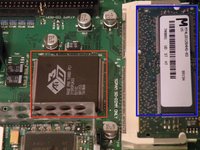
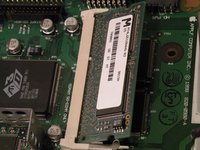
The Video-RAM DIMM slot is located on top of the logic board. Most people confuse this with the system RAM which is hidden under the CPU Shield.
-
The GPU: an ATI 3D Rage Pro Turbo PCI with 2MB onboard + the video RAM DIMM:
-
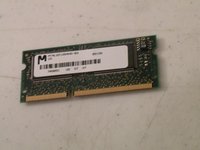
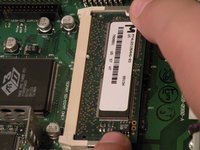
The Video RAM DIMM:
-
-
-
To remove the V-RAM, push the retaining tabs out, and the DIMM should pop up, then pull it out.
-
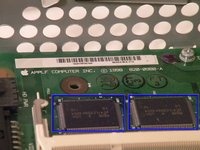
The 2MB of V-RAM soldered to the logic board:
-
According to what I've read, the iMac will support 10MB Total V-RAM, 2MB onboard, 8MB DIMM.
-
-














To reassemble your device, follow these instructions in reverse order.
Cancel: I did not complete this guide.
7 other people completed this guide.


