
Dell Latitude 9410 2-in-1 CMOS Battery Replacement

Jessica Stephens and 6 other contributors
Last updated on May 7, 2024
Views: 2.3K
View statistics:
- Past 24 Hours:
- 5
- Past 7 Days:
- 16
- Past 30 Days:
- 88
- All Time:
- 2,324
Comments: 0
No one has left comments on this guide. Will you be first?
Go to guide commentsCompleted: 0 1
No one has marked this guide "completed." Will you be the first?
1 person has marked this guide "completed." It's you — great job!
Favorites: 0 1
No one has favorited (and subscribed to) this guide. Will you be the first?
1 person has favorited (and subscribed to) this guide — and that's you!
Introduction
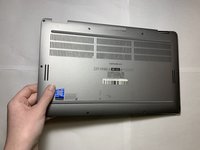
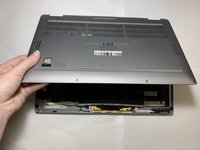
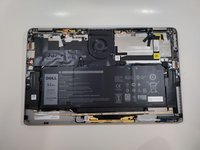
Go to step 1 ↓Use this guide to replace the coin cell battery (CMOS) of the Dell Latitude 9410 2-in-1.
If your computer runs slow, receives “Booting Error” messages, or loses BIOS settings when turned off, the CMOS may need to be replaced. The typical CMOS lifespan is 3-5 years, so if you're experiencing issues related to a failing CMOS, it's likely time to replace it. Be sure to check the troubleshooting page before moving forward with replacement.
What you need
Tools


-
-
-
-
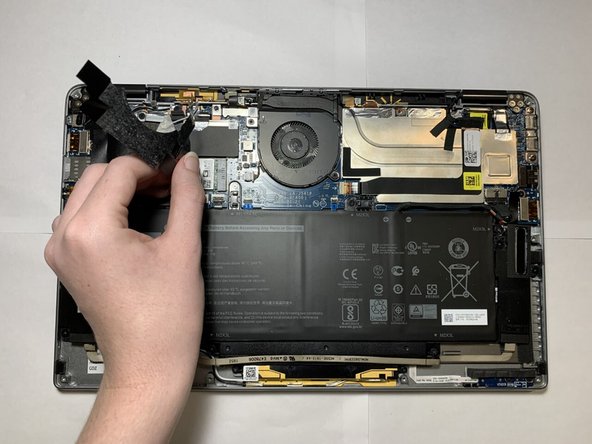
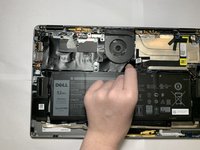
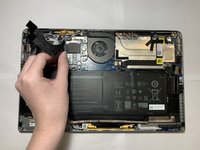
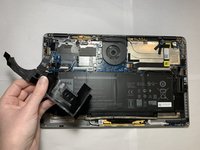
Carefully peel back and remove the black tape around the top left corner of the motherboard.
-
-
-
Tool used on this step:Tweezers$4.99
-
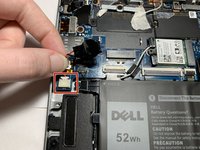
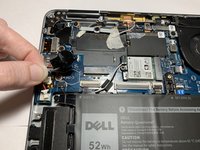
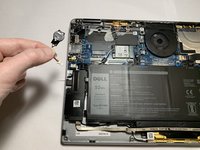
Grip the CMOS cable as close as possible to the plug, and gently pull directly backwards, in the direction of the cables, until the CMOS cable disconnects from the motherboard.
-
-

 Ask FixBot






To reassemble your device, follow these instructions in reverse order.

Team

Western Carolina University, Team 1-2, Virtue Spring 2022 Member of Western Carolina University, Team 1-2, Virtue Spring 2022
WCU-VIRTUE-S22S1G2
4 Members
72 Guides authored
