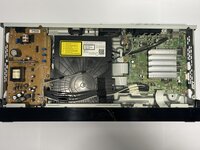
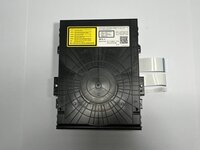
Sony BDP-S360 Optical Disk Drive Replacement

What you need

  1. Sony BDP-S360 Optical Disk Drive Replacement, Optical Disk Drive: step 1, image 1 of 1
    • Ensure the device is powered off and unplugged from any electrical source.

    • Place the device on a clean solid surface, avoiding wool or cloth surfaces to reduce the likelihood of generating static that may damage hardware.

  2. Sony BDP-S360 Optical Disk Drive Replacement: step 2, image 1 of 3 Sony BDP-S360 Optical Disk Drive Replacement: step 2, image 2 of 3 Sony BDP-S360 Optical Disk Drive Replacement: step 2, image 3 of 3
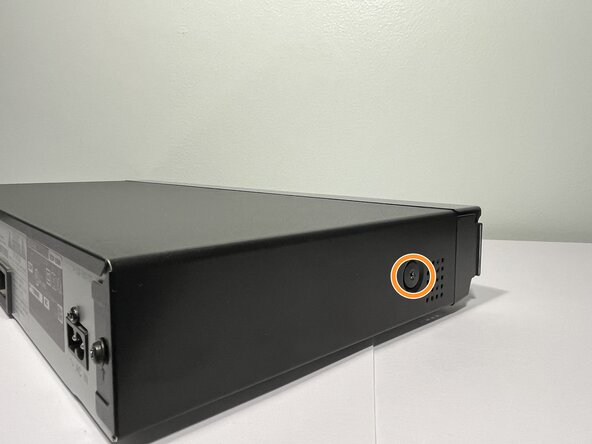
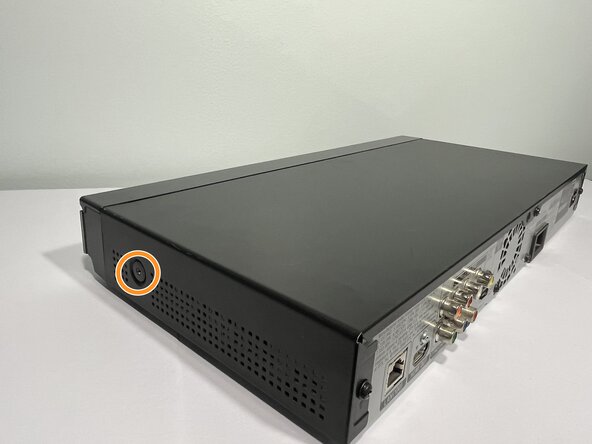
    • Use a Phillips #1 screwdriver to remove the screws from the back and sides of the device that hold the Blu-ray player’s outer casing in place.

    • Three 8.3 mm-long screws on the back of the device

    • Two 12 mm-long screws—one from each side of the device

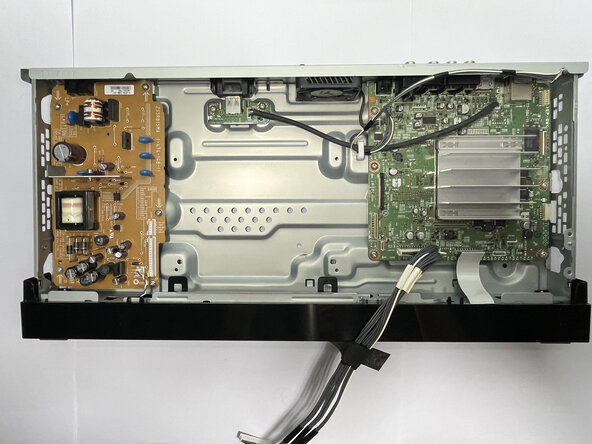
  3. Sony BDP-S360 Optical Disk Drive Replacement: step 3, image 1 of 2 Sony BDP-S360 Optical Disk Drive Replacement: step 3, image 2 of 2
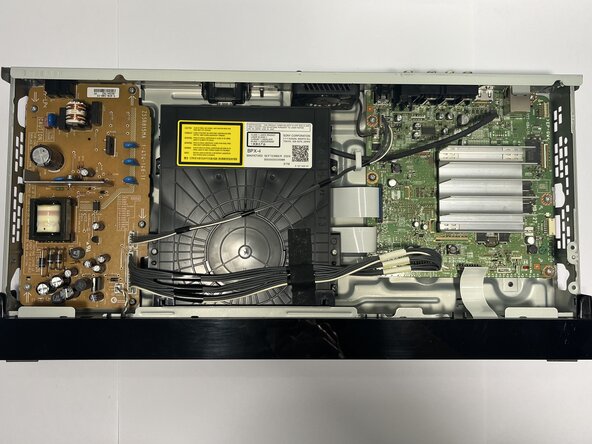
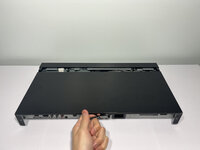
    • Slide the cover toward the back of the device to remove it.

  4. Sony BDP-S360 Optical Disk Drive Replacement: step 4, image 1 of 2 Sony BDP-S360 Optical Disk Drive Replacement: step 4, image 2 of 2
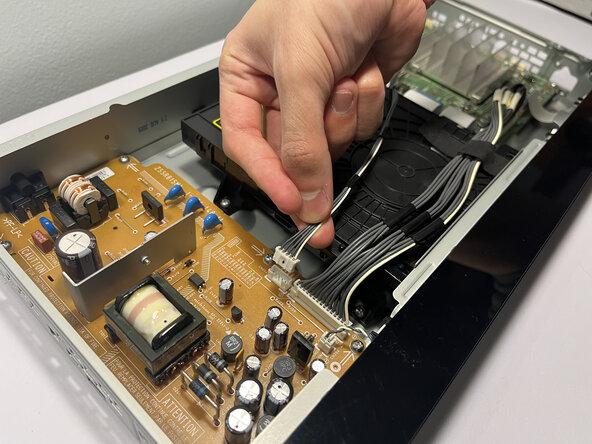
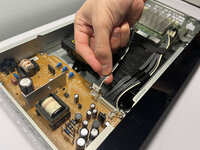
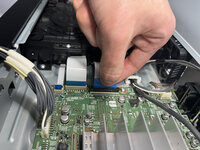
    • Use your fingers to squeeze the tab against the connector and pull straight up to disconnect the power cables from the board.

    • Don't pull on the cables as this may damage them or the connector.

    • To reconnect, push the connector over the socket until the clip engages. You'll hear and feel a distinct "click."

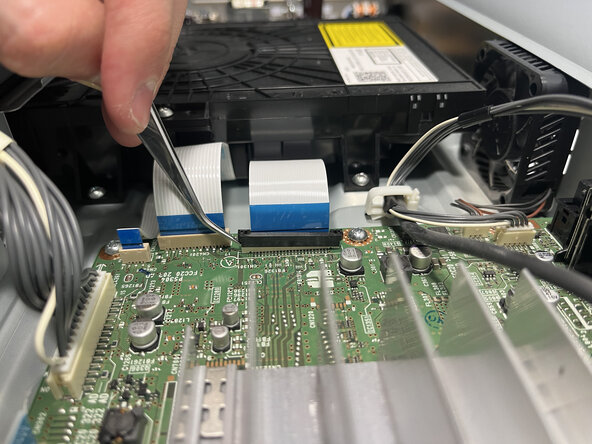
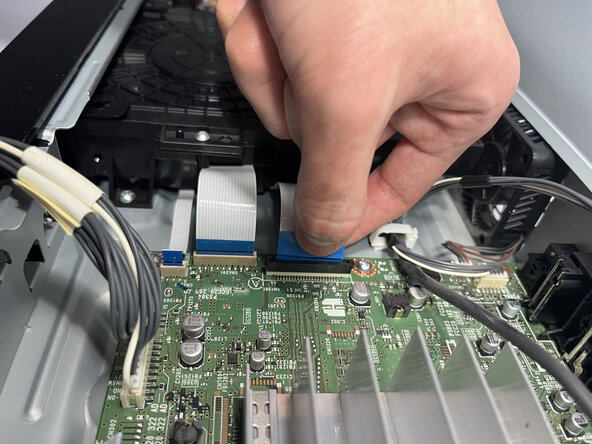
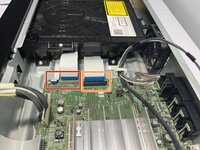
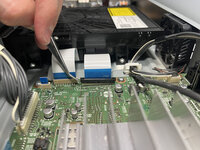
  5. Sony BDP-S360 Optical Disk Drive Replacement: step 5, image 1 of 3 Sony BDP-S360 Optical Disk Drive Replacement: step 5, image 2 of 3 Sony BDP-S360 Optical Disk Drive Replacement: step 5, image 3 of 3
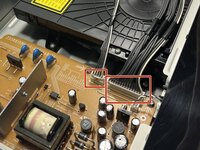
    • Use tweezers to pinch the blue tabs and gently pull out the two ribbon cables connected to the right of the optical disk drive.

    • To reconnect the cable, hold it as close to the end as possible and insert it back into the connector. Apply force to the plastic reinforcement rather than the cable itself.

    • Try not to kink or crease the cable.

    • Use a spudger or tweezers and gently push up on alternating sides of the black locking tab connector connected to the widest ribbon cable before attempting to pull out the cable.

    • Don't push the tab too hard or too far, otherwise it may come completely off the connector.

    • The ribbon cables are delicate and can be damaged if gripped directly.

    • During reassembly, insert the cable into its socket and use the flat end of a spudger to push the tab down into its locked position.

  6. Sony BDP-S360 Optical Disk Drive Replacement: step 6, image 1 of 2 Sony BDP-S360 Optical Disk Drive Replacement: step 6, image 2 of 2
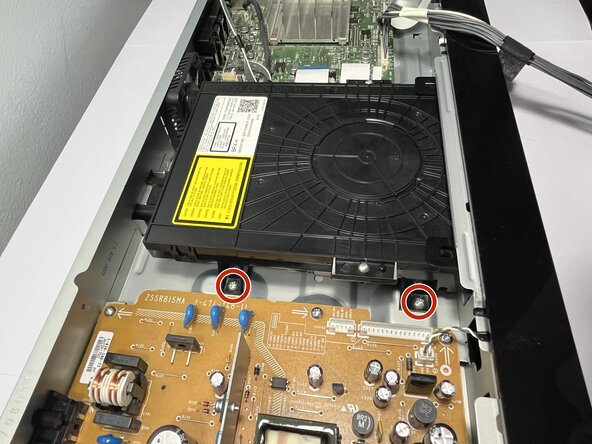
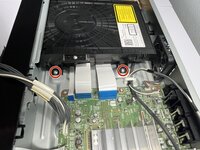
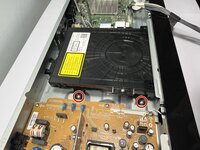
    • Use a Phillips #1 screwdriver to remove the four 7 mm screws near the corners of the component that secure the optical disc drive to the device frame.

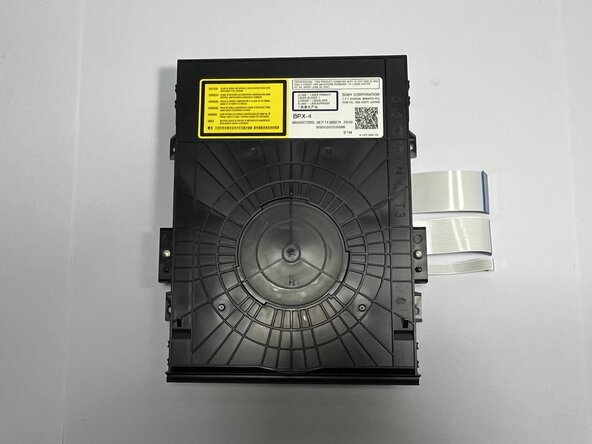
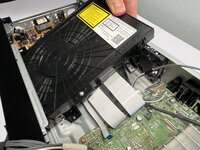
  7. Sony BDP-S360 Optical Disk Drive Replacement: step 7, image 1 of 3 Sony BDP-S360 Optical Disk Drive Replacement: step 7, image 2 of 3 Sony BDP-S360 Optical Disk Drive Replacement: step 7, image 3 of 3
    • Lift the optical disc drive at a 30-degree angle, then pull it out of the housing to remove it.

Conclusion

To reassemble your device, follow these instructions in reverse order. Take your e-waste to an R2 or e-Stewards certified recycler.

Victor Shin

Member since: 01/10/25

145 Reputation

1 Guide authored

0 Guide Comments

Add Comment

View Statistics:

Past 24 Hours: 0

Past 7 Days: 8

Past 30 Days: 23

All Time: 248