Free Shipping on Domestic Orders $75+

Scuf Instinct Pro USB-C Port Cover Replacement

What you need

  1. Scuf Instinct Pro USB-C Port Cover Replacement, Prepare your controller for disassembly: step 1, image 1 of 2 Scuf Instinct Pro USB-C Port Cover Replacement, Prepare your controller for disassembly: step 1, image 2 of 2
    • Unplug all cables from your controller before starting.

    • Completely power off your controller.

    • Due to the controller’s odd shape, it can be helpful to stabilize it as you work. To prevent damage, consider laying it on a soft surface like a cloth or towel.

    Ask FixBot
  2. Scuf Instinct Pro USB-C Port Cover Replacement, Remove the faceplate: step 2, image 1 of 3 Scuf Instinct Pro USB-C Port Cover Replacement, Remove the faceplate: step 2, image 2 of 3 Scuf Instinct Pro USB-C Port Cover Replacement, Remove the faceplate: step 2, image 3 of 3
    • Magnets secure the faceplace to the midframe.

    • Lift the top edge of the faceplate to release the magnets securing it.

    • Remove the faceplate.

    Ask FixBot
  3. Scuf Instinct Pro USB-C Port Cover Replacement, Remove the battery cover: step 3, image 1 of 2 Scuf Instinct Pro USB-C Port Cover Replacement, Remove the battery cover: step 3, image 2 of 2
    • Weak magnets and two clips along the bottom edge secure the battery cover to the controller.

    • Slide the battery cover away from the controller to remove it.

    Ask FixBot
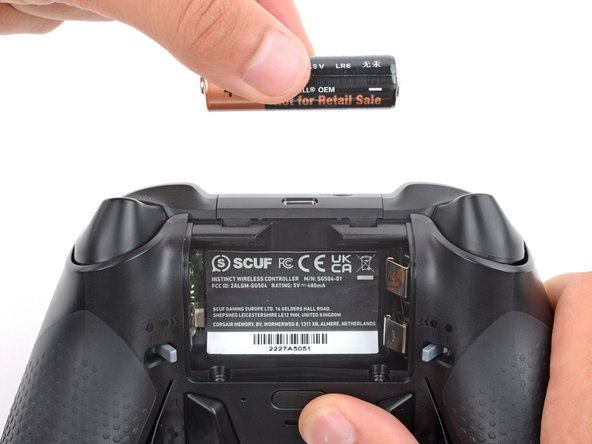
  4. Scuf Instinct Pro USB-C Port Cover Replacement, Remove the batteries: step 4, image 1 of 3 Scuf Instinct Pro USB-C Port Cover Replacement, Remove the batteries: step 4, image 2 of 3 Scuf Instinct Pro USB-C Port Cover Replacement, Remove the batteries: step 4, image 3 of 3
    • If your batteries are starting to corrode, clean the contacts and replace the batteries.

    • Use your fingers to remove the batteries.

    • During reassembly, insert the batteries so their positive (+) and negative () ends match up with the markings on the battery contacts.

    Ask FixBot
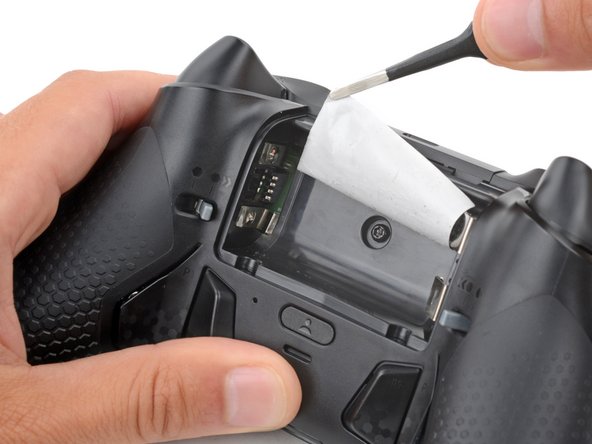
  5. Scuf Instinct Pro USB-C Port Cover Replacement, Heat the battery sticker: step 5, image 1 of 2 Scuf Instinct Pro USB-C Port Cover Replacement, Heat the battery sticker: step 5, image 2 of 2
    • The sticker in the battery recess hides a back cover screw.

    • If you don't care about damaging the sticker, you can puncture through the center and skip the next step.

    • Use a hair dryer to heat the sticker and soften the adhesive securing it.

    • The sticker can be peeled without heating, but you risk tearing it.

    Ask FixBot
  6. Scuf Instinct Pro USB-C Port Cover Replacement, Peel up the battery sticker: step 6, image 1 of 3 Scuf Instinct Pro USB-C Port Cover Replacement, Peel up the battery sticker: step 6, image 2 of 3 Scuf Instinct Pro USB-C Port Cover Replacement, Peel up the battery sticker: step 6, image 3 of 3
    Tool used on this step:
    Tweezers
    $4.99
    Buy
    • Use the point of a spudger to push up a corner of the sticker until you can grab it with a pair of blunt nose tweezers.

    • Use your tweezers to peel up the sticker until the back cover screw is accessible.

    Ask FixBot
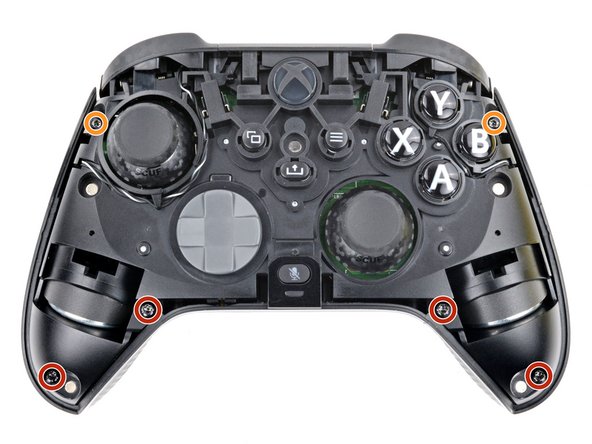
  7. Scuf Instinct Pro USB-C Port Cover Replacement, Unfasten the midframe: step 7, image 1 of 3 Scuf Instinct Pro USB-C Port Cover Replacement, Unfasten the midframe: step 7, image 2 of 3 Scuf Instinct Pro USB-C Port Cover Replacement, Unfasten the midframe: step 7, image 3 of 3
    Tool used on this step:
    FixMat
    $36.95
    Buy
    • Throughout this repair, keep track of each screw and make sure it goes back exactly where it came from.

    • Use a T8 Torx screwdriver to remove five 9.3 mm‑long screws securing the midframe:

    • One back cover screw

    • Four screws on top of the midframe

    • Use a T6 Torx screwdriver to remove the two 9.3 mm‑long screws securing the midframe.

    Ask FixBot
  8. Scuf Instinct Pro USB-C Port Cover Replacement, Unclip the midframe: step 8, image 1 of 3 Scuf Instinct Pro USB-C Port Cover Replacement, Unclip the midframe: step 8, image 2 of 3 Scuf Instinct Pro USB-C Port Cover Replacement, Unclip the midframe: step 8, image 3 of 3
    • Plastic clips secure the bottom edge of the midframe.

    • Insert the flat end of a spudger between the bottom edge of the midframe and back cover.

    • Pry the midframe up with the spudger to release the clips.

    • Continue prying along the bottom edge to release the remaining clips.

    • Don't try to remove the midframe from the back cover yet—a delicate ribbon cable connects them.

    Ask FixBot
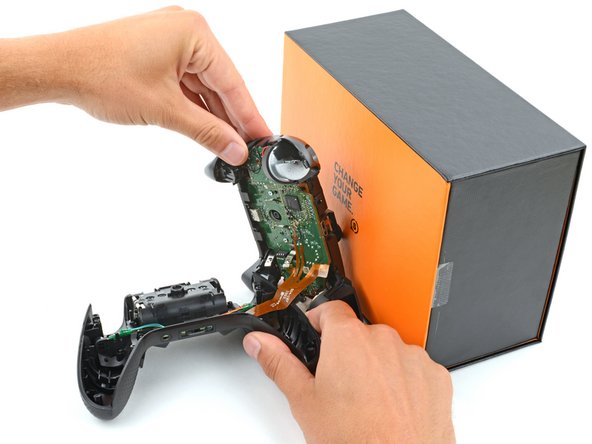
  9. Scuf Instinct Pro USB-C Port Cover Replacement, Prop up the midframe: step 9, image 1 of 3 Scuf Instinct Pro USB-C Port Cover Replacement, Prop up the midframe: step 9, image 2 of 3 Scuf Instinct Pro USB-C Port Cover Replacement, Prop up the midframe: step 9, image 3 of 3
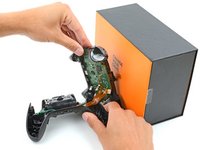
    • Put a box or a stack of books to the right of the controller so you can prop up the midframe while disconnecting its ribbon cable.

    • Secure the back cover with one hand, and use your other hand to grip the midframe's left edge.

    • Lift the midframe and rotate it over the right edge of the back cover, so the midframe's right edge is on your workspace.

    • Prop the midframe up, being careful not to strain the ribbon cable.

    Ask FixBot
  10. Scuf Instinct Pro USB-C Port Cover Replacement, Reassembly information: step 10, image 1 of 3 Scuf Instinct Pro USB-C Port Cover Replacement, Reassembly information: step 10, image 2 of 3 Scuf Instinct Pro USB-C Port Cover Replacement, Reassembly information: step 10, image 3 of 3
    • During reassembly:

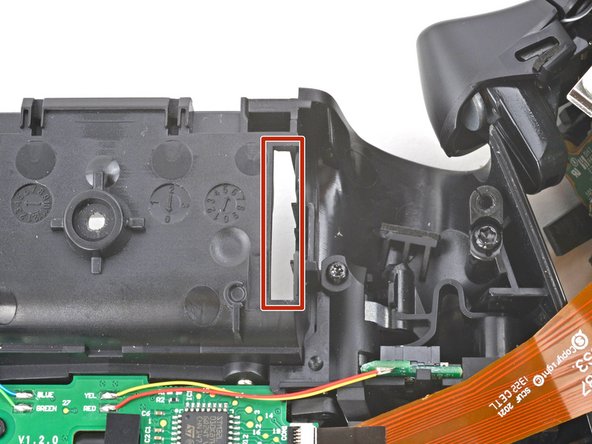
    • Guide the battery connectors on the midframe through their slot in the back cover.

    • Make sure the contacts slide into their grooves in the battery recess. If they aren't in the correct spot, the controller won't receive power.

    Ask FixBot
  11. Scuf Instinct Pro USB-C Port Cover Replacement, Disconnect the midframe: step 11, image 1 of 3 Scuf Instinct Pro USB-C Port Cover Replacement, Disconnect the midframe: step 11, image 2 of 3 Scuf Instinct Pro USB-C Port Cover Replacement, Disconnect the midframe: step 11, image 3 of 3
    Tool used on this step:
    Tweezers
    $4.99
    Buy
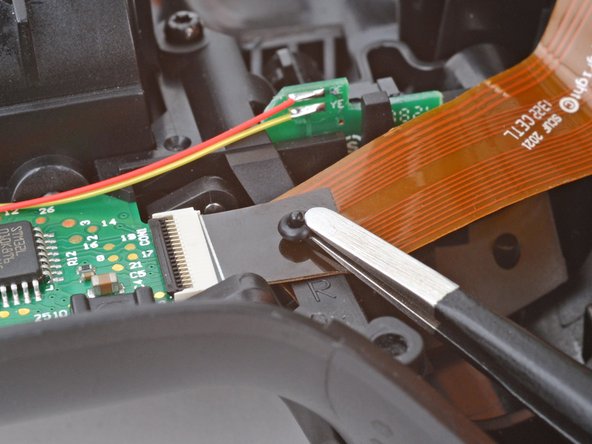
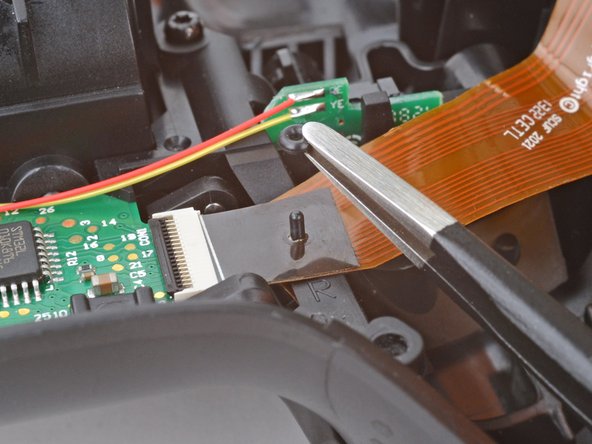
    • A very small rubber grommet secures the midframe's ribbon cable to a post on the right side of the back cover.

    • Use blunt nose tweezers to remove the grommet—don't lose it!

    Ask FixBot
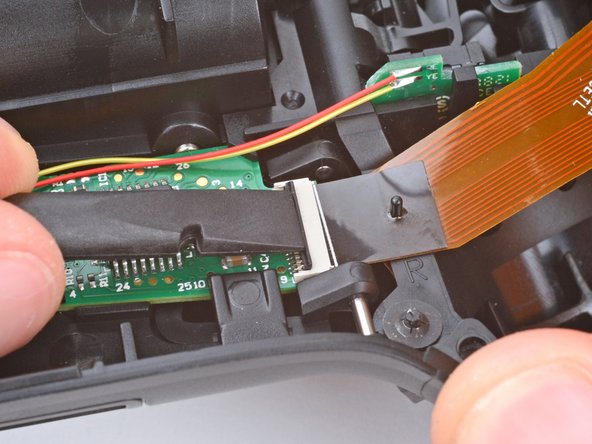
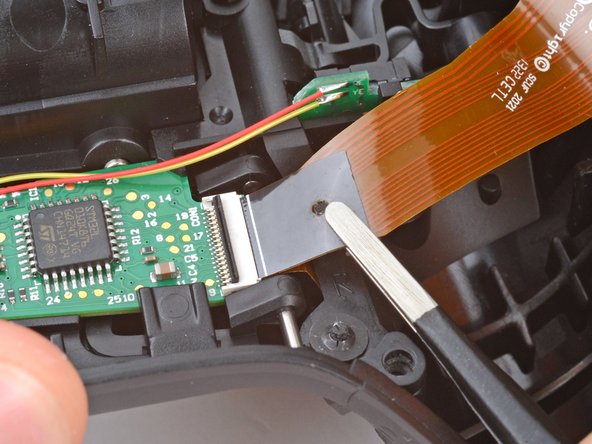
  12. Scuf Instinct Pro USB-C Port Cover Replacement: step 12, image 1 of 2 Scuf Instinct Pro USB-C Port Cover Replacement: step 12, image 2 of 2
    • Use the flat end of a spudger or a clean fingernail to lift the hinged locking flap on the midframe cable ZIF connector.

    Ask FixBot
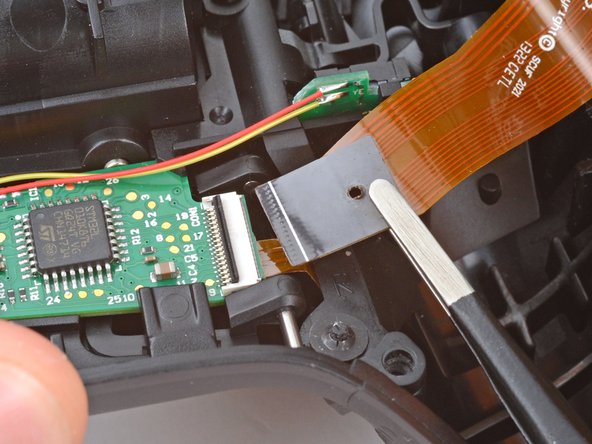
  13. Scuf Instinct Pro USB-C Port Cover Replacement: step 13, image 1 of 3 Scuf Instinct Pro USB-C Port Cover Replacement: step 13, image 2 of 3 Scuf Instinct Pro USB-C Port Cover Replacement: step 13, image 3 of 3
    • Use blunt nose tweezers to grip the black pull tab on the midframe cable.

    • Lift the midframe cable off its post and pull it straight out of its socket.

    Ask FixBot
  14. Scuf Instinct Pro USB-C Port Cover Replacement, Remove the midframe: step 14, image 1 of 1
    • Remove the midframe.

    Ask FixBot
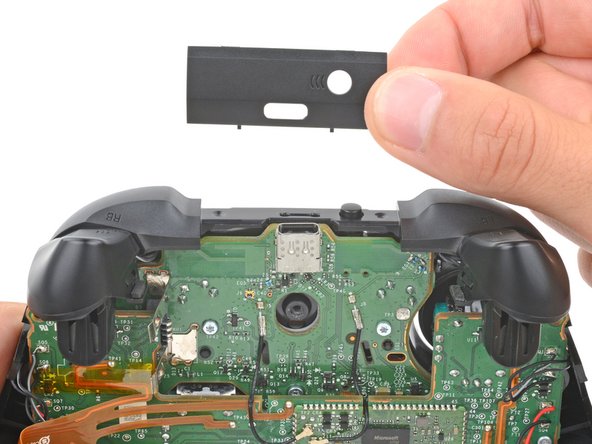
  15. Scuf Instinct Pro USB-C Port Cover Replacement, Remove the USB‑C port cover: step 15, image 1 of 3 Scuf Instinct Pro USB-C Port Cover Replacement, Remove the USB‑C port cover: step 15, image 2 of 3 Scuf Instinct Pro USB-C Port Cover Replacement, Remove the USB‑C port cover: step 15, image 3 of 3
    • The top of the USB‑C port cover is secured with a pair of plastic arms. The bottom is secured with plastic clips.

    • Rotate the underside of the USB‑C port cover up and away from the controller to release the bottom clips.

    • Unhook the plastic arms and remove the cover.

    • During reassembly:

    • Hook the ends of the USB‑C cover's arms into their slots on either side of the Xbox button.

    • Rotate the cover downward until the bottom clips engage and the cover is flush with the bumpers.

    Ask FixBot
Conclusion

To reassemble your device, follow these instructions in reverse order.

Take your e-waste to an R2 or e-Stewards certified recycler.

Repair didn’t go as planned? Try some basic troubleshooting, or ask our Answers community for help.


Spencer Day

Member since: 09/14/22

188,208 Reputation

1,187 Guides authored

Team

iFixit Member of iFixit

Staff

123 Members

25,799 Guides authored

0 Guide Comments

Add Comment

View Statistics:

Past 24 Hours: 1

Past 7 Days: 11

Past 30 Days: 49

All Time: 764