
Samsung Galaxy Note 4 Display Assembly Replacement

Sophia and 11 other contributors
Last updated on Aug 2, 2018
Views: 321K
View statistics:
- Past 24 Hours:
- 4
- Past 7 Days:
- 33
- Past 30 Days:
- 126
- All Time:
- 321,056
Comments: 49
7 comments on steps, 42 guide comments.
Go to guide commentsCompleted: 161 162
161 people have marked this guide "completed." Will you be next?
162 people have marked this guide "completed." Including you — great job!
Favorites: 91 92
91 people have favorited (and subscribed to) this guide. Will you be next?
92 people have favorited (and subscribed to) this guide — including you!
Community-Contributed Guide
An awesome member of our community made this guide. It was not created by iFixit staff.
Introduction
Go to step 1 ↓Use this guide to replace the display assembly on your Galaxy Note 4.
What you need
Fix Kit
This kit contains all the parts and tools needed to complete this guide.

Parts


Tools
-
-
Spudger4.9
-


Video Overview
-
-
-
NOTE: It is suggested to remove the battery, S Pen, SD Card, and SIM card (if your phone uses a SIM card).
-
Begin by heating the edges of the screen. The adhesive on the Galaxy Note 4 is weaker than on newer generations and will release easier, requiring less heat and prying.
 Ask FixBot
-
-
-
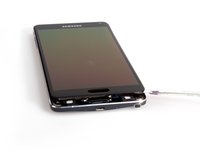
Slowly work your way around the edges of the screen with a pry tool or pick.
-
Work your way around the top and sides of the device, and very carefully approach the adhesive on the bottom of the phone. The Galaxy Note 4's touch-sensitive pads lay in the way of your opening picks and it is very easy to sever them.
-
-
-
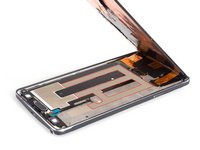
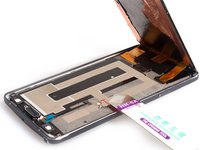
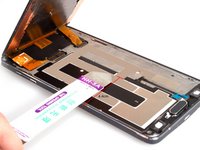
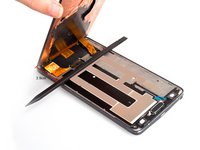
Insert the Jimmy underneath the LCD to cut the adhesive in the middle part. The adhesive is strong so make sure you are underneath the copper insulation before separating.
-
-
-
Notice 1: The adhesive is in the red line.
-
Notice 2: If you insert the spudger from right side, keep the length of the tool in less than 2.2cm, which is for avoiding damaging the home button flex.
-
Notice 3: If you insert the spudger from left side, keep the length of the tool in less than 4.4cm for the same reason.
-
-
-
Notice 4: Pay attention to the part with LCD screen flex. When you cut the adhesive, leave the top part alone to avoid damage the flex. But if it's the broken screen, you don't need to worry so much.
-
-
-






To reassemble your device, follow these instructions in reverse order.
Cancel: I did not complete this guide.
161 other people completed this guide.

42 Guide Comments
Here in our tech community we have been discussing the foil under the LCD. We are doing more testing but there might be a connection with the foil functioning in conjunction with S-Pen and AirView. Can anyone confirm this?
Yes, the foil permits the s pen to function. If you have the part of the foil that was riped off you can tape it back.
the foil itself has nothing to do with the functioning of the spen. It is for heat dissipation
