
Resetting Windows 10

Conor Bailey and 4 other contributors
Last updated on Jun 17, 2019
Views: 6.1K
View statistics:
- Past 24 Hours:
- 7
- Past 7 Days:
- 41
- Past 30 Days:
- 192
- All Time:
- 6,051
Comments: 2
2 guide comments.
Go to guide commentsCompleted: 21 22
21 people have marked this guide "completed." Will you be next?
22 people have marked this guide "completed." Including you — great job!
Favorites: 8 9
8 people have favorited (and subscribed to) this guide. Will you be next?
9 people have favorited (and subscribed to) this guide — including you!
Community-Contributed Guide
An awesome member of our community made this guide. It was not created by iFixit staff.
Introduction
Go to step 1 ↓Using Settings, we're going to initiate a Windows reset.
This is the catchall, the nuclear option, this method will fix most, if not every problem with windows 10.
There are many reasons why you may want to reset windows
- If your PC is running slow and can't figure out why.
- Your concerned that you have a virus and your anti-virus isn't picking anything up.
- Vital parts of windows have failed due to a botched update/upgrade.
- The stars have aligned and you had a vision telling you to do it.
What ever the reason, the process is now simpler than ever with windows 10, follow the steps below to begin!
-
-
-
Press Windows + I to open your settings window.
-
Then click "Update & security"
 Ask FixBot
-
-
-
You are then asked to choose one of two options. Pick one that would best suit your needs.
-
Keep my Files: This will keep any files you have stored in the windows Documents, Pictures and Videos folders etc. This will result in a fresh install of windows but keep all your files.
-
Remove everything: This will completely refresh the windows OS, free from any files or apps that where on before, any files stored on other drives or partitions will remain. Make sure you back up any data you want to keep before choosing this option.
-
-
-
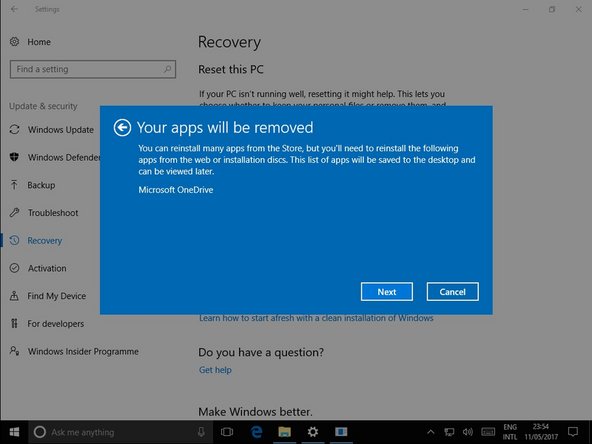
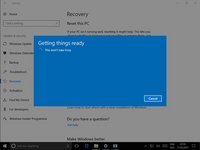
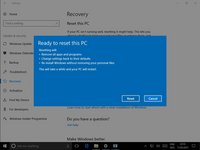
After a short wait, windows will let you know what apps will be uninstalled. Click "Next"
-
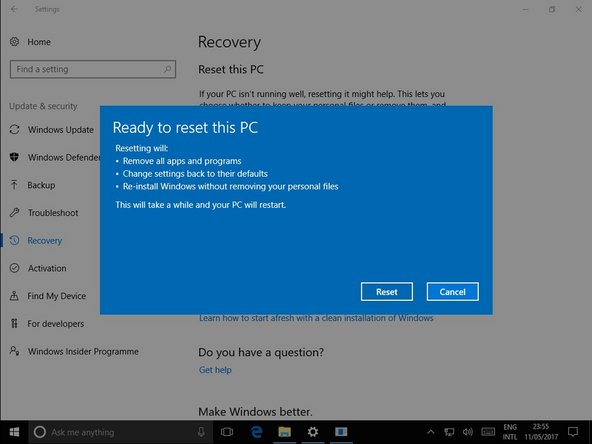
After reading a quick overview of what is about to happen. Click "Reset"
-
-
-
-
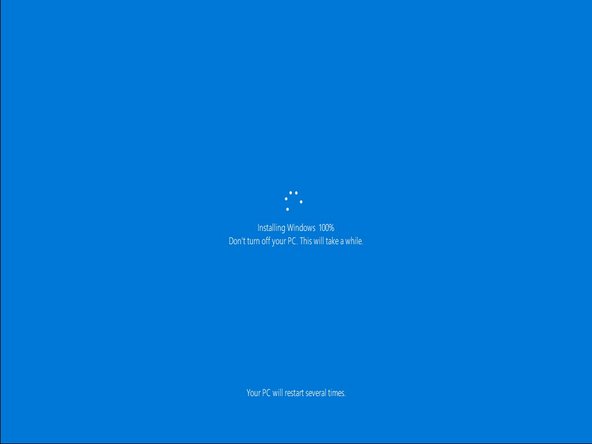
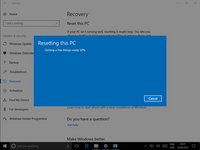
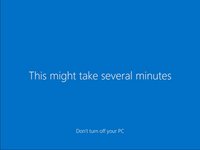
The rest is automatic and will take some time. Make yourself a cup of tea and relax.
-
-
-
Once the reset is finished just log in as normal.
-
Windows will make a few final changes, and your done!
-
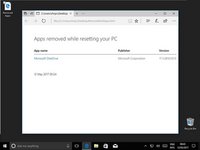
On your desktop will be a html file that will contain all the apps that were removed.
-
-








To reassemble your device, follow these instructions in reverse order.
Cancel: I did not complete this guide.
21 other people completed this guide.


2 Guide Comments
Really nice information to the techies and readers... who want to do the job yourself.. I m sure anyone can reset the laptop , if he she follows the instructions mentioned here.
