
PowerLead Puto PLD003 Zoom Button Replacement

Justin Tew and 5 other contributors
Last updated on Mar 29, 2023
Views: 602
View statistics:
- Past 24 Hours:
- 3
- Past 7 Days:
- 22
- Past 30 Days:
- 92
- All Time:
- 602
Comments: 0
No one has left comments on this guide. Will you be first?
Go to guide commentsCompleted: 0 1
No one has marked this guide "completed." Will you be the first?
1 person has marked this guide "completed." It's you — great job!
Favorites: 0 1
No one has favorited (and subscribed to) this guide. Will you be the first?
1 person has favorited (and subscribed to) this guide — and that's you!
Better Introduction
Improve this guide by completing or revising its introduction.
Introduction
Go to step 1 ↓This guide shows how to remove the side panel from the camera, how to remove the back panel, and how to replace the zoom button.
What you need
Tools

-
-
-
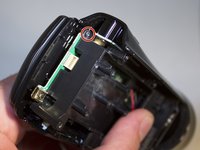
With the battery door open, carefully remove all four 5 mm Phillips #1 screws.
-
-
-
Rotate the camera so that the underside is facing up.
-
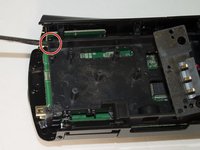
Remove the four 5 mm Phillips #1 screws.
-
-
-
Place the camera on a flat surface, with its underside facing you.
-
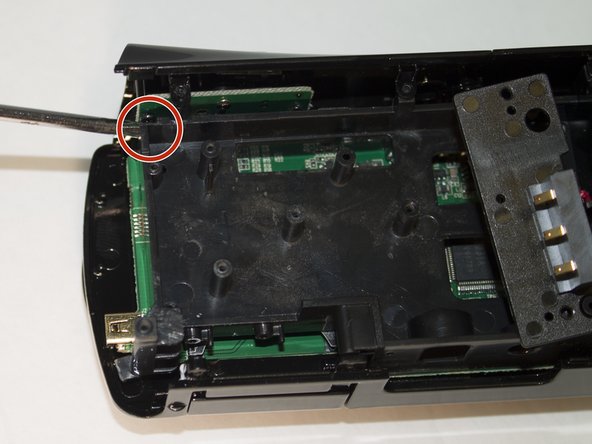
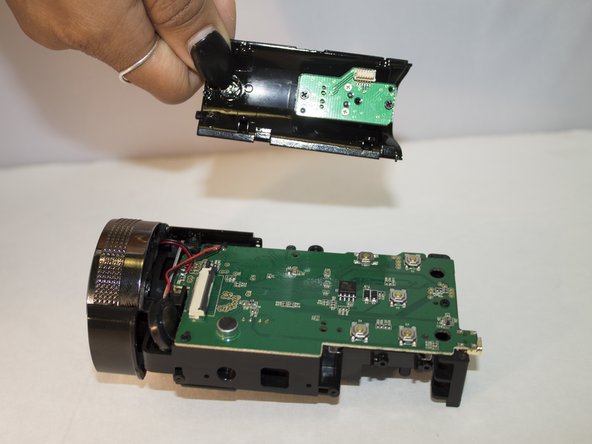
Gently pull up on the side panel to remove it from the camera.
-
-
-
-
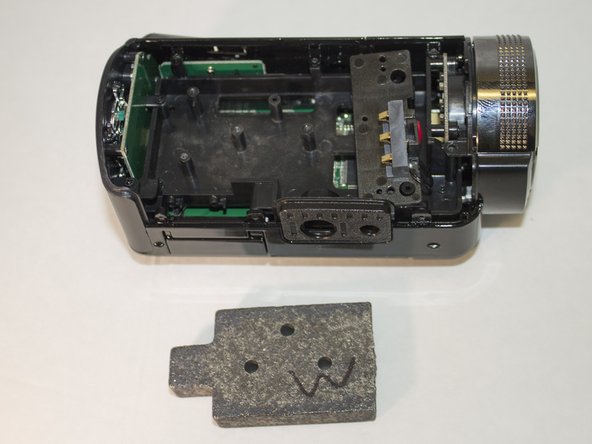
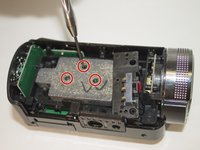
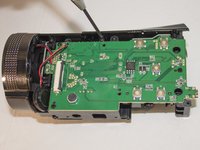
Remove the 4 mm Phillips #1 screws holding the weight.
-
Remove the weight.
-
-
-
Carefully apply pressure away from the camera to the screen to detach it from the body.
-
The white cord should still be connected to the body.
-
-
-
-
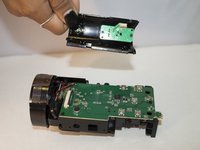
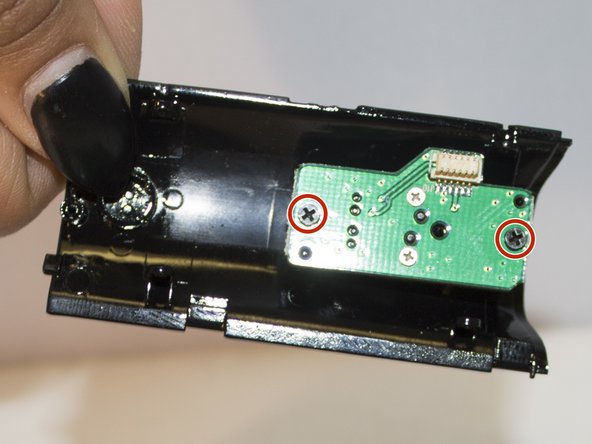
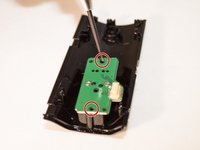
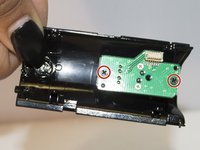
Lift the circuit board out of the plastic casing.
-
Gently pull on the zoom button to remove it from the circuit board.
-
-

 Ask FixBot








To reassemble your device, follow these instructions in reverse order.

Team

Eastern Washington University, Team 1-2, Giguere Spring 2016 Member of Eastern Washington University, Team 1-2, Giguere Spring 2016
EWU-GIGUERE-S16S1G2
4 Members
84 Guides authored
