KDDI Kyocera A5521K Faceplate Replacement

What you need

  1. KDDI Kyocera A5521K Faceplate Replacement, Battery: step 1, image 1 of 3 KDDI Kyocera A5521K Faceplate Replacement, Battery: step 1, image 2 of 3 KDDI Kyocera A5521K Faceplate Replacement, Battery: step 1, image 3 of 3
    • Turn the phone over to expose the battery cover.

    • Apply pressure to the back of the battery cover to slide it down.

    • The battery cover is now separate from the phone.

  2. KDDI Kyocera A5521K Faceplate Replacement: step 2, image 1 of 3 KDDI Kyocera A5521K Faceplate Replacement: step 2, image 2 of 3 KDDI Kyocera A5521K Faceplate Replacement: step 2, image 3 of 3
    • Remove the battery by pushing it up and out from the bottom.

    • The battery, cover, and phone should now be separated.

  3. KDDI Kyocera A5521K Faceplate Replacement, Faceplate: step 3, image 1 of 3 KDDI Kyocera A5521K Faceplate Replacement, Faceplate: step 3, image 2 of 3 KDDI Kyocera A5521K Faceplate Replacement, Faceplate: step 3, image 3 of 3
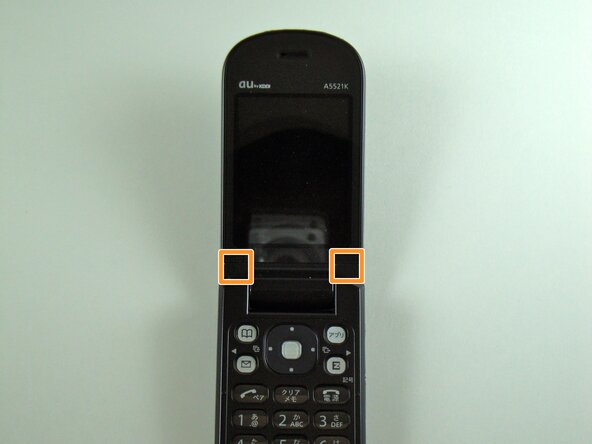
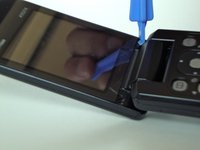
    • Start by prying, with a metal probe, the black covers that are located by the pivoting joints of the phone/

    • Beneath those covers are the screws.

  4. KDDI Kyocera A5521K Faceplate Replacement: step 4, image 1 of 1
    • Remove the screws using a Y0 screwdriver.

  5. KDDI Kyocera A5521K Faceplate Replacement: step 5, image 1 of 3 KDDI Kyocera A5521K Faceplate Replacement: step 5, image 2 of 3 KDDI Kyocera A5521K Faceplate Replacement: step 5, image 3 of 3
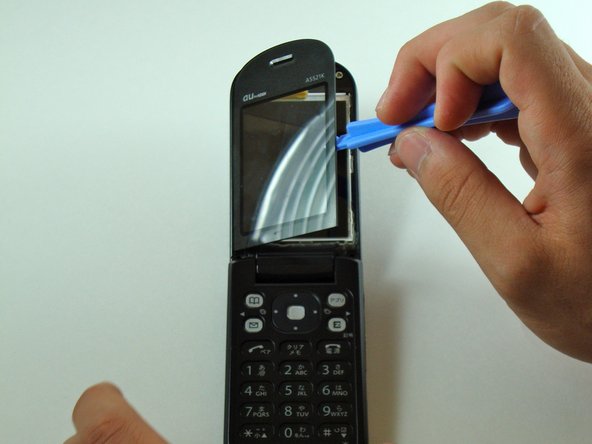
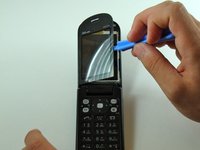
    • Use the iPod pry tool to remove the outer screen.

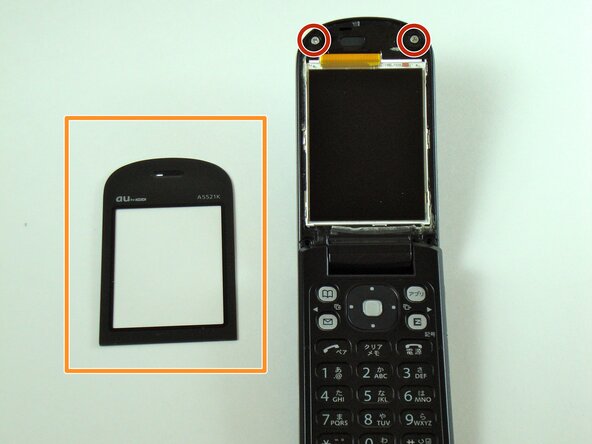
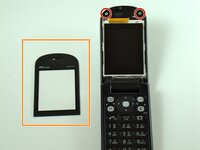
    • Two screws are now visible.

    • Be careful not to crack the screen upon removal. It adheres strongly to the phone.

  6. KDDI Kyocera A5521K Faceplate Replacement: step 6, image 1 of 1
    • Use the Y0 screwdriver to remove the screws.

  7. KDDI Kyocera A5521K Faceplate Replacement: step 7, image 1 of 2 KDDI Kyocera A5521K Faceplate Replacement: step 7, image 2 of 2
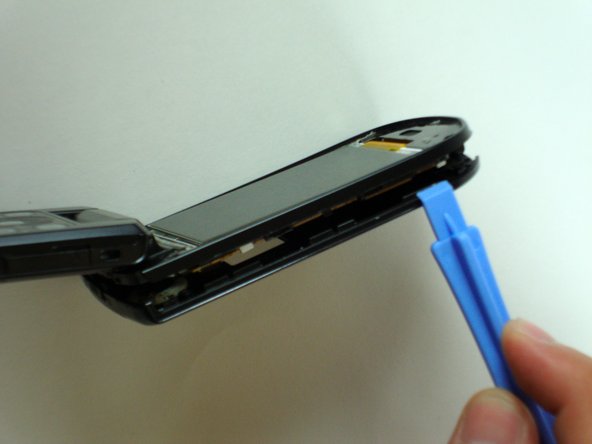
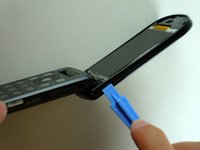
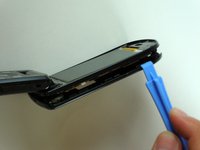
    • Use the iPod pry tool to loosen the faceplate from the phone.

    • Slide the pry tool along the entire crease of the faceplate to completely detach it.

  8. KDDI Kyocera A5521K Faceplate Replacement: step 8, image 1 of 3 KDDI Kyocera A5521K Faceplate Replacement: step 8, image 2 of 3 KDDI Kyocera A5521K Faceplate Replacement: step 8, image 3 of 3
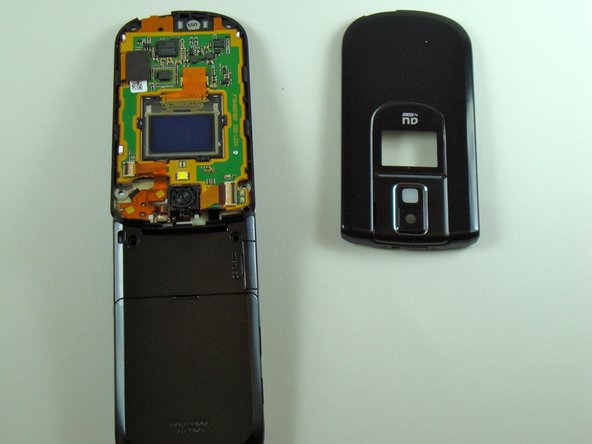
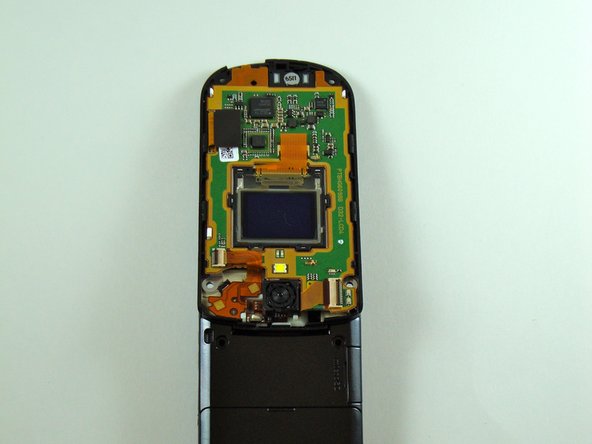
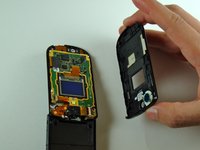
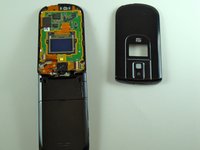
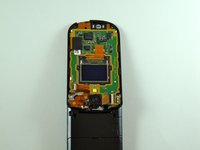
    • Separate the faceplate from the phone.

Conclusion

To reassemble your device, follow these instructions in the reverse order.

One other person completed this guide.

Dominic Grisafe

Member since: 04/15/10

157 Reputation

10 Guides authored

Team

Cal Poly, Team 28-25, Regan Spring 2010 Member of Cal Poly, Team 28-25, Regan Spring 2010

CPSU-REGAN-S10S28G25

4 Members

20 Guides authored

0 Guide Comments

Add Comment

View Statistics:

Past 24 Hours: 0

Past 7 Days: 2

Past 30 Days: 12

All Time: 1,851