Introduction
If the microphone of your Petcube Play 2 (identified by model number PP2OUS) is malfunctioning, use this guide to replace it.
The Petcube Play 2 comes with an LED that turns different colors that relay what state the Petcube is in. These can include when the LED turning green when setting up, turning blue when it is streaming, and error-related colors like orange when there is no access point. A defective LED will not turn on.
Before using this guide, ensure that there are no other issues with the LED. The Troubleshooting Page covers issues that could be preventing the LED from turning on and how to address them.
Ensure the Petcube Play 2 is turned off before beginning the replacement process. This guide requires soldering. For more information on soldering, take a look at this guide on How to Solder and Desolder Connections.
What you need
-
-
-
Flip over the Petcube so the rubber bottom faces you.
-
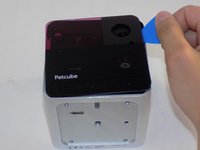
Pull up the rubber layer with an iFixit opening pick to expose the screws underneath.
 Ask FixBot
-
-
-
Remove the four 3.5mm screws from under the rubber cover using a Phillips #1 screwdriver.
-
-
-
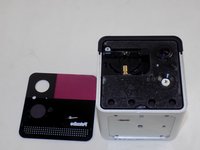
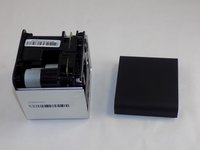
Slide off the two covers, starting with the top plastic cover.
-
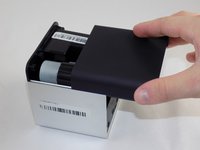
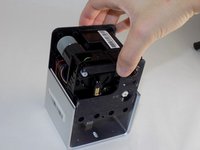
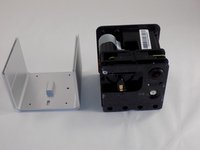
Slide out the internal assembly from the aluminum casing.
-
-
-
-
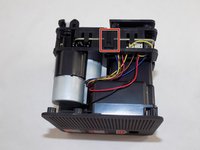
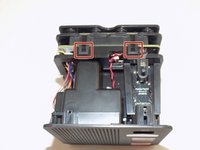
Flip the cube onto its side to locate the pull tabs.
-
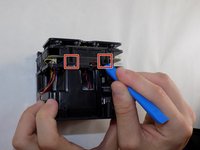
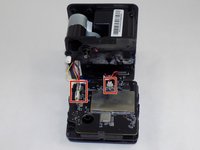
Using an opening tool, lift each of the five tabs to separate the two halves of the Petcube 2.
-
-
-
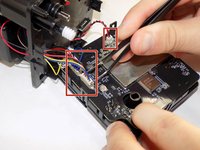
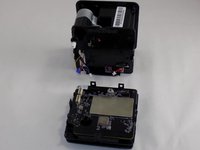
Gently disconnect the cable connectors to separate the two halves of the device.
-
-
-
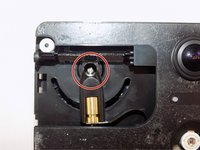
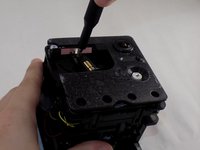
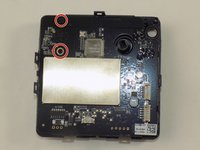
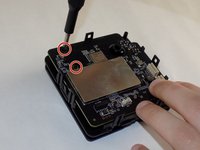
Use a Phillips #1 screwdriver to remove the two 1mm screws.
-
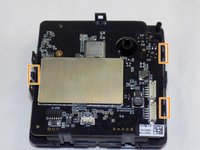
Carefully release each of the tabs on the sides of the cube and remove the motherboard.
-
-
-
-
-
Using a Phillips #1 screwdriver, remove the screws to disconnect the front plates from each other.
-
-
-
Remove the front plastic casing from the circuit board.
-
Identify the LED and the foam protector.
-
Remove the foam protector by gently pulling upwards with thin tweezers.
-
Use a soldering iron to desolder the LED from the board. Solder the new LED in the same place and orientation.
-
-














To reassemble your device, follow these instructions in reverse order. Take your e-waste to an R2 or e-Stewards certified recycler.

Team

UMass Dartmouth, Team 1-5, Konn Spring 2024 Member of UMass Dartmouth, Team 1-5, Konn Spring 2024
UMASSD-KONN-S24S1G5
4 Members
72 Guides authored
