Shop the Holiday Gift Guide
Free Shipping on Domestic Orders $75+

Nintendo Switch 2 Screen Removal

Views: 209

View statistics:

Past 24 Hours:
1
Past 7 Days:
11
Past 30 Days:
24
All Time:
209
Comments: 0

No one has left comments on this guide. Will you be first?

Go to guide comments
Completed: 0

No one has marked this guide "completed." Will you be the first?

Favorites: 0

No one has favorited (and subscribed to) this guide. Will you be the first?

Time Required: No estimate
Difficulty: Moderate
Prerequisite Only

This is a prerequisite-only guide! This guide is part of another procedure and isn’t meant to be used alone.

Nintendo Switch 2 Screen Removal

What you need

Tools

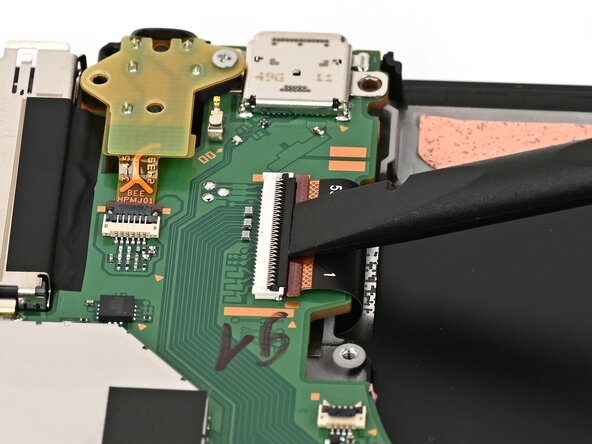
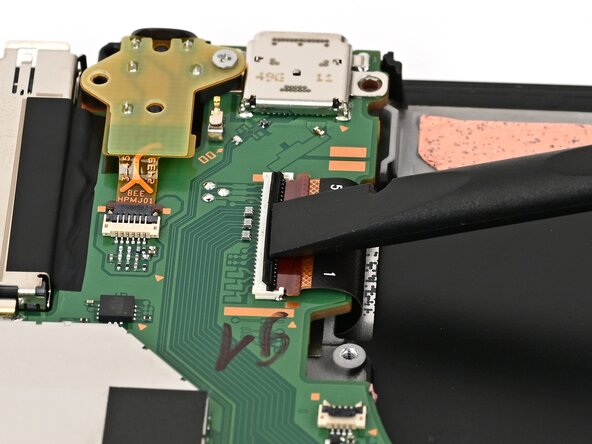
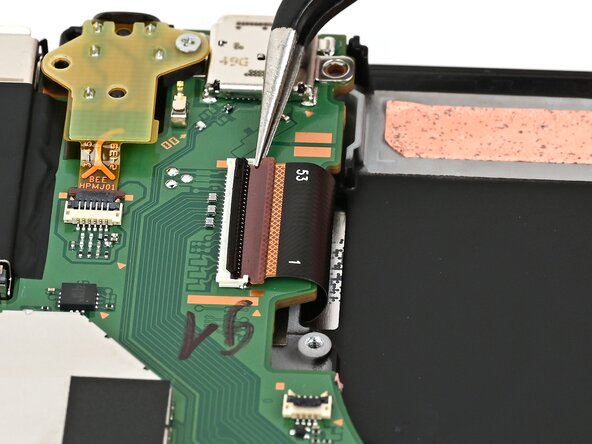
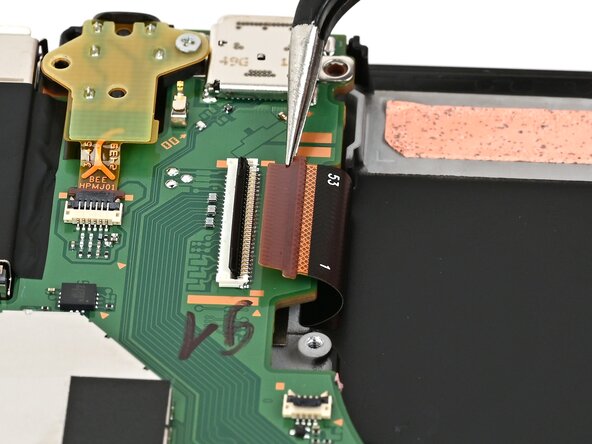
    1. Nintendo Switch 2 Screen Removal, Disconnect the screen: step 1, image 1 of 2 Nintendo Switch 2 Screen Removal, Disconnect the screen: step 1, image 2 of 2
      • Use your finger or the flat end of a spudger to flip up the locking flap on the screen cable ZIF connector.

      Ask FixBot

      Add Comment

    2. Nintendo Switch 2 Screen Removal: step 2, image 1 of 2 Nintendo Switch 2 Screen Removal: step 2, image 2 of 2
      • Use tweezers or your fingers to gently pull the cable out of its connector.

      Ask FixBot

      Add Comment

    3. Nintendo Switch 2 Screen Removal, Heat the bottom edge: step 3, image 1 of 1
      • Flip the console over so the screen is facing up.

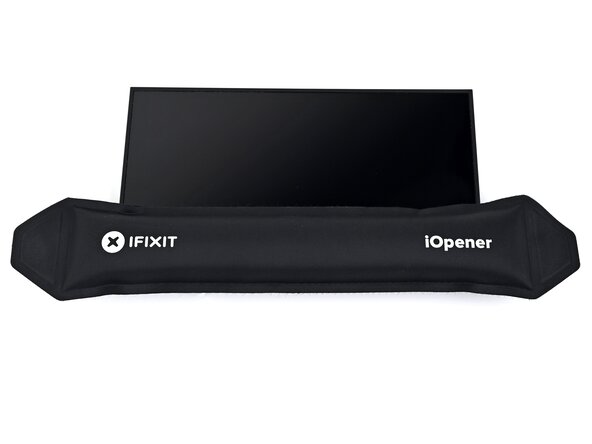
      • Apply a heated iOpener to the bottom edge of the screen for two minutes.

      • Alternatively, you can use a hair dryer or heat gun to heat the bottom edge of the screen until it's hot to the touch.

      • Be careful not to heat the console hotter than this—the frame is susceptible to heat damage.

      Ask FixBot

      Add Comment

    4. Nintendo Switch 2 Screen Removal, Insert an opening pick: step 4, image 1 of 3 Nintendo Switch 2 Screen Removal, Insert an opening pick: step 4, image 2 of 3 Nintendo Switch 2 Screen Removal, Insert an opening pick: step 4, image 3 of 3
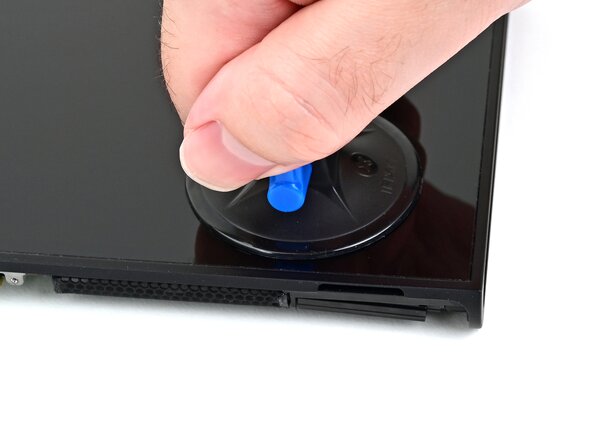
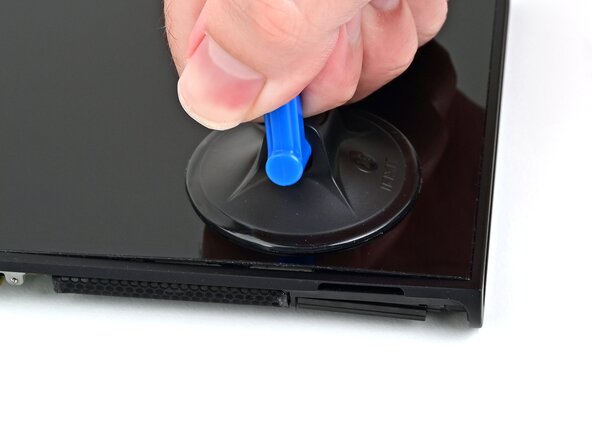
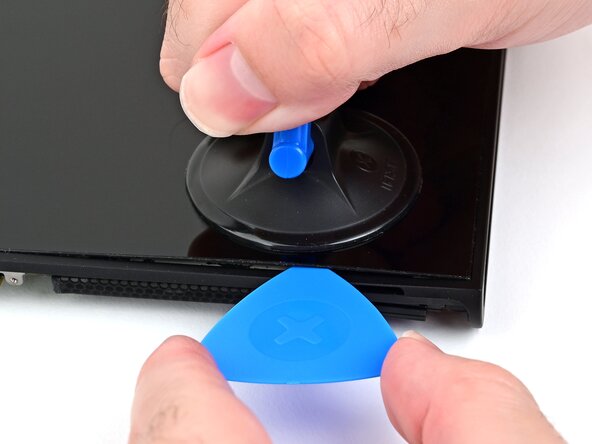
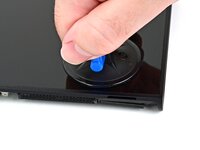
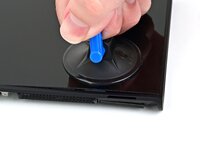
      • Apply a suction handle to the bottom edge of the screen, above the right speaker and ventilation cutouts.

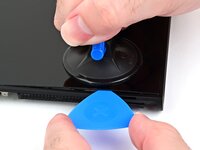
      • Pull up on the handle with a strong, steady force to create a gap between the screen and the frame.

      • Insert the tip of an opening pick into the gap.

      • If you can't create a gap large enough to fit an opening pick, reheat the bottom edge of the screen and try again.

      Ask FixBot

      Add Comment

    5. Nintendo Switch 2 Screen Removal, Separate the bottom adhesive: step 5, image 1 of 2 Nintendo Switch 2 Screen Removal, Separate the bottom adhesive: step 5, image 2 of 2
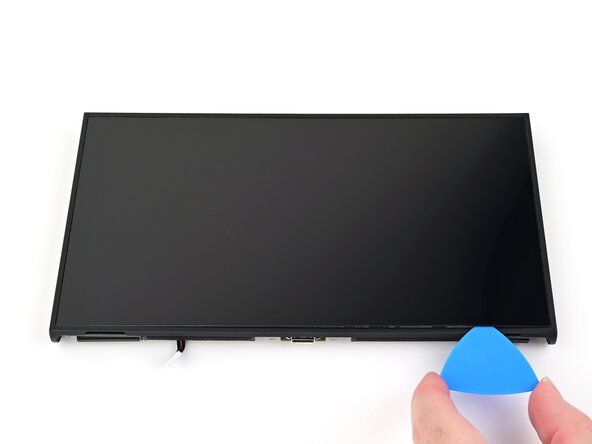
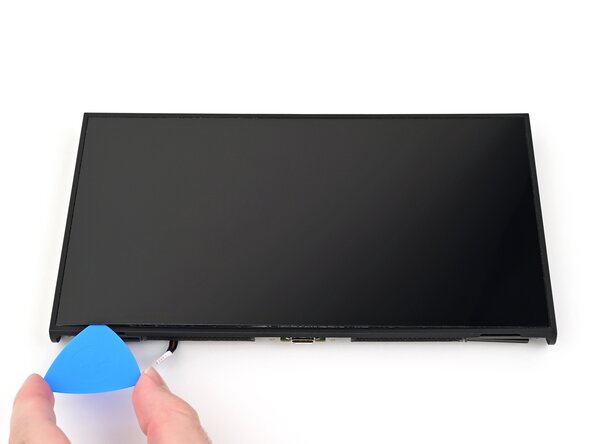
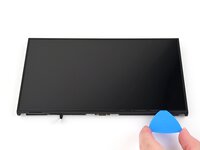
      • Slide your pick across the bottom edge to separate the adhesive.

      • Leave your pick inserted in the bottom left corner to prevent the adhesive from resealing.

      Ask FixBot

      Add Comment

    6. Nintendo Switch 2 Screen Removal, Heat the left edge: step 6, image 1 of 1
      Ask FixBot

      Add Comment

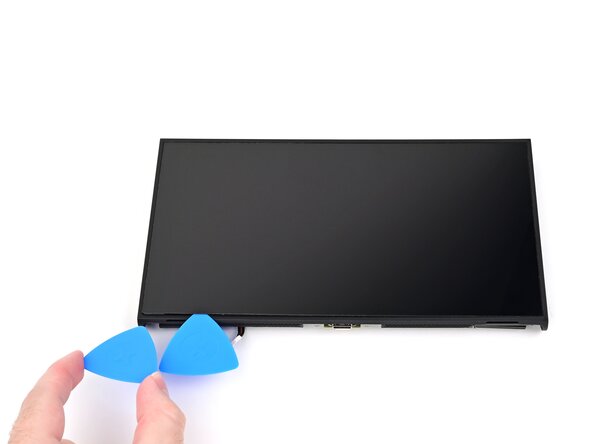
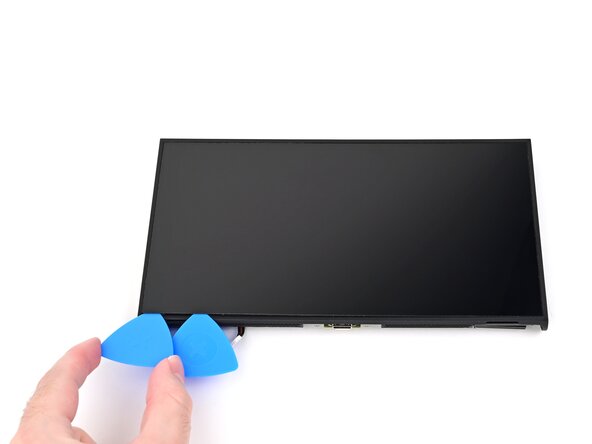
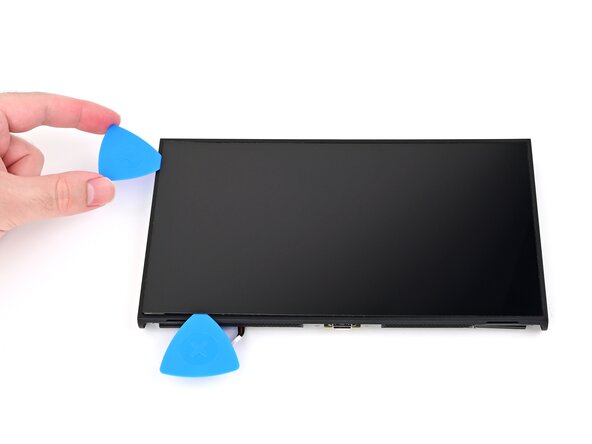
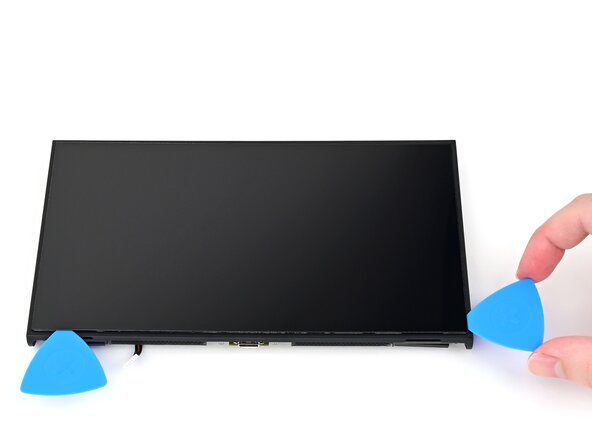
    7. Nintendo Switch 2 Screen Removal, Separate the left adhesive: step 7, image 1 of 3 Nintendo Switch 2 Screen Removal, Separate the left adhesive: step 7, image 2 of 3 Nintendo Switch 2 Screen Removal, Separate the left adhesive: step 7, image 3 of 3
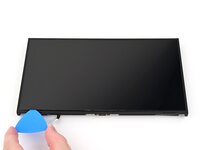
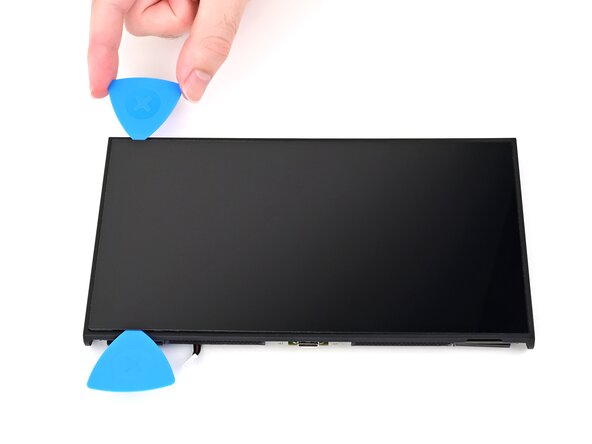
      • Insert a second opening pick next to the first one and slide it up the left edge of the screen.

      Ask FixBot

      Add Comment

    8. Nintendo Switch 2 Screen Removal, Separate the remaining adhesives: step 8, image 1 of 3 Nintendo Switch 2 Screen Removal, Separate the remaining adhesives: step 8, image 2 of 3 Nintendo Switch 2 Screen Removal, Separate the remaining adhesives: step 8, image 3 of 3
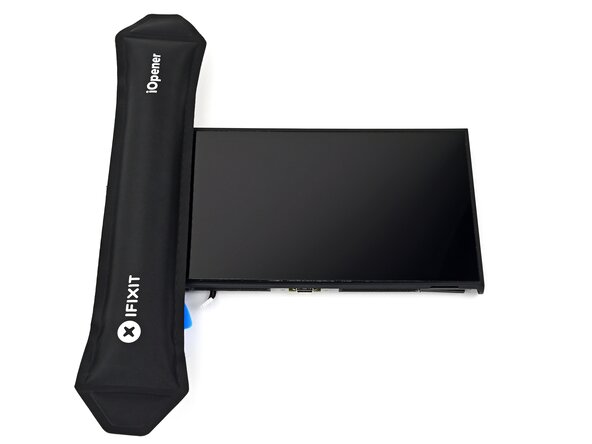
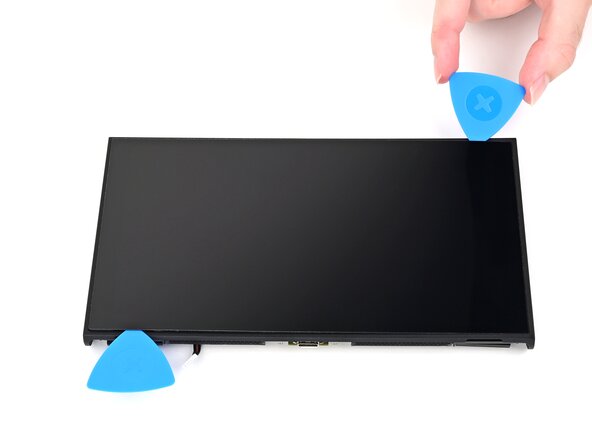
      • Repeat the heating and sliding procedure along the remaining screen edges.

      Ask FixBot

      Add Comment

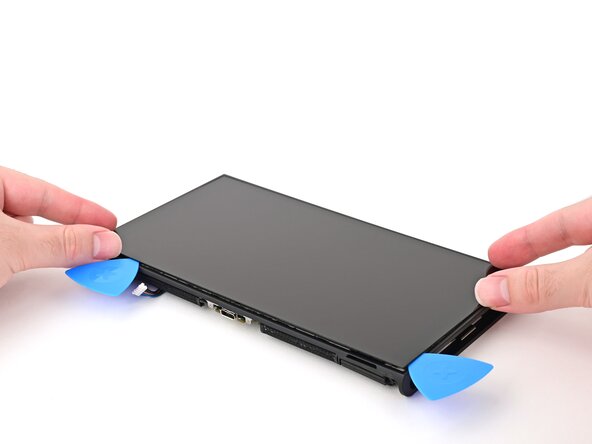
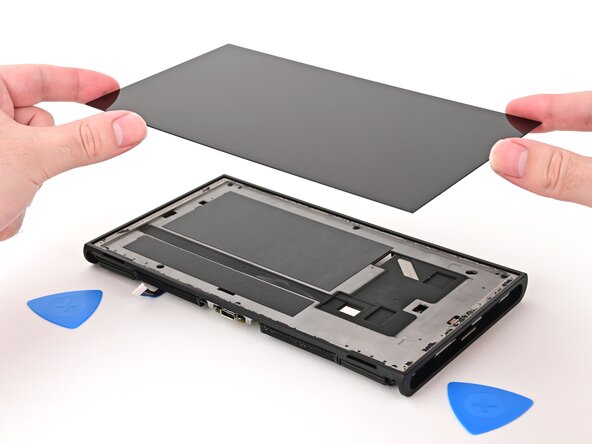
    9. Nintendo Switch 2 Screen Removal, Remove the screen: step 9, image 1 of 2 Nintendo Switch 2 Screen Removal, Remove the screen: step 9, image 2 of 2
      • Lift the screen off the frame to remove it.

      • If any adhesive strips are still stuck to the frame, peel it up with slow, steady force to release it.

      Ask FixBot

      Add Comment

Conclusion

To reassemble your device, follow these instructions in reverse order.

Cancel: I did not complete this guide.

Nick Schultz

Member since: 03/24/24

70,853 Reputation

363 Guides authored

0 Guide Comments

Add Comment

View Statistics:

Past 24 Hours: 1

Past 7 Days: 11

Past 30 Days: 24

All Time: 209