Free Shipping on Domestic Orders $75+

Microsoft Surface Pro 4 Battery Replacement

Archived Guide
This guide is retained solely for historical purposes. Use the updated version of the guide to perform your repair.

What you need

    1. Microsoft Surface Pro 4 Battery Replacement, Battery: step 1, image 1 of 1
      • Disconnect black wire from motherboard.

      Ask FixBot

      Add Comment

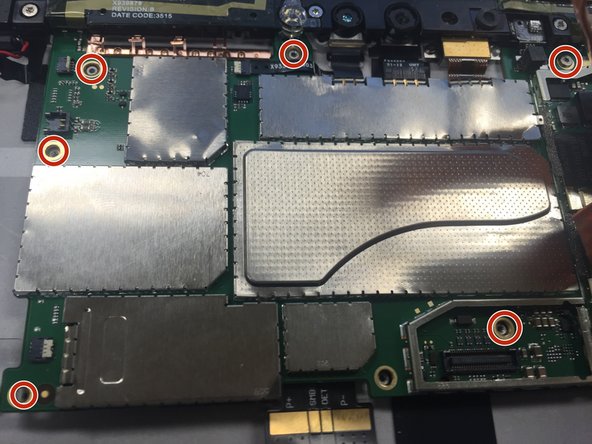
    2. Microsoft Surface Pro 4 Battery Replacement: step 2, image 1 of 1
      • Remove the six 1.5 mm Torx T3 screws securing the motherboard.

      Ask FixBot

      Add Comment

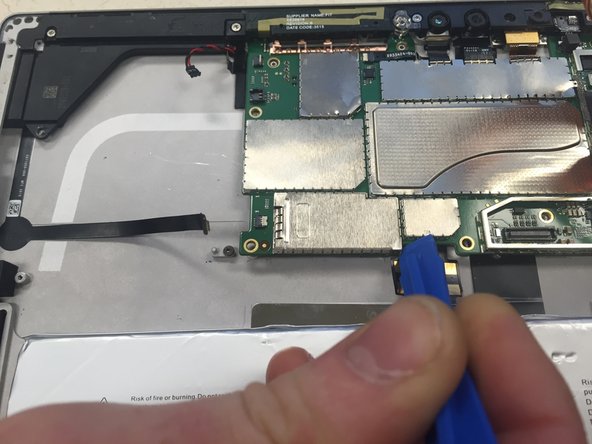
    3. Microsoft Surface Pro 4 Battery Replacement: step 3, image 1 of 1
      • Use plastic opening tool to remove metal casing at the bottom left corner of the motherboard.

      Ask FixBot

      Add Comment

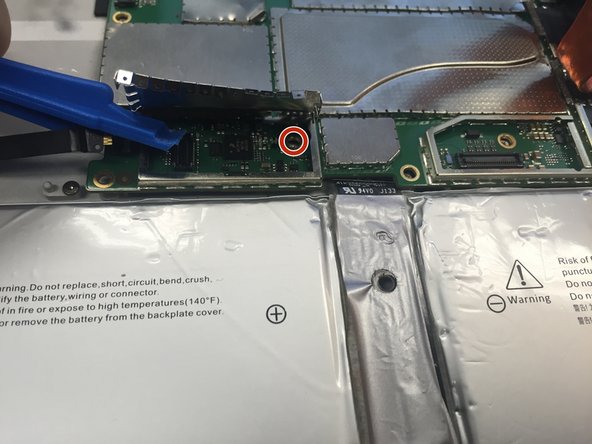
    4. Microsoft Surface Pro 4 Battery Replacement: step 4, image 1 of 1
      • Remove remaining screw.

      • 2.0 mm Torx T4 screw.

      Ask FixBot

      Add Comment

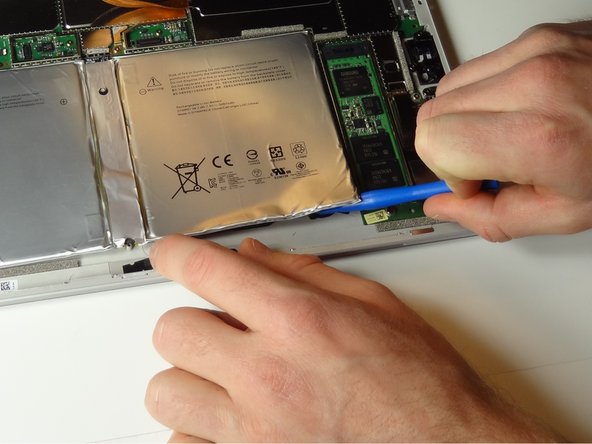
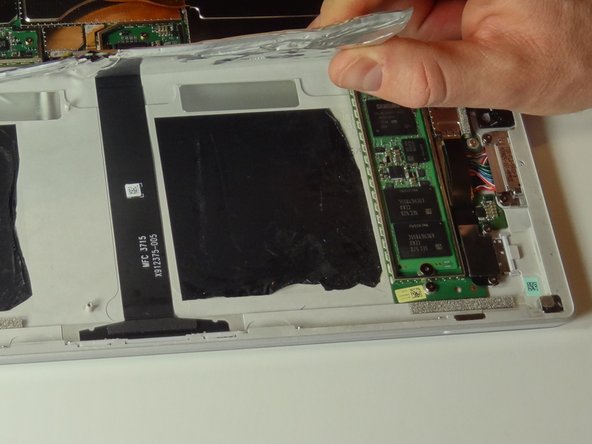
    5. Microsoft Surface Pro 4 Battery Replacement: step 5, image 1 of 2 Microsoft Surface Pro 4 Battery Replacement: step 5, image 2 of 2
      • The battery is attached to the device by strong adhesive tape. Use a plastic opening tool to pry around the underside of the battery.

      • Peel the battery up and away from the bottom of the device.

      • Do not use metal tools for this step. the battery can leak harmful substances if punctured.

      Ask FixBot

      Add Comment

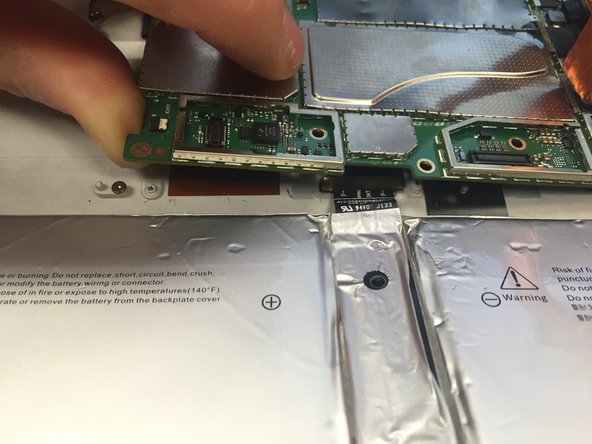
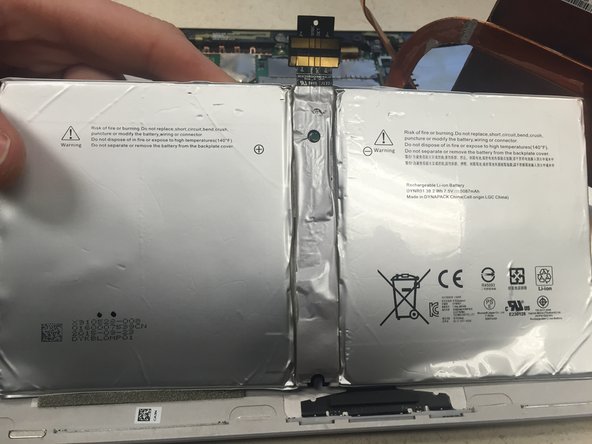
    6. Microsoft Surface Pro 4 Battery Replacement: step 6, image 1 of 3 Microsoft Surface Pro 4 Battery Replacement: step 6, image 2 of 3 Microsoft Surface Pro 4 Battery Replacement: step 6, image 3 of 3
      • In order to prevent a short circuit, insert a piece of cardboard, paper or plastic between the battery connector and motherboard before sliding the battery cable out from under the motherboard.

      • Also be careful to protect the motherboard from shorts while placing the cable for the new battery.

      • Detach the battery from under the motherboard. Remove from the device.

      Ask FixBot

      Add Comment

Conclusion

To reassemble your device, follow these instructions in reverse order.

Cancel: I did not complete this guide.

StacyAnn Brown

Member since: 01/15/16

4,006 Reputation

2 Guides authored

Team

Metro State, Team 1-3, Carpenter Spring 2016 Member of Metro State, Team 1-3, Carpenter Spring 2016

MSU-CARPENTER-S16S1G3

2 Members

72 Guides authored

0 Guide Comments

Add Comment

View Statistics:

Past 24 Hours: 1

Past 7 Days: 2

Past 30 Days: 9

All Time: 125