Free Shipping on Domestic Orders $75+

Microsoft Surface Laptop 3 13.5" Feet Replacement

Views: 9.7K

View statistics:

Past 24 Hours:
1
Past 7 Days:
26
Past 30 Days:
104
All Time:
9,651
Comments: 1

1 guide comment.

Go to guide comments
Completed: 1

1 person has marked this guide "completed." Will you be next?

Favorites: 0

No one has favorited (and subscribed to) this guide. Will you be the first?

Time Required: 5 - 15 minutes
Difficulty: Easy
Microsoft Surface Laptop 3 13.5" Feet Replacement

Introduction

Go to step 1 ↓

Follow this guide to remove or replace the feet on the bottom of a Microsoft Surface Laptop 3 (13.5").

Some photos in this guide are from a different model and may contain slight visual discrepancies, but they won't affect the guide procedure.

What you need

Parts

  • Surface Laptop 3/4/5 Feet - Genuine
    4.9
    View

Tools

  • Spudger
    4.9
    1. Microsoft Surface Laptop 3 13.5" Feet Replacement, Flip the laptop over: step 1, image 1 of 2 Microsoft Surface Laptop 3 13.5" Feet Replacement, Flip the laptop over: step 1, image 2 of 2
      • Flip the laptop over and place it on your work surface, feet facing up.

      Ask FixBot

      Add Comment

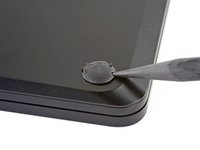
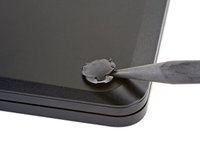
    2. Microsoft Surface Laptop 3 13.5" Feet Replacement, Removal tip: step 2, image 1 of 2 Microsoft Surface Laptop 3 13.5" Feet Replacement, Removal tip: step 2, image 2 of 2
      • The feet on the bottom of the laptop are meant to be removed with the pointed end of a spudger.

      • Each foot has a hidden indent that will simplify removal.

      • To make sure the spudger is in the indent, insert it at the nearest long edge, pushing parallel to the short edges of the laptop, as shown.

      • Note that the two feet near the rear (screen) edge are different than the two front feet.

      Ask FixBot

      Add Comment

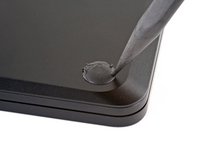
    3. Microsoft Surface Laptop 3 13.5" Feet Replacement, Remove the rear feet: step 3, image 1 of 3 Microsoft Surface Laptop 3 13.5" Feet Replacement, Remove the rear feet: step 3, image 2 of 3 Microsoft Surface Laptop 3 13.5" Feet Replacement, Remove the rear feet: step 3, image 3 of 3
      • Insert the pointed end of a spudger underneath one of the two rear feet, at its rear edge.

      • Push the spudger underneath the foot and pry up to release it.

      • The two rear feet are secured with some light adhesive.

      • Repeat to remove the second rear foot.

      Ask FixBot

      Add Comment

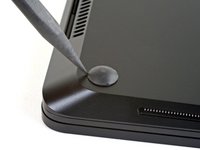
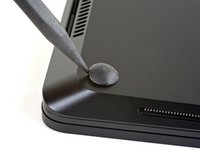
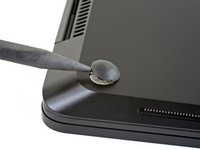
    4. Microsoft Surface Laptop 3 13.5" Feet Replacement, Remove the front feet: step 4, image 1 of 3 Microsoft Surface Laptop 3 13.5" Feet Replacement, Remove the front feet: step 4, image 2 of 3 Microsoft Surface Laptop 3 13.5" Feet Replacement, Remove the front feet: step 4, image 3 of 3
      • Insert the pointed end of a spudger underneath one of the two front feet, at its front edge.

      • Push the spudger underneath the foot and pry up to release it.

      • The two front feet are secured with plastic clips as well as light adhesive.

      • Repeat to remove the second front foot.

      Ask FixBot

      Add Comment

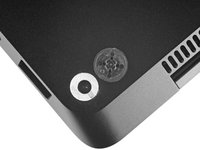
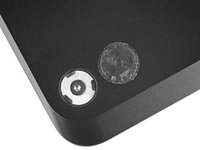
    5. Microsoft Surface Laptop 3 13.5" Feet Replacement, Reassembly tip: step 5, image 1 of 2 Microsoft Surface Laptop 3 13.5" Feet Replacement, Reassembly tip: step 5, image 2 of 2
      • During reassembly:

      • Note that the front and rear feet are different.

      • Note that the front feet are directional and only clip in one way.

      Ask FixBot

      Add Comment

    6. Microsoft Surface Laptop 3 13.5" Feet Replacement, Reassembly tip: step 6, image 1 of 3 Microsoft Surface Laptop 3 13.5" Feet Replacement, Reassembly tip: step 6, image 2 of 3 Microsoft Surface Laptop 3 13.5" Feet Replacement, Reassembly tip: step 6, image 3 of 3
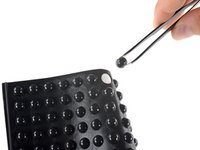
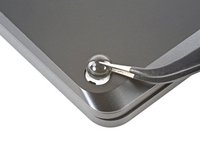
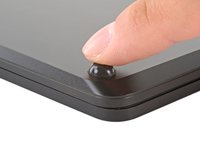
      • In place of reusing old, worn out feet on your device, 8 mm rubber furniture pads can be a good substitute.

      • Peel a pad away from its backing, align it over a foot cavity, and press to secure.

      Ask FixBot

      Add Comment

Conclusion

Compare your new replacement part to the original part—you may need to transfer remaining components or remove adhesive backings from the new part before installing.

To reassemble your device, follow the above steps in reverse order.

Take your e-waste to an R2 or e-Stewards certified recycler.

Repair didn’t go as planned? Try some basic troubleshooting or search our Answers community for help.

Cancel: I did not complete this guide.

One other person completed this guide.

Carsten Frauenheim

Member since: 03/10/20

171,695 Reputation

441 Guides authored

Team

iFixit Member of iFixit

Staff

121 Members

72,885 Guides authored

1 Guide Comment

Nice, that good for me, first time :D

TrungLun0112 - Reply Share

Add Comment

View Statistics:

Past 24 Hours: 1

Past 7 Days: 26

Past 30 Days: 104

All Time: 9,651