
MacBook Pro 15" Unibody 2.53 GHz Mid 2009 Battery Replacement

Walter Galan and
Last updated on Apr 16, 2019
Views: 175K
View statistics:
- Past 24 Hours:
- 6
- Past 7 Days:
- 45
- Past 30 Days:
- 176
- All Time:
- 174,746
Comments: 27
6 comments on steps, 21 guide comments.
Go to guide commentsCompleted: 167 168
167 people have marked this guide "completed." Will you be next?
168 people have marked this guide "completed." Including you — great job!
Favorites: 74 75
74 people have favorited (and subscribed to) this guide. Will you be next?
75 people have favorited (and subscribed to) this guide — including you!
Featured Guide
This guide has been found to be exceptionally cool by the iFixit staff.
Introduction
Go to step 1 ↓Use this guide to replace an old or faulty battery. If your battery is swollen, take appropriate precautions.
What you need
Fix Kit
This kit contains all the parts and tools needed to complete this guide.

Parts

Tools


-
-
-
Remove the following ten screws securing the lower case to the upper case:
-
Seven 3 mm Phillips screws.
-
Three 13.5 mm Phillips screws.
 Ask FixBot
-
-
-
Using both hands, lift the lower case near the vent to pop it off two clips securing it to the upper case.
-
Remove the lower case and set it aside.
-
-
-
-
Tool used on this step:P6 Pentalobe Screwdriver 2009 15" MacBook Pro Battery$5.49
-
Three Pentalobe screws secure the battery to the upper case. They can be removed with this special driver.
-
-
-
-
Remove the two exposed five-point Pentalobe screws along the top edge of the battery.
-
-
-
Use the tip of a spudger to bend back the finger of the "Warning: Do not remove the battery" sticker while you remove the five-point Pentalobe screw hidden underneath.
-
-
-
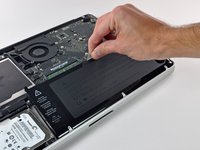
Lift the battery by its plastic pull tab and slide it away from the long edge of the upper case.
-
-
-
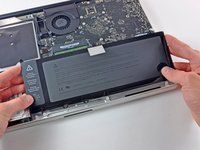
Tilt the battery back enough to access the battery cable connector.
-
Pull the battery cable connector away from its socket on the logic board and remove the battery from the upper case.
-
-



To reassemble your device, follow these instructions in reverse order.
Cancel: I did not complete this guide.
167 other people completed this guide.

21 Guide Comments
Changing this battery for a friend went as smooth as silk. I've done this many times before so that was no surprise, but now the battery (bought from ifixit) shows only 85% charge even after being left all night to charge, and the charger stopped charging and shows the light on the charger shows green.
What have we done wrong and what do we need to do about it?
You need to calibrate the new battery. Charge until it won't charge any more. Unplug the computer and leave it until it puts itself to sleep from low battery. Make sure your settings are as low a threshold as possible (3%) I think is the minimum. Then plug it in and charge back to 100%.
Further note: we tried running off the battery, and when it was at 44% tried to recharge it using another charger that we knew was working. The battery indicator says the battery is not charging.
Hola buenas. necesito comprar una bateria para mi macbook pro 15", de mediados del 2009, en el que la tapa se abre entera. no se que modelo de bateria es, me podriais decir el nombre o referencia que lleva por favor??? me estoy volviendo loca buscando por internet.
