
MacBook Air 13" Early 2015 AirPort/Bluetooth Card Replacement

Sam Goldheart and
Last updated on Aug 11, 2020
Views: 40K
View statistics:
- Past 24 Hours:
- 9
- Past 7 Days:
- 49
- Past 30 Days:
- 205
- All Time:
- 39,874
Comments: 67
61 comments on steps, 6 guide comments.
Go to guide commentsCompleted: 17 18
17 people have marked this guide "completed." Will you be next?
18 people have marked this guide "completed." Including you — great job!
Favorites: 3 4
3 people have favorited (and subscribed to) this guide. Will you be next?
4 people have favorited (and subscribed to) this guide — including you!
Introduction
Go to step 1 ↓Use this guide to restore wireless connectivity to your MacBook Air 13" Early 2015 by replacing the Airport/Bluetooth card.
What you need


-
-
Tool used on this step:P5 Pentalobe Screwdriver Retina MacBook Pro and Air$5.99
-
Use a P5 Pentalobe driver to remove ten screws securing the lower case, of the following lengths:
-
Two 9 mm screws
-
Eight 2.6 mm screws
 Ask FixBot
-
-
-
Wedge your fingers between the display and the lower case and pull upward to pop the lower case off the Air.
-
Remove the lower case and set it aside.
-
-
-
-
-
-
Grab the clear plastic pull tab attached to the battery connector and pull it parallel to the board toward the front edge of the Air.
-
-
-
-
-
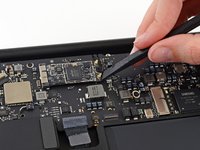
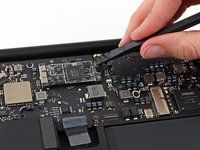
Use the flat end of a spudger to pry both antenna connectors up from their sockets on the AirPort/Bluetooth card.
-
-
-
Remove the single 2.9 mm T5 Torx screw securing the AirPort/Bluetooth card to the logic board.
-
-
-
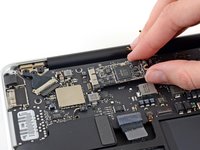
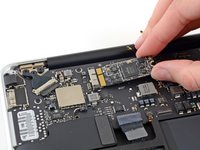
Slightly lift the free end of the AirPort/Bluetooth card and pull it out of its socket on the logic board.
-
Remove the AirPort/Bluetooth card from the Air.
-
-




To reassemble your device, follow these instructions in reverse order.
Take your e-waste to an R2 or e-Stewards certified recycler.
Repair didn’t go as planned? Try some basic troubleshooting, or ask our Answers community for help.
Cancel: I did not complete this guide.
17 other people completed this guide.


6 Guide Comments
Hi! I did this as the bluetooth was not working on my macbook air (after water damage). Once I replaced it, instead of a "bluetooth not available" dialogue, Bluetooth options now do not appear in the System Preferences window, and in the system report, it just says "no information available".
Is this a connection issue, did I get the wrong card, or did the water damage actually destroy the antennae? Wifi works fine both before and after replacing the card.
Hi,
i opened up my Mac and cleaned it after water because it was running slow and the fan was going crazy. IT worked and I hadn’t no notebook issues when I ran apple diagnostics but now I can’t see all my wifi networks or even connect to my phone wireless hotspot And it keeps saying password invalid wen it’s always right!
The wifi shows the same networks like 3 of them but there use to be at least 30 as I live in an apartment block. Is this a airport problem or antenna??
for connecting antenna wires to airport card. You need to hold in place with tweazers then push down with finger or blunt spudger. be careful as you dont want to damage to connector if not placed perfectly in place. ive damaged one before so if it doesnt feel right dont apply to much pressure. reseat and try again
Hi Sam, Evan, all,
I have some difficult technical questions I’d really like to ask I do not need you to condone regarding some BGA/soldering repairs. I’d love to ask you some spec questions. You’re well versed in Apple tech and I a computing-array guy. I would love a message back wherever you’re comfortable. I am building up to the intense process of motherboard creation & design with have no illusions that this is easy (I have done my research). I’m going to desolder the RAM here & it I have plenty of parts to break now so <20% chance is fine. My current project requires honing skills. When I get to the higher echelons/PRICEY equipment I need a proficient competency in this basic stuff as foundation.
Email is ibrad215@gmail.com I doubt you want a public answer on a guide for anyone with Google, but I could really use some help making a few decisions I won’t hold against you if they fail. Call it computer science and not faultless repair, & a chance to learn I will gladly share w/you as research!
