Free Shipping on Domestic Orders $75+

Mac Pro 2009-2012 Graphics card Replacement

Archived Guide
This guide is retained solely for historical purposes. Use the updated version of the guide to perform your repair.

What you need

    1. Mac Pro 2009-2012 Graphics card  Replacement, Unscrew thumb screw: step 1, image 1 of 2 Mac Pro 2009-2012 Graphics card  Replacement, Unscrew thumb screw: step 1, image 2 of 2
      • Use hands to unscrew the retaining brackets.

      Ask FixBot

      Add Comment

    2. Mac Pro 2009-2012 Graphics card  Replacement: step 2, image 1 of 2 Mac Pro 2009-2012 Graphics card  Replacement: step 2, image 2 of 2
      • Push the white button on the side of the fan and push back gently until snap.

      • You should see numbers as the pictures show.

      Ask FixBot

      Add Comment

    3. Mac Pro 2009-2012 Graphics card  Replacement, Pull old graphics card out: step 3, image 1 of 2 Mac Pro 2009-2012 Graphics card  Replacement, Pull old graphics card out: step 3, image 2 of 2
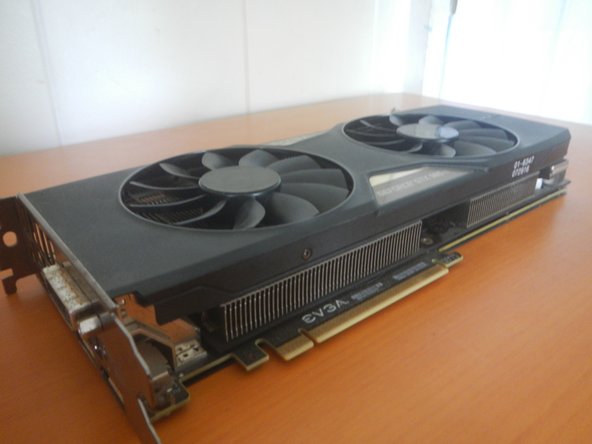
      • Pull the old graphics card out gently from the PCIe slot and a PCIe holder if you have a new dual-socket replacement card.

      Ask FixBot

      Add Comment

    4. Mac Pro 2009-2012 Graphics card  Replacement, Pull out the new graphics card and accessories: step 4, image 1 of 2 Mac Pro 2009-2012 Graphics card  Replacement, Pull out the new graphics card and accessories: step 4, image 2 of 2
      • Have your new graphics card nearby and any power cables if your GPU requires external power.

      Ask FixBot

      Add Comment

    5. Mac Pro 2009-2012 Graphics card  Replacement, Connect external power: step 5, image 1 of 1
      • Skip this step if your graphic card does not require external power.

      • Plugin your mini 6 pin connectors to the logicboard but don't plug it into GPU yet.

      Ask FixBot

      Add Comment

    6. Mac Pro 2009-2012 Graphics card  Replacement, Put in GPU: step 6, image 1 of 1
      • Put the new GPU where your old one once was and make sure it is in tight and that it aligns up with the crew holder.

      • Then push the fan brackets back into position(until you hear a click).

      • Screw in the thumbscrew that holds all cards and your GPU in place.

      Ask FixBot

      Add Comment

    7. Mac Pro 2009-2012 Graphics card  Replacement, Plug in external power to GPU: step 7, image 1 of 1
      • With the power, you just plugged into the logic board, now connect it to the GPU. Like show in the picture and put the lid of the Mac Pro back on and start it up.

      Ask FixBot

      Add Comment

Conclusion

To reassemble your device, follow these instructions in reverse order.

Cancel: I did not complete this guide.

One other person completed this guide.

Branning Goody

Member since: 01/24/22

301 Reputation

2 Guides authored

6 Guide Comments

@Branning Goody

your guide is good but

we already have one guide we don’t need two,

please delete it.

Ben Capehart - Reply Share

@krisrodriguez

If you could help that would be great

Ben Capehart - Reply Share

@beanman56 , could you please link the duplicate guide?

Kris Rodriguez - Reply Share

@beanman56 , still taking a look into this. I'll let you know what we decide to do.

Kris Rodriguez - Reply Share

Add Comment

View Statistics:

Past 24 Hours: 1

Past 7 Days: 5

Past 30 Days: 13

All Time: 289