
Logitech Zone Wireless 2 Ear Pad Replacement

Arthur Shi and one other contributor
Last updated on Dec 15, 2025
Views: 590
View statistics:
- Past 24 Hours:
- 3
- Past 7 Days:
- 15
- Past 30 Days:
- 83
- All Time:
- 590
Comments: 0
No one has left comments on this guide. Will you be first?
Go to guide commentsCompleted: 0 1
No one has marked this guide "completed." Will you be the first?
1 person has marked this guide "completed." It's you — great job!
Favorites: 0 1
No one has favorited (and subscribed to) this guide. Will you be the first?
1 person has favorited (and subscribed to) this guide — and that's you!
Introduction
Go to step 1 ↓This guide shows how to remove and replace one or both of the ear pads (aka ear cushions, headset cushions, or headphone cushions) on your Logitech Zone Wireless 2 headset.
-
-
-
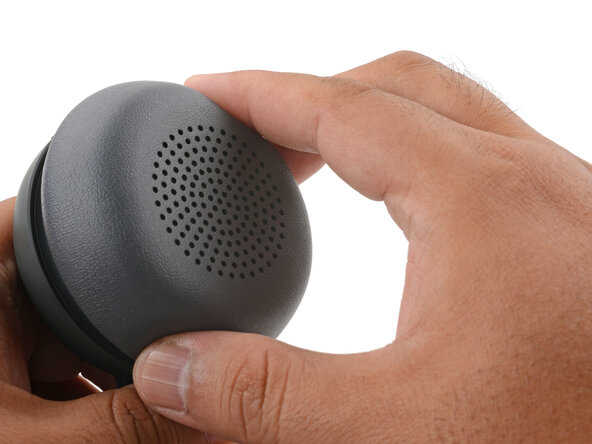
With one hand, firmly hold the ear cup steady.
-
With your free hand, twist the ear pad counter-clockwise until it feels loose.
-
Remove the ear pad.
-
-
-
-
Align the ear pad's notches to the tabs on the ear cup.
-
Press the pad onto the cup.
-
Twist the pad clockwise until it locks in place.
-

 Ask FixBot




Repair didn’t go as planned? Try some basic troubleshooting, or ask our Answers community for help.

