
Logitech K750 Keyboard Battery Replacement

Carsten Frauenheim and 9 other contributors
Last updated on Feb 11, 2026
Views: 291K
View statistics:
- Past 24 Hours:
- 30
- Past 7 Days:
- 254
- Past 30 Days:
- 1,084
- All Time:
- 290,819
Comments: 125
30 comments on steps, 95 guide comments.
Go to guide commentsCompleted: 213 214
213 people have marked this guide "completed." Will you be next?
214 people have marked this guide "completed." Including you — great job!
Favorites: 10 11
10 people have favorited (and subscribed to) this guide. Will you be next?
11 people have favorited (and subscribed to) this guide — including you!
Featured Guide
This guide has been found to be exceptionally cool by the iFixit staff.
OEM Guide
iFixit collaborated with the manufacturer to make this guide.
Logitech
Logitech and iFixit are working together to help people repair their Logitech devices.
Introduction
Go to step 1 ↓Use this guide to safely remove and replace the battery in a Logitech K750 Solar wireless keyboard.
Note: The K750 Solar requires a rechargeable ML2032 coin cell battery as a replacement. Although it's the same size and shape as the more common CR2032, CR2032s are not rechargeable. You can also use a LIR2032 rechargeable battery as well.
What you need


-
-
-
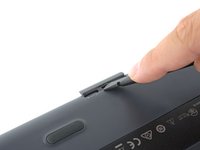
Before you begin, flip the keyboard's power switch into the OFF position.
 Ask FixBot
-
-
-
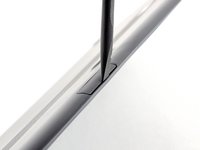
Insert the flat end of a spudger into the gap between the battery tray and the top surface of the keyboard.
-
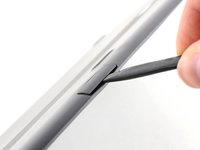
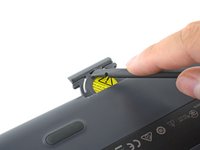
Pivot the spudger down, towards the top of the keyboard, to begin to pry the tray out of its cavity.
-
-
-
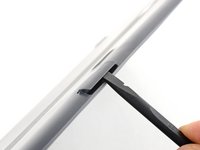
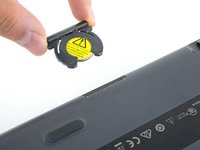
Use the flat end of the spudger to push the battery tray out and away from the keyboard.
-
If you're having trouble, use the end of a spudger or a flat blade screwdriver to "walk" the tray out, pushing on alternating sides instead of directly in the middle.
-
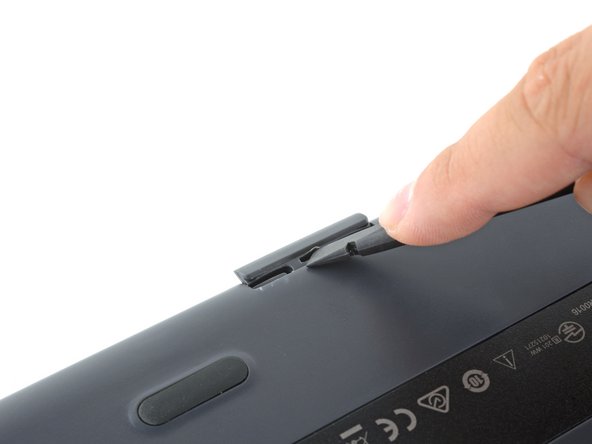
Remove the battery tray.
-
-
-




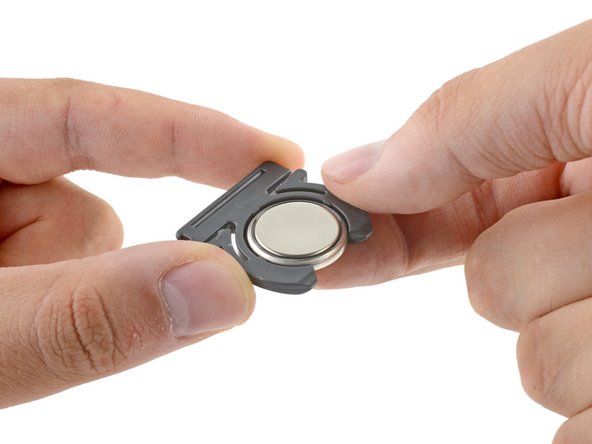

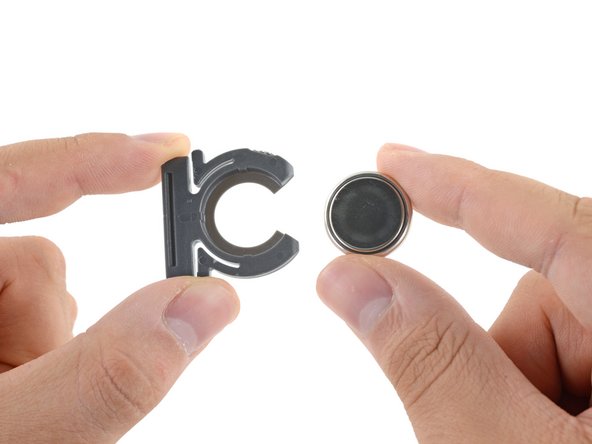
To reassemble your device, follow the above steps in reverse order.
Take your e-waste to an R2 or e-Stewards certified recycler.
Repair didn’t go as planned? Check out our Answers community for troubleshooting help.
Cancel: I did not complete this guide.
213 other people completed this guide.

95 Guide Comments
There a better way to open it
put the knife or better a screwdriver on the other side (keys upside); worked for me without damage the keyboard :D
Thank You! That did work much better!
Here is an even better method.
You can also totally prevent damage by finding a laminated biz card and cutting it into 2 one inch strips and inserting both of them into the slot on the top side (solar side) of the battery compartment.
Then get your tool ( I like small pointed scissors) and pry it out between the cards.
Very easy!
