Introduction
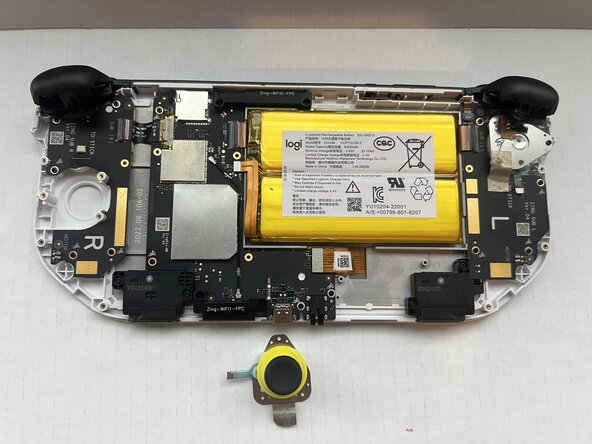
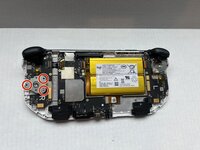
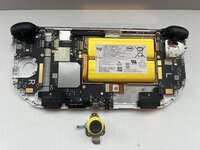
Replacing the right joystick for the Logitech G Cloud is difficult and can be accomplished in seven steps. You will need a wedge tool, Phillips #00 screwdriver, and a spudger. Carefully read the instructions before starting to disassemble the Logitech G Cloud. You may hear loud popping noises when you remove the interior plating. Once the screws are removed, the joystick should be simple to pop out.
What you need
-
-
Power the device off and turn it over so the screen is face down.
-
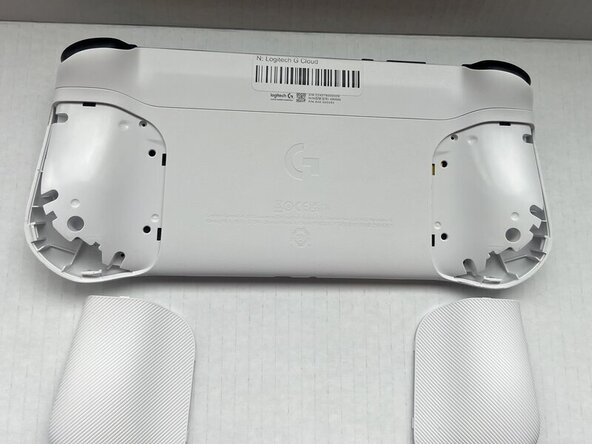
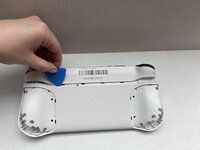
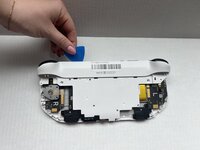
Insert an opening pick into the seam between the back plate and left handguard.
-
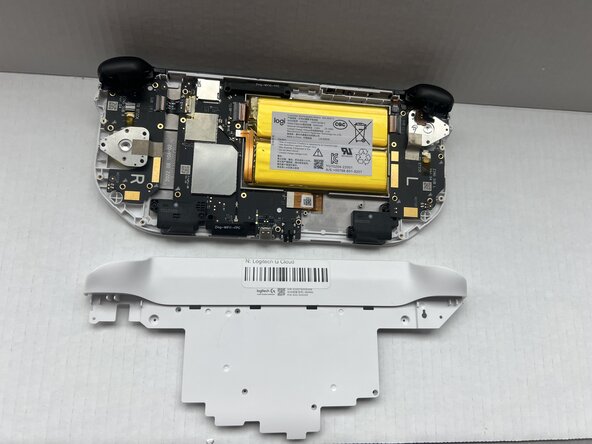
Pry around the entire perimeter until the handguard fully releases.
-
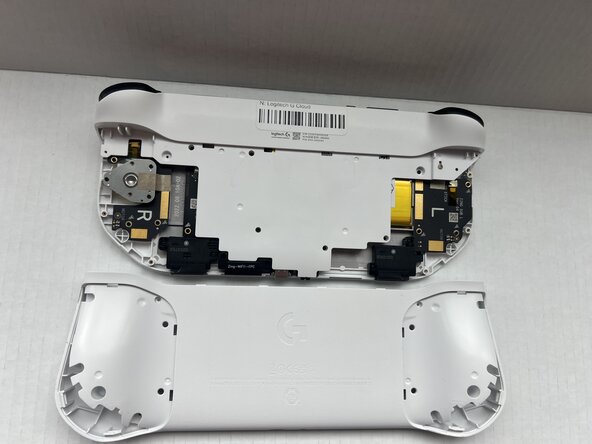
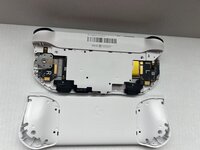
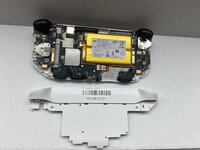
Remove the handguard.
-
Repeat the previous three bullets on the right handguard.
-
-
-
-
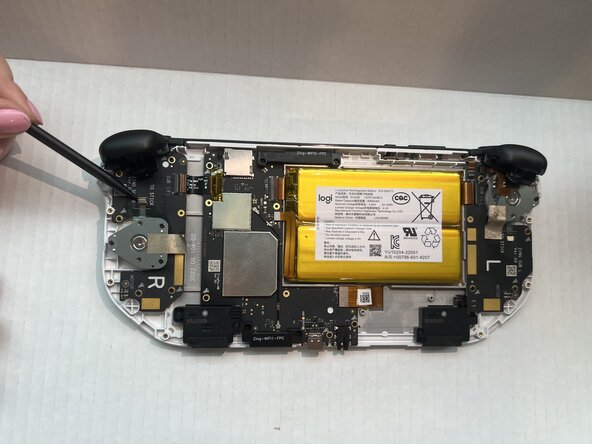
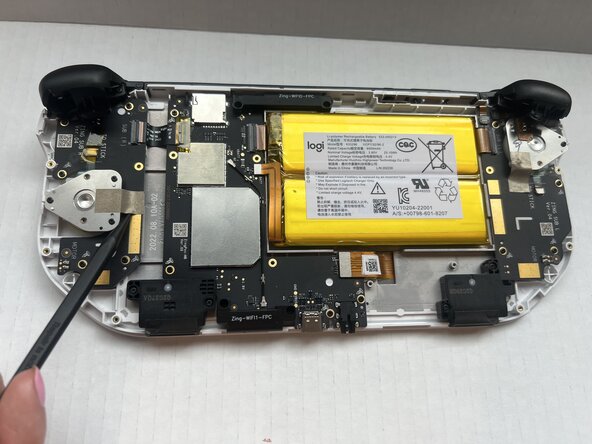
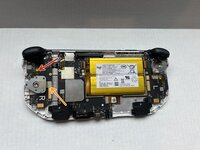
Use a spudger to lift upwards and disconnect the metallic sticker from the console.
-
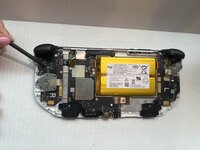
Insert the flat end of a spudger under the joystick press connector and lift upwards to disconnect it.
-
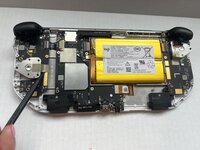
Use a spudger to remove the R2 trigger sensor from the joystick plate; it should stay attached to the console.
-







To reassemble your device, follow the above steps in reverse order.
Take your e-waste to an R2 or e-Stewards certified recycler.
Repair didn’t go as planned? Try some basic troubleshooting or ask our Answers community for help.



Team

Western Carolina University, Team 1-1, Virtue Spring 2025 Member of Western Carolina University, Team 1-1, Virtue Spring 2025
WCU-VIRTUE-S25S1G1
4 Members
6 Guides authored
