Introduction
Follow this guide to replace or upgrade the Solid State Drive (SSD) in your ThinkPad X395. Note that a thermal pad helps the SSD dissipate heat more effectively. Remember to keep the original thermal pad, or have a replacement ready.
Before you perform this repair, back up your existing SSD if possible. If you’re replacing the SSD where your operating system is installed, familiarize yourself with a disk cloning utility so you’ll be ready to migrate your data to the new SSD.
What you need
-
-
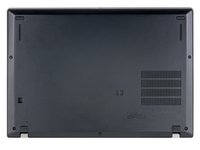
Use a Phillips #1 screwdriver to fully loosen the five screws on the back cover.
-
-
-
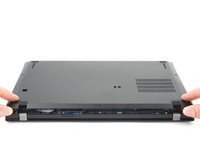
Orient your laptop so that the screen's silver hinges are closest to you.
-
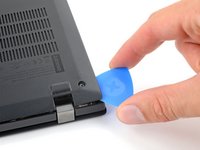
Insert an opening pick between the back cover and the device body near a hinge corner.
-
Pry upward to release the retaining clips. Listen for a loud click when each clip releases.
-
-
-
-
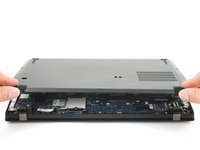
Lift and remove the cover up from the laptop, starting with the edge nearest to you.
-
Shift the cover side to side if the center clip feels stuck.
-
-
-
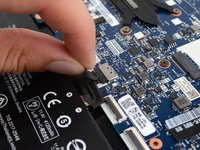
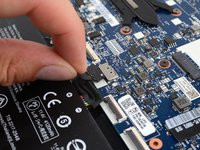
Grab the battery pull-tab on the head of the connector.
-
Pull the connector out of its socket in the direction of the cable.
-
-
-
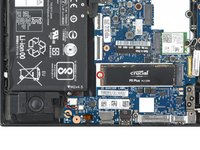
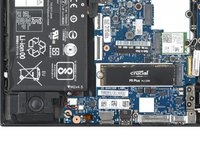
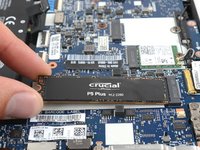
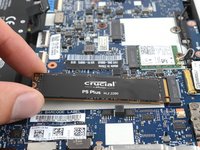
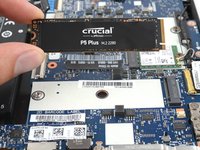
Use a Phillips #1 screwdriver to remove the 2.8 mm-long screw holding the SSD in place.
-













To reassemble your device, follow these instructions in reverse order.
Take your e-waste to an R2 or e-Stewards certified recycler.
Repair didn’t go as planned? Try some basic troubleshooting, or ask our Lenovo ThinkPad answers community for help.
Cancel: I did not complete this guide.
One other person completed this guide.


