Free Shipping on Domestic Orders $75+

LG V40 ThinQ Screen Replacement

What you need

  1. LG V40 ThinQ Screen Replacement, Back Cover: step 1, image 1 of 2 LG V40 ThinQ Screen Replacement, Back Cover: step 1, image 2 of 2
    • Use an iOpener or hairdryer to heat the adhesive on the back cover by rolling it up and down the back of the phone.

    • You will know when the back is hot enough when an Opening pick is able to slide under the back cover.

  2. LG V40 ThinQ Screen Replacement: step 2, image 1 of 3 LG V40 ThinQ Screen Replacement: step 2, image 2 of 3 LG V40 ThinQ Screen Replacement: step 2, image 3 of 3
    • Use opening to pry the back cover away from the adhesive.

    • This can take some time. Be patient and go slowly.

    • We recommend you move slowly and carefully to not crack the back glass.

  3. LG V40 ThinQ Screen Replacement: step 3, image 1 of 2 LG V40 ThinQ Screen Replacement: step 3, image 2 of 2
    • Carefully disconnect the fingerprint sensor from the back camera lens cover.

  4. LG V40 ThinQ Screen Replacement: step 4, image 1 of 3 LG V40 ThinQ Screen Replacement: step 4, image 2 of 3 LG V40 ThinQ Screen Replacement: step 4, image 3 of 3
    • Use the opening picks again to gently remove the back camera lens cover and fingerprint sensor off from the back cover.

    • Set the fingerprint sensor and camera cover aside. You will need the fingerprint sensor to put into any new back cover bought for the phone.

  5. LG V40 ThinQ Screen Replacement: step 5, image 1 of 2 LG V40 ThinQ Screen Replacement: step 5, image 2 of 2
    • Clean the back cover of any old adhesive by gently heating the area with the iOpener to soften the adhesive.

    • Use a cloth or cotton swab soaked in isopropyl alcohol to gently rub and dissolve the glue.

  6. LG V40 ThinQ Screen Replacement: step 6, image 1 of 1
    • Apply new adhesive on the back cover in the places where the old adhesive was applied.

  7. LG V40 ThinQ Screen Replacement, Battery: step 7, image 1 of 2 LG V40 ThinQ Screen Replacement, Battery: step 7, image 2 of 2
    • Remove the fourteen 15 mm-long Phillips #000 screws holding down the wireless charging coil and loudspeaker module.

  8. LG V40 ThinQ Screen Replacement: step 8, image 1 of 2 LG V40 ThinQ Screen Replacement: step 8, image 2 of 2
    • Disconnect the battery press connector.

  9. LG V40 ThinQ Screen Replacement: step 9, image 1 of 2 LG V40 ThinQ Screen Replacement: step 9, image 2 of 2
    • With the opening picks, very gently insert and pry the battery slowly until it comes free from the adhesive and remove it.

    • This can take some time to safely remove the battery without damaging it. Be careful not to rip the battery from the adhesive holding it down.

  10. LG V40 ThinQ Screen Replacement, Screen: step 10, image 1 of 3 LG V40 ThinQ Screen Replacement, Screen: step 10, image 2 of 3 LG V40 ThinQ Screen Replacement, Screen: step 10, image 3 of 3
    • Disconnect the screen flex cable and remove the SIM card tray.

  11. LG V40 ThinQ Screen Replacement: step 11, image 1 of 2 LG V40 ThinQ Screen Replacement: step 11, image 2 of 2
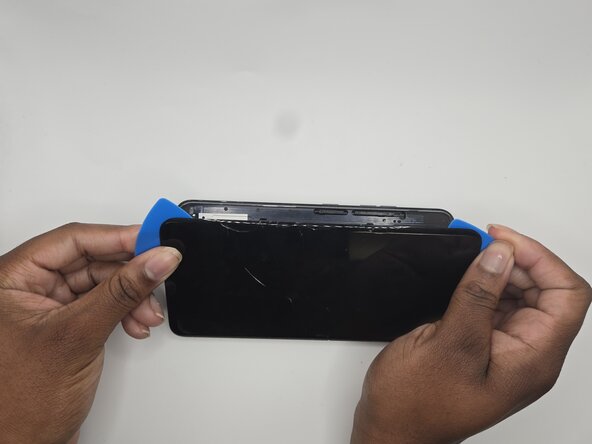
    • Using the iOpener, heat up the screen.

    • You will know when the screen is hot enough when an Opening pick is able to slide under the screen.

  12. LG V40 ThinQ Screen Replacement: step 12, image 1 of 2 LG V40 ThinQ Screen Replacement: step 12, image 2 of 2
    • Use Opening Picks to very gently pry the screen off.

    • The screen can crack and shatter very easily. Move slowly and carefully to avoid injury.

  13. LG V40 ThinQ Screen Replacement: step 13, image 1 of 1
    • Clean the old adhesive holding down the screen.

    • Apply new adhesive around the edges in the same spots as the old adhesive.

  14. LG V40 ThinQ Screen Replacement: step 14, image 1 of 3 LG V40 ThinQ Screen Replacement: step 14, image 2 of 3 LG V40 ThinQ Screen Replacement: step 14, image 3 of 3
    • Insert the screens flex cable through the front to the back.

    • Connect the flex cable to the back of the phone.

  15. LG V40 ThinQ Screen Replacement: step 15, image 1 of 1
    • Firmly press the screen onto the fresh adhesive to glue it back down.

    • The glue can take 5-10 minutes to start to cure but completely sets after 24hrs.

Conclusion

To reassemble your device, follow the above steps in reverse order.
Take your e-waste to an R2 or e-Stewards certified recycler.
Repair didn’t go as planned? Try some basic troubleshooting or ask our Answers community for help.

One other person completed this guide.

Noah

Member since: 09/12/25

538 Reputation

4 Guides authored

0 Guide Comments

Add Comment

View Statistics:

Past 24 Hours: 1

Past 7 Days: 5

Past 30 Days: 36

All Time: 113