Free Shipping on Domestic Orders $75+

Interconnect Cable Removal

Prerequisite Only
This is a prerequisite-only guide! This guide is part of another procedure and isn’t meant to be used alone.

What you need

  1. Interconnect Cable Removal, Prepare your phone for disassembly: step 1, image 1 of 2 Interconnect Cable Removal, Prepare your phone for disassembly: step 1, image 2 of 2
    • Let your phone's battery drain below 25% before starting this repair. A charged lithium-ion battery may catch fire if accidentally damaged.

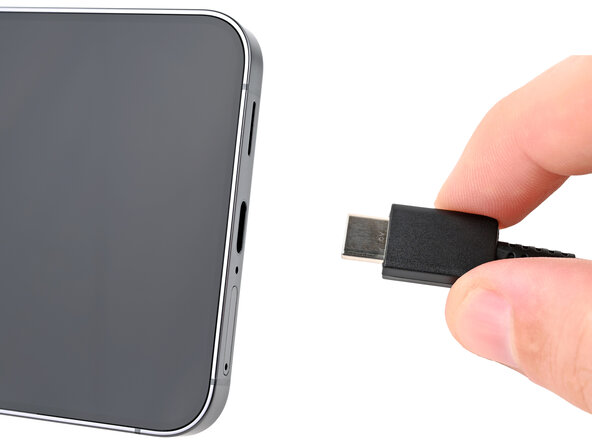
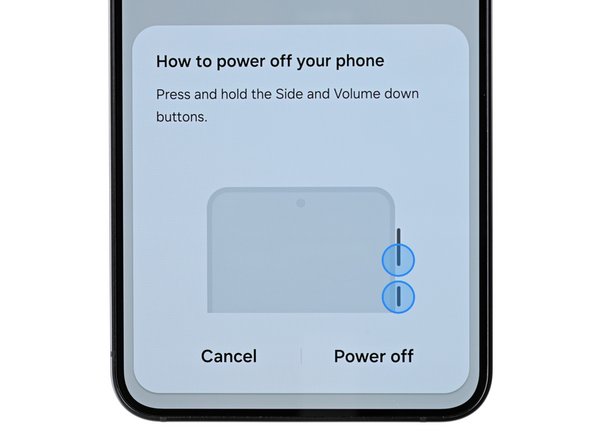
    • Completely power off your phone and unplug all cables.

  2. Interconnect Cable Removal, Heat the bottom edge: step 2, image 1 of 1
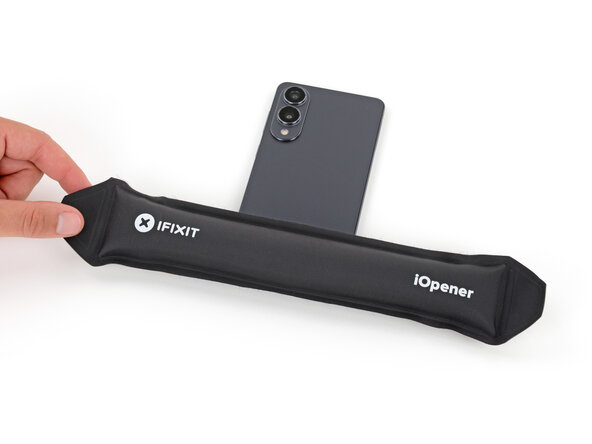
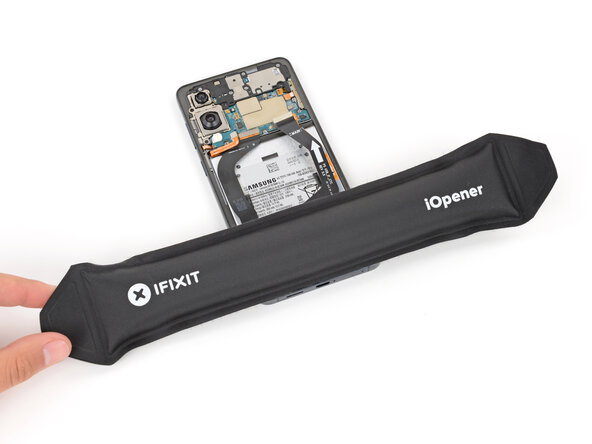
    • Mild adhesive secures the back cover. Heating it will soften the adhesive, making it easier to separate.

    • Heat an iOpener and lay it on the bottom edge of the back cover for two minutes to soften the adhesive.

    • Alternatively, you can use a hair dryer, heat gun, or hot plate to heat the cover.

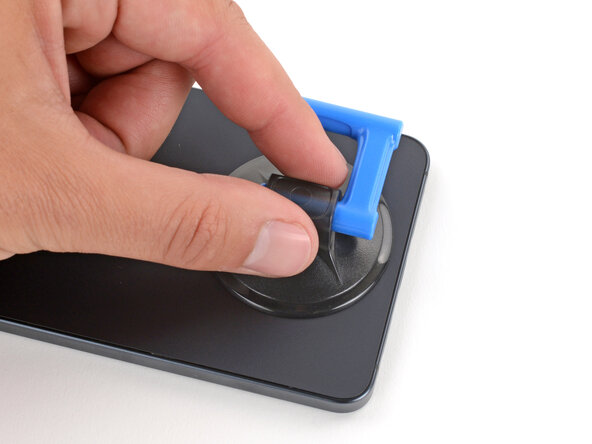
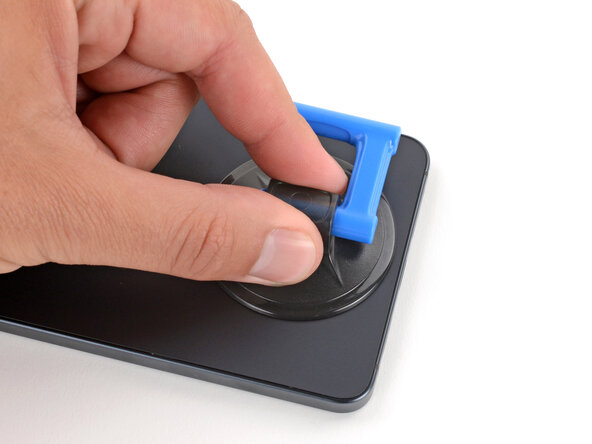
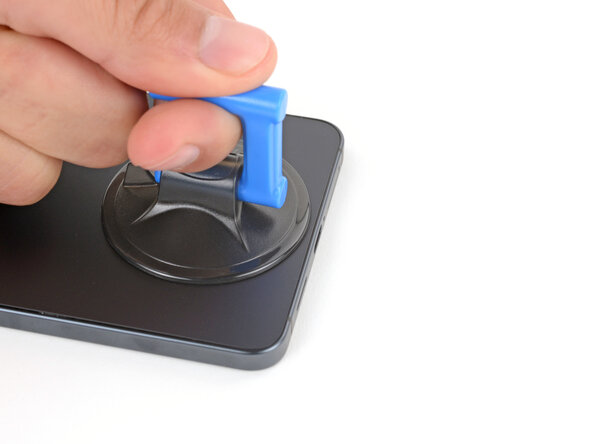
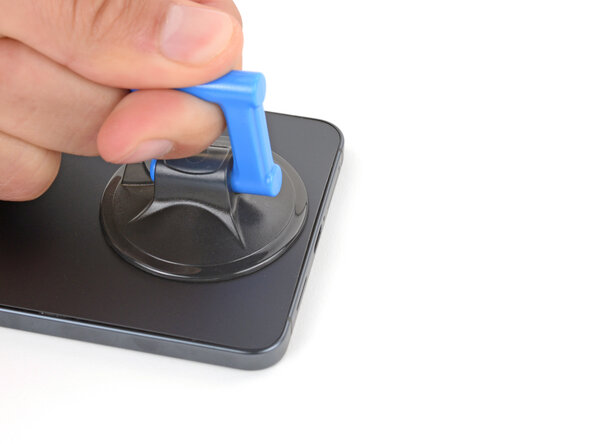
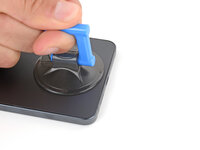
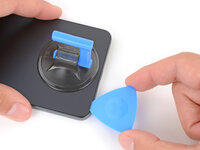
  3. Interconnect Cable Removal, Apply a suction handle: step 3, image 1 of 2 Interconnect Cable Removal, Apply a suction handle: step 3, image 2 of 2
    • Apply a suction handle near the center of the back cover's bottom edge, as close to the edge as possible.

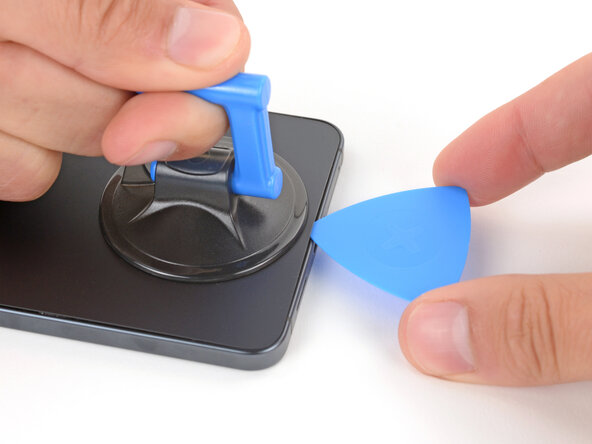
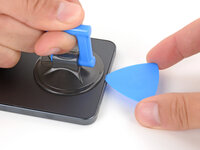
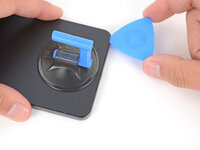
  4. Interconnect Cable Removal, Insert an opening pick: step 4, image 1 of 3 Interconnect Cable Removal, Insert an opening pick: step 4, image 2 of 3 Interconnect Cable Removal, Insert an opening pick: step 4, image 3 of 3
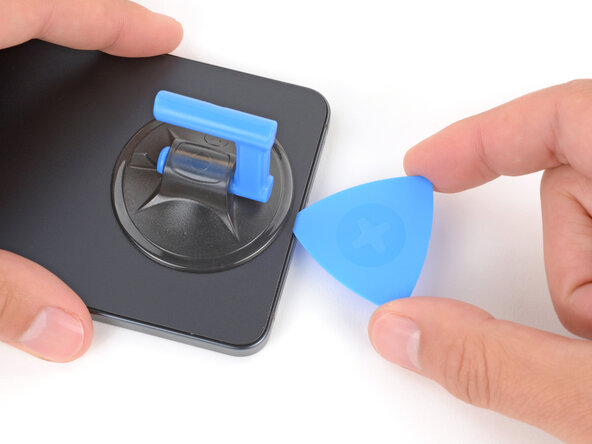
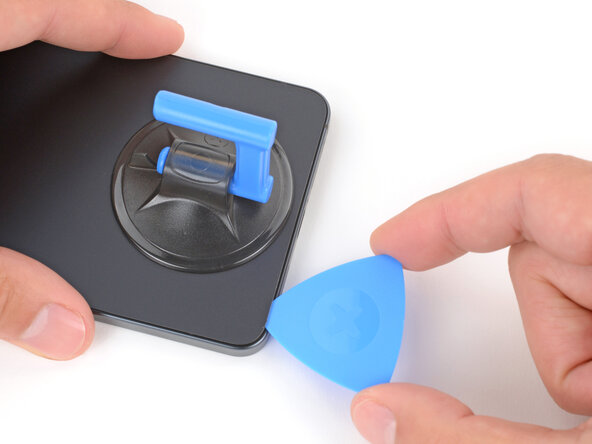
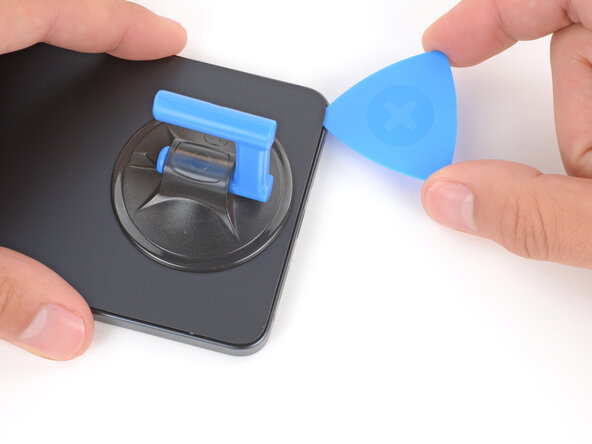
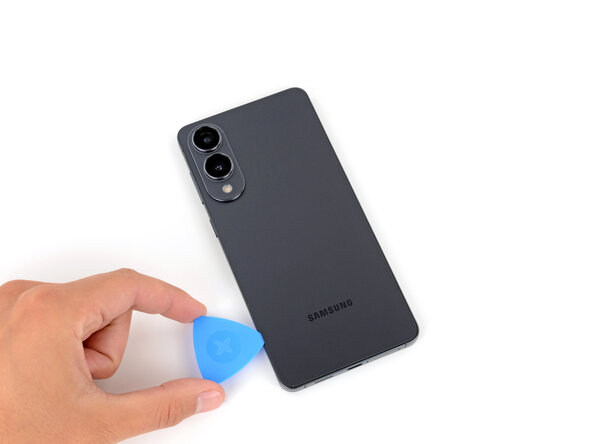
    • Pull up on the suction handle with strong, steady force until a gap forms between the cover and frame.

    • Insert the tip of an opening pick into the gap.

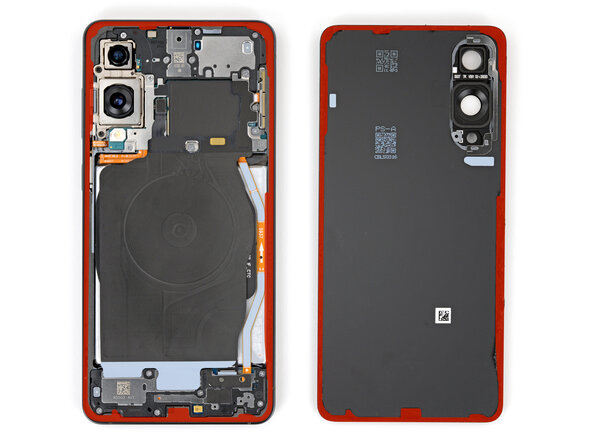
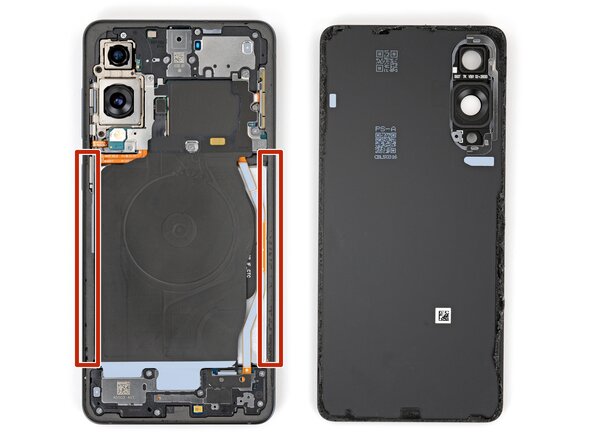
  5. Interconnect Cable Removal, Adhesive information: step 5, image 1 of 3 Interconnect Cable Removal, Adhesive information: step 5, image 2 of 3 Interconnect Cable Removal, Adhesive information: step 5, image 3 of 3
    • The back cover is secured with adhesive around the perimeter of the frame. Use this picture as a reference while you separate the adhesive.

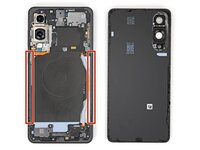
    • When separating the left and right edge adhesive, don't insert your pick more than 3 mm to avoid damaging the wireless charging coil and interconnect cable.

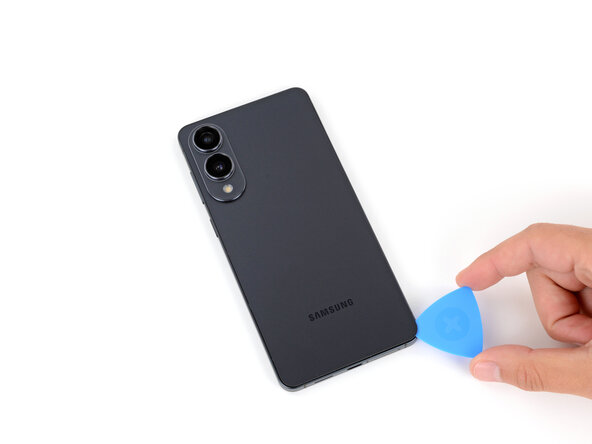
  6. Interconnect Cable Removal, Separate the adhesive: step 6, image 1 of 3 Interconnect Cable Removal, Separate the adhesive: step 6, image 2 of 3 Interconnect Cable Removal, Separate the adhesive: step 6, image 3 of 3
    • If you have trouble separating the adhesive, apply more heat and try again.

    • Slide your opening pick along the bottom edge to separate the adhesive securing the back cover.

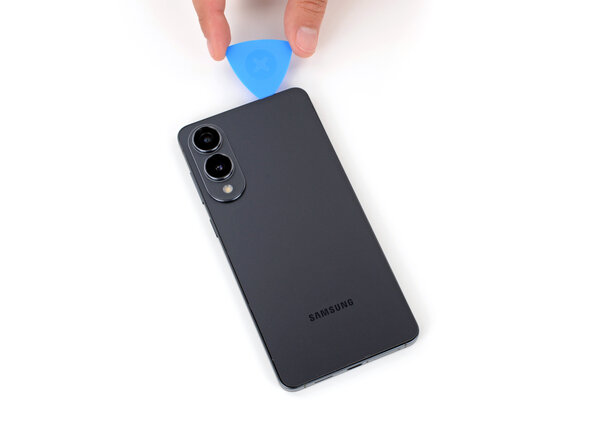
  7. Interconnect Cable Removal: step 7, image 1 of 3 Interconnect Cable Removal: step 7, image 2 of 3 Interconnect Cable Removal: step 7, image 3 of 3
    • Continue sliding your pick around the entire perimeter of the back cover to separate all the remaining adhesive.

    • Remember not to insert your pick too far under the long left and right edges.

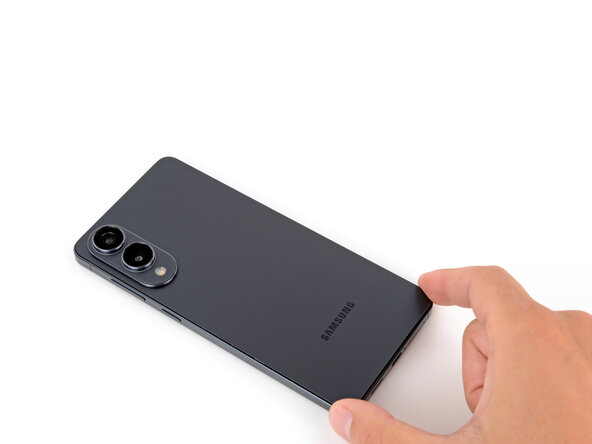
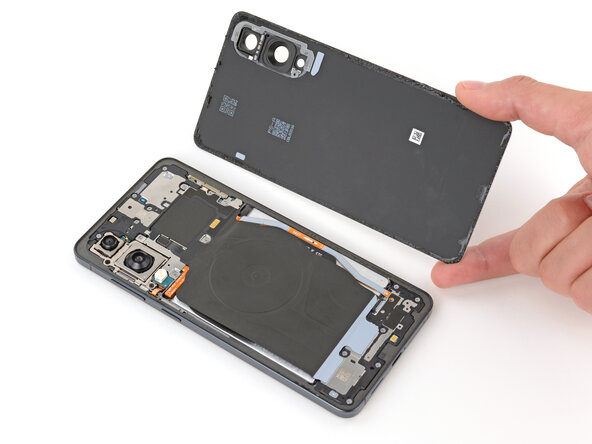
  8. Interconnect Cable Removal, Remove the back cover: step 8, image 1 of 2 Interconnect Cable Removal, Remove the back cover: step 8, image 2 of 2
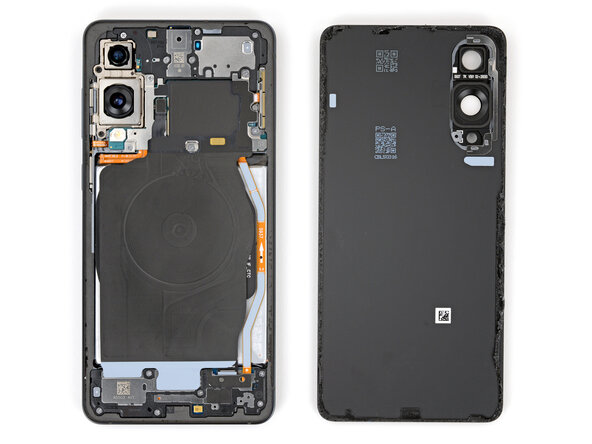
    • Remove the back cover.

    • If you're having trouble, check the perimeter for any remaining adhesive and use your opening pick to separate it.

    • During reassembly:

    • This is a good point to power on your phone and test all functions before sealing it up. Be sure to power your phone back down completely before you continue working.

    • Check your rear cameras for any smudges and gently wipe them with a clean lint–free cloth if necessary.

    • Your replacement back cover adhesive will be applied to either the frame or the back cover. Use cutouts and contours to see where it lines up best. If it matches the back cover, follow this guide. If it matches the frame, use this guide.

  9. Interconnect Cable Removal, Disconnect the wireless charging assembly: step 9, image 1 of 2 Interconnect Cable Removal, Disconnect the wireless charging assembly: step 9, image 2 of 2
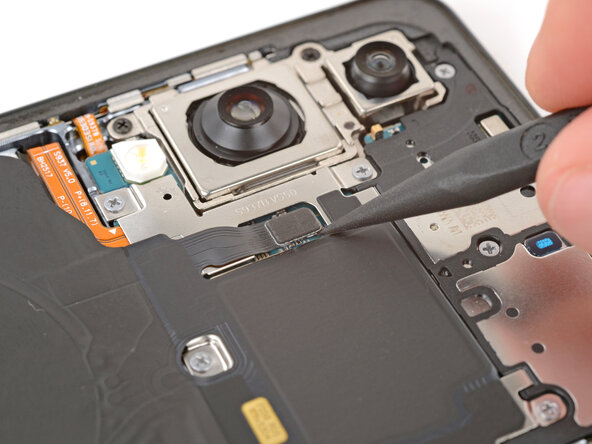
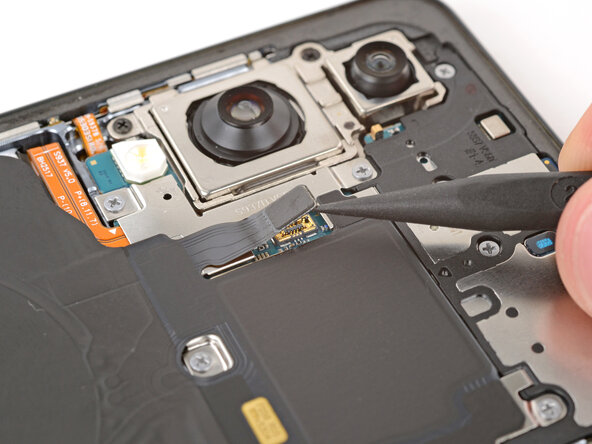
    • Use the point of a spudger to pry up and disconnect the wireless charging assembly press connector from its top edge.

    • Getting the spudger under the connector can be tricky. If you're having trouble, try using the tip of an opening pick instead.

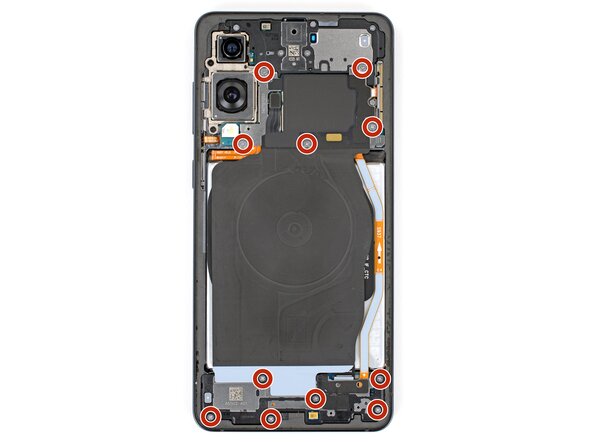
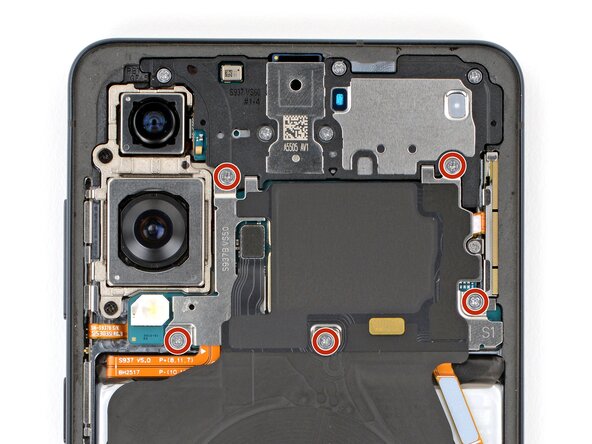
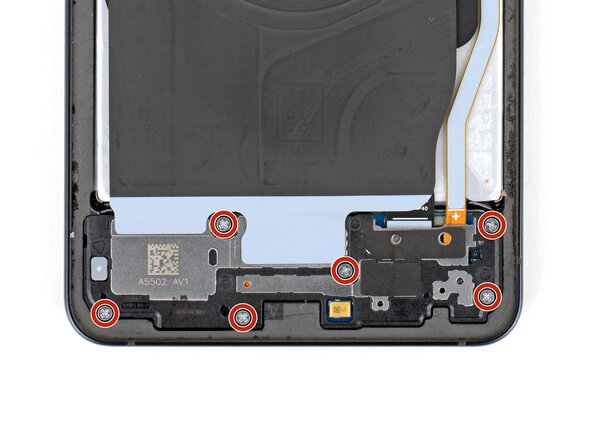
  10. Interconnect Cable Removal, Remove the wireless charging and loudspeaker assembly screws: step 10, image 1 of 3 Interconnect Cable Removal, Remove the wireless charging and loudspeaker assembly screws: step 10, image 2 of 3 Interconnect Cable Removal, Remove the wireless charging and loudspeaker assembly screws: step 10, image 3 of 3
    Tool used on this step:
    FixMat
    $36.95
    Buy
    • Throughout this repair, keep track of each screw and make sure it goes back exactly where it came from.

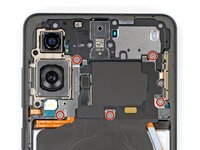
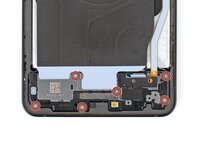
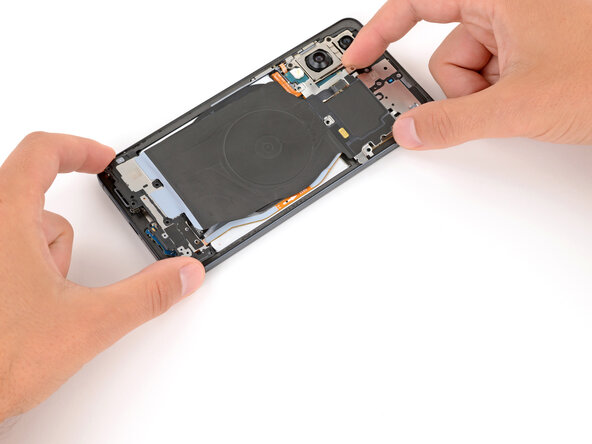
    • Use a Phillips screwdriver to remove the eleven 2.8 mm‑long screws securing the wireless charging and loudspeaker assembly.

  11. Interconnect Cable Removal, Pry up the loudspeaker: step 11, image 1 of 3 Interconnect Cable Removal, Pry up the loudspeaker: step 11, image 2 of 3 Interconnect Cable Removal, Pry up the loudspeaker: step 11, image 3 of 3
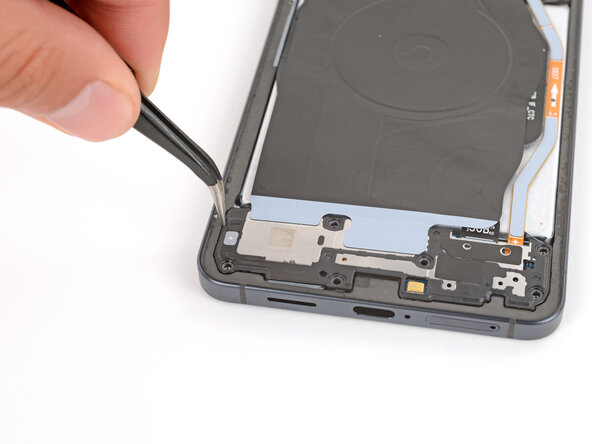
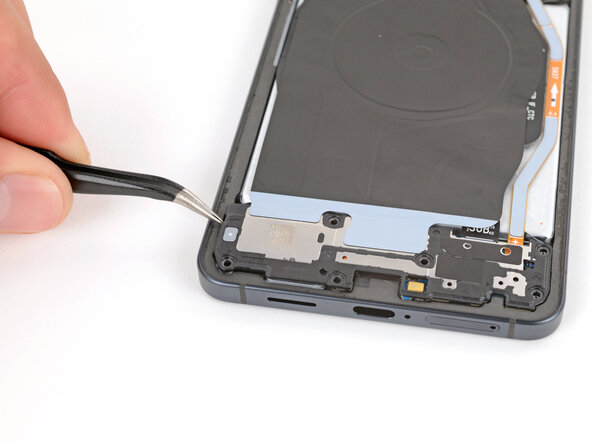
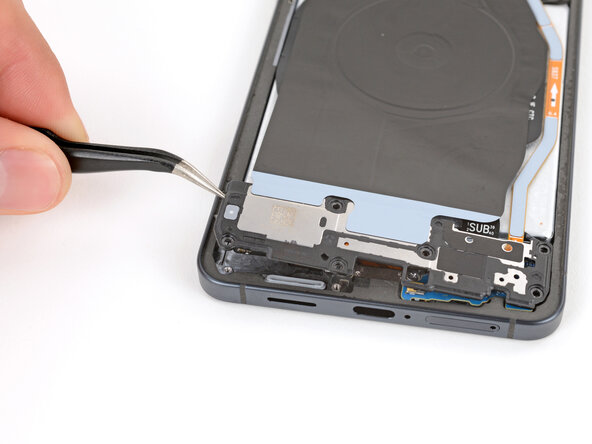
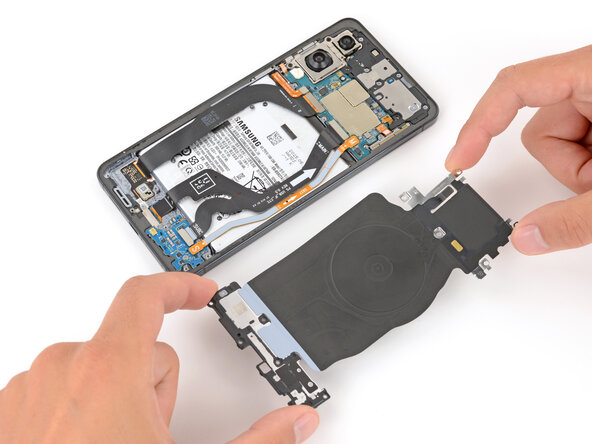
    • The wireless charging coil is connected to the loudspeaker with delicate tape. It's easiest to remove the coil and loudspeaker together as one assembly to avoid damage.

    • Use angled tweezers to pry up and unclip the loudspeaker by the notch on its left edge.

    • During reassembly, press down firmly around the perimeter of the loudspeaker to engage its clips.

  12. Interconnect Cable Removal, Remove the wireless charging assembly: step 12, image 1 of 2 Interconnect Cable Removal, Remove the wireless charging assembly: step 12, image 2 of 2
    • Use two hands to lift and remove the wireless charging and loudspeaker assembly.

  13. Interconnect Cable Removal, Disconnect the battery: step 13, image 1 of 2 Interconnect Cable Removal, Disconnect the battery: step 13, image 2 of 2
    • Every press connector has a corresponding gold arrow on the board that shows the proper location to pry—nifty! Prying at the wrong location risks damaging the fragile surface‑mounted components on the board.

    • Use the point of a spudger to pry up and disconnect the battery press connector.

  14. Interconnect Cable Removal, Disconnect the USB‑C port cable: step 14, image 1 of 2 Interconnect Cable Removal, Disconnect the USB‑C port cable: step 14, image 2 of 2
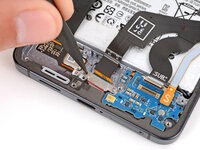
    • Use the point of a spudger to pry up and disconnect the USB‑C port cable's press connector (marked MAIN) from the logic board.

  15. Interconnect Cable Removal: step 15, image 1 of 2 Interconnect Cable Removal: step 15, image 2 of 2
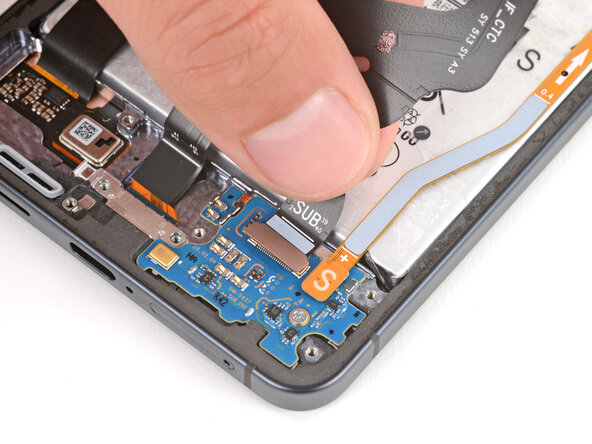
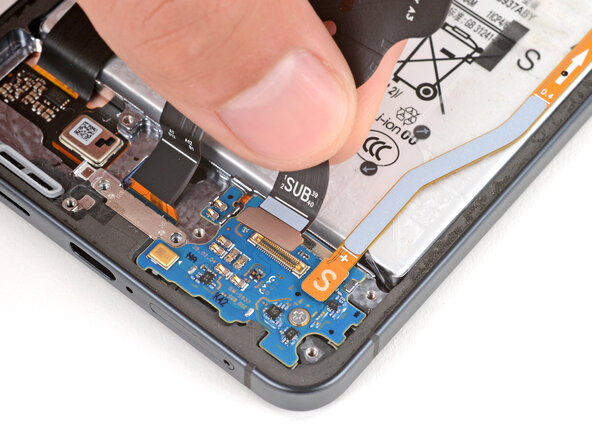
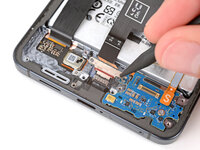
    • Use the point of a spudger to pry up and disconnect the USB‑C port cable's press connector (marked SUB) from the sub board.

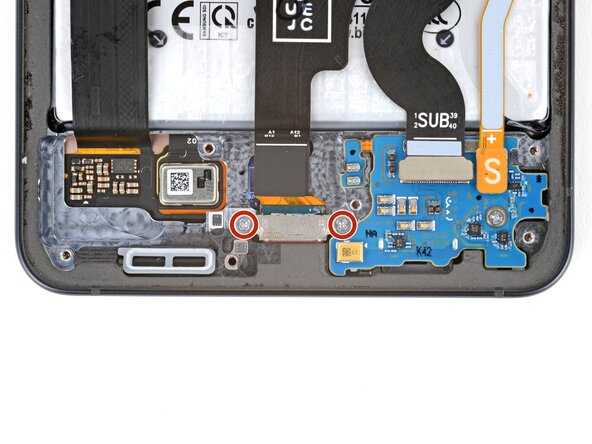
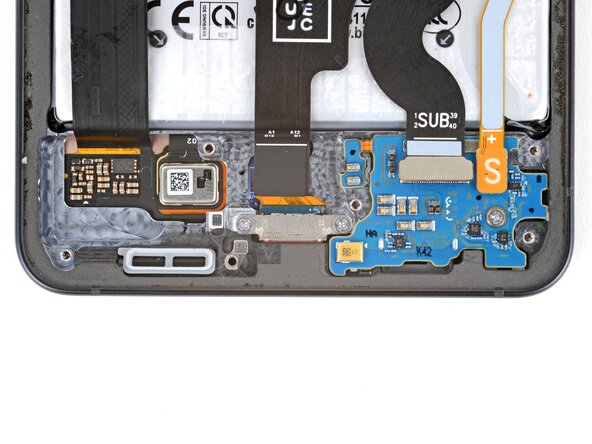
  16. Interconnect Cable Removal, Remove the USB‑C port screws: step 16, image 1 of 2 Interconnect Cable Removal, Remove the USB‑C port screws: step 16, image 2 of 2
    • Use a Phillips screwdriver to remove the two 2.3 mm‑long screws securing the USB‑C port.

  17. Interconnect Cable Removal, Detach the USB‑C port cable: step 17, image 1 of 2 Interconnect Cable Removal, Detach the USB‑C port cable: step 17, image 2 of 2
    • Mild adhesive secures the USB‑C port cable to the sub board, near the white section below the SUB text.

    • Apply a heated iOpener to the USB‑C port cable for two minutes to soften the adhesive.

    • Alternatively, you can use a hair dryer or heat gun to lightly heat the cable.

  18. Interconnect Cable Removal: step 18, image 1 of 2 Interconnect Cable Removal: step 18, image 2 of 2
    • Be careful not to crease or tear the USB‑C port cable during this step.

    • Use your fingers to gently peel up the USB‑C port cable from the sub board.

  19. Interconnect Cable Removal, Remove the USB‑C port: step 19, image 1 of 3 Interconnect Cable Removal, Remove the USB‑C port: step 19, image 2 of 3 Interconnect Cable Removal, Remove the USB‑C port: step 19, image 3 of 3
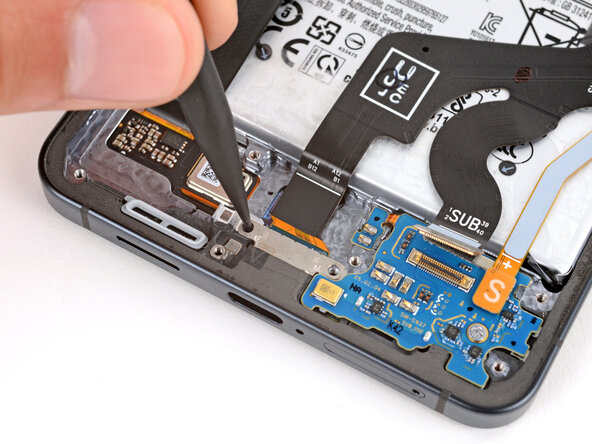
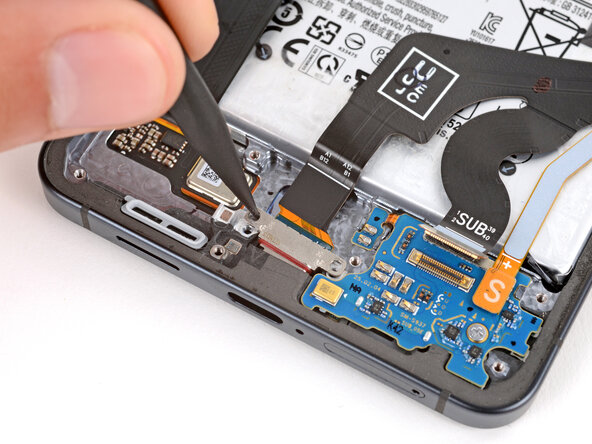
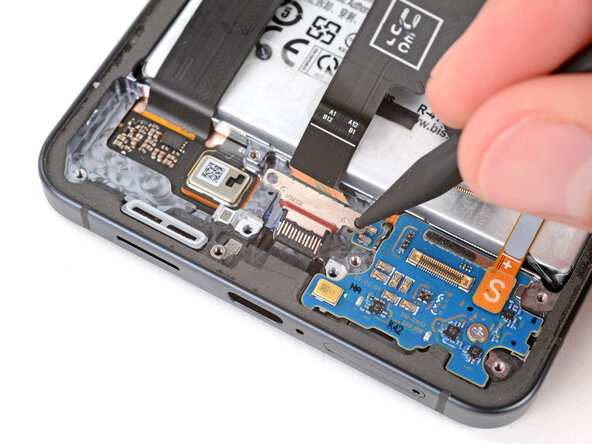
    • Insert the point of a spudger into one of the USB‑C port screw holes and push the port away from the bottom edge of your phone.

    • Alternate between screw holes as necessary until the port slides fully out of its recess.

  20. Interconnect Cable Removal: step 20, image 1 of 1
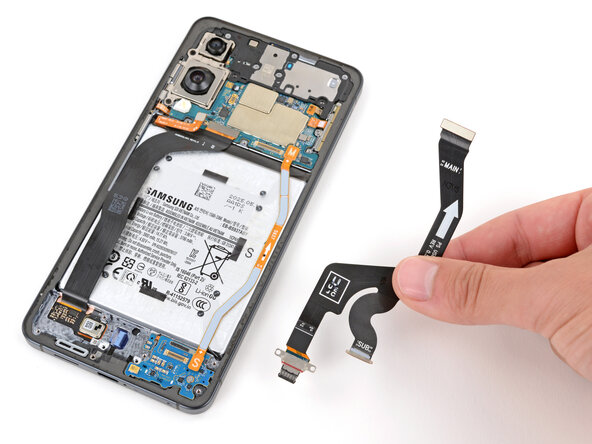
    • Grip the USB‑C port by its cable and remove it.

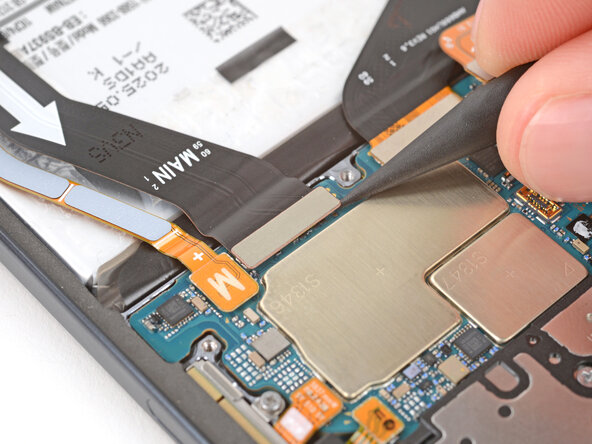
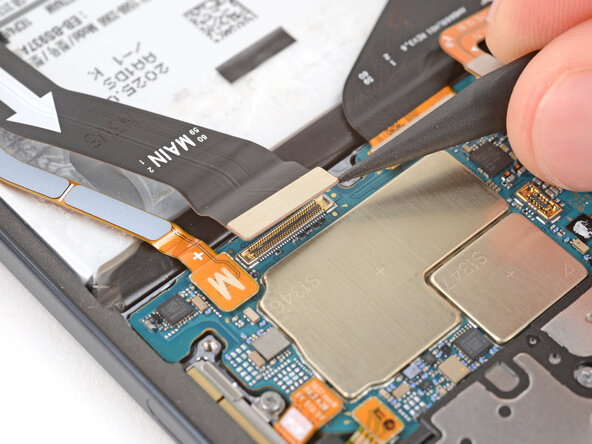
  21. Interconnect Cable Removal, Disconnect the interconnect cable: step 21, image 1 of 2 Interconnect Cable Removal, Disconnect the interconnect cable: step 21, image 2 of 2
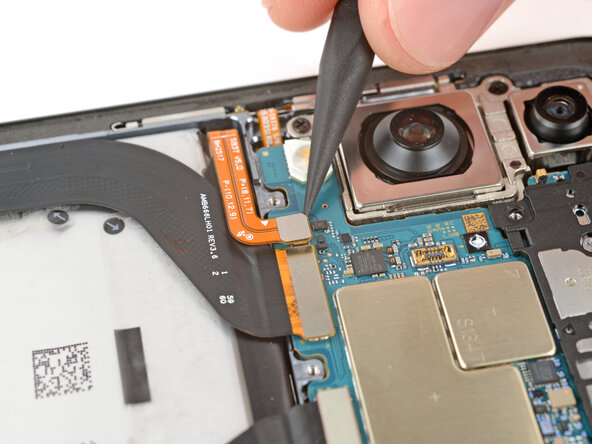
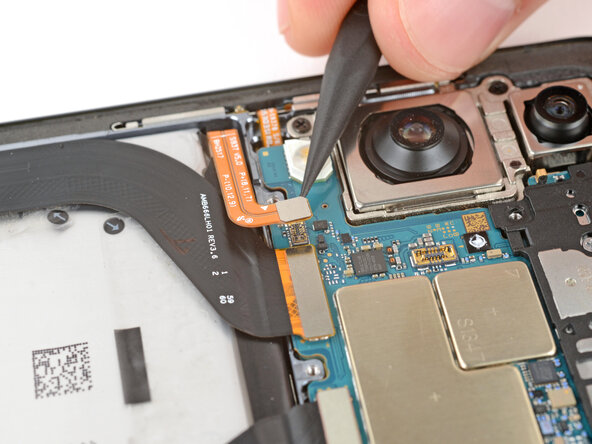
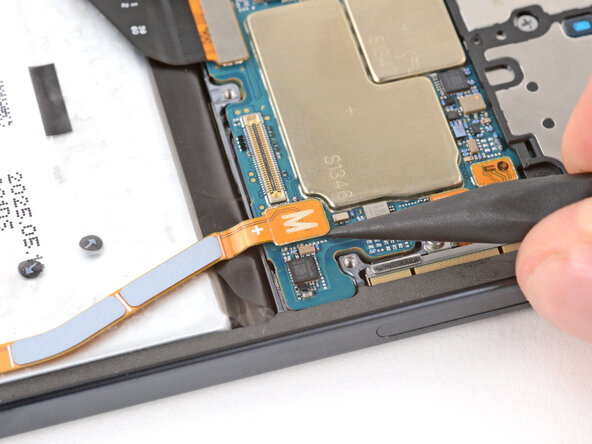
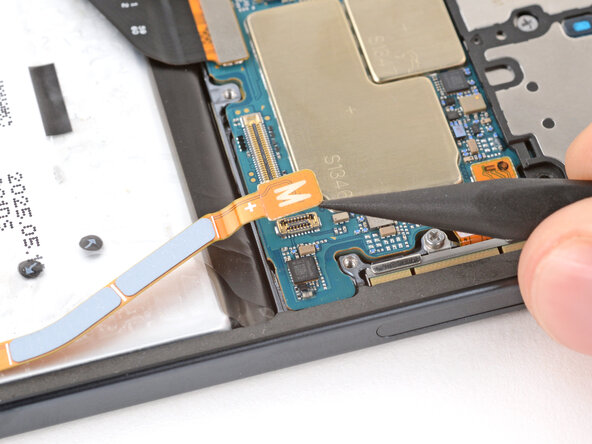
    • Use the point of a spudger to pry up and disconnect the interconnect cable press connector (marked M) from the logic board.

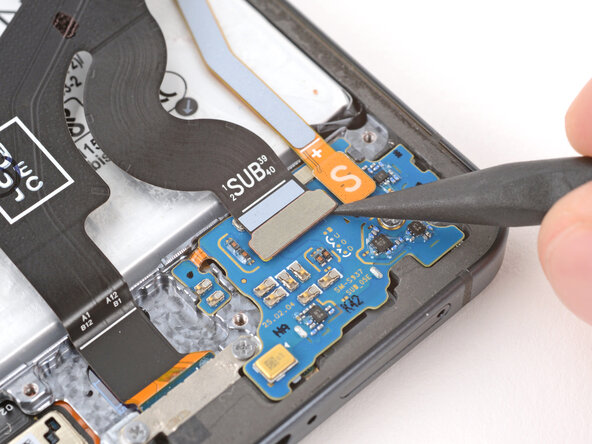
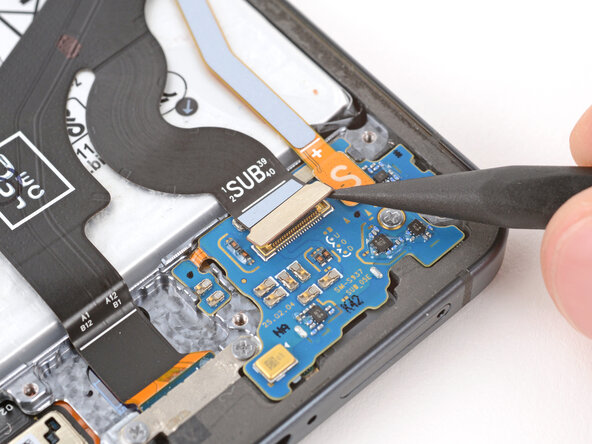
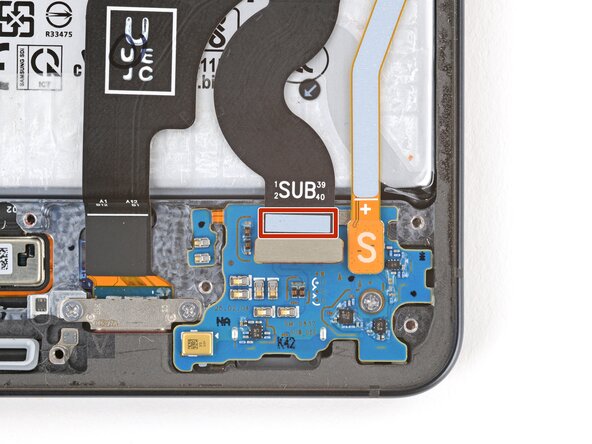
  22. Interconnect Cable Removal: step 22, image 1 of 2 Interconnect Cable Removal: step 22, image 2 of 2
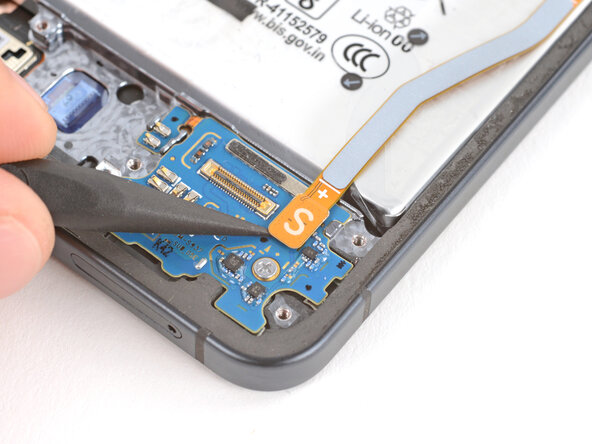
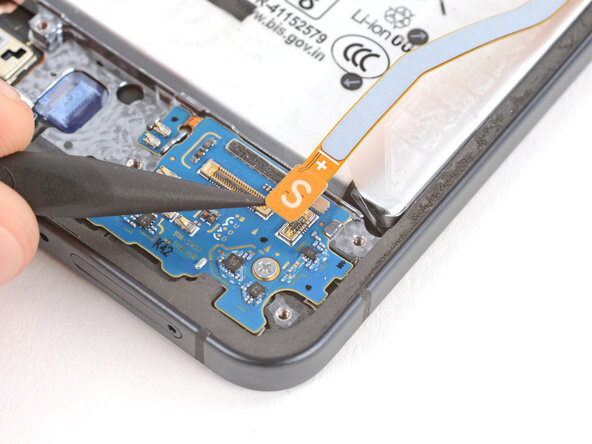
    • Use the point of a spudger to pry up and disconnect the interconnect cable press connector (marked S) from the sub board.

  23. Interconnect Cable Removal, Remove the interconnect cable: step 23, image 1 of 1
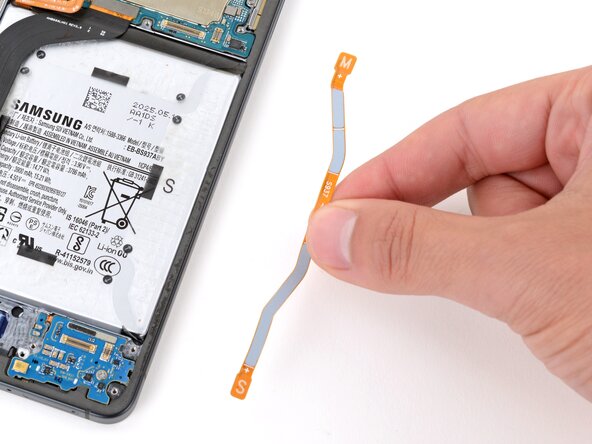
    • Remove the interconnect cable.

Finish Line

Spencer Day

Member since: 09/14/22

159,039 Reputation

1,043 Guides authored

0 Guide Comments

Add Comment

View Statistics:

Past 24 Hours: 0

Past 7 Days: 0

Past 30 Days: 5

All Time: 28