Introduction
At the time of writing this guide, OS X 10.5 Leopard was the current release by Apple. The newest OS by Apple is OS X 10.10 Yosemite. The installation procedure should be relatively the same as previous versions, although, you will need to first create a Yosemite Recovery Disk using this tool.
Install Mac OS X v10.5 Leopard on a new hard drive.
-
Insert a Mac OS X v10.5 Leopard installation disc into your optical drive.
-
Hold down the “option” key and restart the computer to bring up the boot option menu.
-
To begin the installation, click the install disc icon on the boot option menu.
-
When prompted, select your language and click the arrow button to continue.
-
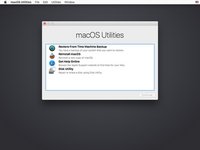
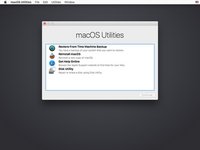
After the installer loads, you will be greeted by a welcome window.
-
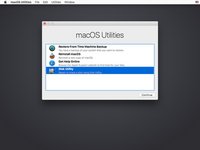
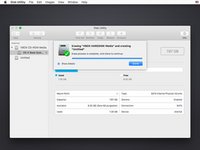
Select “Disk Utility” from the Utilities drop down menu.
the new hard drive disc does not show up in dialog box "select the disc where you want to install mac os x" just an empty box
-
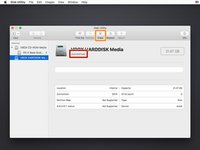
Select your new hard drive from the left column in Disk Utility.
-
The correct partition table type needs to be set for your hard drive.
-
If it's a brand-new hard drive, it may have no partition type listed.
-
For an Intel-based machine, you should have "GUID Partition Table" listed.
-
For a Power-PC-based machine, you should have "Apple Partition Map" listed.
-
-
If the incorrect partition type is listed, proceed to the next step to delete and re-create the partition. If not, proceed to step 8.
-
Select the partition on the drive and click the "-" button.
-
When prompted, click the "Remove" button to remove the drive's existing partitions.
-
Once the partitions have been removed, click the "Options..." button.
-
Select the partition scheme required for your machine:
-
Select "GUID Partition Table" for Intel-based machines.
-
Select "Apple Partition Map" for PowerPC-based machines.
-
-
Click "Ok."
-
Press the "+" button to add a new partition.
-
Press the "Apply" button.
-
Click on the “Erase” tab.
-
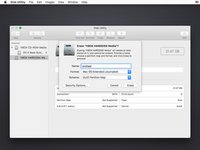
Choose the Volume format (we recommend “Mac OS Extended (Journaled)”).
-
Select a name for the drive.
-
Type in a name for the drive. Apple names their drives "Macintosh HD" from the factory.
-
Click “Erase.”
-
Click "Erase" on the warning window that has popped up.
-
After erasing is done, quit Disk Utility.
-
After quitting Disk Utility, proceed with the installation by clicking the "Continue" button.
-
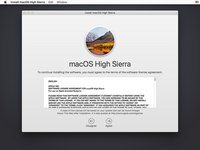
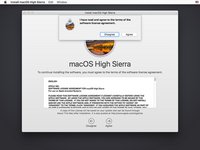
Agree to the Software License Agreement by clicking the "Agree" button.
-
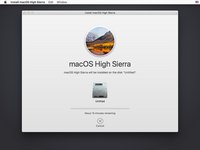
Make sure the correct hard drive is selected as the installation destination.
-
Click "Continue" to proceed with the installation.
-
Click "Install" to commence the installation.
-
During this step, you will see a "skip" button. It is not necessary to check the disk, and the "skip" button may be used. However, if you have never used your disk before, or haven't used it recently, it is highly recommended you check it.
I installed a new hard disk and followed these and other instructions on formatting and installing Mavericks. I ran into a problem. In this guide it would have occurred around step 13 or 14. When clicked OK to begin the install, Mavericks verifies the APP. A dialog box appeared that said the APP was corrupted or incomplete and to re-download it.
A little research revealed that when it is verifying it, the process uses the system date. I had replaced the battery as part of this maintenance (but the instructions for replacing a hard disk suggest disconnecting the battery, so it will likely effect others.
The solution was to use Terminal and set the date:
1. Boot using the USB.
2. Do all other activities up to the Installation.
3. Click the OS X Installer's Utilities menu and select Terminal.
4. Enter the following command (modifying it for the current date.
date {month}{date}{hour]{minute}{year}
Each { } is entered as two digits. So August, 10, 2014 13:30 would be:
date 0810133014
5. Install the OS.
Mine freezes less than a minute in, and at one point I waited for about 3 hours just to make sure it wasn't working. I just replaced my hard drive with an SSD, but I've done all the steps that were outlined, AKA formatting the drive and erasing it, etc... Is there something else I can do?
-
Leopard will now install onto the hard drive.
Help please! Computer: 2009 MBP 13". HDD: WD 500GB.
I got to Step 16, but I was unable to click continue so that I could install the iLife applications disc. It did nothing, the cursor would move but I was unable to click. I tried pressing enter and nothing, I had to eventually do a hard shut down. It rebooted fine and went through the whole new set up like it was a brand new computer, but I didn't get to install the iLife applications. I have tried putting the disc in, but it just keeps ejecting it. There is no App Store application available, only iTunes.I didn't have the install discs for the 13", but did for the 2010 15" MBP and used that.
BB
-
The installation was successful. Click "Restart" to reboot the computer.
-
At this point you are finished with the Mac OS X install.
Mac OS X Leopard should now be freshly installed. Enjoy!
Cancel: I did not complete this guide.
332 other people completed this guide.
23 Comments
I replace Toshiba MK1231Gal dard disk based on instruction on yutube http://www.youtube.com/watch?feature=pla...!
the problem is that when I try to install osx, I cant format the disk
I got notice input, output error, when try to make a partition or try anything with disk utility
I own MacBook air 1237
I replace Toshiba MK1231Gal dard disk based on instruction on yutube http://www.youtube.com/watch?feature=pla...!
the problem is that when I try to install osx, I cant format the disk
I got notice input, output error, when try to make a partition or try anything with disk utility
I own MacBook air 1237
A small pointer for any who have the same issue. I put in an entirely new 2TB WD sata drive and then preformed a fresh install of snow leopard onto it. When I got to the section to choose which drive to install to there was no drive image.
I clicked at the top on disk utility, then picked the drive, clicked erase and erased the drive. THis actually formats it into a mac format. after this I closed disk utility and voila the drive was now visible and installation could commence.
Good luck
This guide was awesome!
Thank you!
This Mac OS X Install Guide is really outdated. When using a Recovery disk to install Mavericks, OS X just told me it couldn't install Mavericks. Didn't tell me why, it just told me it couldn't do it. I did something like this:
1. Get a USB or Firewire HD enclosure. Use the iFixit HD Replacement Guide to put your new HD into your iMac and put your old HD into the enclosure.
2. Plug in the enclosure and its USB or firewire cable to your iMac.
3. Hold down the option key on your keyboard and turn on your iMac. When it boots, it should recognize your old HD in the enclosure and give you the option to boot from that drive. Select that drive. It's just like booting when the drive was still in the iMac but maybe a little slower.
4. Now go to the App Store and Download and install Mavericks. You'll need to select "Show all Disks". You may need to use Disk Utility to format or erase your new HD if it doesn't show up. Use Migration Assistant to transfer apps and data from your old HD to your new HD in the iMAC.
Thanks for helping others! This install guide is specifically for Mac OS X 10.5 Leopard. We are working to make guides for installation of the more current OS's, but they haven't been completed at the current time.
Mike -
Hi, my questipn is: i have to insert the os cd before installing the new hard drive?
You do not need to install the disk prior to installing the Hard Drive.
Mike -
I need help. I have 10.5.8 on my macbook. My hard drive is messed up so I cant erase the hard drive as the erase button is greyed out. So I am trying to format everything in my macbook and reinstall osx. But I got 10.6 only. Please advise how to erase everything on hard disk and installing clean osx on macbook? Is anything I should know?
Depending on your MacBook, you may be able to install Mac OS X 10.6 onto that machine. You will need to boot up from that disk prior to doing the erase of the hard drive as well.
Mike -
After installing new HDD in IMAC...power on gives a yellow screen. Is it possible to get to formatting utility from this point? I tried a command R no luck.
2nd attempt I tried inserting Snow Leopard disk, tried 'option' key at power on, tried Cmd-R, tried no key; disk goes into a cycling routine but nothing appears on screen.
I have a MacBook Early 2009 A1181 Model. Just ordered a SSD from Amazon, and have all of my stuff backed up on the external hard drive I use for backing up. I still have all of my installation CDs, but want to make sure of the tools I need for this. I know I take the battery out, and that metal cover in that area, but for my Mac I'm not sure if it would be the same tools since it is older than what you guys have.
Also, one quick question, can I change the processor in this? I will be switching out the ram soon, likely after tax season, but I want to get a faster processor if possible.
I replaced the original 320 GB OEM Apple/Hitachi drive in my 2007 iMac with a 3 TB Hitachi/HGST drive today using the iFixit guide. To reinstall OS X, I used an Apple USB thumb drive, which after reformatting with Disk Utility, is currently downloading Lion from Apple. I also decided to run the formatting/reinstallation before reassembling the front bezel and glass, in case my son and I did something wrong in the drive replacement. Fortunately it looks like we did everything right.
Thought that I would add this comment in case someone has similar situation. MBP late 2011 replaced HD with SSD (Samsung 850 EVO). The angle on the install was that my Time Machine and Old HD were encrypted. When encrypted (Time Machine and CCC clone of drive), the Recovery HD is not setup (not sure details, perhaps this is how encryption works). Either way, setting up a bootable Install USB drive (8 gig minimum for Yosemite) was necessary. Sequence was full backup (I did both Time Machine and CCC to be sure)., create bootable USB installer drive (Google it, I used the Disk Utility method). Shut Down, Reboot with Command-R, plug in USB drive, format new disk, load Yosemite from USB to new disk, then shut down, Restart with Command-R, then load Time Machine backup. The clean Yosemite install setup the Recover Partition on new drive and the files copied from Time Machine restored system to original state without messing with newly created Recovery partition. Then encrypt new drive and you are done.
Hi,I am getting ready to replace the drive in my early 2008 20" iMac. I have a Time Machine backup but do not have the OS installation disks. How can I get replicate my current drive contents to the new disk?
Thank U, Clear I would like to test and check. :)
please mention Customize ,that can save many GB of disk space with unwanted junk.
How do you install 10.5 over 10.7) (which is on a 2nd partition) to downgrade to 10.5 due to having to use some software limited to 10.5?
How do you install 10.5 over 10.7 (10.7 is on a 2nd partition) to downgrade to 10.5 due to having to use some software limited to 10.5.
I don't have a Snow Leopard disc. I downloaded Snow Leopard to an external hard drive, and connected it to the mac before starting up and pressing the Option Key. All I get is a grey screen and a cursor. Is there a way to format my new 1TB hard drive using software loaded onto an external drive?
I don't have a Snow Leopard disc.
I downloaded it from the apple website and loaded the MacOSXUPD10.6.8.pkg onto an external hard drive and connected it to the iMac. I started it up, pressing the option key down, and all I get is a grey screen and a cursor. Is there a way to format my new 1TB internal hard drive using the software loaded onto an external drive? Kinda new to this :(
OK - I replaced my HD for my Mac Book Pro 15" #1211 and reloaded software and everything works... but the software upgraded to OSX Lion and again everything works... but it won't up grade to anything beyond Lion. What am I missing? Is it a hardware restriction or some other problem?
I'm stuck here - My MacBook won't accept the Snow Leopard disk I'm trying to instert. It just rejects it instantly. I've just installed a new Hard Drive. Any idea why this happens? Is it the computer? the hard drive? the disk?
Thanks!
Lyv - Reply
I followed the steps to install a new hard drive when I turn on the computer it just beeps 3 times, any help? Thanks
Jeff - Reply
Hi Jeff,
It sounds like your RAM may not be fully reinserted back in the machine properly, and you may need to remove it, and try ensuring that the RAM is fully inserted.
Mike -
is it possible to work just with the Recovery tool from apple.com tu install the os? i don't have the installation dis no more...
adiglauser - Reply
For Newbies to HD installs: Don't forget, new drives need to have a partition created on them before it being recognized by the mac for OSX installation. Boot the installation CD and when it loads, select "Disk Utility" and create a new partition, then it will recognize and show the hard disk so you may select it for installation of OSX.
theonlyexpert - Reply
Help
I upgrade my early 2008 20" iMac to a 1TB HDD, After installation the iMac powers on but all I can see is a question mark and a folder flashing. I'm confused cos im not sure if I did something wrong along the line or if this is normal. I read online that I would need a osx 10.5 recovery CD which should be the os my devicr shipped with.I have found that on eBay but I need to know if all this is normal or if the flashing folder and question mark after HDD change is a fault. Thanks
jan klassan - Reply
Has anyone figured this out...? I'm having the exact same issue. It almost seems like I have a bad hard drive. It doesn't seem to recognize it and I double checked my connections.
charlesgreene3 -
That just means that you need the OS X installation disk.
Karakuda -
Same issue as Ian above. I ordered new hard drive, followed steps. Hit power and all I got was blinking question mark. Restarted and held the option key, and now all I see if grey with my mouse, which still moves. What do I do next????
pauljags - Reply
Hello pauljags, I have exact same issue as you. Did you resolve? If so how? Cheers James.
jayfc1980 -
or you can hold command and c on startup to take you straight to the DVD drive
Joshua Lockett - Reply
hi..I'm just reinstalled new hard drive as the old had crashed..idk what to do after that..do i need the cd?what if I don't have it?is there any solution?and btw i used the os x el capitan
noraina - Reply
Hello, if you have another Mac, you can use this tutorial: https://www.ifixit.com/Guide/Créer+une+clé+USB+bootable/66371
Anthony Fassler -