How to Install a Framework Desktop Mainboard Into a Mini‑ITX Case

What you need

  1. How to Install a Framework Desktop Mainboard Into a Mini‑ITX Case, Place the Mainboard: step 1, image 1 of 2 How to Install a Framework Desktop Mainboard Into a Mini‑ITX Case, Place the Mainboard: step 1, image 2 of 2
    • Depending on your case, some components on the bottom of your Mainboard might be inaccessible after you install it.

    • The next four steps show how to install the secondary storage before installing the Mainboard; however, you may need to install other components, such as the Wi-Fi module.

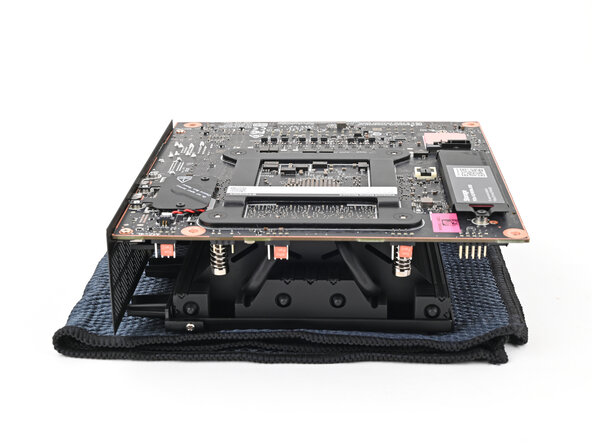
    • Place the Mainboard on your work surface with its heatsink resting on a soft, clean cloth.

  2. How to Install a Framework Desktop Mainboard Into a Mini‑ITX Case, Loosen the secondary storage screw: step 2, image 1 of 2 How to Install a Framework Desktop Mainboard Into a Mini‑ITX Case, Loosen the secondary storage screw: step 2, image 2 of 2
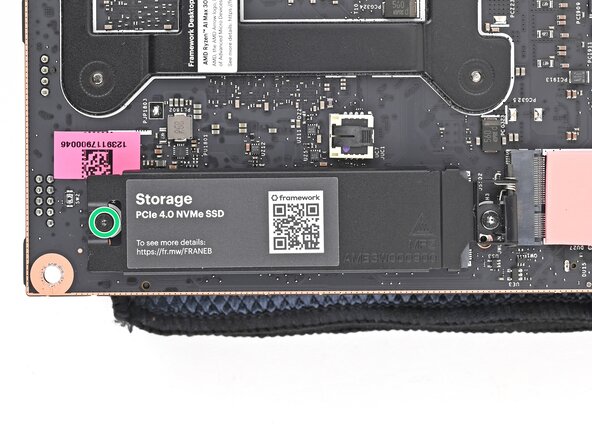
    • Use your Framework Desktop Screwdriver to loosen the captive T5 Torx screw securing the secondary storage.

    • The heat spreader will pop up to an angle when its screw is fully loosened.

  3. How to Install a Framework Desktop Mainboard Into a Mini‑ITX Case, Remove the secondary storage heat spreader screw: step 3, image 1 of 3 How to Install a Framework Desktop Mainboard Into a Mini‑ITX Case, Remove the secondary storage heat spreader screw: step 3, image 2 of 3 How to Install a Framework Desktop Mainboard Into a Mini‑ITX Case, Remove the secondary storage heat spreader screw: step 3, image 3 of 3
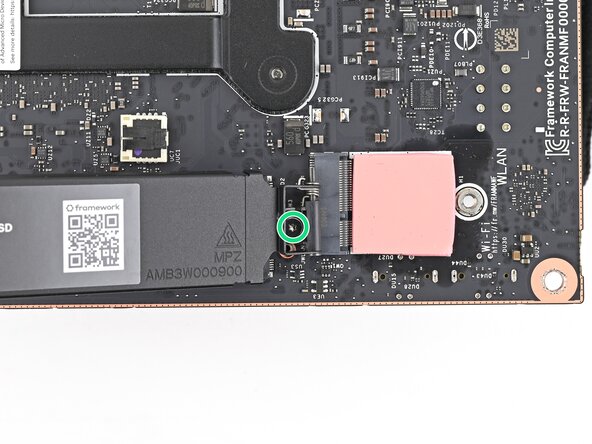
    • If your SSD comes with a pre-installed heat spreader, follow the next two steps. Otherwise skip here.

    • While securing the secondary storage heat spreader with one hand, use your Framework Desktop Screwdriver to remove the 4.5 mm‑long T5 Torx screw securing it.

  4. How to Install a Framework Desktop Mainboard Into a Mini‑ITX Case, Remove the secondary storage heat spreader: step 4, image 1 of 1
    • Lift the secondary storage heat spreader out of the Desktop and remove it.

    • Follow the guide normally, making sure to ignore instructions that involve the secondary heat spreader.

  5. How to Install a Framework Desktop Mainboard Into a Mini‑ITX Case, Install the secondary storage: step 5, image 1 of 2 How to Install a Framework Desktop Mainboard Into a Mini‑ITX Case, Install the secondary storage: step 5, image 2 of 2
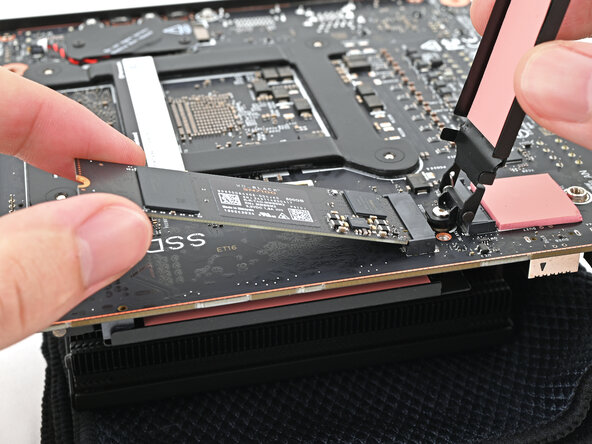
    • Hold the SSD by its edges. Don't touch the gold contacts with your fingers. If you do, wipe the contacts with a clean, lint-free cloth to remove any finger oils.

    • While holding the heat spreader upright, align the SSD's gold contacts with its socket.

    • Insert the SSD into the socket at a shallow angle. The gold contacts should be mostly covered by the socket.

    • The SSD fits into the socket in one orientation. If it doesn't feel like it fits, try flipping the module.

  6. How to Install a Framework Desktop Mainboard Into a Mini‑ITX Case: step 6, image 1 of 3 How to Install a Framework Desktop Mainboard Into a Mini‑ITX Case: step 6, image 2 of 3 How to Install a Framework Desktop Mainboard Into a Mini‑ITX Case: step 6, image 3 of 3
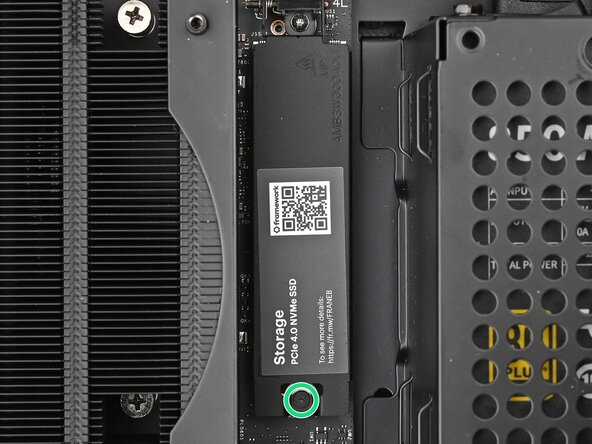
    • Insert your Framework Desktop Screwdriver into the captive screw on the secondary storage heat spreader and press it flat to the Mainboard.

    • Tighten the screw securing the secondary storage.

  7. How to Install a Framework Desktop Mainboard Into a Mini‑ITX Case, Expose the internals: step 7, image 1 of 3 How to Install a Framework Desktop Mainboard Into a Mini‑ITX Case, Expose the internals: step 7, image 2 of 3 How to Install a Framework Desktop Mainboard Into a Mini‑ITX Case, Expose the internals: step 7, image 3 of 3
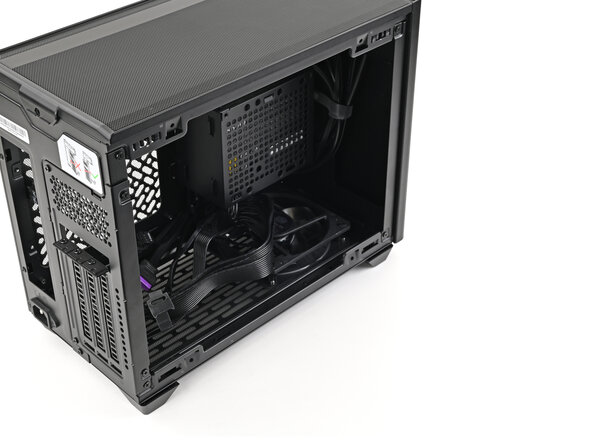
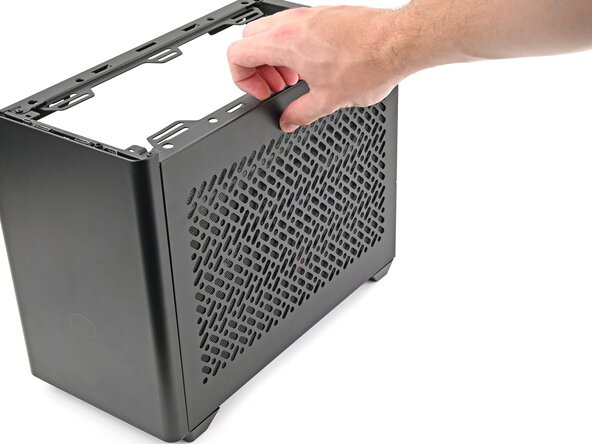
    • Remove the side panel from your case so you can access the cutout for the Mainboard.

  8. How to Install a Framework Desktop Mainboard Into a Mini‑ITX Case, Reposition the case: step 8, image 1 of 2 How to Install a Framework Desktop Mainboard Into a Mini‑ITX Case, Reposition the case: step 8, image 2 of 2
    • Lay the case on its side.

  9. How to Install a Framework Desktop Mainboard Into a Mini‑ITX Case, Reposition the cables: step 9, image 1 of 2 How to Install a Framework Desktop Mainboard Into a Mini‑ITX Case, Reposition the cables: step 9, image 2 of 2
    • Move the cables out of the way of the Mainboard cutout.

    • Optionally, you can use tape with light adhesive, like painter's tape, to keep the cables out of the way.

  10. How to Install a Framework Desktop Mainboard Into a Mini‑ITX Case, Place the Mainboard: step 10, image 1 of 3 How to Install a Framework Desktop Mainboard Into a Mini‑ITX Case, Place the Mainboard: step 10, image 2 of 3 How to Install a Framework Desktop Mainboard Into a Mini‑ITX Case, Place the Mainboard: step 10, image 3 of 3
    • Grip the Mainboard by the heatsink and place it into its cutout, making sure the ports aligns with its slot in the case.

    • You may need to move the Mainboard around in its cutout until it rests properly on its screw posts.

  11. How to Install a Framework Desktop Mainboard Into a Mini‑ITX Case, Install the Mainboard screws: step 11, image 1 of 2 How to Install a Framework Desktop Mainboard Into a Mini‑ITX Case, Install the Mainboard screws: step 11, image 2 of 2
    • Use your Framework Desktop Screwdriver to install the four 8.2 mm‑long Phillips screws securing the Mainboard.

  12. How to Install a Framework Desktop Mainboard Into a Mini‑ITX Case, Loosen the primary storage screw: step 12, image 1 of 2 How to Install a Framework Desktop Mainboard Into a Mini‑ITX Case, Loosen the primary storage screw: step 12, image 2 of 2
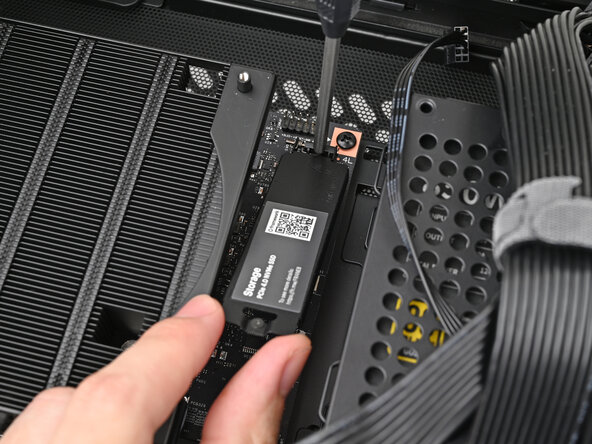
    • Use your Framework Desktop Screwdriver to loosen the captive T5 Torx screw securing the primary storage.

    • The heat spreader will pop up to an angle when its screw is fully loosened.

  13. How to Install a Framework Desktop Mainboard Into a Mini‑ITX Case, Remove the primary storage heat spreader screw: step 13, image 1 of 3 How to Install a Framework Desktop Mainboard Into a Mini‑ITX Case, Remove the primary storage heat spreader screw: step 13, image 2 of 3 How to Install a Framework Desktop Mainboard Into a Mini‑ITX Case, Remove the primary storage heat spreader screw: step 13, image 3 of 3
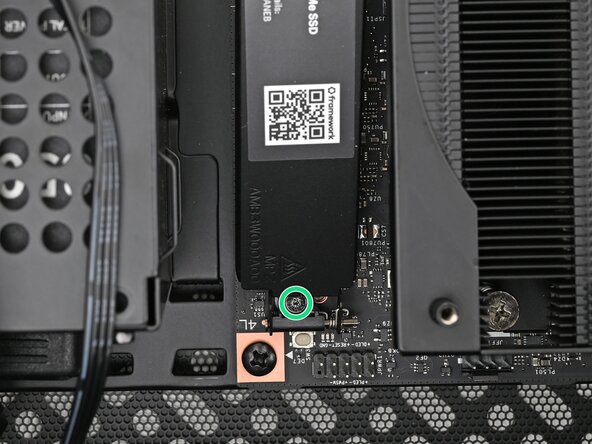
    • If your SSD comes with a pre-installed heat spreader, follow the next two steps. Otherwise skip here.

    • While securing the primary storage heat spreader with one hand, use your Framework Desktop Screwdriver to remove the 4.5 mm‑long T5 Torx screw securing it.

  14. How to Install a Framework Desktop Mainboard Into a Mini‑ITX Case, Remove the primary storage heat spreader: step 14, image 1 of 1
    • Lift the primary storage heat spreader out of the desktop and remove it.

    • Follow the guide normally, making sure to ignore instructions that involve the primary storage heat spreader.

  15. How to Install a Framework Desktop Mainboard Into a Mini‑ITX Case, Install the primary storage: step 15, image 1 of 2 How to Install a Framework Desktop Mainboard Into a Mini‑ITX Case, Install the primary storage: step 15, image 2 of 2
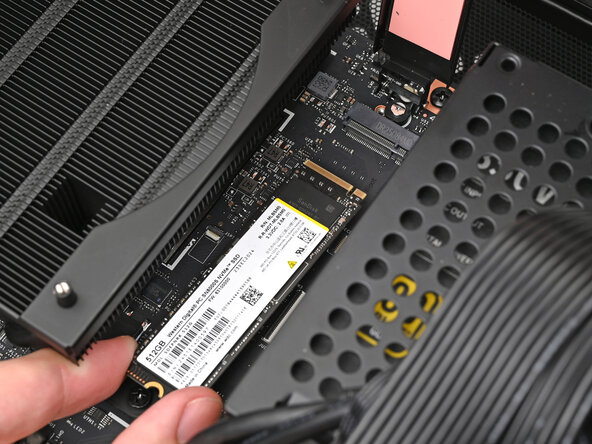
    • Hold the SSD by its edges. Don't touch the gold contacts with your fingers. If you do, wipe the contacts with a clean, lint-free cloth to remove any finger oils.

    • While holding the heat spreader upright, align the SSD's gold contacts with its socket.

    • Insert the SSD into the socket at a shallow angle. The gold contacts should mostly be covered by the socket.

    • The SSD fits into the socket in one orientation. If it doesn't feel like it fits, try flipping the module.

    • Lay the heat spreader back onto the SSD.

  16. How to Install a Framework Desktop Mainboard Into a Mini‑ITX Case: step 16, image 1 of 2 How to Install a Framework Desktop Mainboard Into a Mini‑ITX Case: step 16, image 2 of 2
    • Insert your Framework Desktop Screwdriver into the captive screw on the primary storage heat spreader and press it flat to the Mainboard.

    • Tighten the screw securing the primary storage.

  17. How to Install a Framework Desktop Mainboard Into a Mini‑ITX Case, Insert the CPU fan: step 17, image 1 of 3 How to Install a Framework Desktop Mainboard Into a Mini‑ITX Case, Insert the CPU fan: step 17, image 2 of 3 How to Install a Framework Desktop Mainboard Into a Mini‑ITX Case, Insert the CPU fan: step 17, image 3 of 3
    • Orient the fan so its label is facing downward and the cable(s) are pointing towards their sockets on the Mainboard.

    • Depending on your fan, you may have one or two cables.

    • Lay the fan on top of the heatsink.

    • If your fan has an arrow indicating airflow direction, make sure it's pointed towards the heatsink.

    • If you're using a different fan, orient it such that the fan is blowing towards the heatsink, not away.

    • Lay the fan duct on top of the fan with the lip facing upward.

    • Align the screw holes on the fan duct with the ones on the fan.

  18. How to Install a Framework Desktop Mainboard Into a Mini‑ITX Case, Install the CPU fan screws: step 18, image 1 of 2 How to Install a Framework Desktop Mainboard Into a Mini‑ITX Case, Install the CPU fan screws: step 18, image 2 of 2
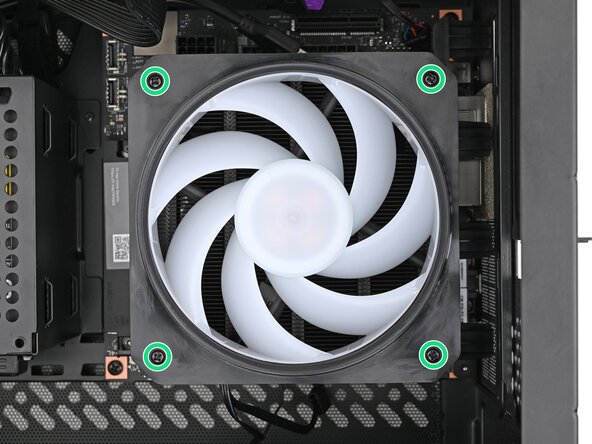
    • Use your Framework Desktop Screwdriver to install the four 27.3 mm‑long Phillips screws securing the CPU fan and fan duct.

  19. How to Install a Framework Desktop Mainboard Into a Mini‑ITX Case, Connect the CPU fan: step 19, image 1 of 2 How to Install a Framework Desktop Mainboard Into a Mini‑ITX Case, Connect the CPU fan: step 19, image 2 of 2
    • Slide the main fan cable over the four-pronged connector labeled "APU Fan," making sure the orange label slots between the vertical lines.

  20. How to Install a Framework Desktop Mainboard Into a Mini‑ITX Case, Connect the RGB cable: step 20, image 1 of 2 How to Install a Framework Desktop Mainboard Into a Mini‑ITX Case, Connect the RGB cable: step 20, image 2 of 2
    • If you aren't using an RGB fan, then skip this step.

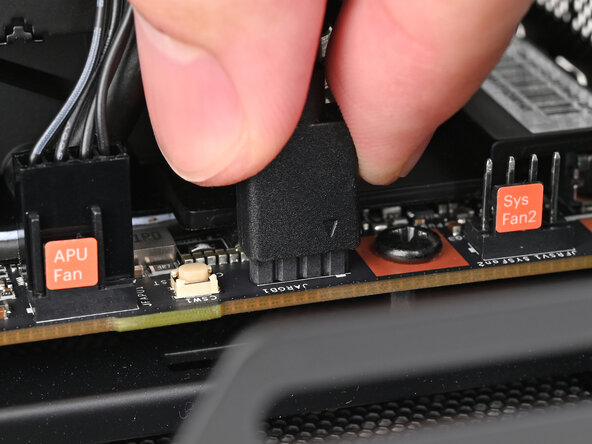
    • Use your fingers to slide the RGB cable over the three pronged connector located to the right of the "APU Fan" connector.

  21. How to Install a Framework Desktop Mainboard Into a Mini‑ITX Case, Connect the additional fan: step 21, image 1 of 2 How to Install a Framework Desktop Mainboard Into a Mini‑ITX Case, Connect the additional fan: step 21, image 2 of 2
    • Follow this step to connect an additional fan. Otherwise, skip it.

    • Slide the cable over the four-pronged connector labeled "Sys Fan1," making sure the orange label slots between the vertical lines.

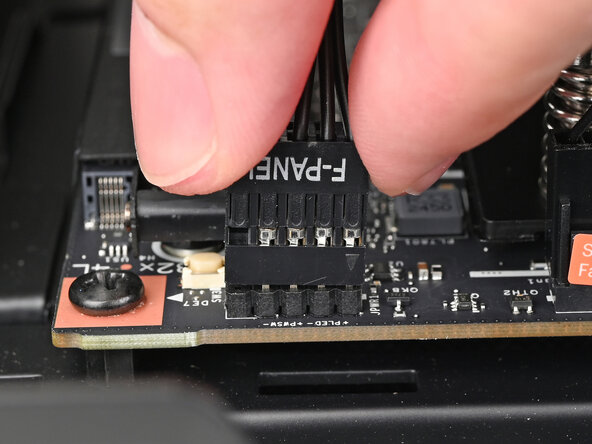
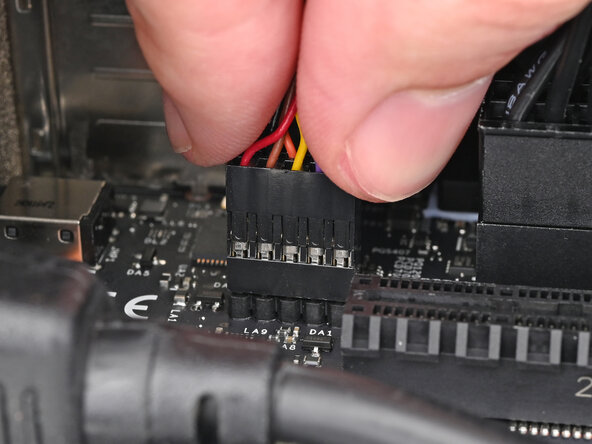
  22. How to Install a Framework Desktop Mainboard Into a Mini‑ITX Case, Connect the front panel header: step 22, image 1 of 2 How to Install a Framework Desktop Mainboard Into a Mini‑ITX Case, Connect the front panel header: step 22, image 2 of 2
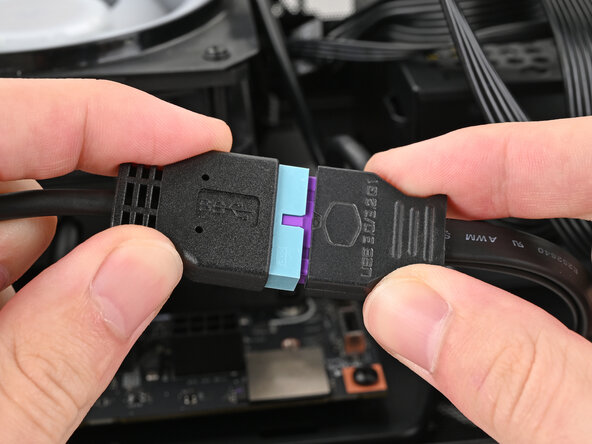
  23. How to Install a Framework Desktop Mainboard Into a Mini‑ITX Case, Connect the USB ports: step 23, image 1 of 2 How to Install a Framework Desktop Mainboard Into a Mini‑ITX Case, Connect the USB ports: step 23, image 2 of 2
  24. How to Install a Framework Desktop Mainboard Into a Mini‑ITX Case: step 24, image 1 of 3 How to Install a Framework Desktop Mainboard Into a Mini‑ITX Case: step 24, image 2 of 3 How to Install a Framework Desktop Mainboard Into a Mini‑ITX Case: step 24, image 3 of 3
    • If your case comes with a USB 3.0 20-pin connector, use an adapter to connect it to the other USB Type-E 20-pin socket.

  25. How to Install a Framework Desktop Mainboard Into a Mini‑ITX Case, Connect the CPU power supply cable: step 25, image 1 of 2 How to Install a Framework Desktop Mainboard Into a Mini‑ITX Case, Connect the CPU power supply cable: step 25, image 2 of 2
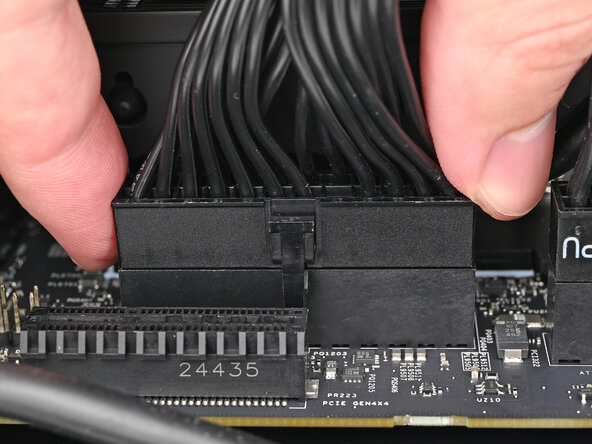
  26. How to Install a Framework Desktop Mainboard Into a Mini‑ITX Case, Connect the main power cable: step 26, image 1 of 2 How to Install a Framework Desktop Mainboard Into a Mini‑ITX Case, Connect the main power cable: step 26, image 2 of 2
    • Orient the 24-pin main power supply cable so its clip is facing away from the heatsink.

    • Slide the cable into its socket on the Mainboard until you feel its clip click into place.

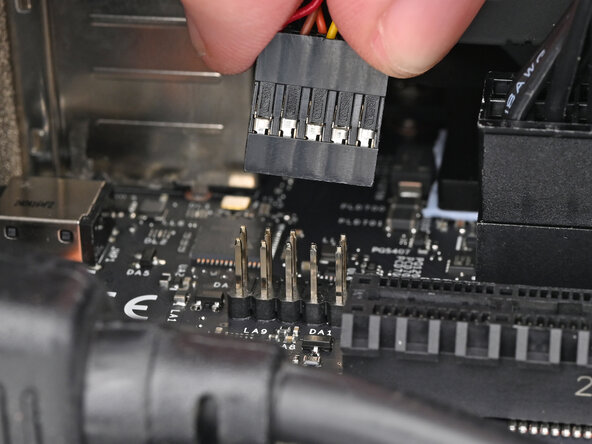
  27. How to Install a Framework Desktop Mainboard Into a Mini‑ITX Case, Connect the HD audio: step 27, image 1 of 2 How to Install a Framework Desktop Mainboard Into a Mini‑ITX Case, Connect the HD audio: step 27, image 2 of 2
  28. How to Install a Framework Desktop Mainboard Into a Mini‑ITX Case, Reposition the case: step 28, image 1 of 2 How to Install a Framework Desktop Mainboard Into a Mini‑ITX Case, Reposition the case: step 28, image 2 of 2
    • Stand your case upright.

  29. How to Install a Framework Desktop Mainboard Into a Mini‑ITX Case, Expose the bottom of the Mainboard: step 29, image 1 of 2 How to Install a Framework Desktop Mainboard Into a Mini‑ITX Case, Expose the bottom of the Mainboard: step 29, image 2 of 2
    • Disassemble your case enough to access the bottom side of the Mainboard.

  30. How to Install a Framework Desktop Mainboard Into a Mini‑ITX Case, Reposition the case: step 30, image 1 of 2 How to Install a Framework Desktop Mainboard Into a Mini‑ITX Case, Reposition the case: step 30, image 2 of 2
    • Lay your case down so the bottom of the Mainboard is facing upright.

  31. How to Install a Framework Desktop Mainboard Into a Mini‑ITX Case, Install the Wi-Fi module: step 31, image 1 of 2 How to Install a Framework Desktop Mainboard Into a Mini‑ITX Case, Install the Wi-Fi module: step 31, image 2 of 2
    • Hold the Wi-Fi module by its edges. Don't touch the gold contacts with your fingers. If you do, wipe the contacts with a clean, lint-free cloth to remove any finger oils.

    • Align the Wi-Fi module's gold contacts and notch with the socket on the Mainboard.

    • Insert the Wi-Fi module into the socket at a shallow angle. The gold contacts should mostly be covered by the socket.

    • The Wi-Fi module fits into the socket in one orientation. If it doesn't fit, try flipping the module.

  32. How to Install a Framework Desktop Mainboard Into a Mini‑ITX Case: step 32, image 1 of 2 How to Install a Framework Desktop Mainboard Into a Mini‑ITX Case: step 32, image 2 of 2
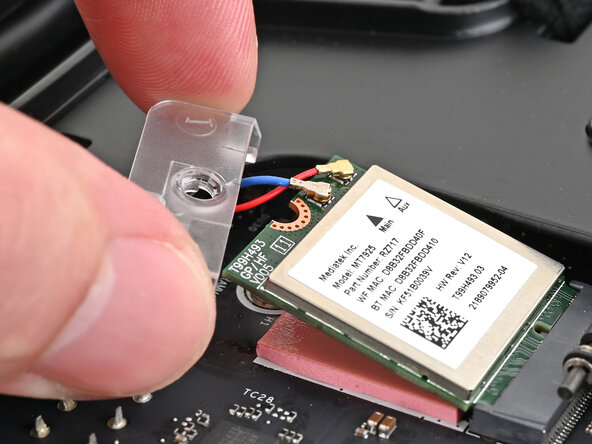
    • The color of your antenna cables will depend on the antenna module you're using. Refer to the instructions of your antenna module for which cables should connect to the two sockets on the Wi-Fi module.

    • Hold the Wi-Fi module down with your fingers.

    • Position the antenna cable connector over the left Wi-Fi module's coaxial socket.

    • Tweezers can help position the connector.

    • Use your finger to press the connector into place. You should feel a faint click, and the cable will stay attached to the socket by itself.

    • These connectors are very delicate! If the connector doesn't feel like it's clicking in place, reposition the connector and try again.

    • Repeat the procedure with the other antenna cable.

  33. How to Install a Framework Desktop Mainboard Into a Mini‑ITX Case: step 33, image 1 of 2 How to Install a Framework Desktop Mainboard Into a Mini‑ITX Case: step 33, image 2 of 2
    • Hook the Wi-Fi bracket over the corner of the Wi-Fi module opposite the antenna cables.

    • Rotate the bracket over the Wi-Fi module, making sure the screw hole isn't being obstructed by the antenna cables.

  34. How to Install a Framework Desktop Mainboard Into a Mini‑ITX Case, Install the Wi-Fi module screw: step 34, image 1 of 2 How to Install a Framework Desktop Mainboard Into a Mini‑ITX Case, Install the Wi-Fi module screw: step 34, image 2 of 2
    • Use your Framework Desktop Screwdriver to install the 7.0 mm‑long screw securing the Wi-Fi module.

  35. How to Install a Framework Desktop Mainboard Into a Mini‑ITX Case, Reassemble the case: step 35, image 1 of 3 How to Install a Framework Desktop Mainboard Into a Mini‑ITX Case, Reassemble the case: step 35, image 2 of 3 How to Install a Framework Desktop Mainboard Into a Mini‑ITX Case, Reassemble the case: step 35, image 3 of 3
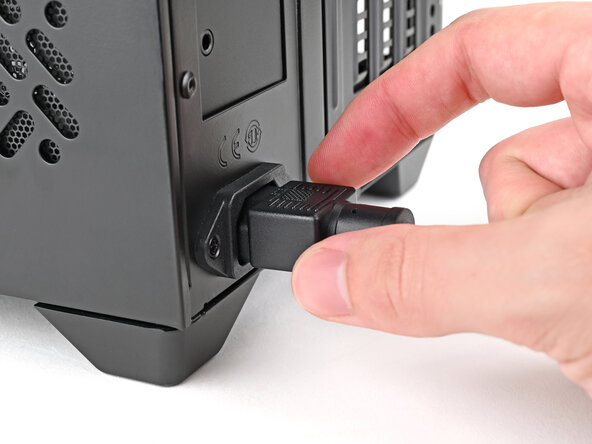
    • Reassemble the case and plug the AC Cable into the desktop.

  36. How to Install a Framework Desktop Mainboard Into a Mini‑ITX Case, Install an OS: step 36, image 1 of 1
    • You're done installing your Framework Desktop Mainboard! If you haven't transferred your data, you'll need to install an OS.

    • If you're installing Microsoft Windows, check out this guide.

    • If you're installing Linux, check this page for more details.

Conclusion

For drivers, firmware, and software updates, check out this page.

If you need help, contact Framework support.

Alex Diaz-Kokaisl

Member since: 01/16/22

213,928 Reputation

1,041 Guides authored

0 Guide Comments

Add Comment

View Statistics:

Past 24 Hours: 4

Past 7 Days: 27

Past 30 Days: 173

All Time: 1,170