Introduction
Do you need to inspect or replace your RAM? In this guide, We'll demonstrate how to safely replace the RAM in your HP ProBook 440 g6 notebook.
The RAM stores all of the information your device needs to run its operating system. Programs and applications also store their data. Without the RAM, the device would become slow and very prone to errors.
Common Symptoms you may find due to a bad RAM may include:
- Frequent system crashes or blue screens
- Random unexplained system shutdowns
- Applications freezing or crashing frequently
- Distortion in graphics and other visual bugs
If you notice any of these symptoms, you may need to replace your RAM. However before beginning your replacement process, unsure to power off your device, unplug it from the charger, and put it in Battery Safe Mode.
What you need
-
-
-
Using a Phillips #0 Screwdriver, remove the two 5 mm screws on the front-facing side of the lower case.
-
Using a Phillips #0 Screwdriver, remove the remaining five 5 mm Phillips screws securing the lower case.
 Ask FixBot
-
-
-
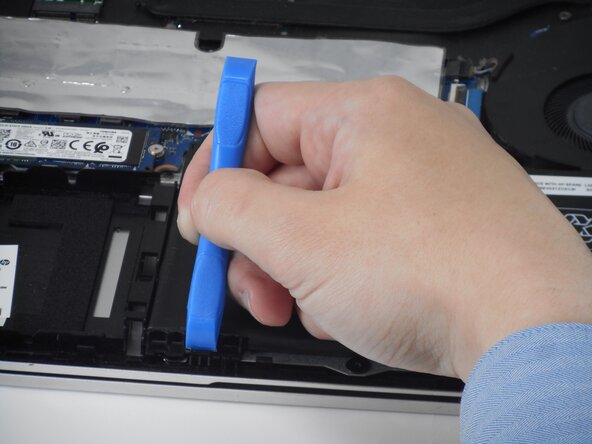
Starting under the display, carefully use a plastic prying tool (iFixit opening tool) to disengage the retaining clips.
-
Once a corner or edge starts to lift, slowly slide the tool along the edge to loosen more of the bottom panel.
-
Keep working around the edges until all the clips are loose.
-
-
-
Gently lift the rear of the cover to disengage it from the computer.
-
Carefully remove the bottom cover from the computer.
-
-
-
-
-
-
Using a Phillips #0 Screwdriver, remove the two 4mm Phillips screws that secure the battery to the computer.
-
-
-
-
-
Spread the retaining tabs on each side of the memory module slot to release the memory module.
-




To reassemble your device, follow the above steps in reverse order.
Take your e-waste to an R2 or e-Stewards certified recycler.
Repair didn’t go as planned? Try some basic troubleshooting or ask our Answers community for help.

Team

University of Memphis, Team 1-4, Sneed Spring 2026 Member of University of Memphis, Team 1-4, Sneed Spring 2026
UM-SNEED-S26S1G4
3 Members
72 Guides authored
