Free Shipping on Domestic Orders $75+

HP Pavilion x360 11m-ad013dx Battery Replacement

Views: 2.1K

View statistics:

Past 24 Hours:
2
Past 7 Days:
20
Past 30 Days:
84
All Time:
2,090
Comments: 0

No one has left comments on this guide. Will you be first?

Go to guide comments
Completed: 1

1 person has marked this guide "completed." Will you be next?

Favorites: 0

No one has favorited (and subscribed to) this guide. Will you be the first?

Time Required: 5 - 10 minutes
Difficulty: Easy
HP Pavilion x360 11m-ad013dx Battery Replacement

Introduction

Go to step 1 ↓

If the battery in your HP Pavilion x360 11m-ad013dx is in need of replacement or has stopped functioning properly, use this guide to replace the battery. Some key indicators of a malfunctioning battery include not turning on, only functioning when connected to power, or rapid depletion of the battery. For more information about a malfunctioning or nonfunctioning battery, see our troubleshooting page HP Pavilion x360 11m-ad013dx Troubleshooting. Be extremely cautious when handling damaged batteries. Signs of damage can include swelling or corroded connections. Swollen batteries can catch fire or even explode. See iFixit’s swollen battery page: What to do with a swollen battery for more information.

What you need

Tools

    1. HP Pavilion x360 11m-ad013dx Battery Replacement, Keyboard: step 1, image 1 of 1
      • Lay the HP Pavilion top-down with the front edge facing towards you.

      Ask FixBot

      Add Comment

    2. HP Pavilion x360 11m-ad013dx Battery Replacement: step 2, image 1 of 1
      • Remove the three 4.8mm Phillips #0 screws from the front side.

      Ask FixBot

      Add Comment

    3. HP Pavilion x360 11m-ad013dx Battery Replacement: step 3, image 1 of 2 HP Pavilion x360 11m-ad013dx Battery Replacement: step 3, image 2 of 2
      • Using a plastic spudger, remove the grey silicon strip closest to the back-side.

      Ask FixBot

      Add Comment

    4. HP Pavilion x360 11m-ad013dx Battery Replacement: step 4, image 1 of 1
      • Remove the three 5.7mm Phillips #1 screws.

      Ask FixBot

      Add Comment

    5. HP Pavilion x360 11m-ad013dx Battery Replacement: step 5, image 1 of 2 HP Pavilion x360 11m-ad013dx Battery Replacement: step 5, image 2 of 2
      • Open the HP Pavilion so that the screen is showing. Then tilt it down so that the screen is on its back, facing up.

      • Using a spudger, pry off the black keyboard panel.

      • This step requires force to unclasp the latches keeping the keyboard in place.

      Ask FixBot

      Add Comment

    6. HP Pavilion x360 11m-ad013dx Battery Replacement: step 6, image 1 of 2 HP Pavilion x360 11m-ad013dx Battery Replacement: step 6, image 2 of 2
      • Using your fingernail, disconnect the zero insertion force (ZIF) keyboard connector cable by flipping up the small locking flap.

      • You may disconnect the other end of the cable, for ease of access to other parts. Keep in mind that the end labeled MB connects to the motherboard.

      Ask FixBot

      Add Comment

    7. HP Pavilion x360 11m-ad013dx Battery Replacement: step 7, image 1 of 2 HP Pavilion x360 11m-ad013dx Battery Replacement: step 7, image 2 of 2
      • Using your fingernail, disconnect the zero insertion force (ZIF) connector for the touch pad cable by flipping up the small locking flap.

      Ask FixBot

      Add Comment

    8. HP Pavilion x360 11m-ad013dx Battery Replacement: step 8, image 1 of 1
      • Remove the keyboard.

      Ask FixBot

      Add Comment

    1. HP Pavilion x360 11m-ad013dx Battery Replacement, Battery: step 9, image 1 of 1
      • Remove the five 4.6mm Phillips #1 screws located around the battery.

      Ask FixBot

      Add Comment

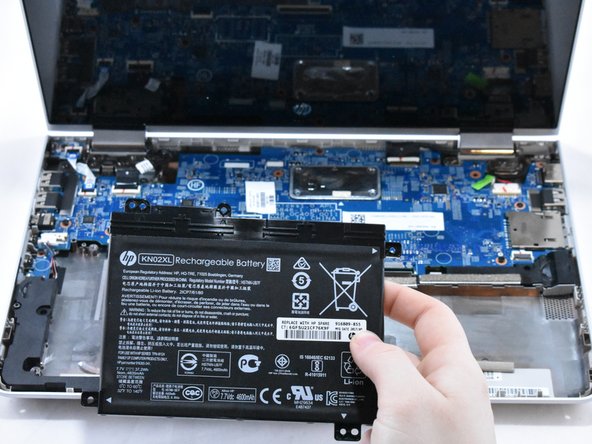
    2. HP Pavilion x360 11m-ad013dx Battery Replacement: step 10, image 1 of 2 HP Pavilion x360 11m-ad013dx Battery Replacement: step 10, image 2 of 2
      • Using a spudger for assistance, lift up the right edge of the battery.

      • Remove the battery.

      Ask FixBot

      Add Comment

Conclusion

To reassemble your device, follow these instructions in reverse order.

Cancel: I did not complete this guide.

One other person completed this guide.

0 Guide Comments

Add Comment

View Statistics:

Past 24 Hours: 2

Past 7 Days: 20

Past 30 Days: 84

All Time: 2,090