Introduction
Use this guide to replace or upgrade the RAM in your HP Pavilion 15 Laptop PC.
Note: This procedure was written using a model 15-eg2015od HP 15 Pavilion Laptop PC, but is fully compatible with any HP 15 Pavilion Laptop PC whose model number starts with 15-eg or 15-eh.
This laptop has two RAM slots that support DDR4 SO-DIMM memory modules.
What you need
-
-
-
Fully shut down your laptop and unplug all cables.
 Ask FixBot
-
-
-
-
-
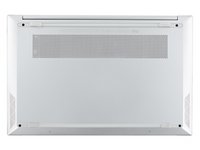
Flip your laptop over so the rubber feet are facing up.
-
-
-
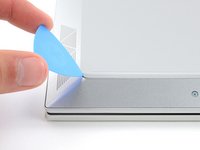
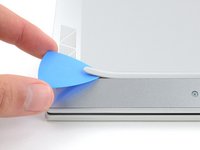
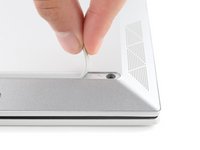
Use an opening pick to peel up an end of the front rubber foot until you can grip it with your fingers.
-
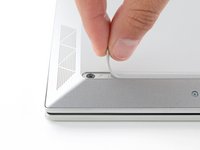
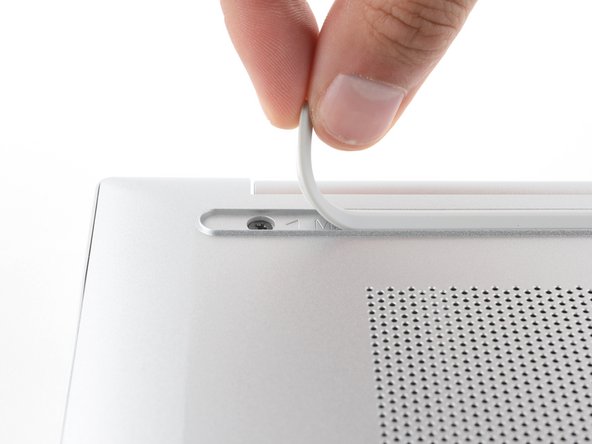
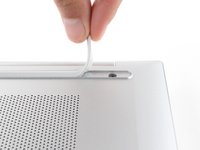
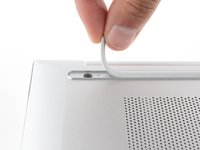
Peel up the end of the foot with your fingers just until the hidden screw underneath is exposed—you don't need to fully remove the foot.
-
-
Tool used on this step:Tesa 61395 Tape$8.95
-
Peel up the other ends of the feet to expose the three remaining screws.
-
Press down firmly on the ends of the feet to secure them into their recesses.
-
If the foot adhesive doesn't remain tacky enough to readhere, you can use double-sided tape such as Tesa Tape.
-
-
-
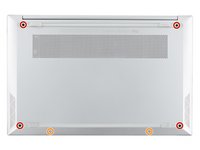
Use a Phillips screwdriver to remove the six screws securing the back cover:
-
Four larger 6.6 mm-long black screws
-
Two smaller 4.8 mm-long silver screws
-
-
-
-
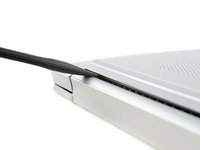
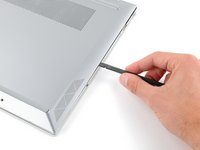
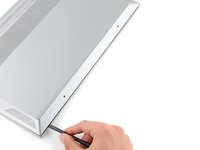
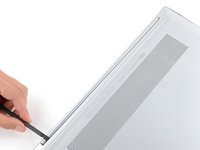
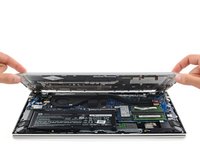
Insert the flat end of a spudger between the top edge of the back cover and frame, just to the left of the right hinge.
-
Pry up with the spudger to release the clips securing the top right corner of the back cover.
-
-
-
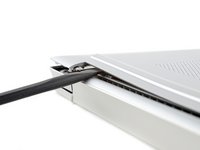
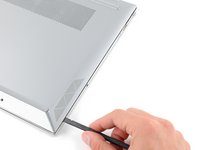
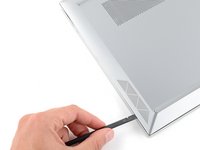
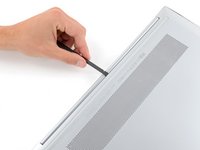
Insert the flat end of a spudger between the top right corner of the back cover and frame.
-
Slide the spudger down to the bottom right corner to release the clips on the right edge.
-
-
-
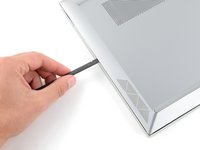
Insert the flat end of a spudger between the bottom right corner of the back cover and frame.
-
Slide the spudger to the bottom left corner to release the clips.
-
-
-
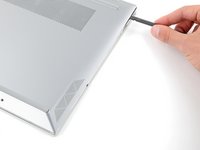
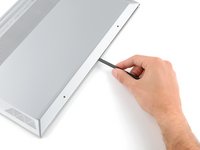
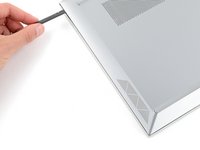
Insert the flat end of a spudger between the bottom left corner of the back cover and frame.
-
Slide the spudger up to the top left corner to release the clips on the left edge.
-
-
-
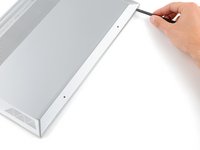
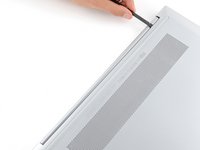
Insert the flat end of a spudger between the top edge of the back cover and frame, just to the right of the left hinge.
-
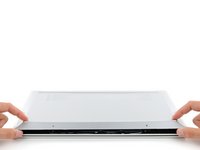
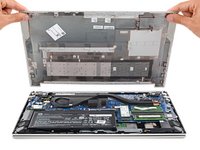
Slide the spudger towards the right hinge to release the remaining clips.
-
-
-
-
-
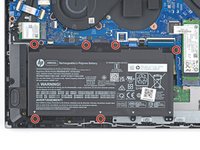
Use a Phillips screwdriver to remove the six 3.9 mm-long screws securing the battery.
-
-
-
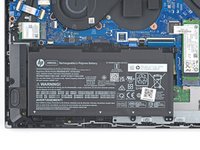
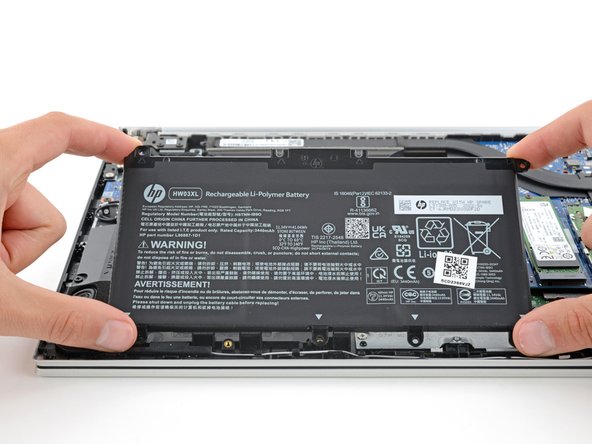
Gently lift the upper edge of the battery to disconnect its socket from the motherboard.
-
Remove the battery.
-
-
-
-
-
Your laptop has two memory slots, each with a pair of metal arms that secure a stick of RAM.
-
Simultaneously push out the metal arms on each side of a stick of RAM until they disengage and the stick pops up at a slight angle.
-
-
-
Pull the stick of RAM out of its socket to remove it.
-
Repeat for a second stick of RAM.
-
-

























To reassemble your device, follow these instructions in reverse order.
Take your e-waste to an R2 or e-Stewards certified recycler.
Repair didn’t go as planned? Try some basic troubleshooting, or ask our Answers community for help.
Cancel: I did not complete this guide.
7 other people completed this guide.


4 Guide Comments
hello,
This is a very useful document with great pics & steps to follow for customers who are looking to upgrade their RAM. Thank you for creating this document. I would like to know if this content is available in English only?
And, if its available in other languages, can you please let me know what languages are offered?
Thanks & Regards,
Vasundhara
Very clear and easy to follow :)
Solid guide, cheers. All outer case screws use PH00 screws, I used PH1 for the fans.
