Introduction
Poorly performing RAM may slow down or render your device inoperable. You can use this guide to confirm common RAM issues.
Replacing the RAM in your HP Pavilion 15-cs3079nr is a quick way to return it to working order, as detailed in the guide below.
What you need
-
-
-
-
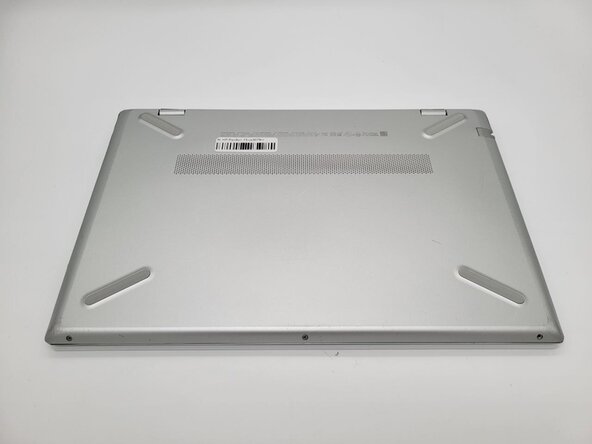
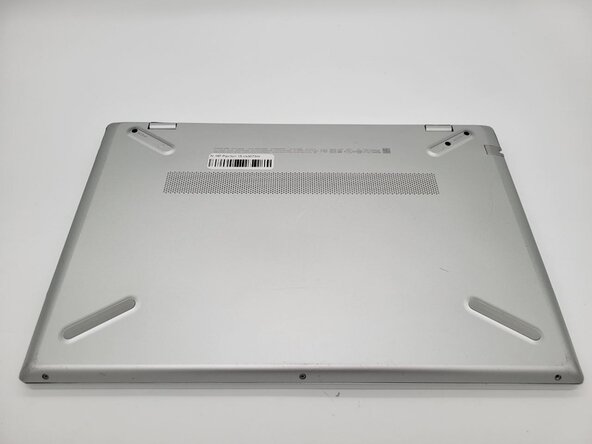
Use a Phillips #0 screwdriver to remove the three 7 mm screws from the recesses.
-
-
-
Use a Phillips #0 screwdriver to remove the three silver 5 mm case screws from the front of the device.
-
-
-
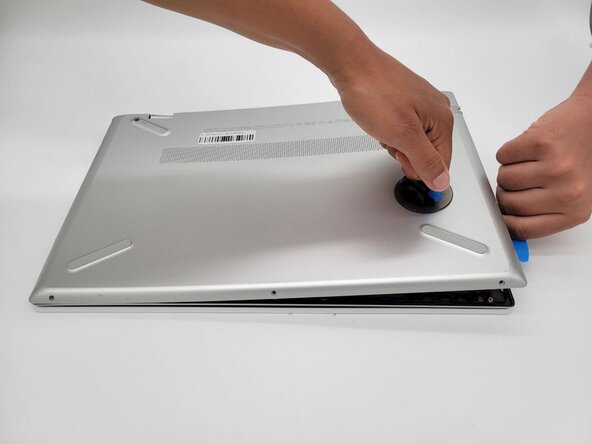
Place the suction handle on the case.
-
Insert an opening pick between the case sections and work around the perimeter of the device to separate the lower case from the chassis.
-
-
-
-
Two clips secure each RAM module in place, one on each side. Using your fingers, spread the clips away from the RAM module.
-
Remove the RAM module from the device.
-
-




 Ask FixBot





To reassemble your device, follow the above steps in reverse order.
Take your e-waste to an R2 or e-Stewards certified recycler.
Repair didn’t go as planned? Try some basic troubleshooting or ask our Answers community for help.

Team

University of North Texas, Team 1-1, Rea Spring 2026 Member of University of North Texas, Team 1-1, Rea Spring 2026
UNT-REA-S26S1G1
5 Members
68 Guides authored
