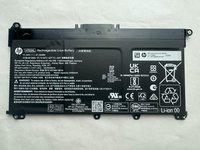
HP 14-cf2112wm RAM Replacement

What you need

  1. HP 14-cf2112wm RAM Replacement, Back Cover: step 1, image 1 of 1
    • Before you begin, shut down your laptop and disconnect all cables.

    • Turn the laptop over so the bottom case is facing up.

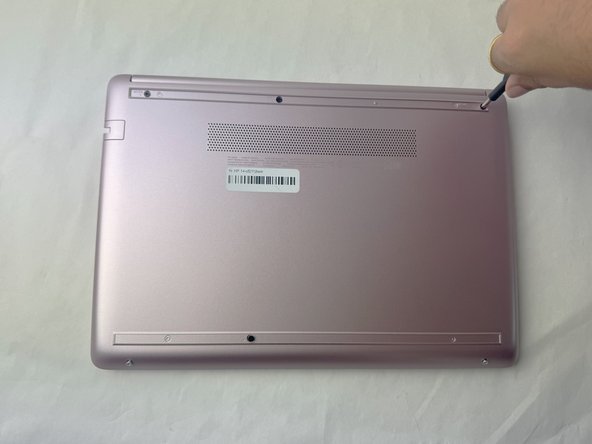
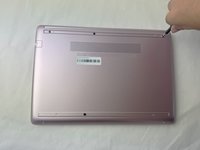
  2. HP 14-cf2112wm RAM Replacement: step 2, image 1 of 2 HP 14-cf2112wm RAM Replacement: step 2, image 2 of 2
    • Use a spudger to pry under the end of the screw cover.

    • When the edge is lifted up, use your fingers to pull the rest of the strip off.

    • Try to keep the strip intact so you can replace it at reassembly.

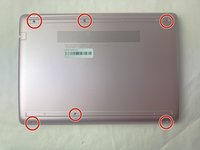
  3. HP 14-cf2112wm RAM Replacement: step 3, image 1 of 2 HP 14-cf2112wm RAM Replacement: step 3, image 2 of 2
    • Use a Phillips #1 screwdriver to remove six 6 mm screws from the back case.

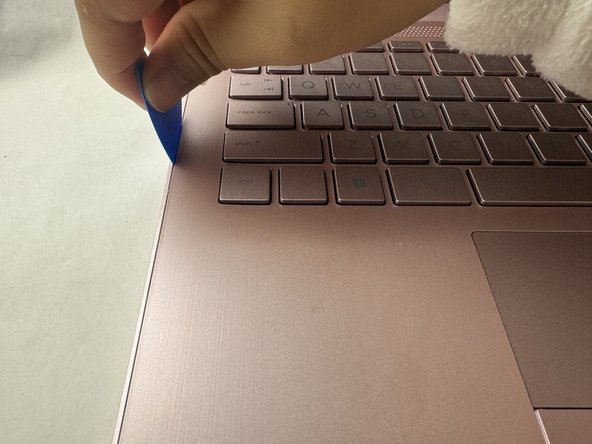
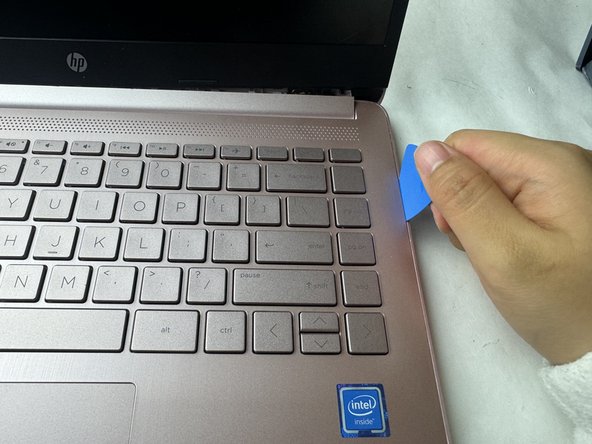
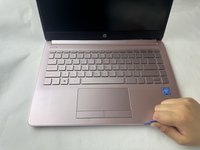
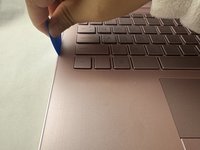
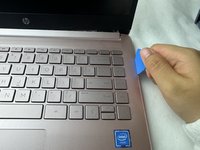
  4. HP 14-cf2112wm RAM Replacement: step 4, image 1 of 3 HP 14-cf2112wm RAM Replacement: step 4, image 2 of 3 HP 14-cf2112wm RAM Replacement: step 4, image 3 of 3
    • Use a pick or opening tool to pry along the edges of the back cover from the keyboard side of the laptop.

    • Be careful as the case edges are sharp.

  5. HP 14-cf2112wm RAM Replacement: step 5, image 1 of 1
    • Lift the back cover off the laptop.

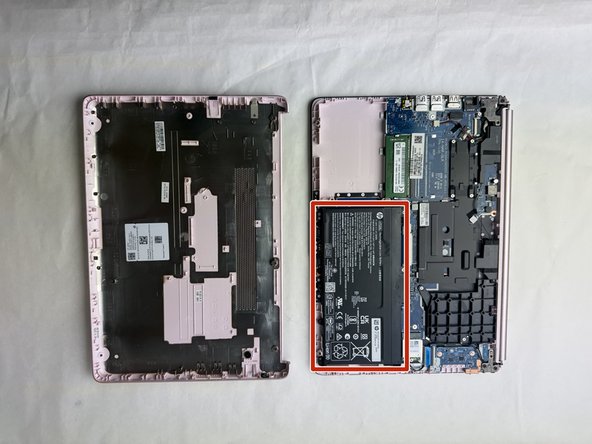
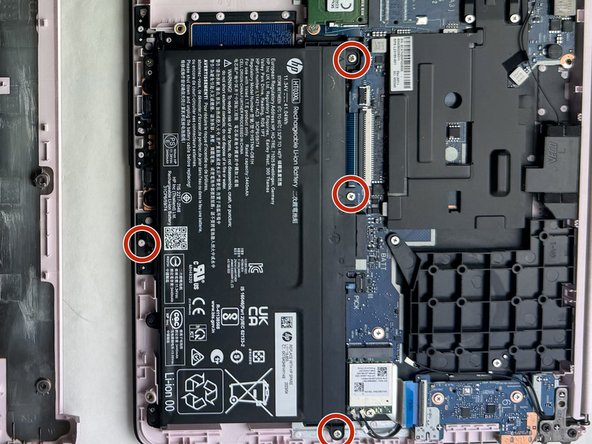
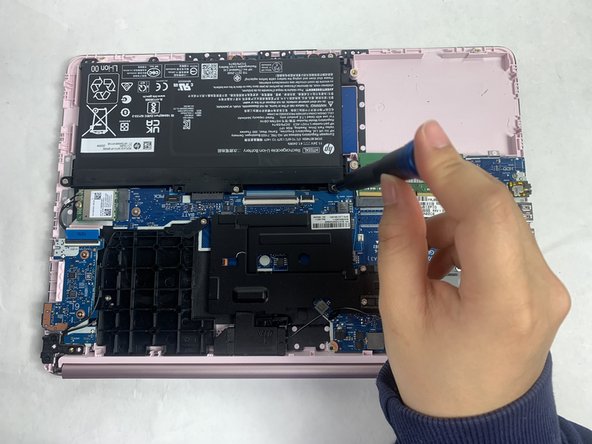
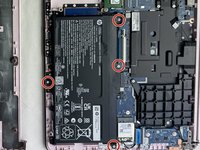
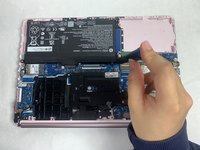
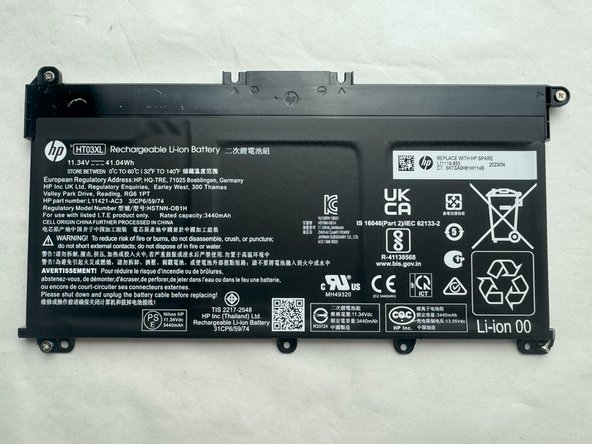
  6. HP 14-cf2112wm RAM Replacement, Battery: step 6, image 1 of 3 HP 14-cf2112wm RAM Replacement, Battery: step 6, image 2 of 3 HP 14-cf2112wm RAM Replacement, Battery: step 6, image 3 of 3
    • Place your opened laptop on a flat surface.

    • Use a Phillips #1 screwdriver to remove the four Phillips 3.0 mm screws securing the battery.

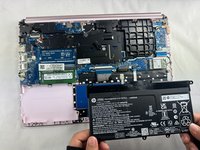
  7. HP 14-cf2112wm RAM Replacement: step 7, image 1 of 2 HP 14-cf2112wm RAM Replacement: step 7, image 2 of 2
    • Slide the battery out from the connector on the motherboard.

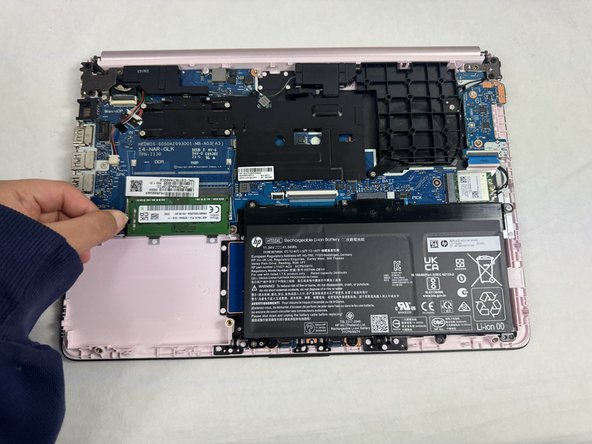
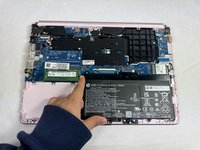
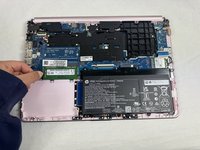
  8. HP 14-cf2112wm RAM Replacement, RAM: step 8, image 1 of 2 HP 14-cf2112wm RAM Replacement, RAM: step 8, image 2 of 2
    • Pull the metal arms (located on both sides of the RAM stick) slightly away from it .

    • The RAM will pop up by a few millimeters.

  9. HP 14-cf2112wm RAM Replacement: step 9, image 1 of 1
    • Gently slide the RAM stick from the socket.

    • Remove it at an angle and not straight up so you don't damage the socket.

    • After you slide the new RAM stick back into the socket, push it down and it will click into place.

Conclusion

To reassemble your device, follow these instructions in reverse order. Take your e-waste to an R2 or e-Stewards certified recycler.

2 other people completed this guide.

Shishi Hu

Member since: 03/18/24

778 Reputation

5 Guides authored

Team

2 Guide Comments

how do you put back together specifically step 4

heple seple - Reply

Just pop it back on. It should click together when everything is in place. After that, just screw everything back.

Shishi Hu -

Add Comment

View Statistics:

Past 24 Hours: 5

Past 7 Days: 21

Past 30 Days: 76

All Time: 970