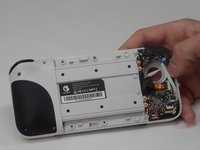
GameSir X2 Type-C Left Joystick Replacement

What you need
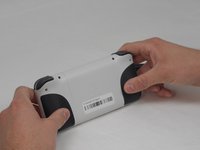
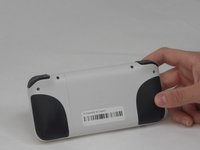
  1. GameSir X2 Type-C Left Joystick Replacement, Back Cover: step 1, image 1 of 2 GameSir X2 Type-C Left Joystick Replacement, Back Cover: step 1, image 2 of 2
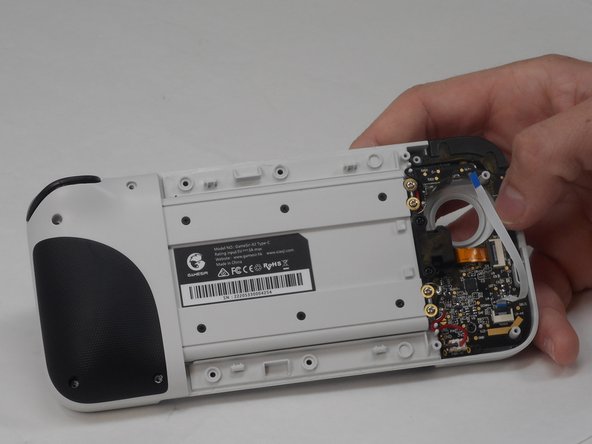
    • Turn the device so the back faces you.

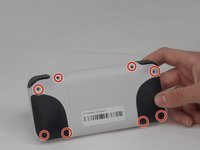
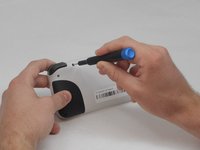
  2. GameSir X2 Type-C Left Joystick Replacement: step 2, image 1 of 2 GameSir X2 Type-C Left Joystick Replacement: step 2, image 2 of 2
    • Remove the eight 6 mm T6 Torx screws.

  3. GameSir X2 Type-C Left Joystick Replacement: step 3, image 1 of 1
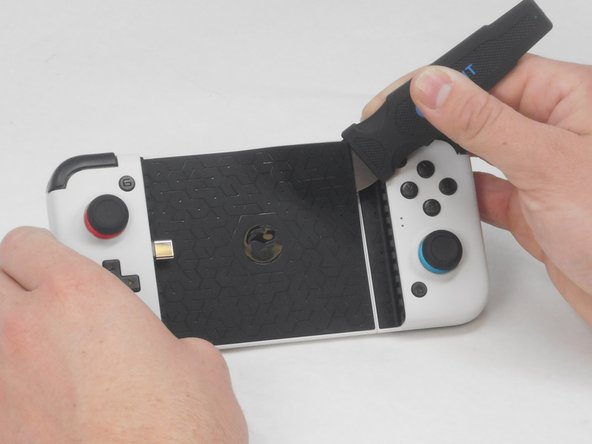
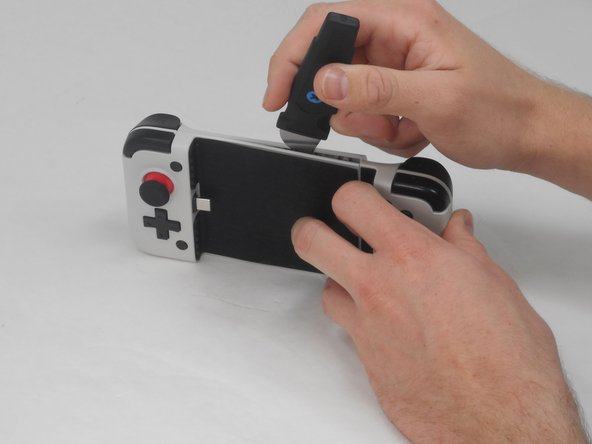
    • Use a straight edge to remove the rubber pad on the front of the device.

  4. GameSir X2 Type-C Left Joystick Replacement: step 4, image 1 of 2 GameSir X2 Type-C Left Joystick Replacement: step 4, image 2 of 2
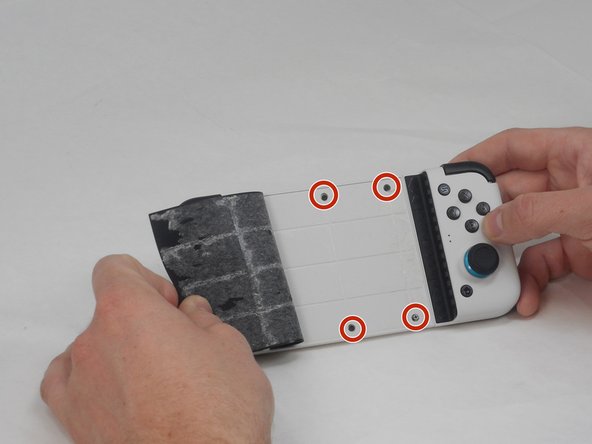
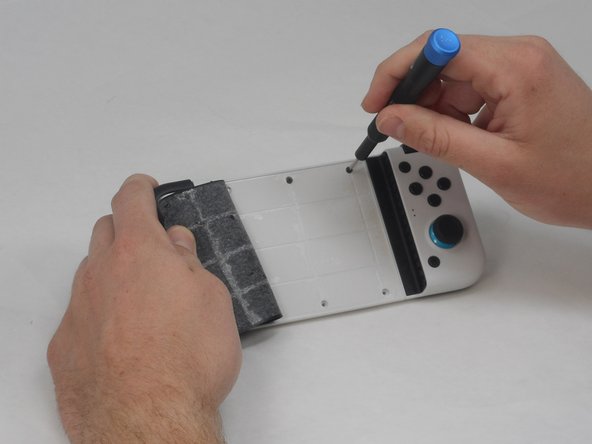
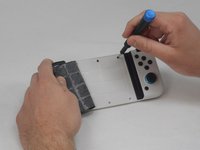
    • Remove the four 4.5 mm screws with a Phillips #000 screwdriver.

  5. GameSir X2 Type-C Left Joystick Replacement: step 5, image 1 of 2 GameSir X2 Type-C Left Joystick Replacement: step 5, image 2 of 2
    • Use a straight edge to pry open the controller, following the seam on the controller.

    • Some force is necessary, but be careful not to damage any of the clips holding the controller together.

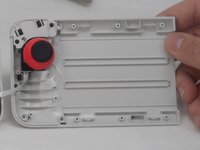
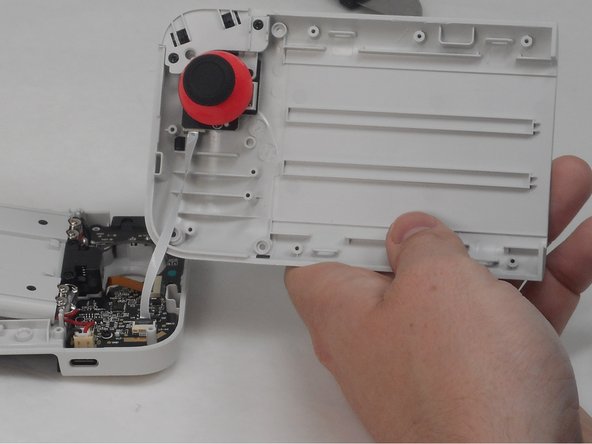
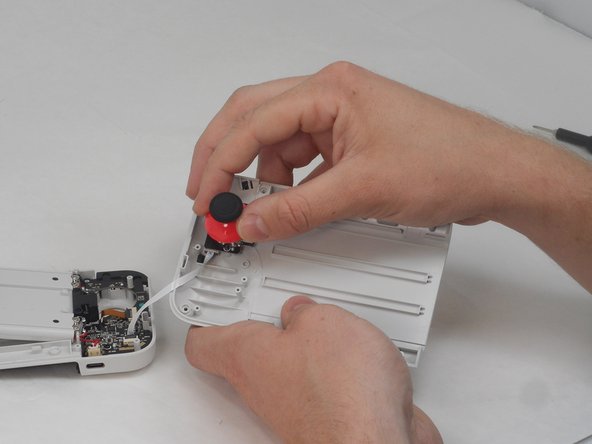
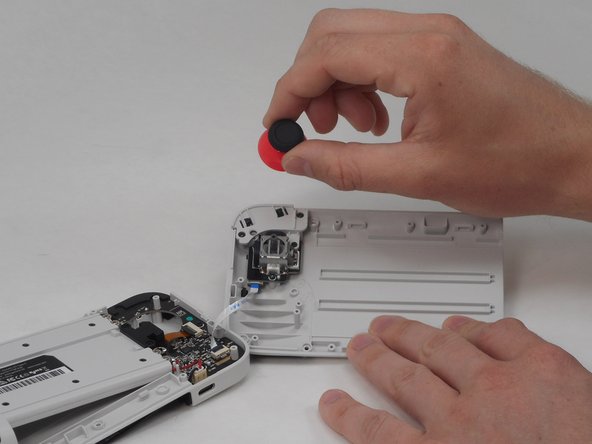
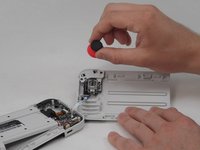
  6. GameSir X2 Type-C Left Joystick Replacement, Left Joystick: step 6, image 1 of 3 GameSir X2 Type-C Left Joystick Replacement, Left Joystick: step 6, image 2 of 3 GameSir X2 Type-C Left Joystick Replacement, Left Joystick: step 6, image 3 of 3
    • Pull the joystick cap out of its socket.

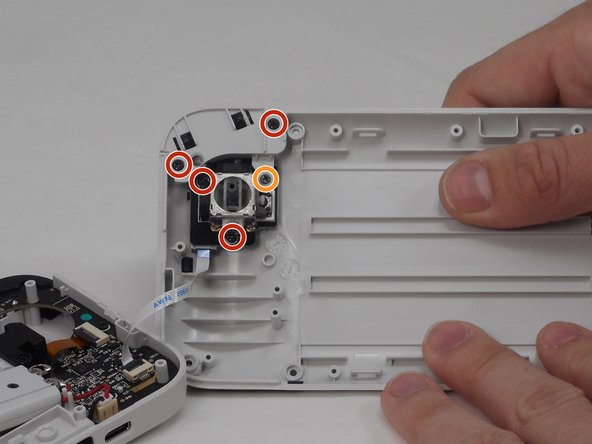
  7. GameSir X2 Type-C Left Joystick Replacement: step 7, image 1 of 3 GameSir X2 Type-C Left Joystick Replacement: step 7, image 2 of 3 GameSir X2 Type-C Left Joystick Replacement: step 7, image 3 of 3
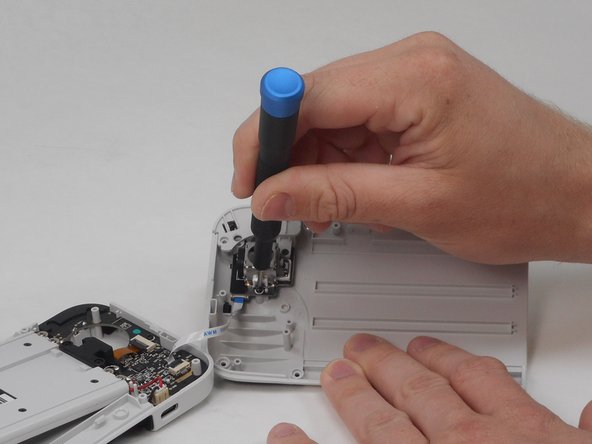
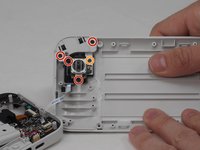
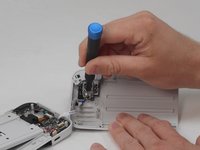
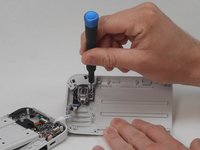
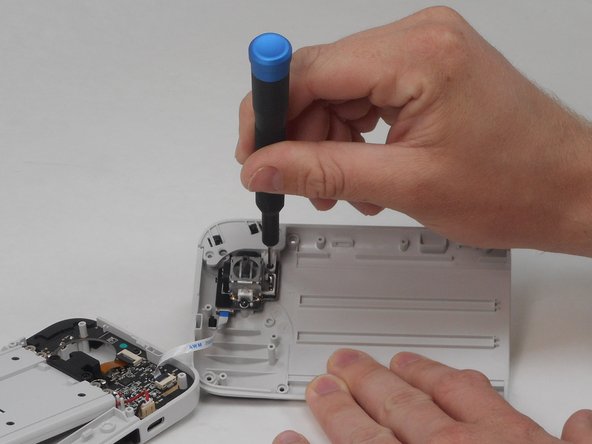
    • Remove the four 6 mm screws using a Phillips #00 screwdriver.

    • Remove the single 7.5 mm screw using a Phillips #00 screwdriver.

  8. GameSir X2 Type-C Left Joystick Replacement: step 8, image 1 of 2 GameSir X2 Type-C Left Joystick Replacement: step 8, image 2 of 2
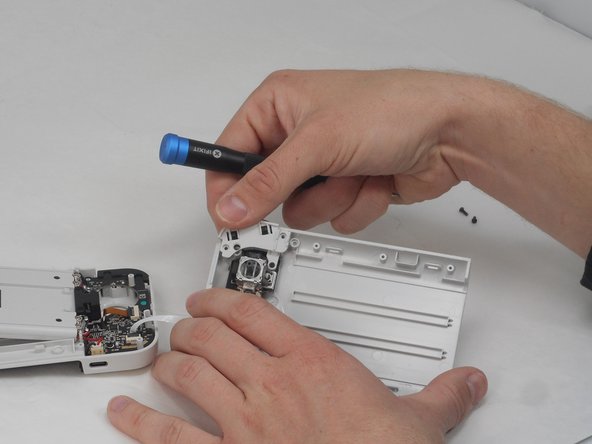
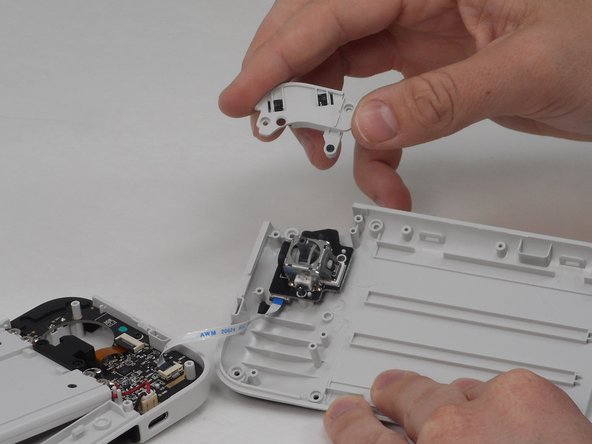
    • Pull out the left trigger.

  9. GameSir X2 Type-C Left Joystick Replacement: step 9, image 1 of 1
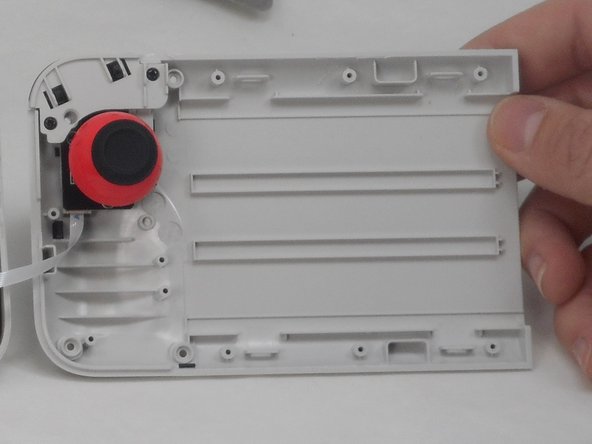
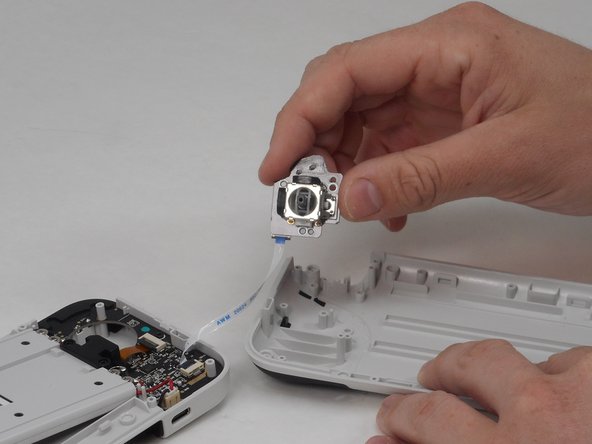
    • Pull out the left joystick.

  10. GameSir X2 Type-C Left Joystick Replacement: step 10, image 1 of 3 GameSir X2 Type-C Left Joystick Replacement: step 10, image 2 of 3 GameSir X2 Type-C Left Joystick Replacement: step 10, image 3 of 3
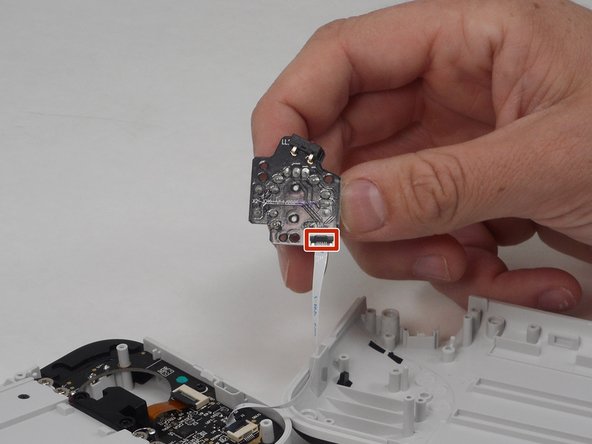
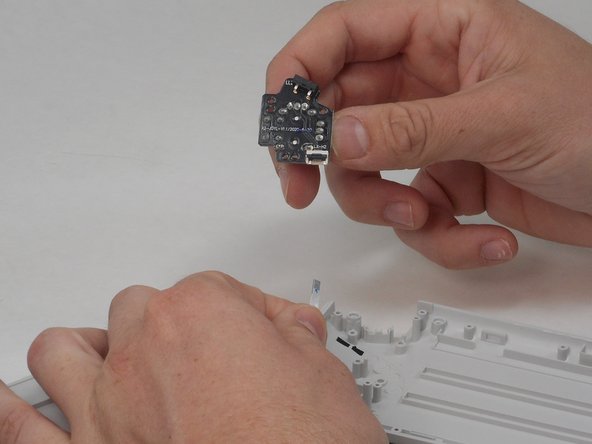
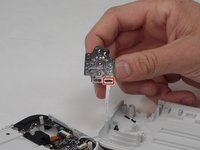
    • Flip up the black ZIF locking flap to disconnect the ribbon cable.

Conclusion

To reassemble your device, follow these instructions in reverse order.

One other person completed this guide.
Guillermo Lopez

Member since: 02/16/24

133 Reputation

1 Guide authored
1 Guide Comment

Nice guide, but where does one procure a replacement thumbstick assembly?

Rens van den Heuvel - Reply

Add Comment

View Statistics:

Past 24 Hours: 0

Past 7 Days: 12

Past 30 Days: 50

All Time: 1,083