Introduction
The Gamesir G4 Pro is powered by an 800 mAh rechargeable battery. The four small red lights on the left side of the controller indicate battery life before it needs to be recharged. If the controller has been plugged in to charge without the lights indicating increased battery status, then the battery may be faulty and need replacement.
The 800 mAh battery is an internal part that requires opening the controller to replace. We advise that you wear an anti-static wrist strap when handling the battery to prevent electrical shocks. If the battery is swollen or hot, take precaution and dispose of it in a fireproof container as the battery is highly flammable.
What you need
-
-
-
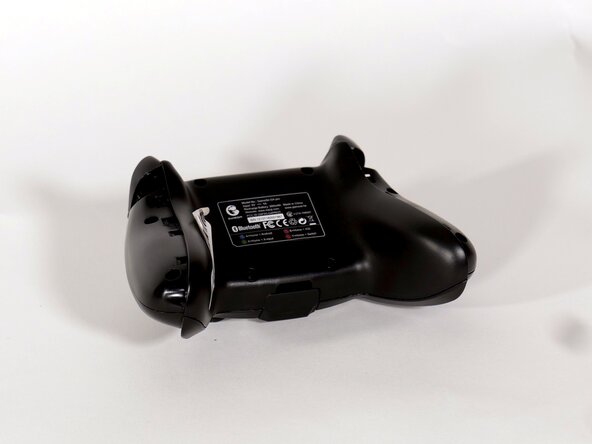
Use a Phillips #1 screwdriver to remove the four 9.5 mm screws on the rear case.
-
-
-
-
Use a Phillips #1 screwdriver to remove the 9.5 mm screws on the top of each handle.
-
Use a Phillips #0 screwdriver to remove the 9.5 mm screws on the bottom of each handle.
-
-
-
Use tweezers or your fingernails to walk the white battery connector out of its motherboard socket.
-


 Ask FixBot




To reassemble your device, follow the above steps in reverse order.
For optimal performance, after completing this guide, calibrate your newly installed battery.
Take your e-waste to an R2 or e-Stewards certified recycler.
Repair didn’t go as planned? Try some basic troubleshooting or ask our Answers community for help.

Team

University of Texas at Arlington, Team 1-4, Aguilar Spring 2026 Member of University of Texas at Arlington, Team 1-4, Aguilar Spring 2026
UTA-AGUILAR-S26S1G4
4 Members
60 Guides authored
