Free Shipping on Domestic Orders $75+

Framework Laptop 16" Wi-Fi Card Installation

Prerequisite Only
This is a prerequisite-only guide! This guide is part of another procedure and isn’t meant to be used alone.

What you need

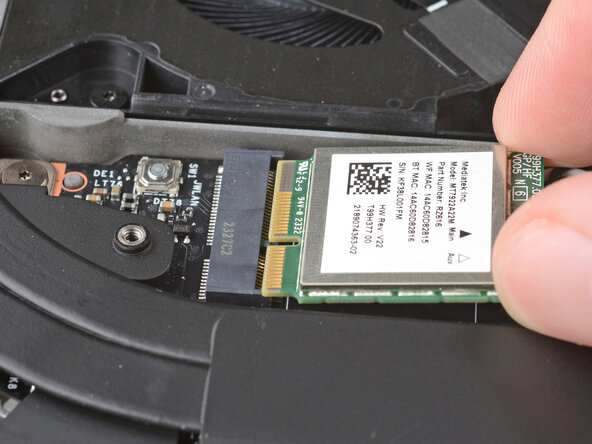
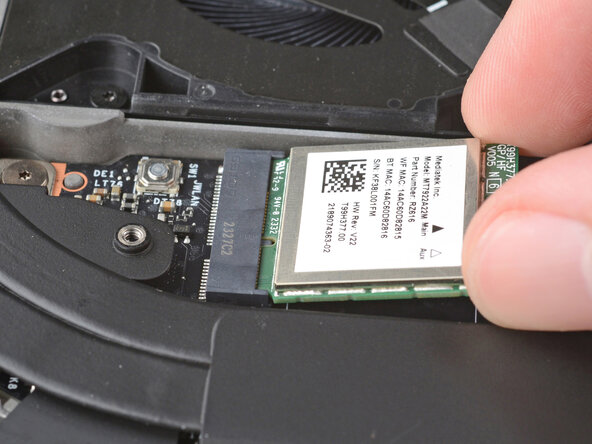
    1. Framework Laptop 16" Wi-Fi Card Installation, Install the Wi-Fi module: step 1, image 1 of 2 Framework Laptop 16" Wi-Fi Card Installation, Install the Wi-Fi module: step 1, image 2 of 2
      • Hold the Wi-Fi module by its edges. Don't touch the gold contacts with your fingers. If you do, wipe the contacts with a clean, lint-free cloth to remove any finger oils.

      • Align the Wi-Fi module's gold contacts and notch with the socket on the Mainboard.

      • Insert the Wi-Fi module into the socket at a shallow angle. The gold contacts should mostly be covered by the socket.

      • The Wi-Fi module fits into the socket in one orientation. If it doesn't fit, try flipping the module.

      Ask FixBot

      Add Comment

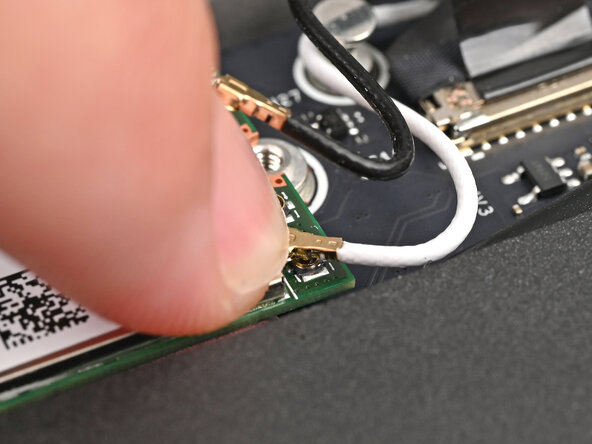
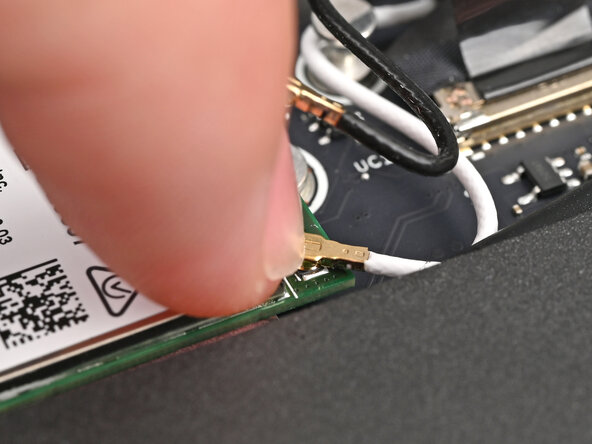
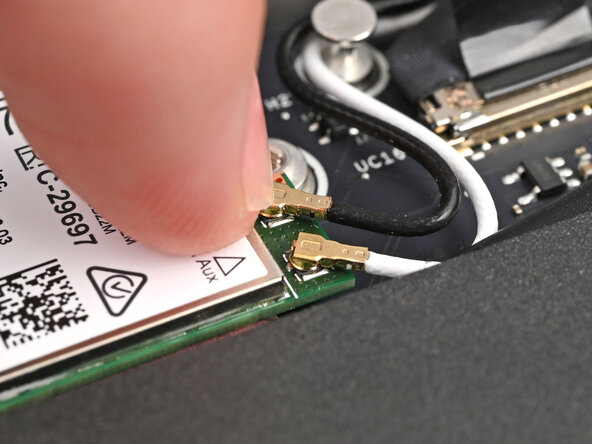
    2. Framework Laptop 16" Wi-Fi Card Installation: step 2, image 1 of 3 Framework Laptop 16" Wi-Fi Card Installation: step 2, image 2 of 3 Framework Laptop 16" Wi-Fi Card Installation: step 2, image 3 of 3
      • Hold the Wi-Fi module down with your finger.

      • Position the white antenna cable connector over the left Wi-Fi module's coaxial socket.

      • If you're unsure which cable goes where, refer to the arrows on the Wi-Fi module for which color cable matches with its connector.

      • Tweezers can help position the connector.

      • Use your finger to press the connector into place. You should feel a faint click, and the cable will stay attached to the socket by itself.

      • These connectors are very delicate! If the connector doesn't feel like it's clicking in place, reposition the connector and try again.

      • Repeat the procedure with the black antenna cable.

      Ask FixBot

      Add Comment

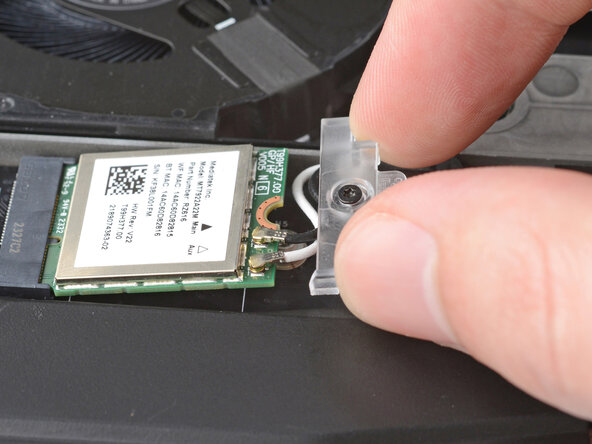
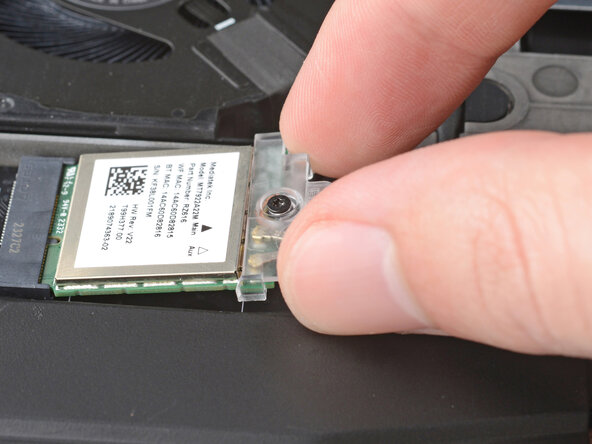
    3. Framework Laptop 16" Wi-Fi Card Installation: step 3, image 1 of 2 Framework Laptop 16" Wi-Fi Card Installation: step 3, image 2 of 2
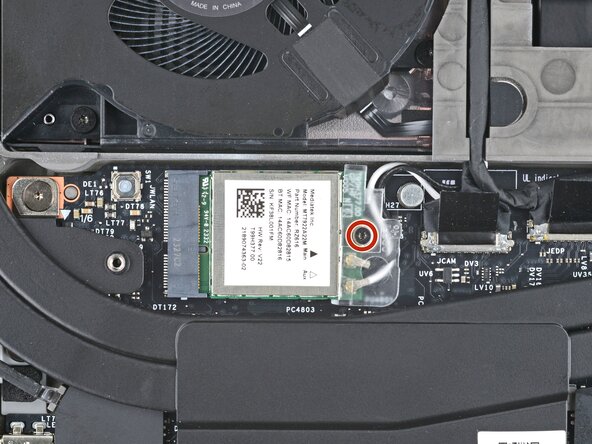
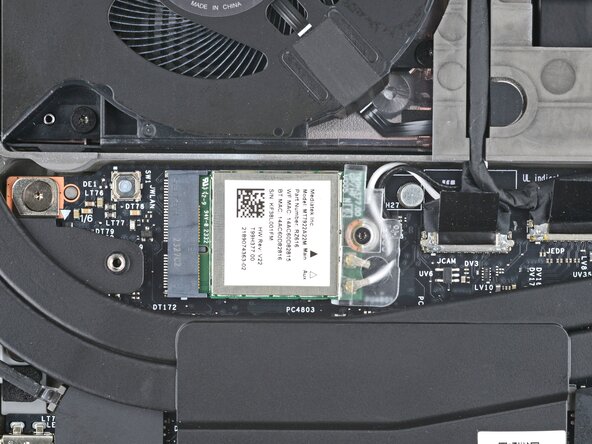
      • Slide the clear plastic cover on the module and align its screw with the screw hole cutout.

      Ask FixBot

      Add Comment

    4. Framework Laptop 16" Wi-Fi Card Installation, Tighten the Wi-Fi module screw: step 4, image 1 of 2 Framework Laptop 16" Wi-Fi Card Installation, Tighten the Wi-Fi module screw: step 4, image 2 of 2
      • Use your Framework Screwdriver to tighten the captive T5 Torx screw securing Wi-Fi module.

      Ask FixBot

      Add Comment

Conclusion

To reassemble your device, follow these instructions in reverse order.

Take your e-waste to an R2 or e-Stewards certified recycler.

Repair didn’t go as planned? Try some basic troubleshooting, or ask our Answers Community for help.

Cancel: I did not complete this guide.

Alex Diaz-Kokaisl

Member since: 01/16/22

250,065 Reputation

1,203 Guides authored

0 Guide Comments

Add Comment

View Statistics:

Past 24 Hours: 0

Past 7 Days: 0

Past 30 Days: 4

All Time: 65