
Framework Laptop 16" Touchpad Replacement

Last updated on Feb 3, 2026
Views: 913
View statistics:
- Past 24 Hours:
- 0
- Past 7 Days:
- 2
- Past 30 Days:
- 9
- All Time:
- 913
Comments: 1
1 comment on steps.
Completed: 1 2
1 person has marked this guide "completed." Will you be next?
2 people have marked this guide "completed." Including you — great job!
Favorites: 0 1
No one has favorited (and subscribed to) this guide. Will you be the first?
1 person has favorited (and subscribed to) this guide — and that's you!
Archived Guide
This guide is retained solely for historical purposes. Use the updated version of the guide to perform your repair.
Introduction
Go to step 1 ↓Use this guide to replace the touchpad, or touchpad module, in your Framework 16" laptop.
Note: the laptop used in this guide is a generic setup of one US keyboard, one numpad module, and two touchpad spacers. Your setup might vary, but the procedure should remain the same.
-
-
-
-
Use your fingernail to pull out the two Input Module latches and unlock them.
-
-
-
-
-
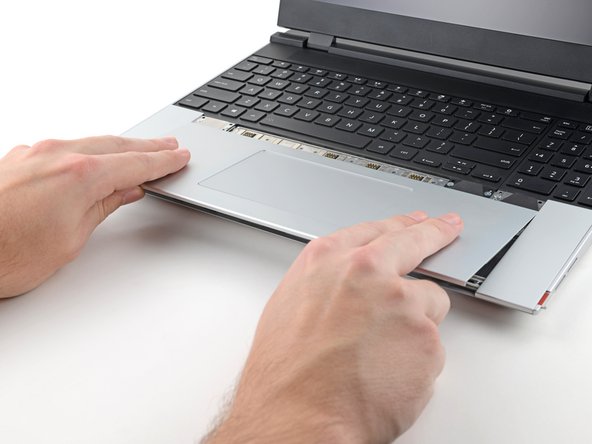
Use your fingers to slide the touchpad toward the bottom edge of the laptop and disconnect it.
-
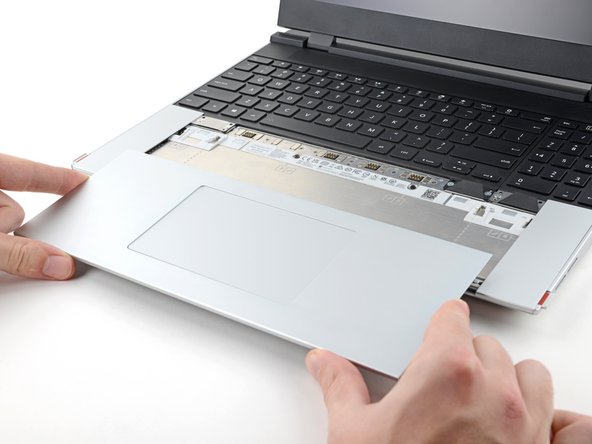
Lift the touchpad and remove it.
-
Place the touchpad flat on its cutout so its clips are properly aligned.
-
Press the touchpad down and slide it into place so it lines up evenly with the bottom edge of the laptop.
-
-


 Ask FixBot




To reassemble your device, follow these instructions in reverse order.
Take your e-waste to an R2 or e-Stewards certified recycler.
Repair didn’t go as planned? Try some basic troubleshooting, or ask our Answers Community for help.
Cancel: I did not complete this guide.
One other person completed this guide.


