Free Shipping on Domestic Orders $75+

Framework Laptop 16" Battery Removal

Prerequisite Only
This is a prerequisite-only guide! This guide is part of another procedure and isn’t meant to be used alone.

What you need

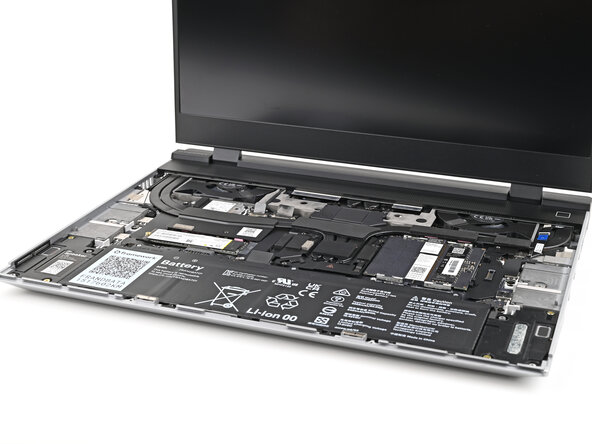
    1. Framework Laptop 16" Battery Removal, Before you begin: step 1, image 1 of 1
      • Unplug all cables and fully shut down your laptop.

      Ask FixBot

      Add Comment

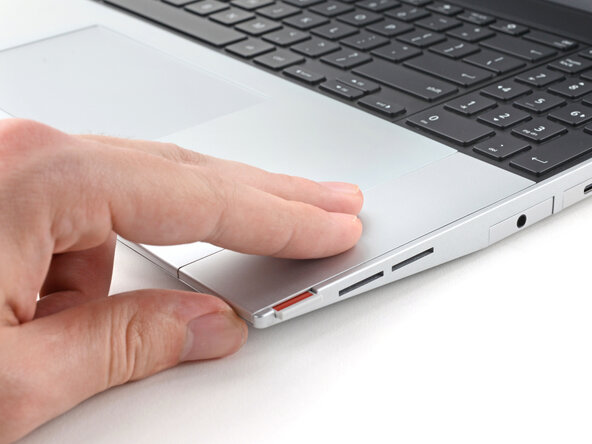
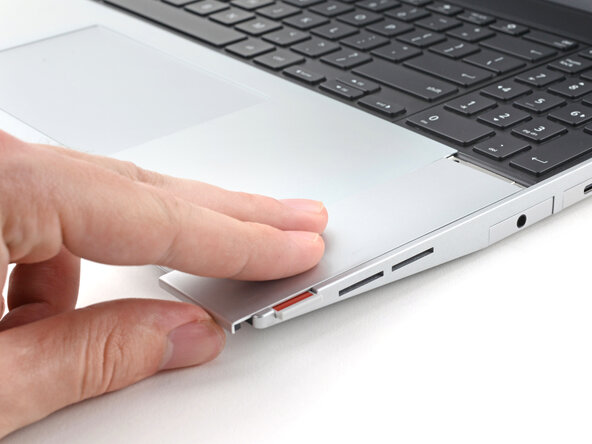
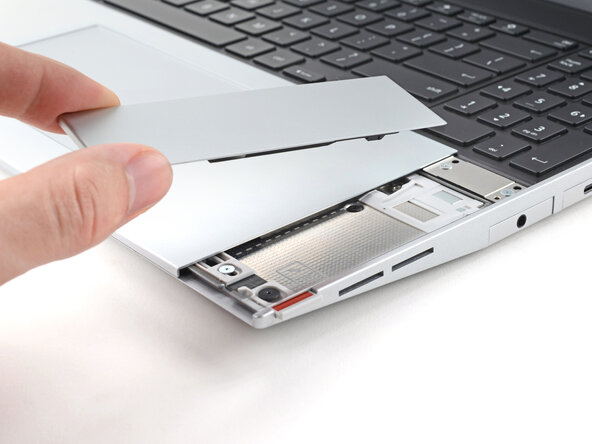
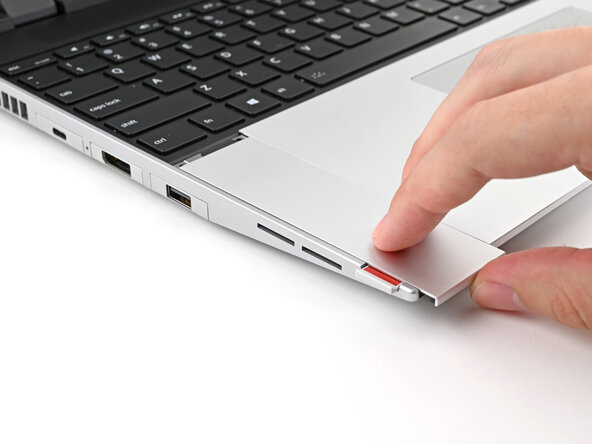
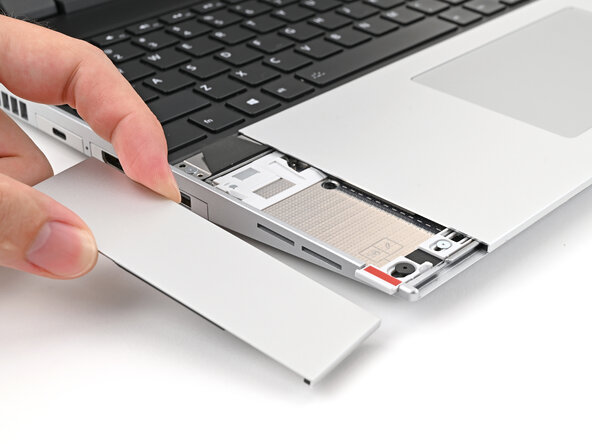
    1. Framework Laptop 16" Battery Removal, Remove the Touchpad Spacers: step 2, image 1 of 3 Framework Laptop 16" Battery Removal, Remove the Touchpad Spacers: step 2, image 2 of 3 Framework Laptop 16" Battery Removal, Remove the Touchpad Spacers: step 2, image 3 of 3
      • Use your fingers to slide the Touchpad Spacer toward the bottom edge of the laptop and unclip it.

      • If you're having trouble, check if the corresponding Input Module latch is properly unlocked.

      • Lift the Touchpad Spacer off the laptop and remove it.

      Ask FixBot

      Add Comment

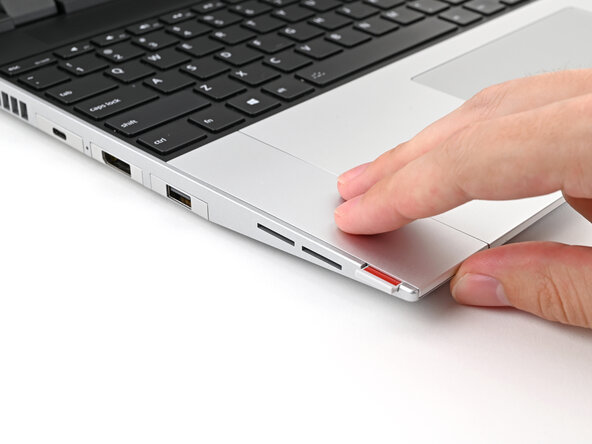
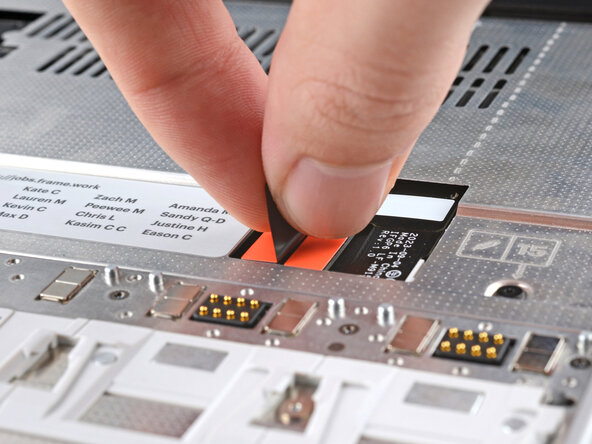
    2. Framework Laptop 16" Battery Removal: step 3, image 1 of 3 Framework Laptop 16" Battery Removal: step 3, image 2 of 3 Framework Laptop 16" Battery Removal: step 3, image 3 of 3
      • Repeat the same procedure for the other touchpad spacer.

      Ask FixBot
      Add Comment

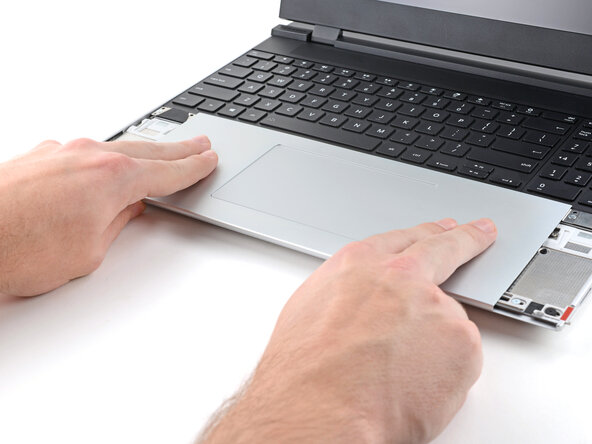
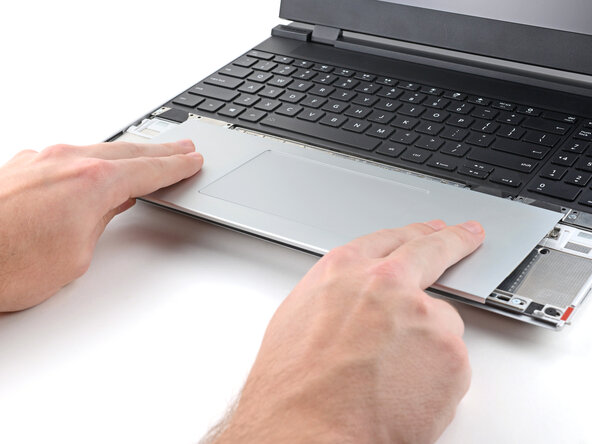
    1. Framework Laptop 16" Battery Removal, Remove the Touchpad Module: step 4, image 1 of 3 Framework Laptop 16" Battery Removal, Remove the Touchpad Module: step 4, image 2 of 3 Framework Laptop 16" Battery Removal, Remove the Touchpad Module: step 4, image 3 of 3
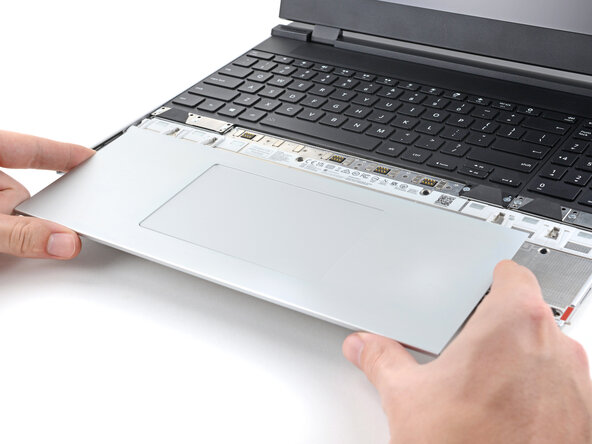
      • Use your fingers to slide the Touchpad Module toward the bottom edge of the laptop and disconnect it.

      • If you're having trouble, check if the Input Module latches are properly unlocked.

      • Lift the Touchpad Module and remove it.

      Ask FixBot
      Add Comment

    1. Framework Laptop 16" Battery Removal, Remove the keyboard: step 5, image 1 of 3 Framework Laptop 16" Battery Removal, Remove the keyboard: step 5, image 2 of 3 Framework Laptop 16" Battery Removal, Remove the keyboard: step 5, image 3 of 3
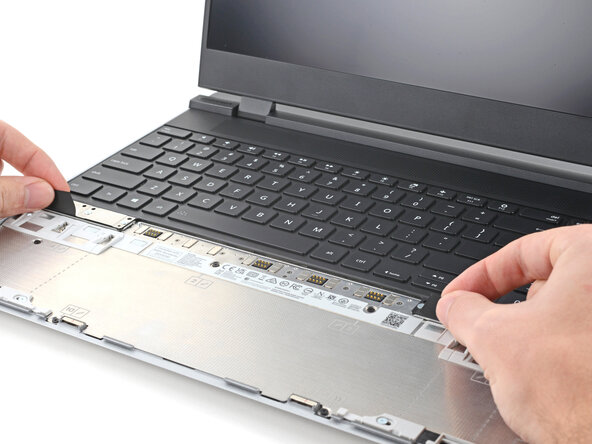
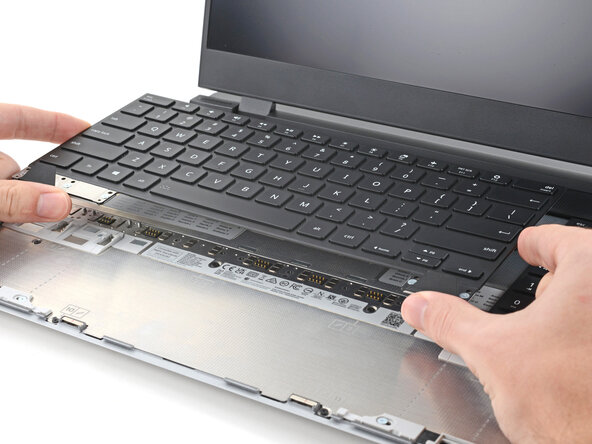
      • The keyboard is held in place with strong magnets. Apply gradually increasing force to avoid having the keyboard violently eject.

      • Grip the two pull tabs along the bottom of the keyboard and lift until its magnets release.

      • Remove the keyboard.

      Ask FixBot

      Add Comment

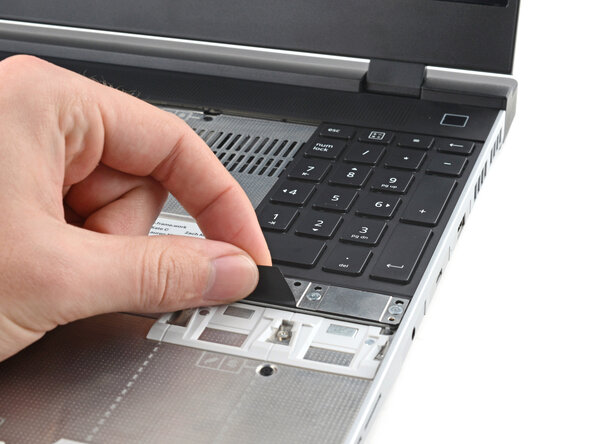
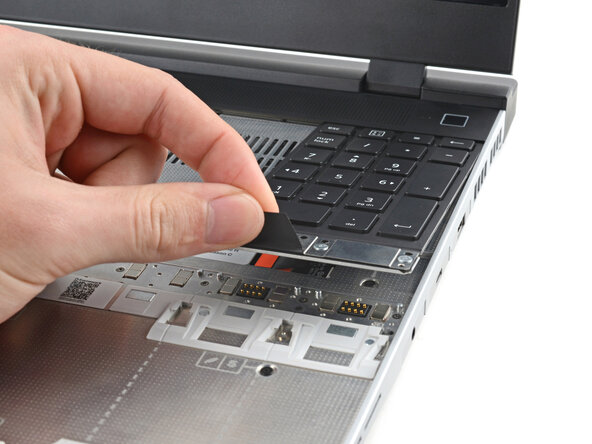
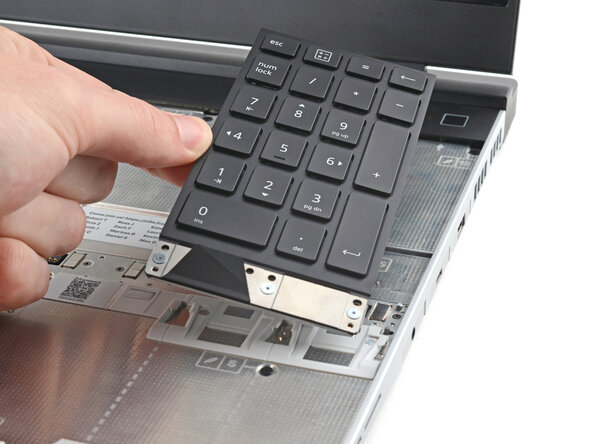
    1. Framework Laptop 16" Battery Removal, Remove the Input Modules: step 6, image 1 of 3 Framework Laptop 16" Battery Removal, Remove the Input Modules: step 6, image 2 of 3 Framework Laptop 16" Battery Removal, Remove the Input Modules: step 6, image 3 of 3
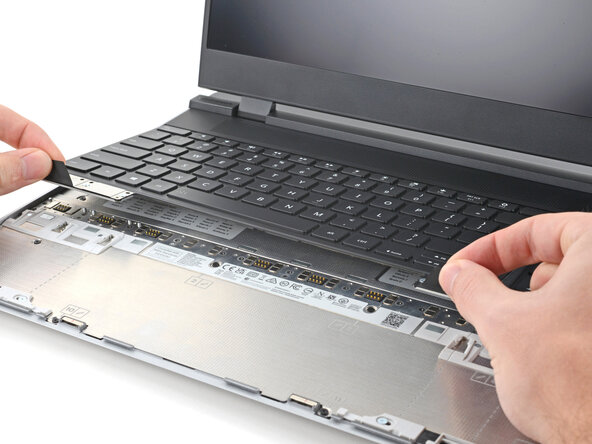
      • Your Input Module(s) might be different, but the procedure to remove them is the same.

      • Grip the pull tab at the bottom of the Input Module and lift until its magnets release.

      • Remove the Input Module.

      • Repeat for any remaining Input Modules.

      Ask FixBot

      Add Comment

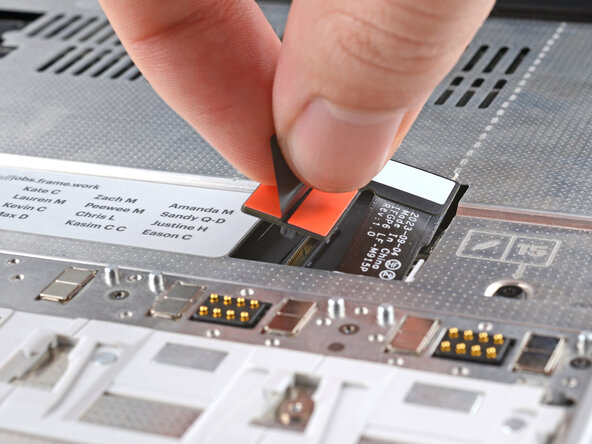
    1. Framework Laptop 16" Battery Removal, Disconnect the Mid Plate cable: step 7, image 1 of 2 Framework Laptop 16" Battery Removal, Disconnect the Mid Plate cable: step 7, image 2 of 2
      • Grip the black pull tab on the Mid Plate cable press connector.

      • Lift up to disconnect the Mid Plate cable.

      Ask FixBot

      Add Comment

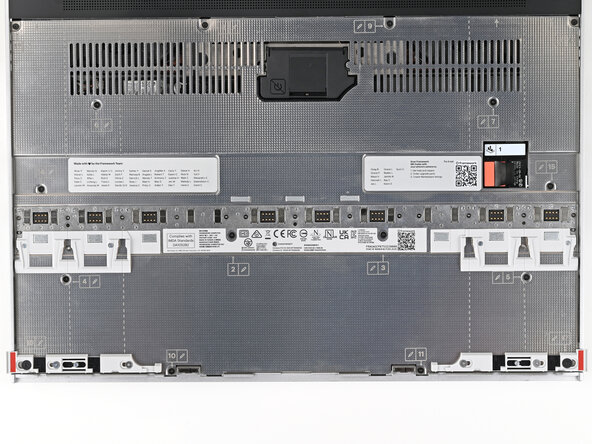
    2. Framework Laptop 16" Battery Removal, Loosen the Mid Plate screws: step 8, image 1 of 2 Framework Laptop 16" Battery Removal, Loosen the Mid Plate screws: step 8, image 2 of 2
      • The Mid Plate screws are ordered from 2–17 (number 1 is the press connector). You don't have to follow the order, but you can use it to help keep track of the screws you've loosened.

      • Use your Framework Screwdriver to loosen the 16 captive T5 Torx screws securing the Mid Plate.

      Ask FixBot
      Add Comment

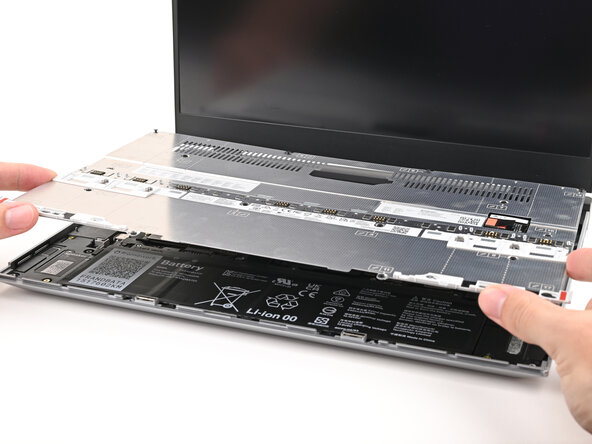
    3. Framework Laptop 16" Battery Removal, Remove the Mid Plate: step 9, image 1 of 3 Framework Laptop 16" Battery Removal, Remove the Mid Plate: step 9, image 2 of 3 Framework Laptop 16" Battery Removal, Remove the Mid Plate: step 9, image 3 of 3
      • Use your fingers to lift the Mid Plate off the laptop and remove it.

      Ask FixBot

      Add Comment

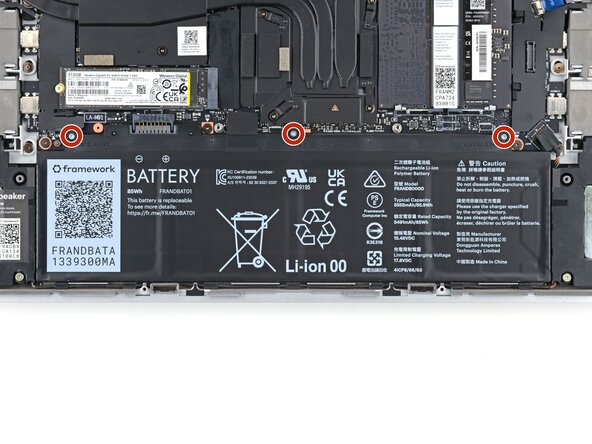
    1. Framework Laptop 16" Battery Removal, Loosen the battery screws: step 10, image 1 of 2 Framework Laptop 16" Battery Removal, Loosen the battery screws: step 10, image 2 of 2
      • Use your Framework Screwdriver to loosen the three captive T5 Torx screws securing the battery.

      Ask FixBot

      Add Comment
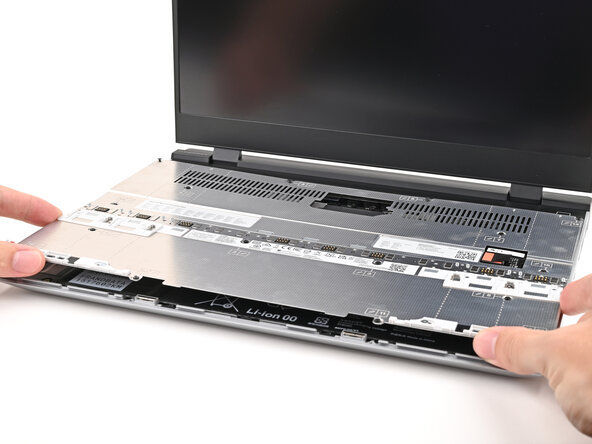
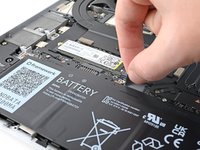
    2. Framework Laptop 16" Battery Removal, Remove the battery: step 11, image 1 of 3 Framework Laptop 16" Battery Removal, Remove the battery: step 11, image 2 of 3 Framework Laptop 16" Battery Removal, Remove the battery: step 11, image 3 of 3
      • Grip the black pull tab at the top of the battery and lift to disconnect the battery connector.

      • Remove the battery.

      Ask FixBot

      Add Comment

Conclusion

To reassemble your device, follow these instructions in reverse order.

For optimal performance, calibrate your newly installed battery after completing this guide.

Take your e-waste to an R2 or e-Stewards certified recycler.

Repair didn’t go as planned? Try some basic troubleshooting, or ask our Answers Community for help.

Cancel: I did not complete this guide.

Alex Diaz-Kokaisl

Member since: 01/16/22

250,028 Reputation

1,203 Guides authored

0 Guide Comments

Add Comment

View Statistics:

Past 24 Hours: 1

Past 7 Days: 4

Past 30 Days: 12

All Time: 100