Introduction
Congratulations on getting the Framework Laptop 16 DIY Edition! Follow this quick start guide to assemble your laptop and get it running.
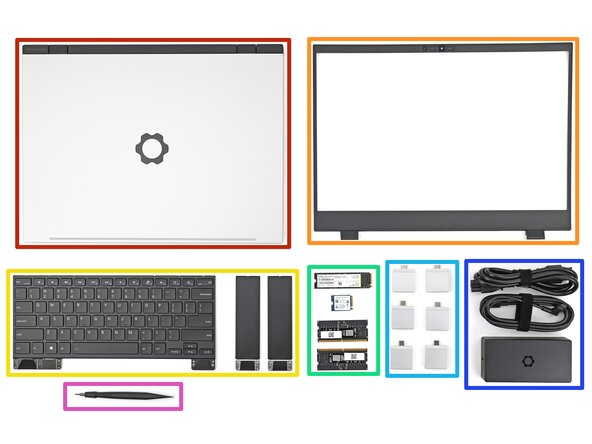
What you need
-
-
-
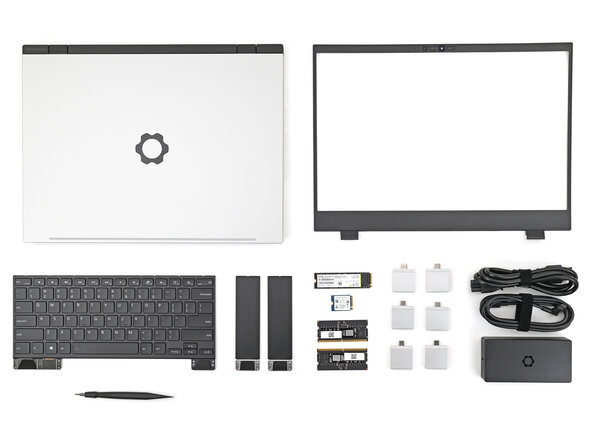
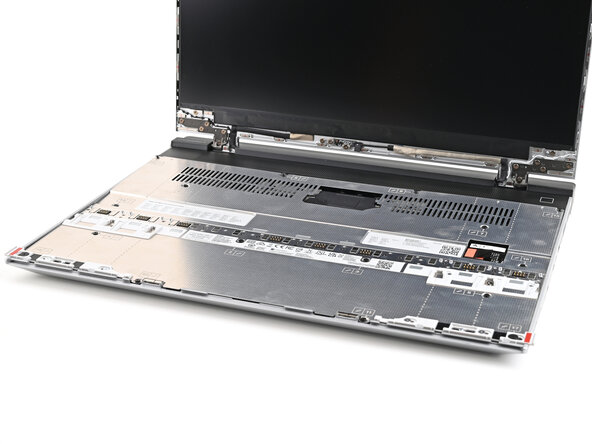
Framework Laptop chassis with pre-installed Mid Plate, Touchpad Module, and Touch Spacers.
-
Bezel
-
Keyboard and Input Modules
-
Memory and Storage
-
Expansion Cards
-
Power Adapter
-
Framework Screwdriver
 Ask FixBot
-
-
-
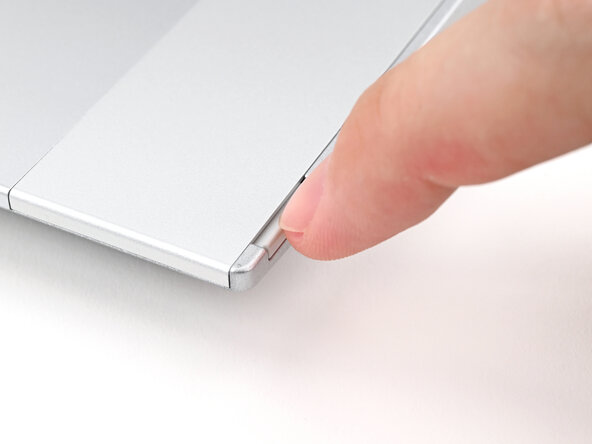
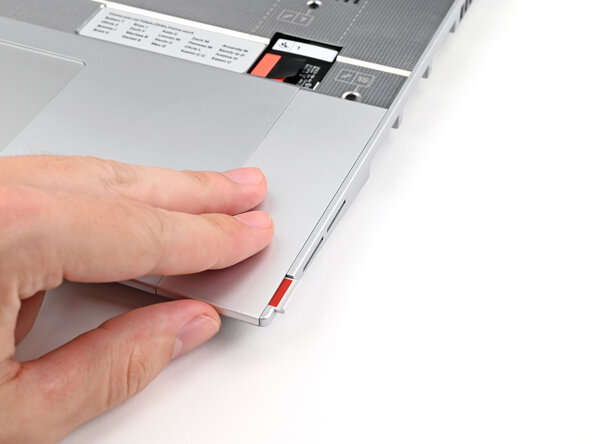
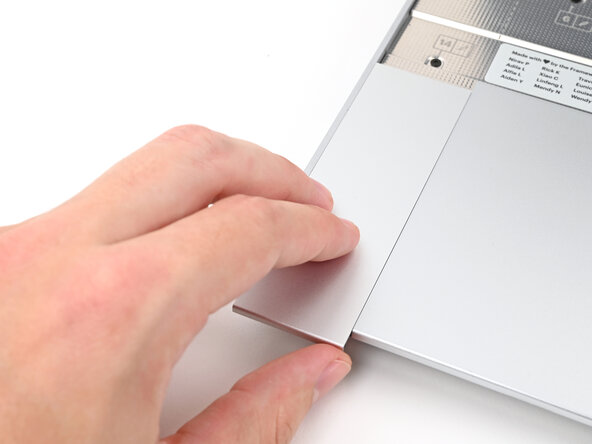
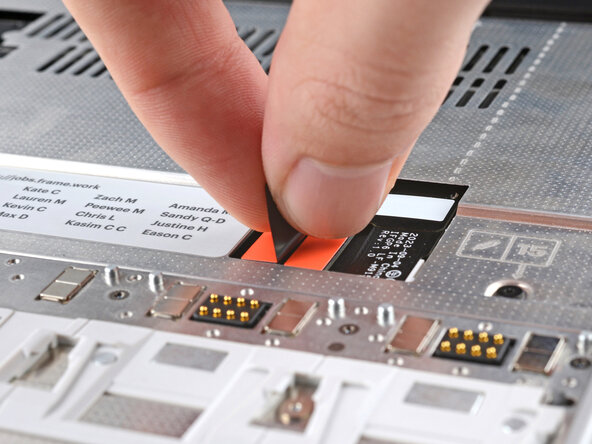
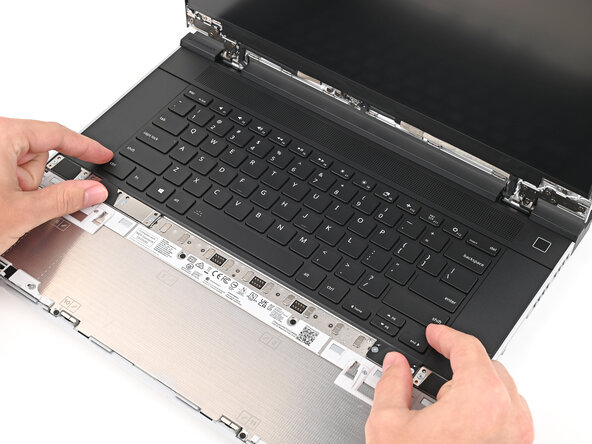
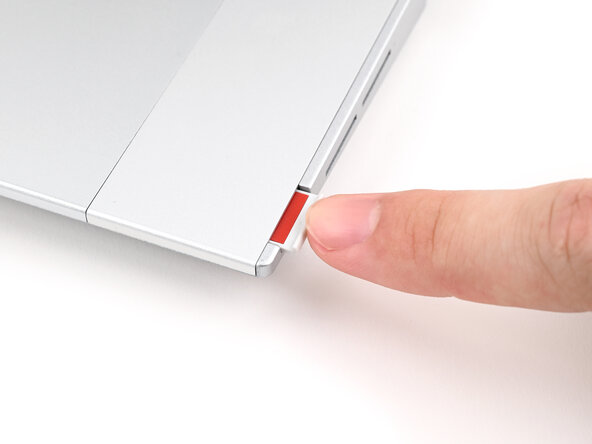
Use your fingernail to pull out the Input Module latch and unlock the Touchpad Spacer next to it.
-
-
-
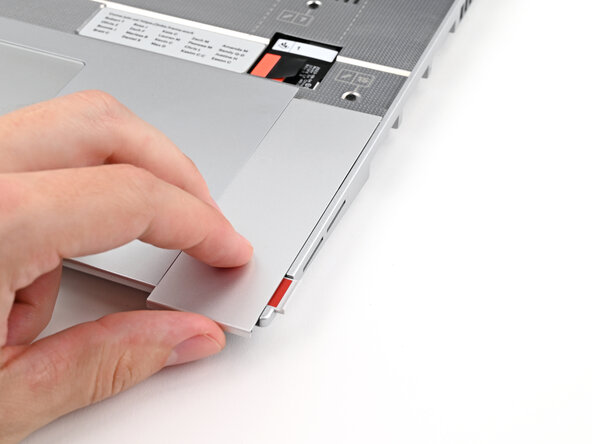
Use your fingers to slide the Touchpad Spacer toward the bottom edge of the laptop and unclip it.
-
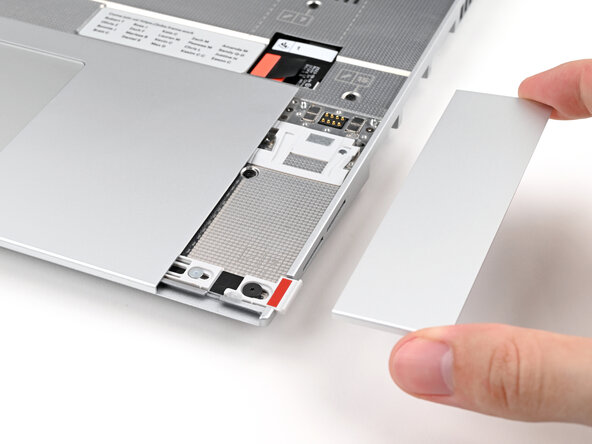
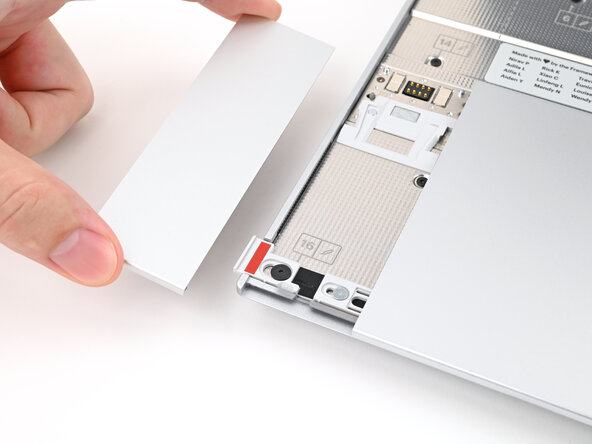
Lift the Touchpad Spacer off the laptop and remove it.
-
-
-
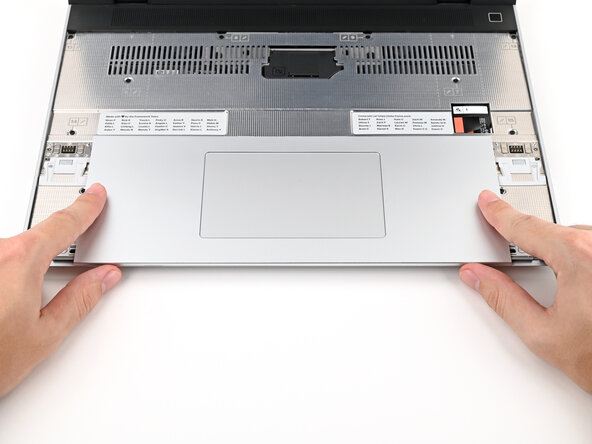
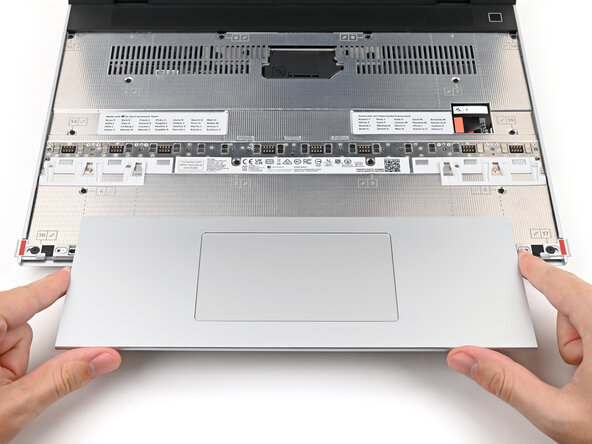
Use your fingers to slide the Touchpad Module toward the bottom edge of the laptop and disconnect it.
-
Lift the Touchpad Module and remove it.
-
-
-
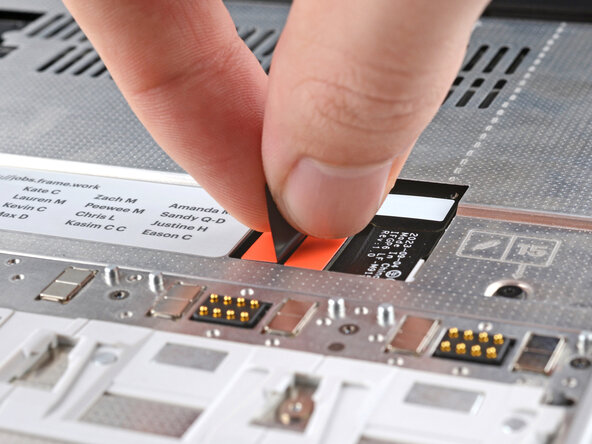
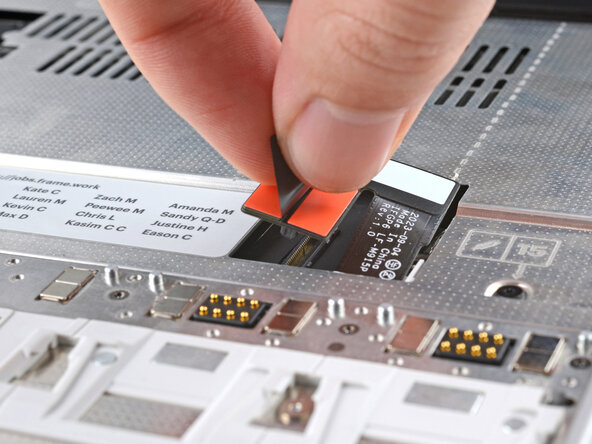
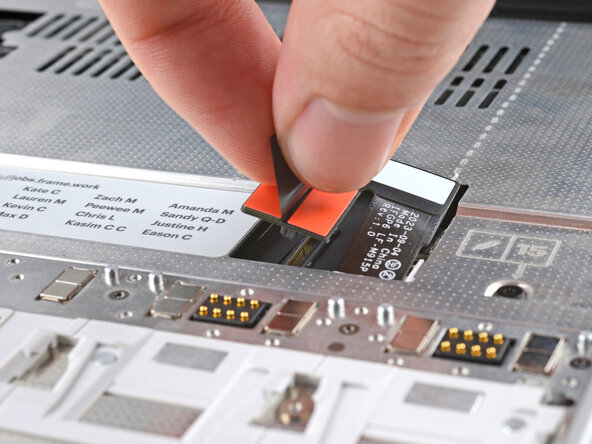
Grip the black pull tab on the Mid Plate cable press connector and lift up to disconnect it.
-
-
-
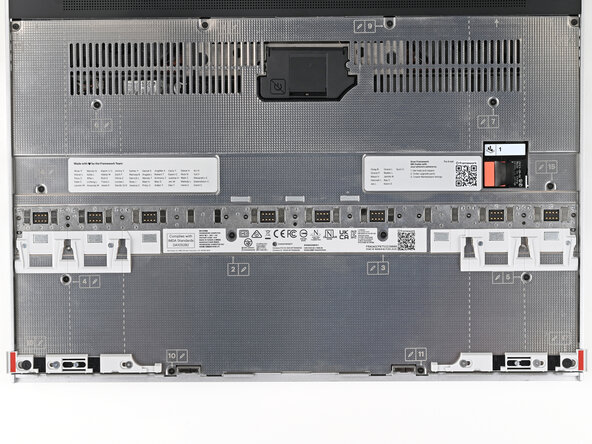
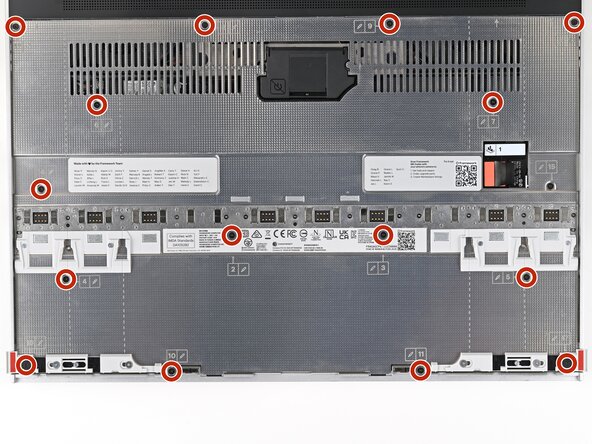
Use your Framework Screwdriver to loosen the 16 captive T5 Torx screws securing the Mid Plate.
-
-
-
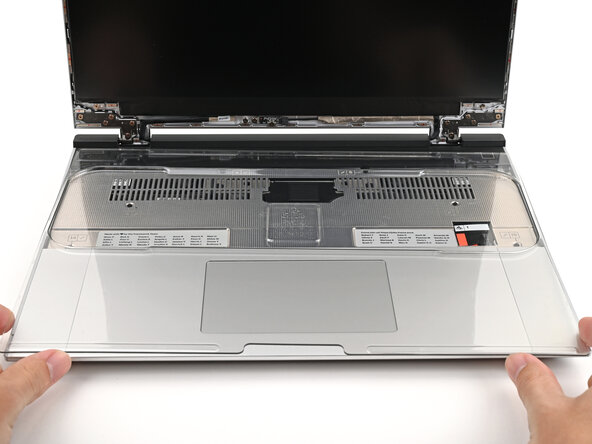
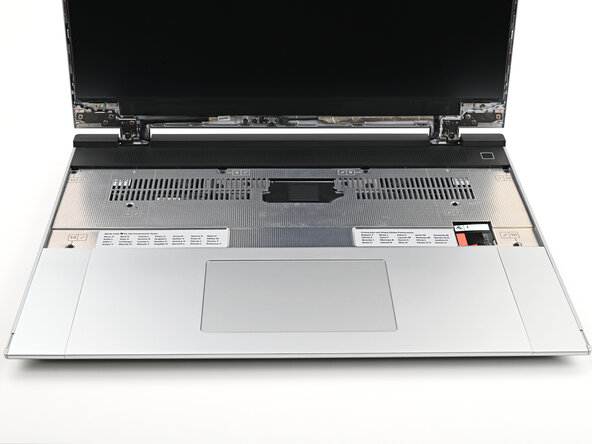
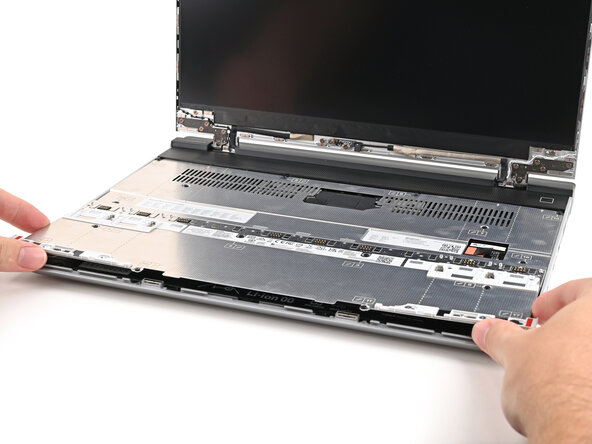
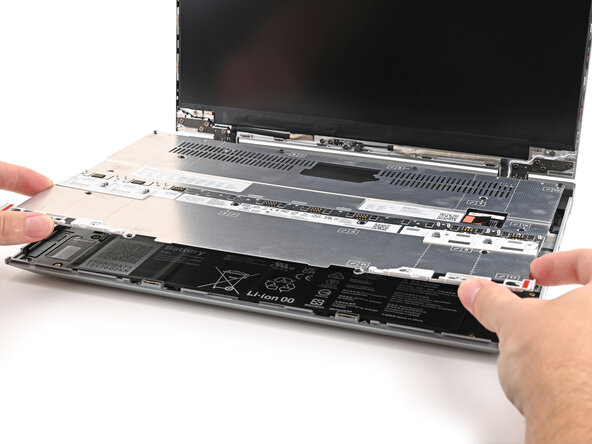
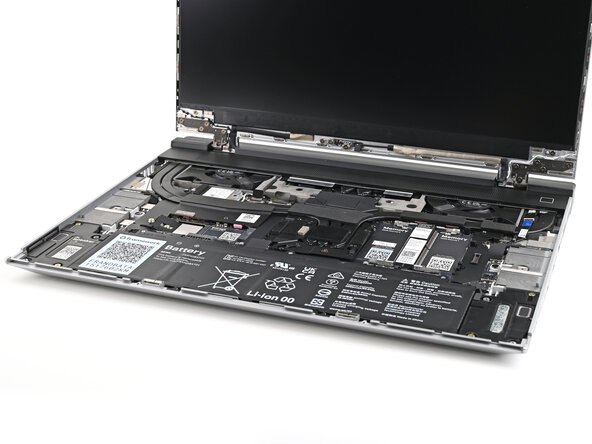
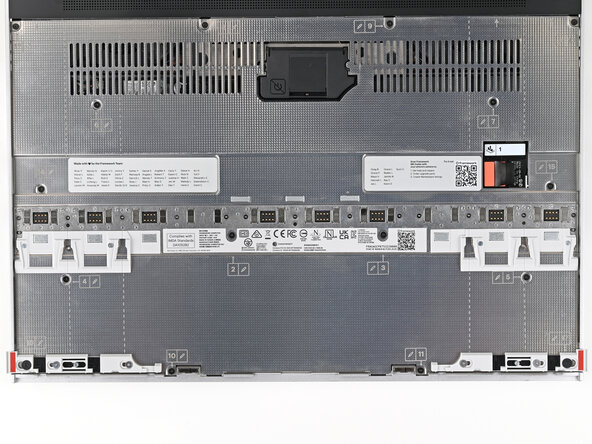
Use your fingers to lift the Mid Plate off the laptop and remove it.
-
-
-
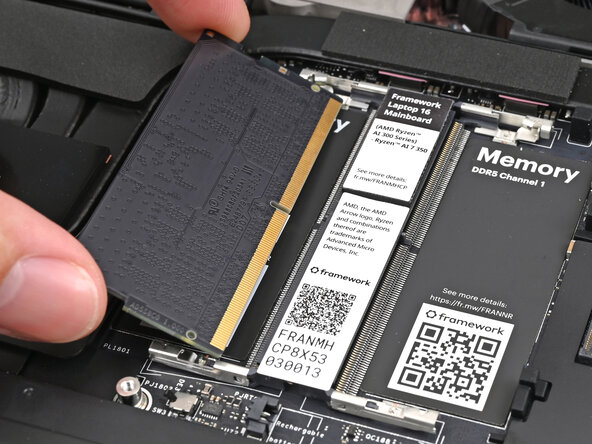
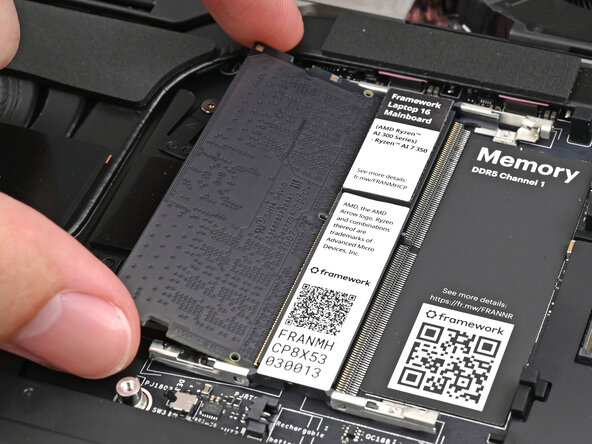
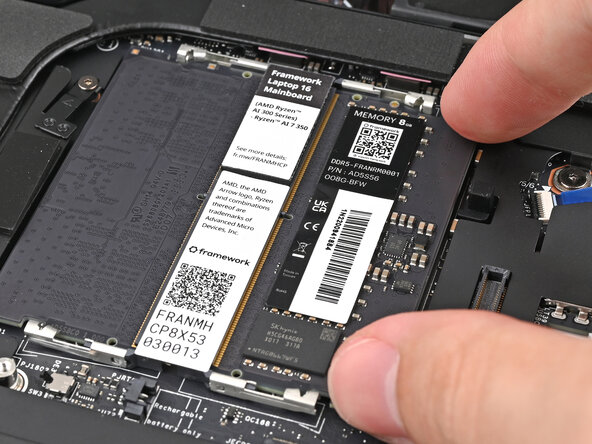
Orient the module with its label facing down and align the gold contacts with the left socket labeled DDR5 Channel 0.
-
Insert the contact edge into the socket at a shallow angle. The gold contacts should mostly be covered by the socket.
-
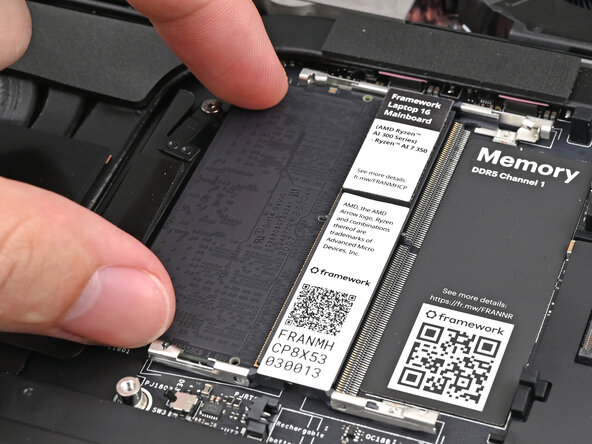
Press the edges of the memory module down until the side clips lock it in place.
-
-
-
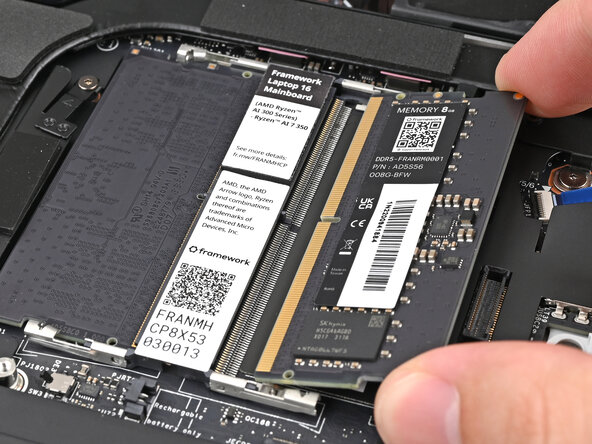
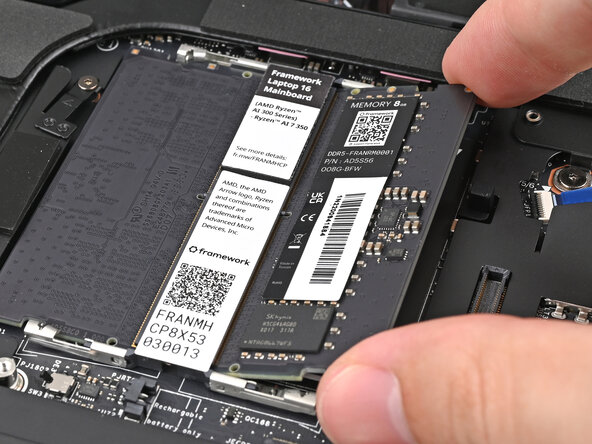
If you're using two memory modules, orient the other module so its label is facing upward and repeat the previous step for the other socket labeled DDR5 Channel 1.
-
-
-
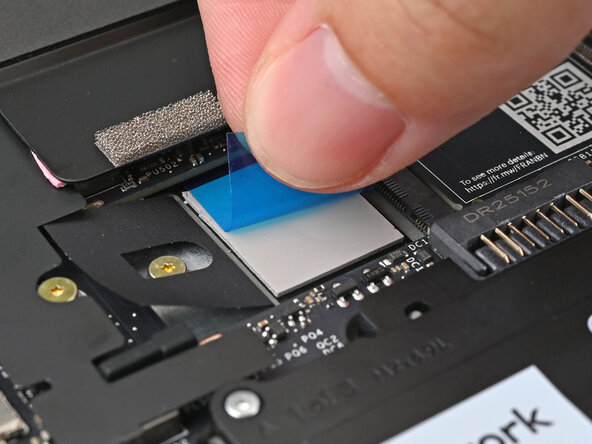
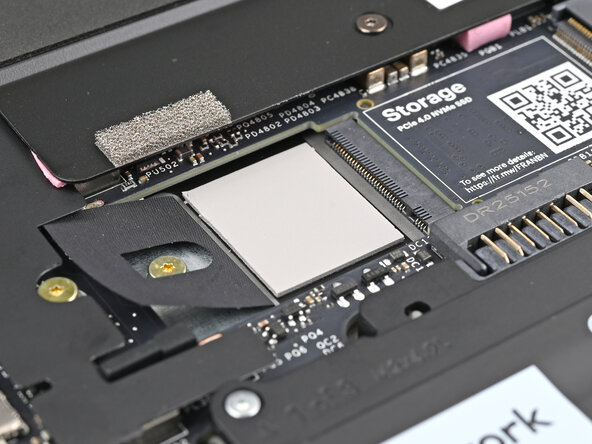
Remove the blue liner from the secondary SSD thermal pad.
-
-
-
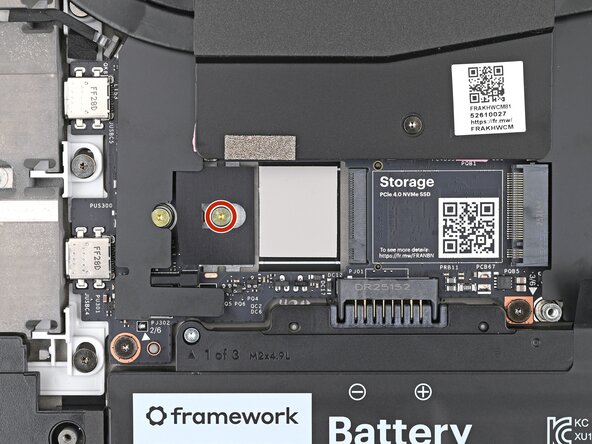
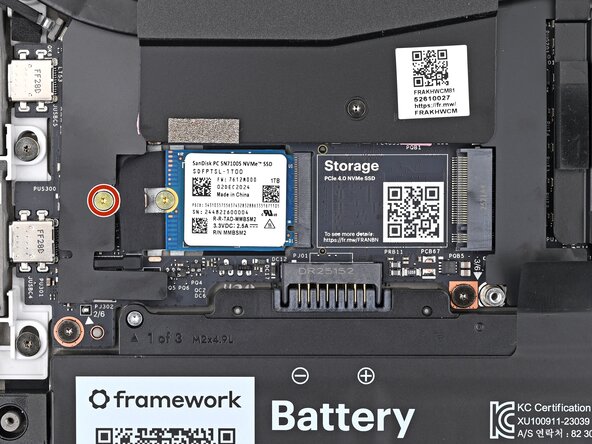
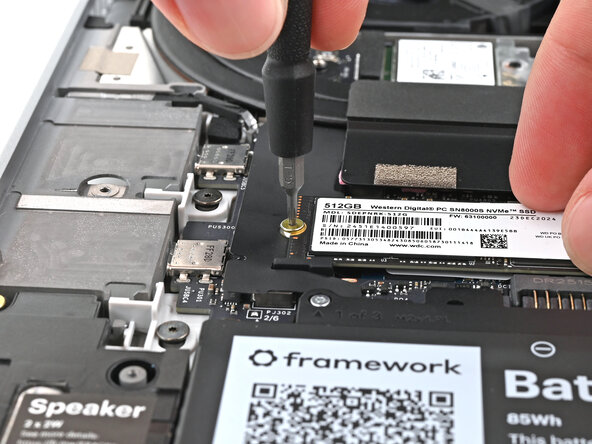
Use your Framework Screwdriver to remove the 2 mm‑long T5 Torx screw securing the secondary SSD.
-
-
-
-
Align the SSD's gold contacts with its socket.
-
Insert the SSD partially into the socket at a shallow angle. You should still be able to see most of the gold contacts.
-
Press the SSD flat to the Mainboard.
-
-
-
While keeping the SSD flat to the Mainboard, use your finger to slide the SSD into its socket until its golden contacts are completely covered.
-
-
-
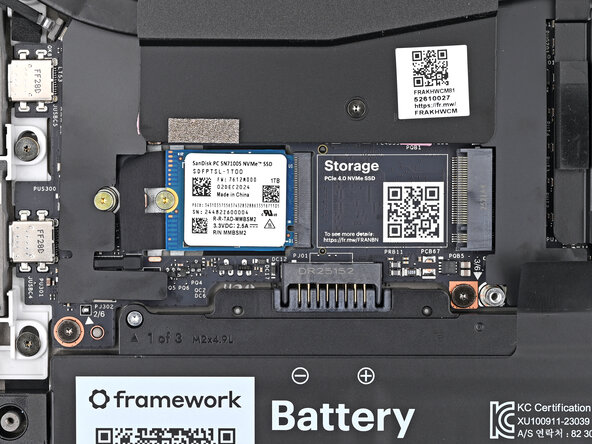
Use a Framework Screwdriver to install the 2 mm‑long T5 Torx screw securing the secondary SSD.
-
-
-
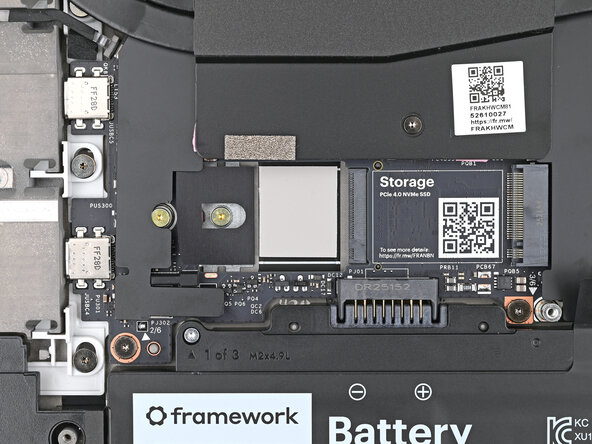
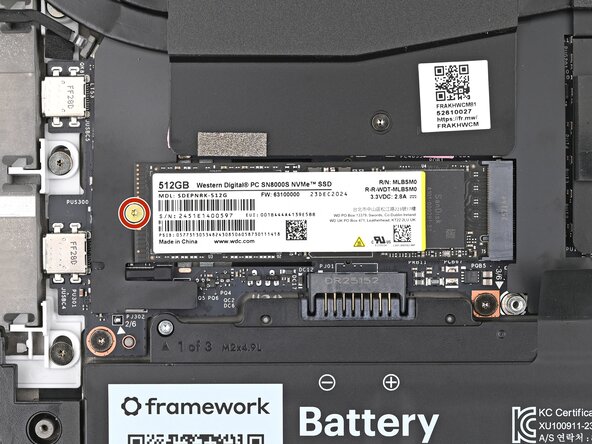
Use your Framework Screwdriver to remove the 2 mm‑long T5 Torx screw securing the primary SSD.
-
-
-
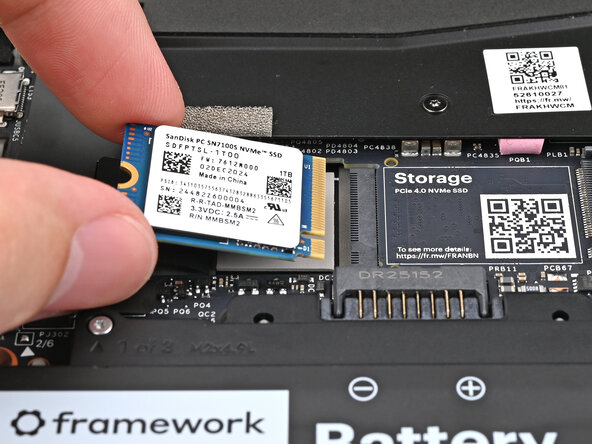
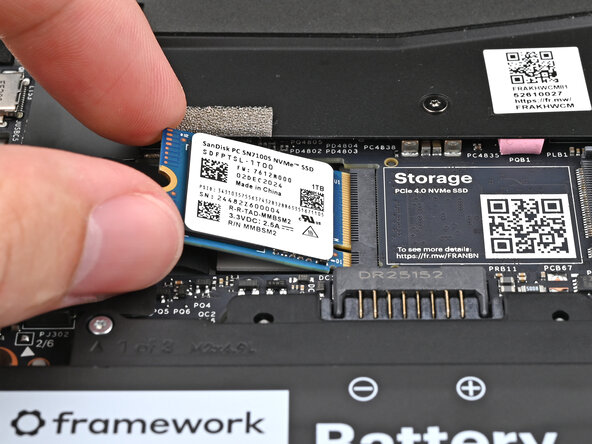
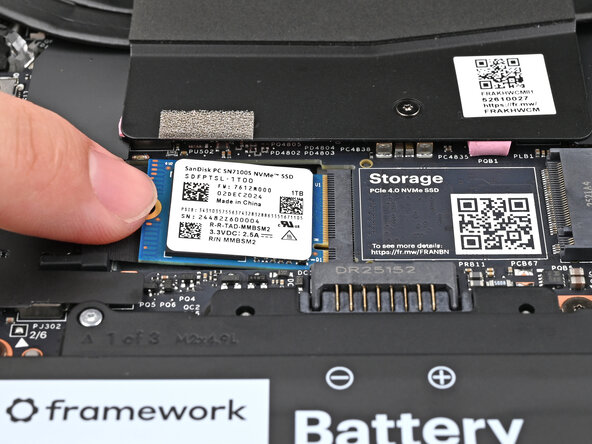
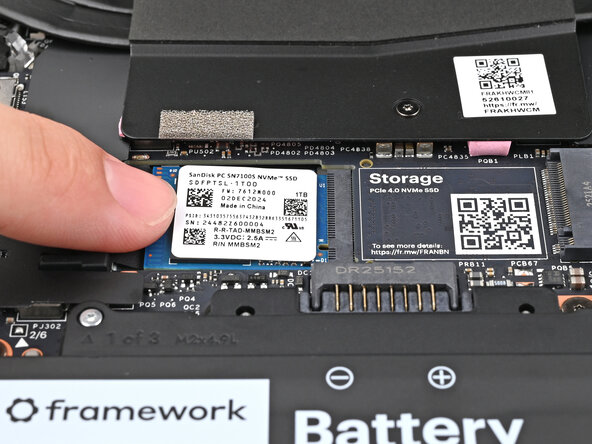
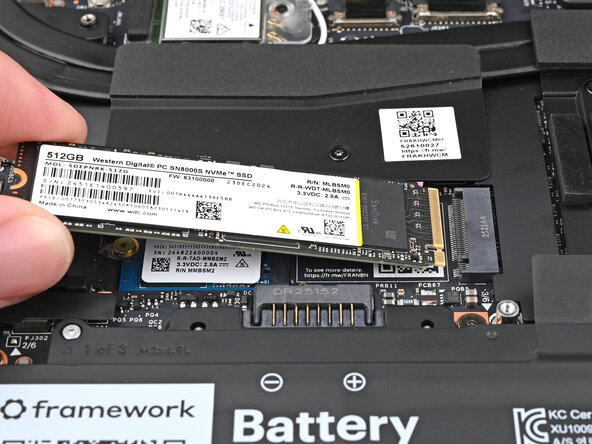
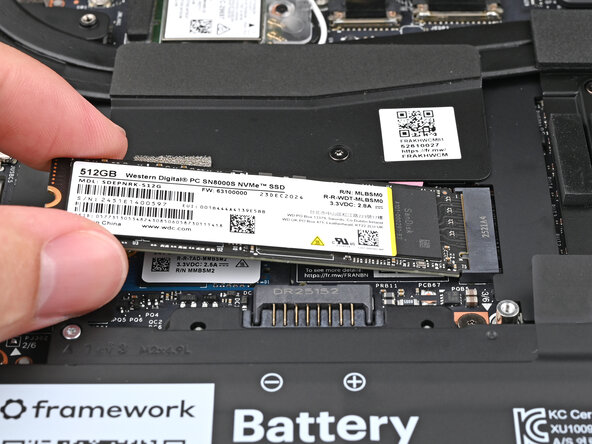
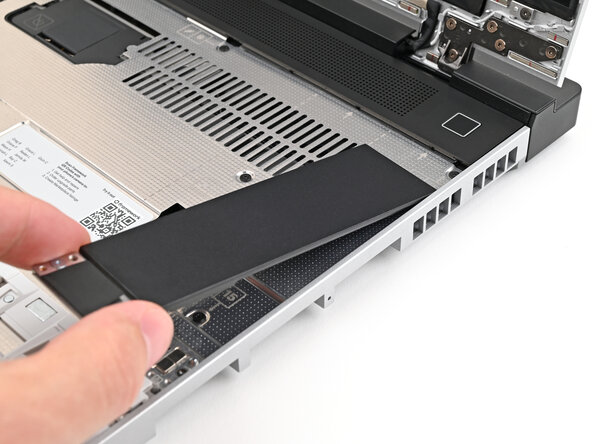
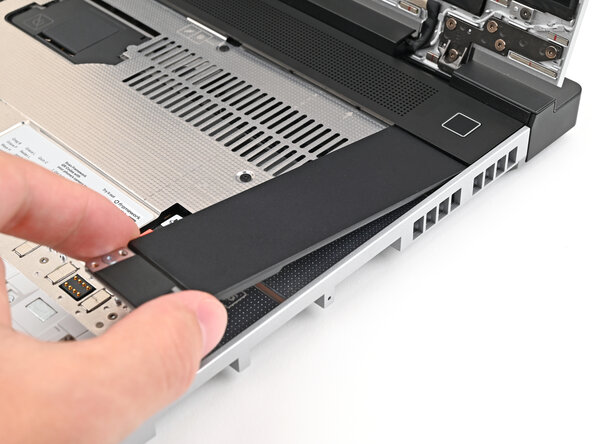
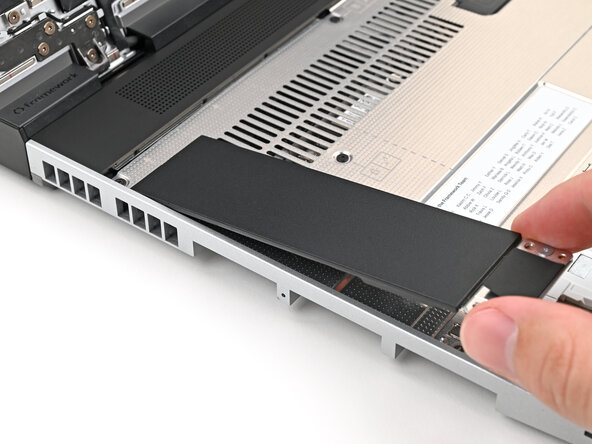
Insert the SSD into the socket at a shallow angle. The gold contacts should mostly be covered by the socket.
-
-
-
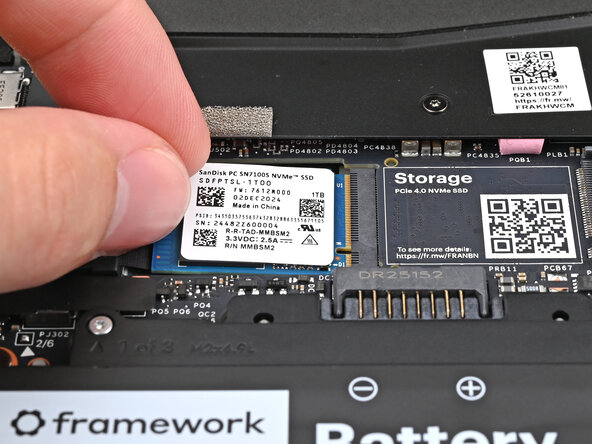
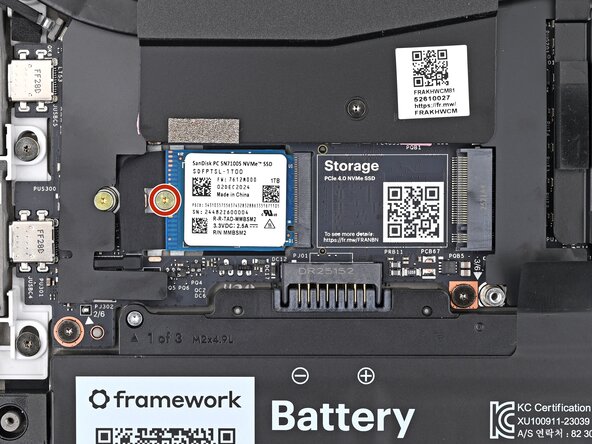
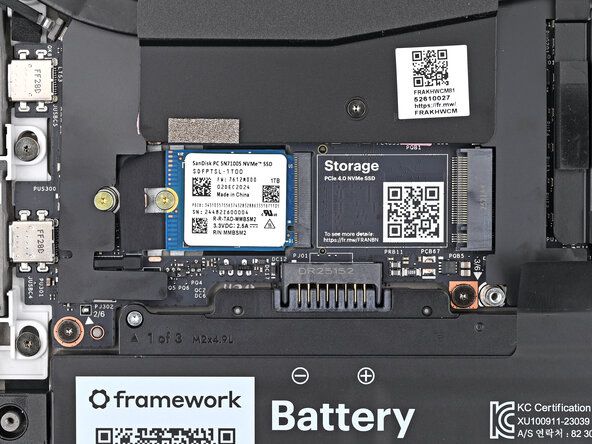
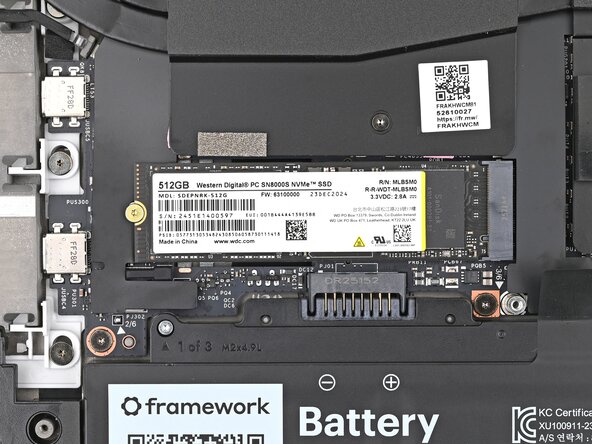
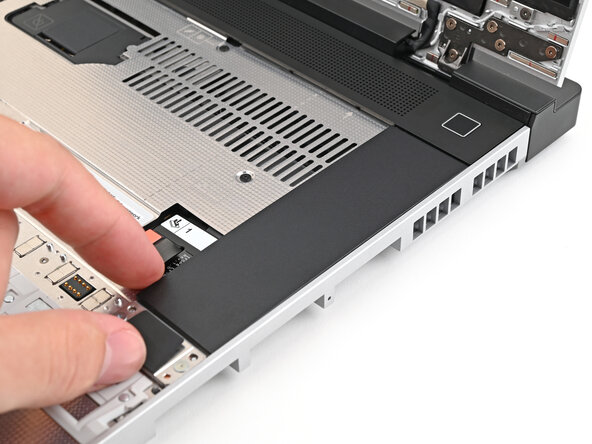
While holding the SSD flat to the Mainboard, use your Framework Screwdriver to install the 2 mm‑long T5 Torx screw securing the primary SSD.
-
-
-
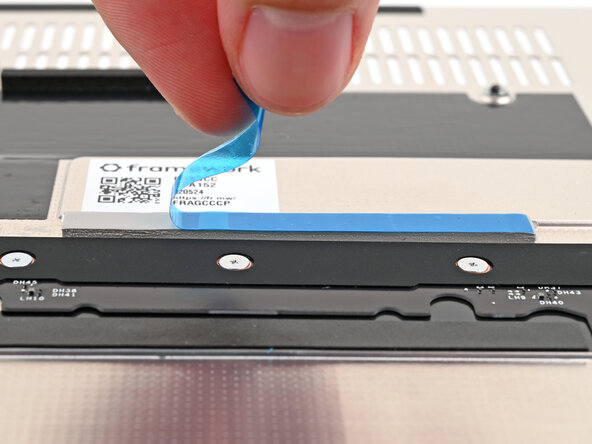
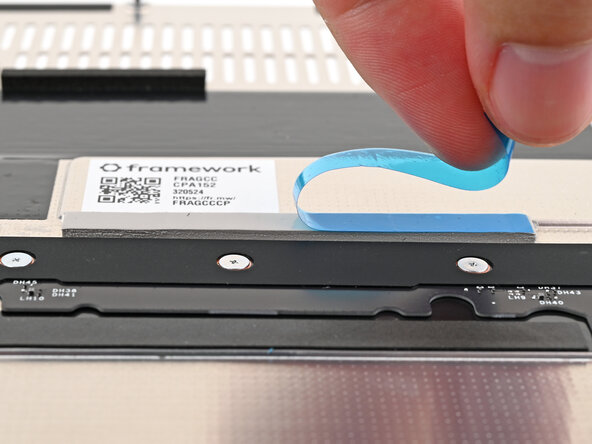
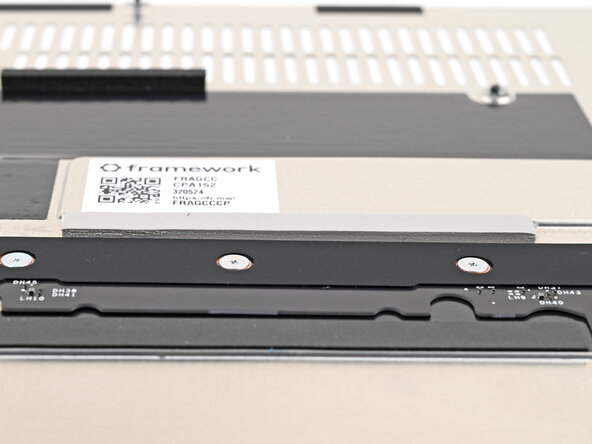
If there's a blue liner on the thermal pad located on the bottom of the Mid Plate, use your fingers to peel it off.
-
-
-
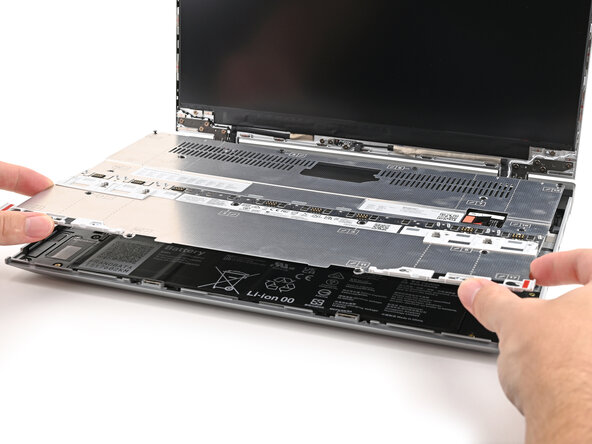
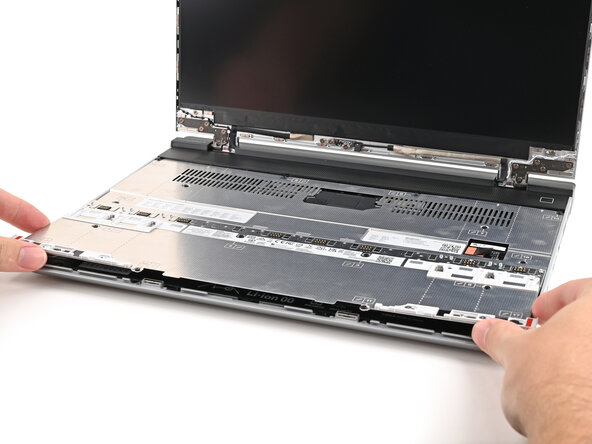
Place the Mid Plate on the laptop, making sure it sits evenly on its alignment pegs.
-
-
-
Use your Framework Screwdriver to tighten the 16 T5 Torx captive screws in order (starting with 2) to secure the Mid Plate evenly.
-
-
-
Align the Mid Plate cable press connector over its socket and press down to connect it.
-
-
-
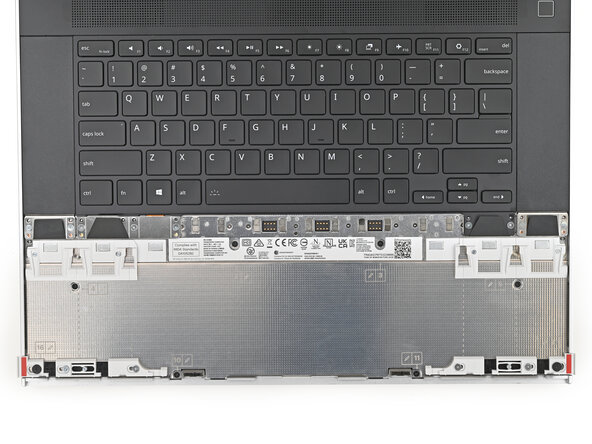
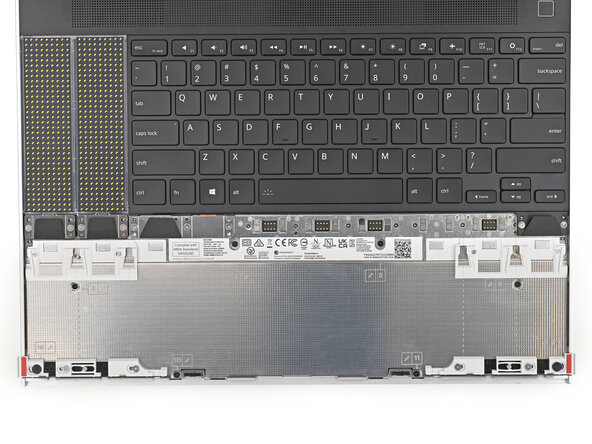
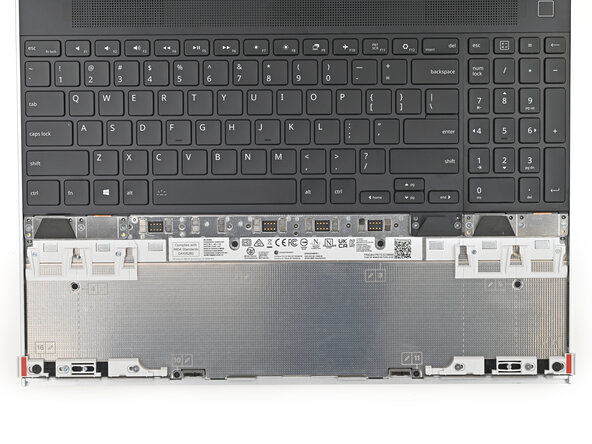
Hold the Input Module at a slight downward angle and align it with one of the dotted lines on the Mid Plate.
-
Slide the top lip of the Input Module underneath the ventilation plate and lay the module down flat to let the magnets pull it into place.
-
-
-
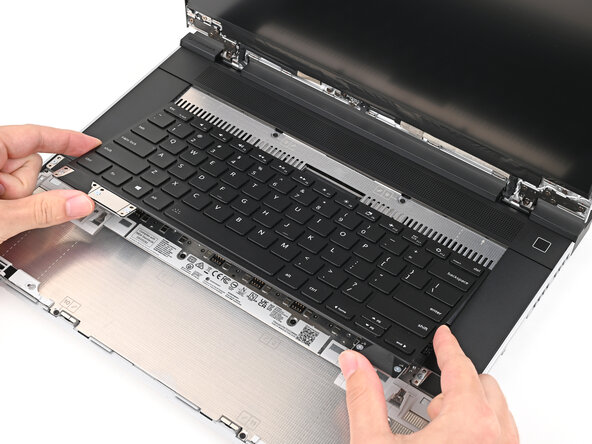
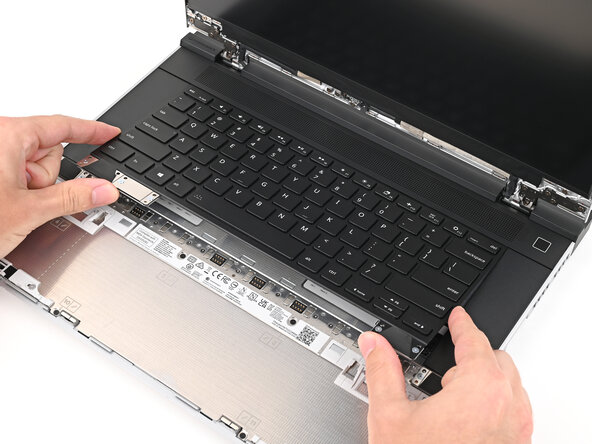
Hold the keyboard at a slight downward angle and align it with two of the dotted lines on the Mid Plate.
-
Slide the top lip of the keyboard underneath the ventilation plate and lay the keyboard down flat to let the magnets pull it into place.
-
-
-
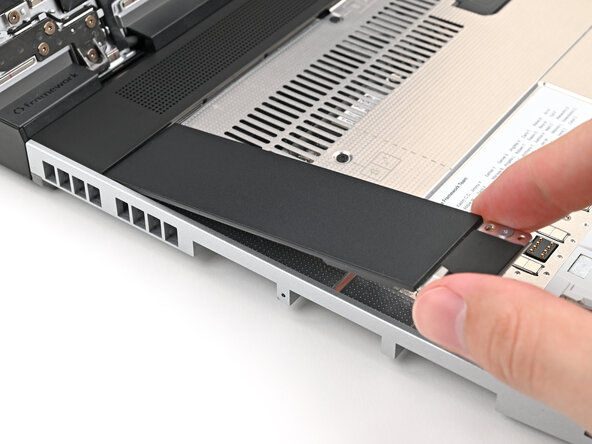
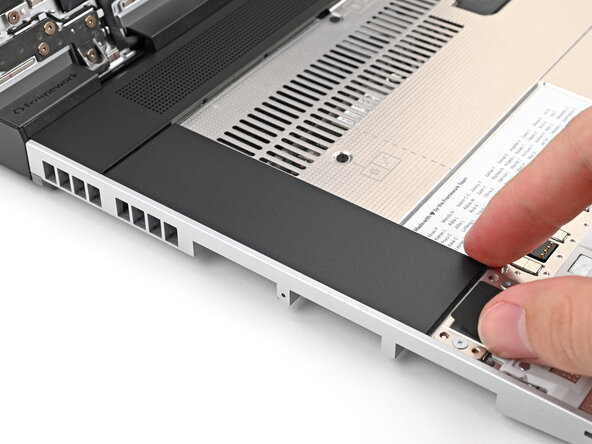
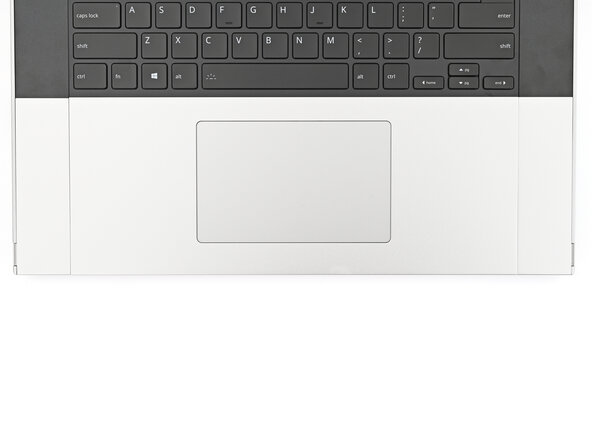
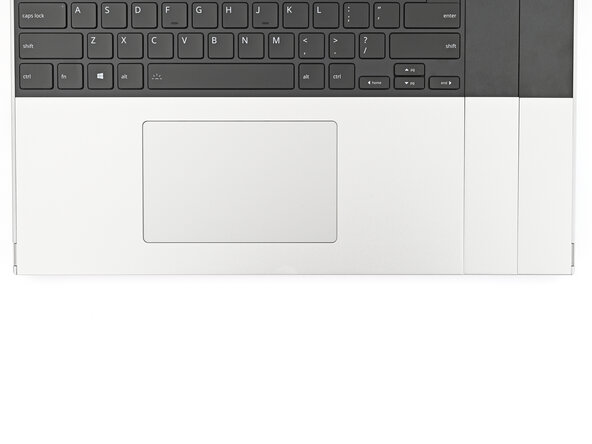
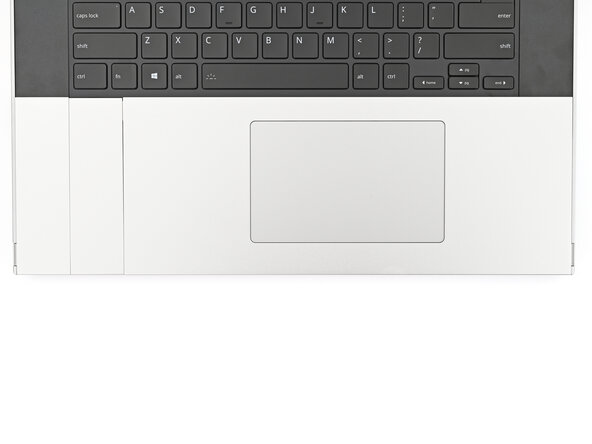
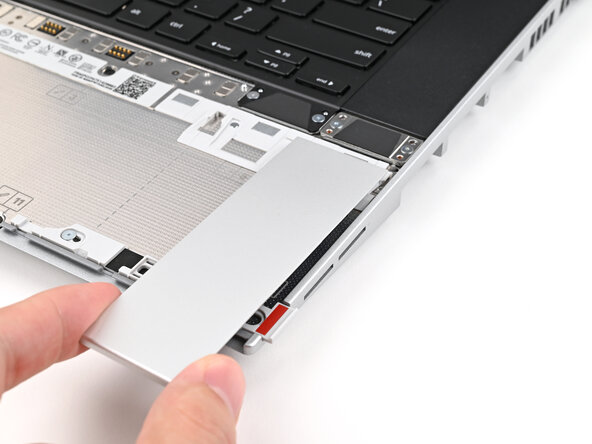
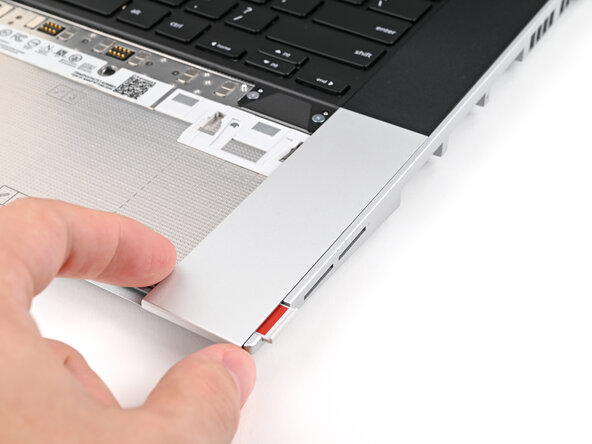
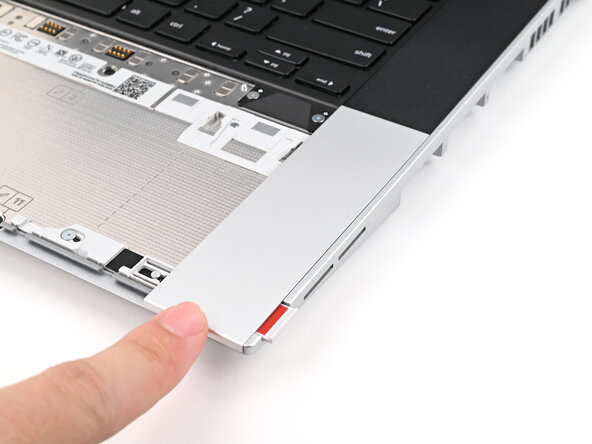
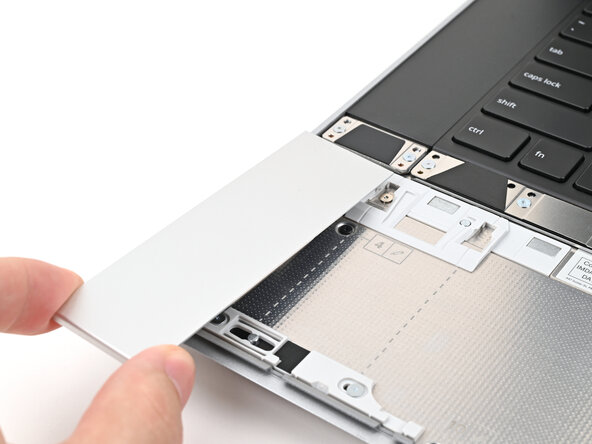
Place the Touchpad Spacer over its spot on the laptop with the bottom edge overhanging slightly.
-
Slide the Touchpad Spacer towards the top of the laptop to secure it.
-
-
-
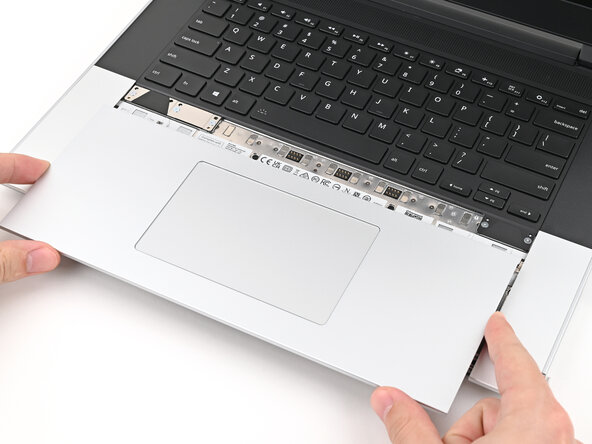
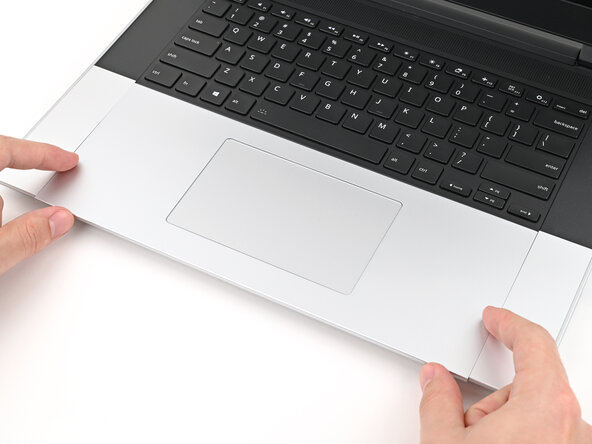
Place the Touchpad Module flat on its cutout so its clips are properly aligned.
-
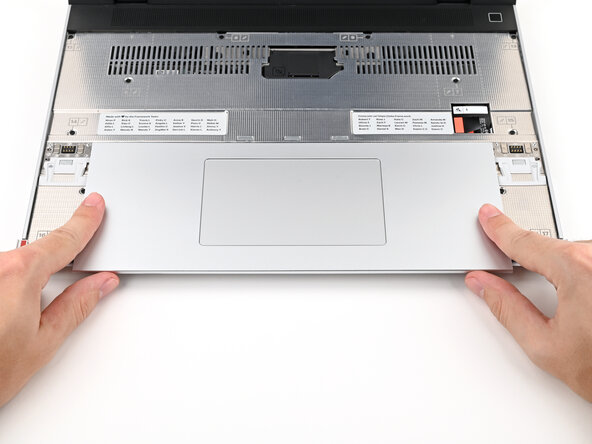
Press the Touchpad Module down and slide it into place so it lines up evenly with the bottom edge of the laptop.
-
-
-
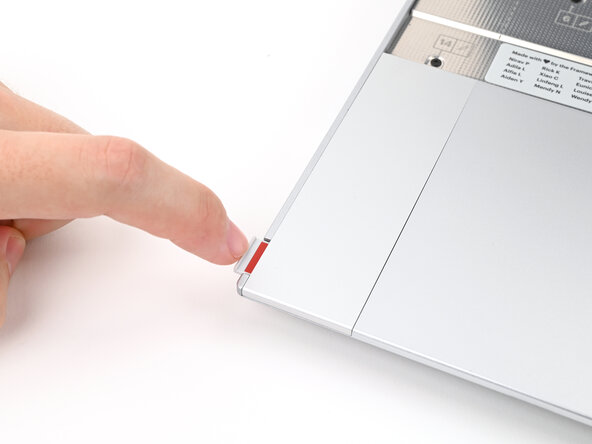
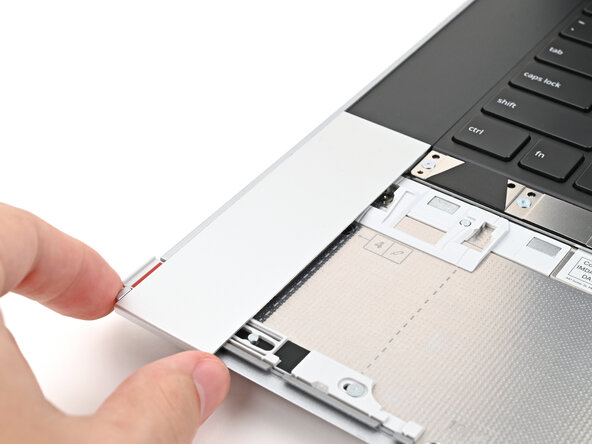
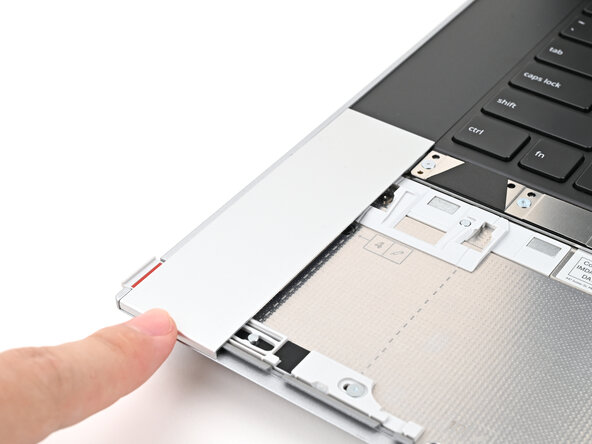
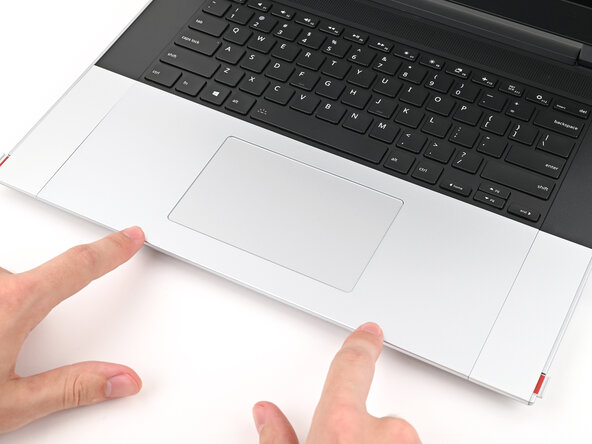
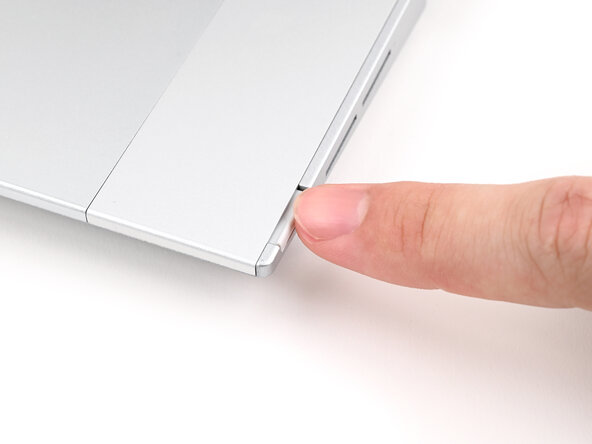
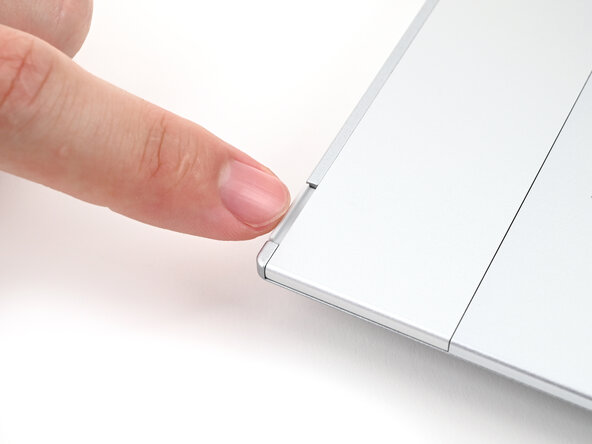
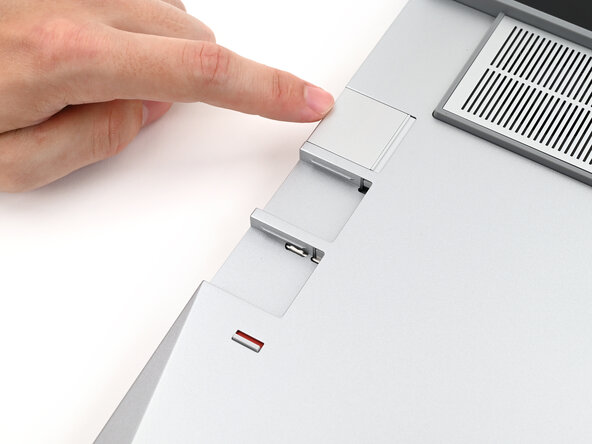
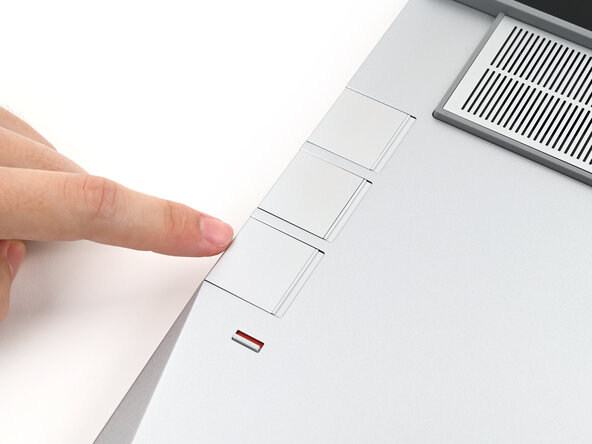
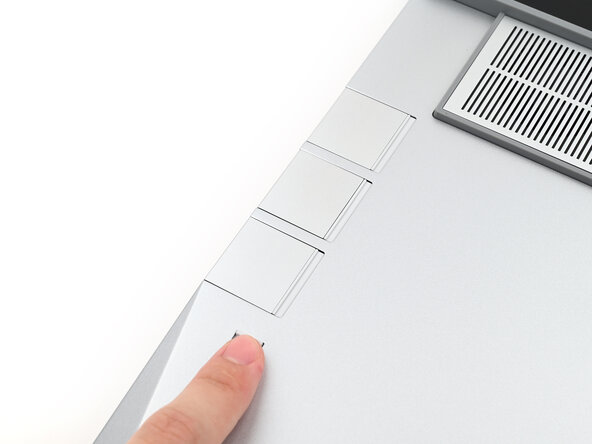
Push the Input Module latches back into place to lock them.
-
-
-
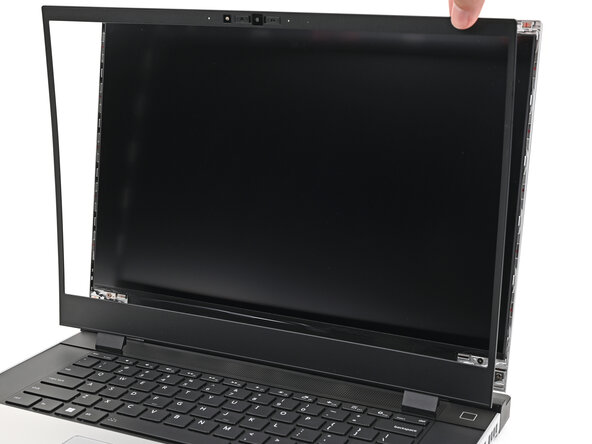
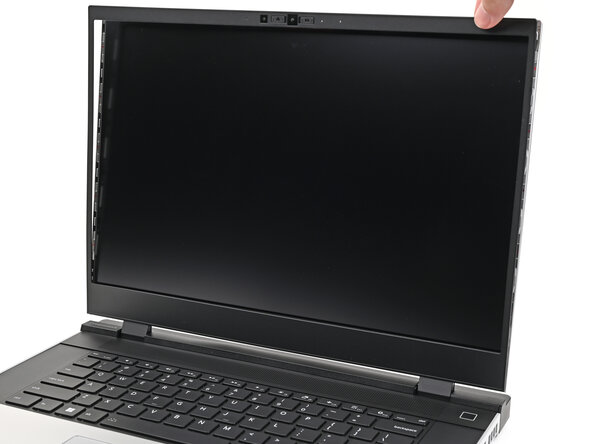
Align the bezel over the perimeter of the display and let the magnets pull the bezel into place.
-
-
-
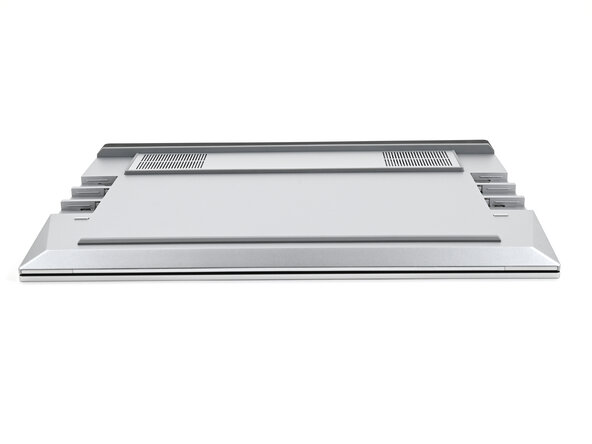
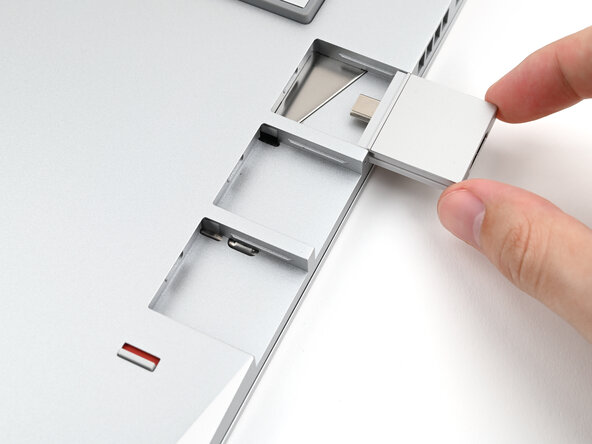
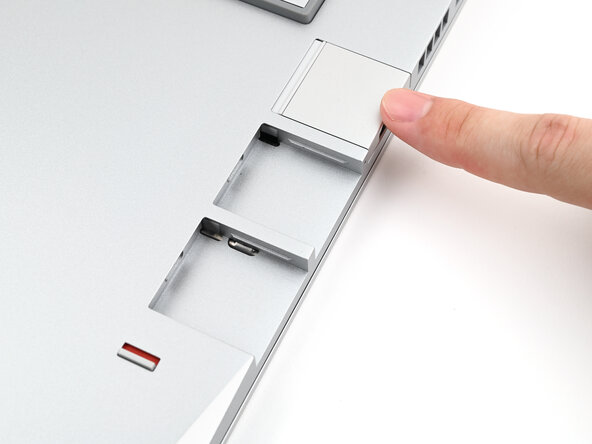
Slide an Expansion Card into an Expansion Card slot.
-
Repeat for the remaining Expansion Cards along that edge.
-
-
-
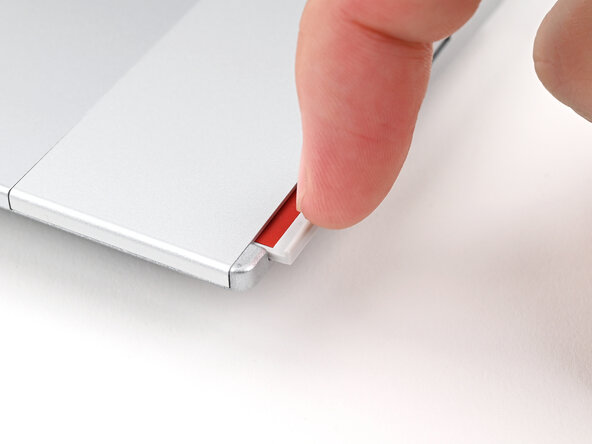
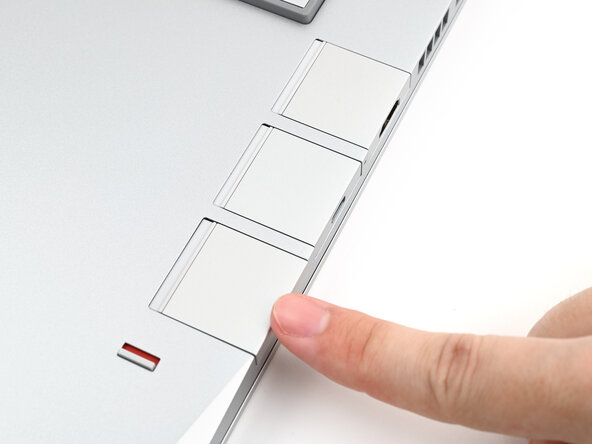
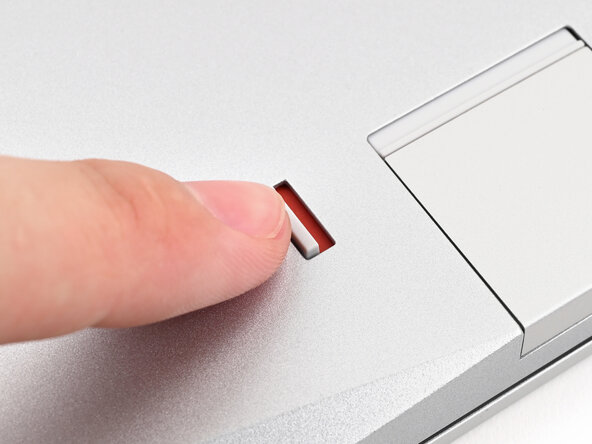
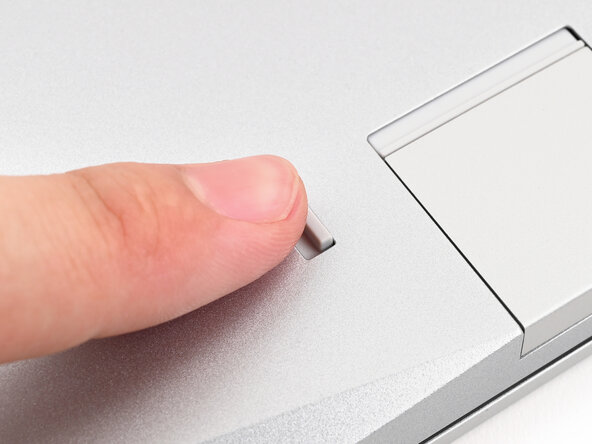
If there's a red bar showing under the Expansion Card latch, use your finger to flip the latch and lock the row of Expansion Cards above it.
-
-
-
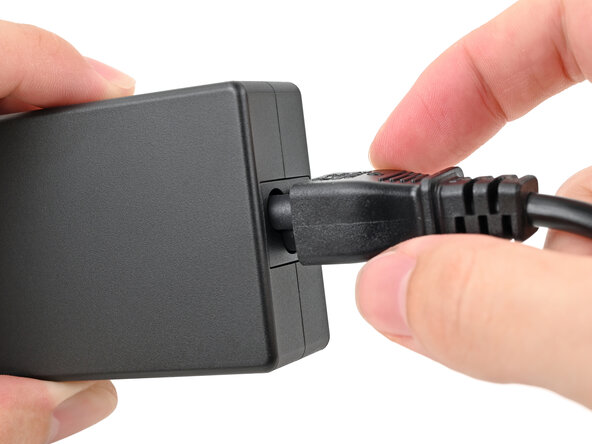
Plug the AC Cable into the Power Adapter.
-
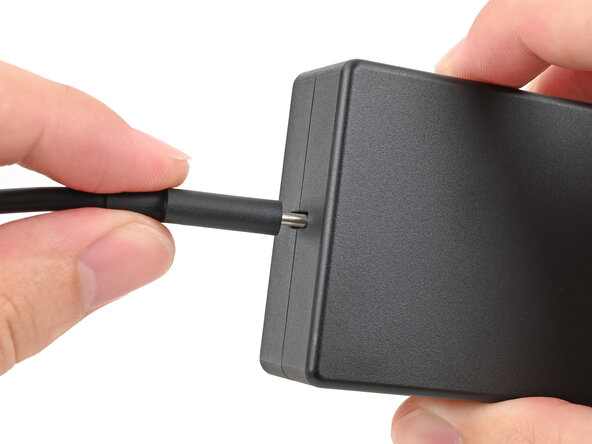
Plug the USB-C Cable into the Power Adapter.
-
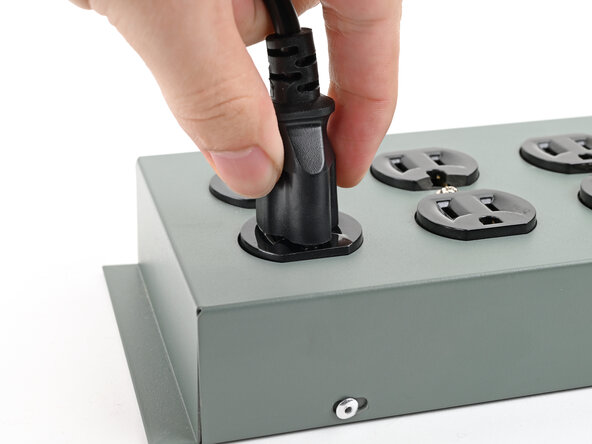
Plug the AC Cable into a power outlet.
-
-
-
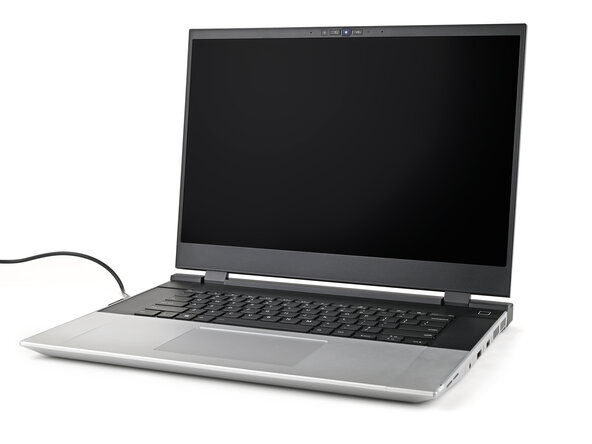
Your Framework Laptop ships in shipping mode, where the battery is disabled until you plug the laptop in for the first time.
-
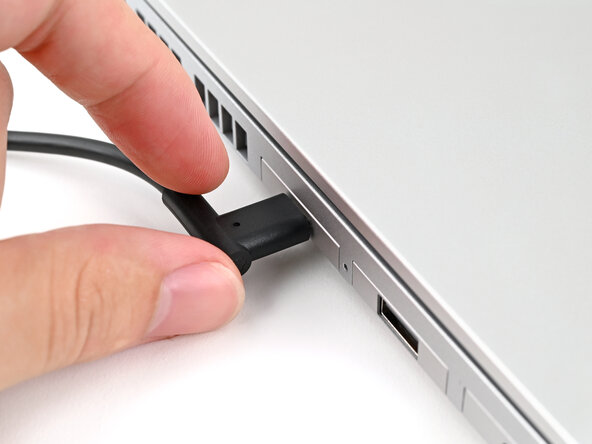
Plug the USB-C Cable into any USB-C port on your laptop.
-
-
-
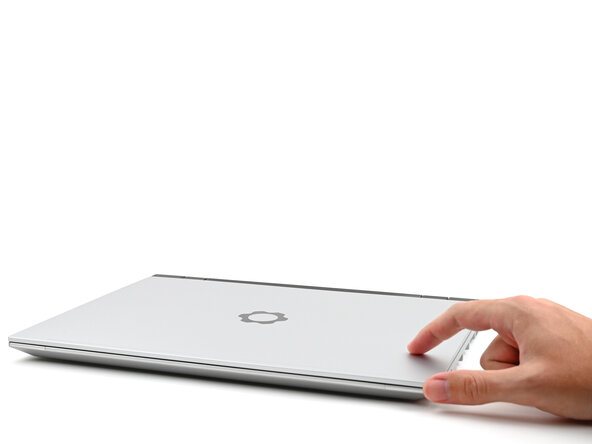
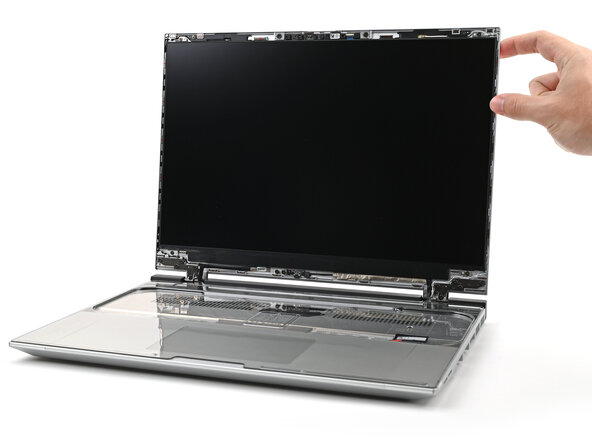
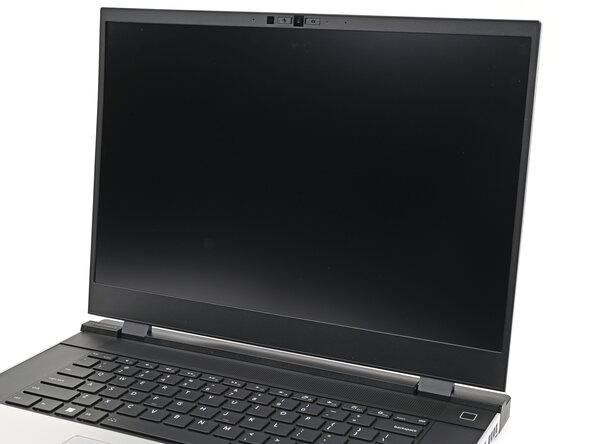
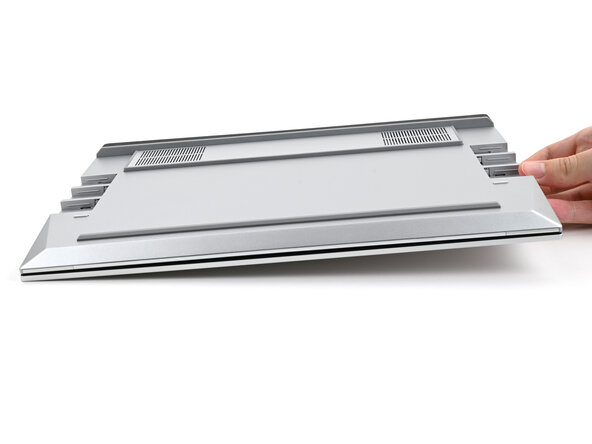
You're done assembling your Framework Laptop! Now, you'll need to install an OS.
-
-










































































For drivers, firmware, and software updates, check out this page.
If you need help, contact Framework support.

