Introduction
Use this guide to remove and replace the Bottom Cover in your Framework Laptop 16.
What you need
-
-
-
-
Use your finger to flip the Expansion Card latches into the unlocked position.
-
-
-
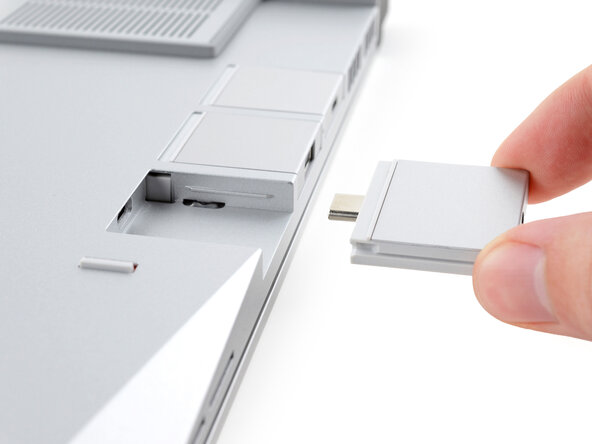
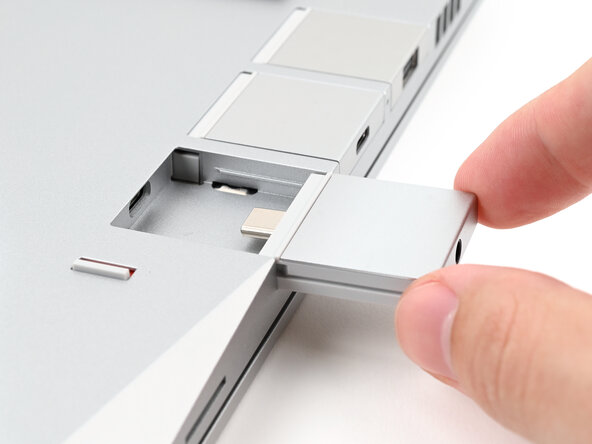
Grip the lip of the Expansion Card with your fingers.
-
Pull the Expansion Card out of its slot and remove it.
-
Repeat for all remaining Expansion Cards.
-
-
-
-
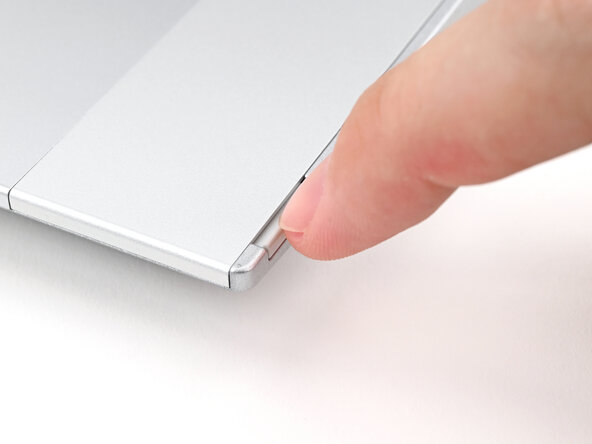
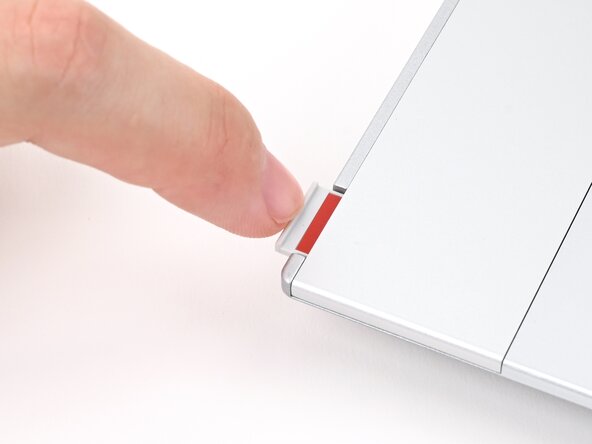
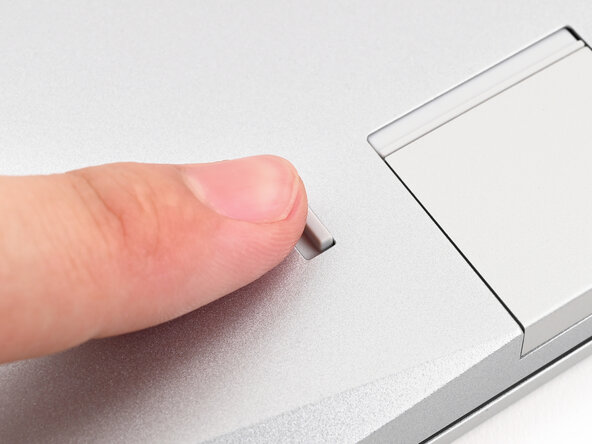
Use your fingernail to pull out the two Input Module latches and unlock them.
-
-
-
Use your fingers to slide the Touchpad Spacer toward the bottom edge of the laptop and unclip it.
-
Lift the Touchpad Spacer off the laptop and remove it.
-
-
-
Use your fingers to slide the Touchpad Module toward the bottom edge of the laptop and disconnect it.
-
Lift the Touchpad Module and remove it.
-
-
-
-
-
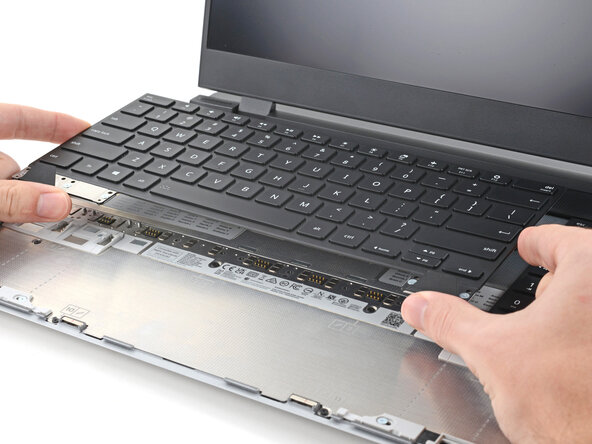
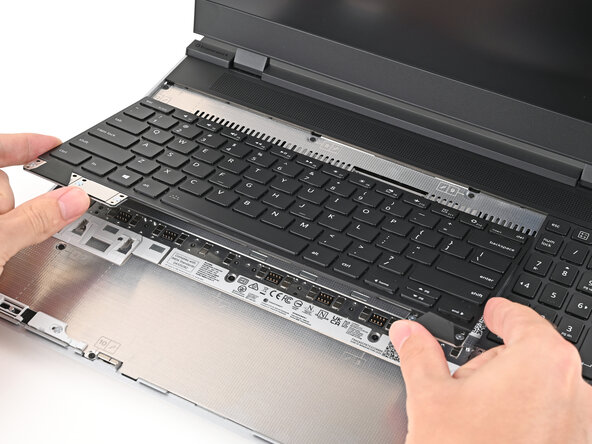
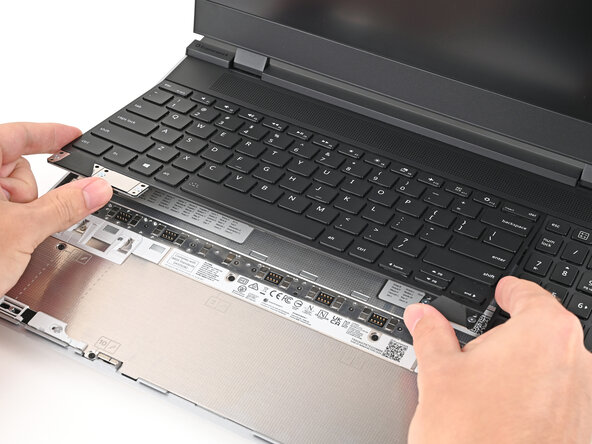
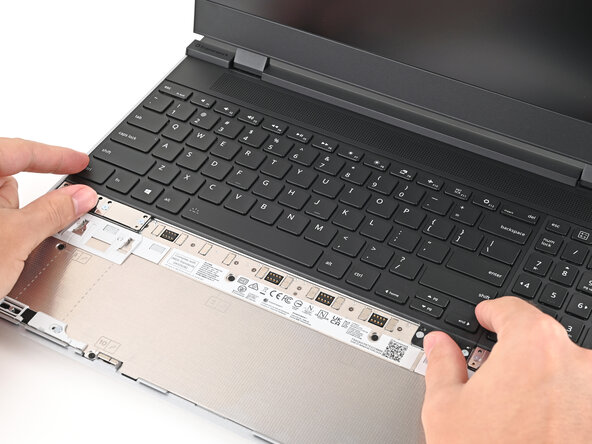
Grip the two pull tabs along the bottom of the keyboard and lift until its magnets release.
-
Remove the keyboard.
-
-
-
-
-
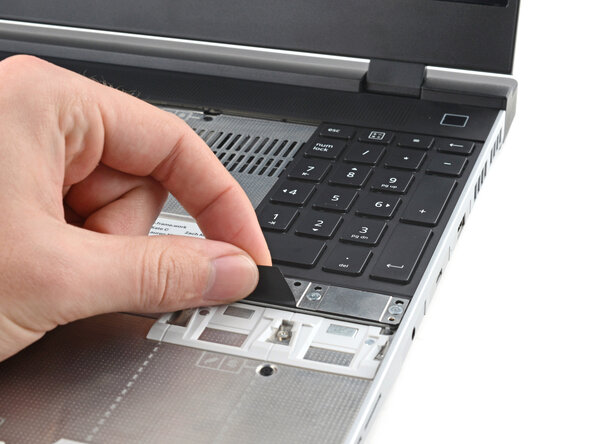
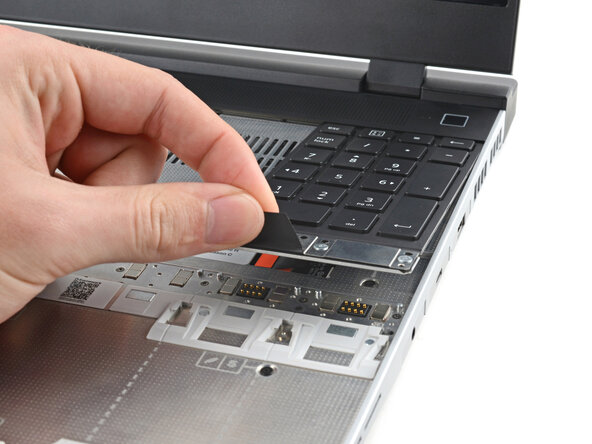
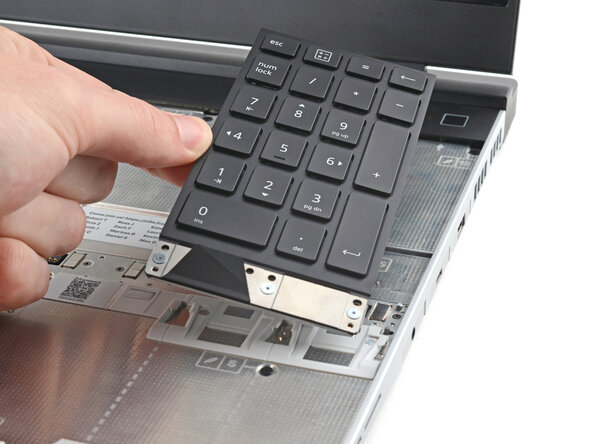
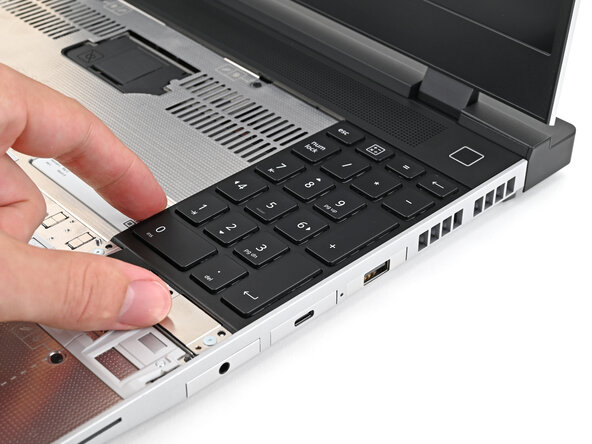
Grip the pull tab at the bottom of the Input Module and lift until its magnets release.
-
Remove the Input Module.
-
Repeat for any remaining Input Modules.
-
-
-
-
-
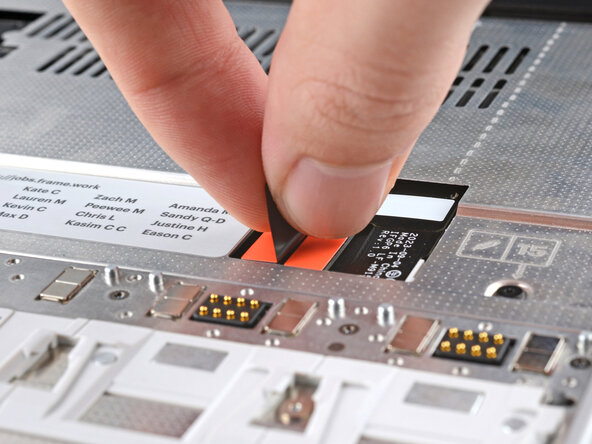
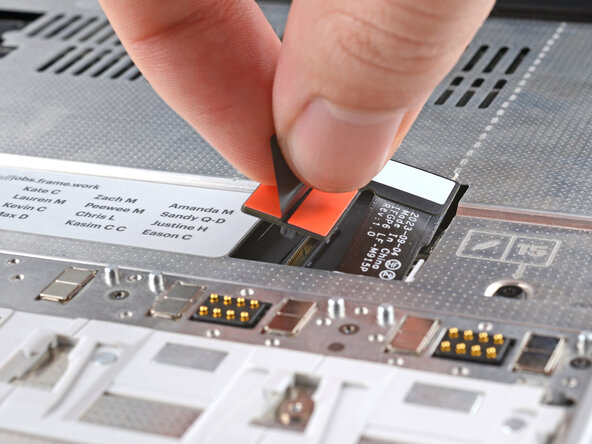
Grip the black pull tab on the Mid Plate cable press connector.
-
Lift up to disconnect the Mid Plate cable.
-
-
-
Use your Framework Screwdriver to loosen the 16 captive T5 Torx screws securing the Mid Plate.
-
-
-
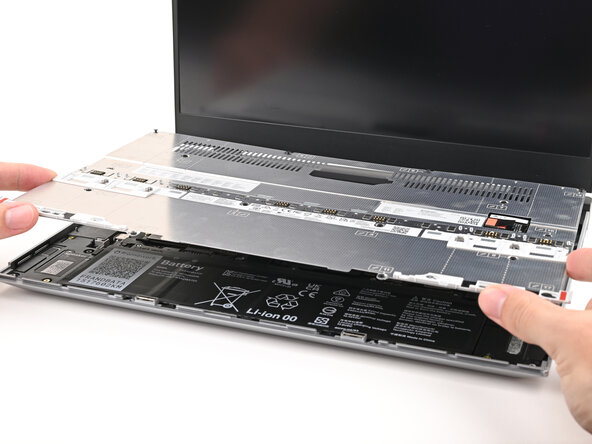
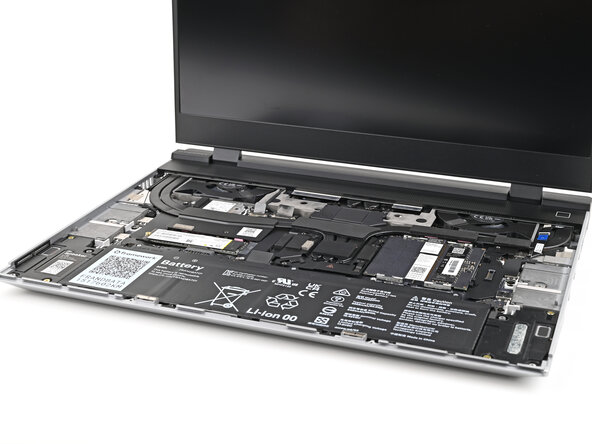
Use your fingers to lift the Mid Plate off the laptop and remove it.
-
-
-
-
-
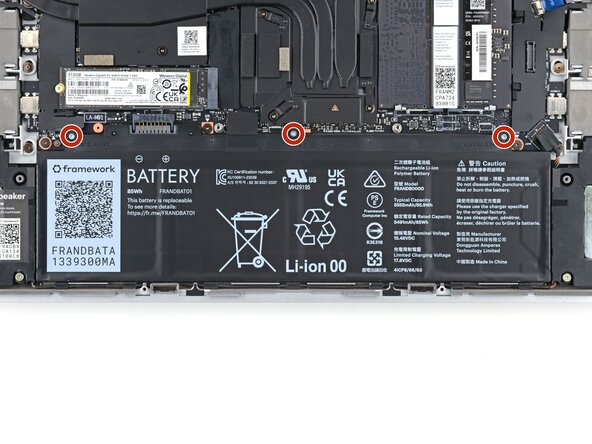
Use your Framework Screwdriver to loosen the three captive T5 Torx screws securing the battery.
-
-
-
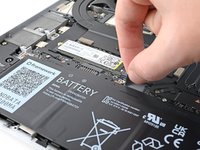
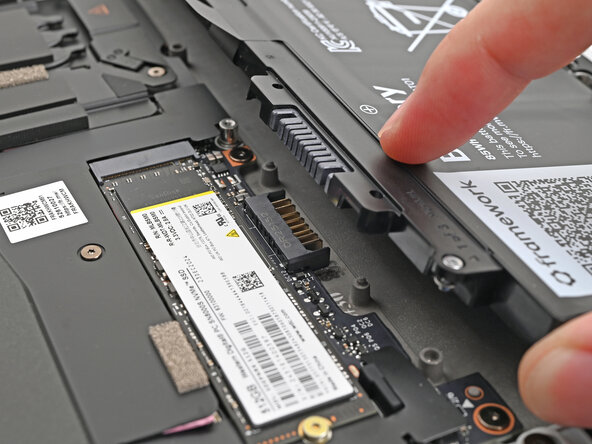
Grip the black pull tab at the top of the battery and lift to disconnect the battery connector.
-
Remove the battery.
-
-
-
-
-
Lift the speaker cable connector by its black pull tab and disconnect it.
-
-
-
Starting at one speaker, use the flat end of a spudger, or your fingers, to lift the speaker cable out of its rubber clips.
-
-
-
Repeat the last two steps across the length of the speaker cable until it's completely unclipped.
-
-
-
Use your Framework Screwdriver to remove the two 2.0 mm‑long T5 Torx screws securing each speaker (four in total).
-
-
-
Lift the speakers off their alignment pegs and remove them.
-
-
-
-
-
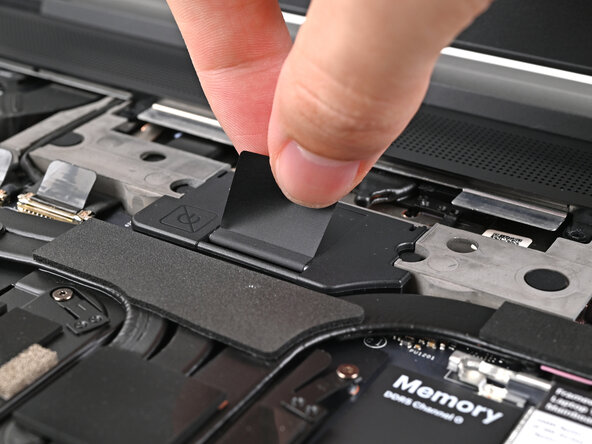
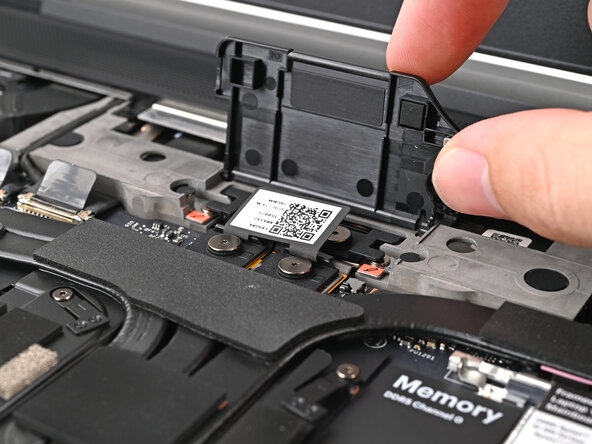
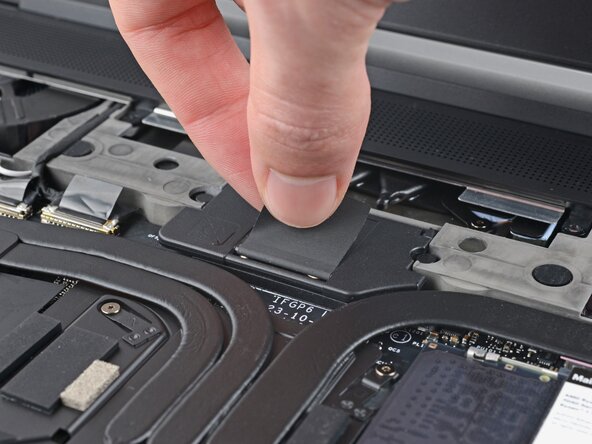
Lift the interposer door by its black pull tab and let it rest upright.
-
-
-
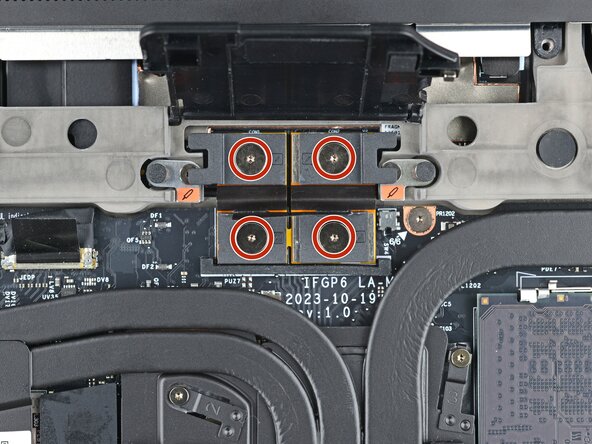
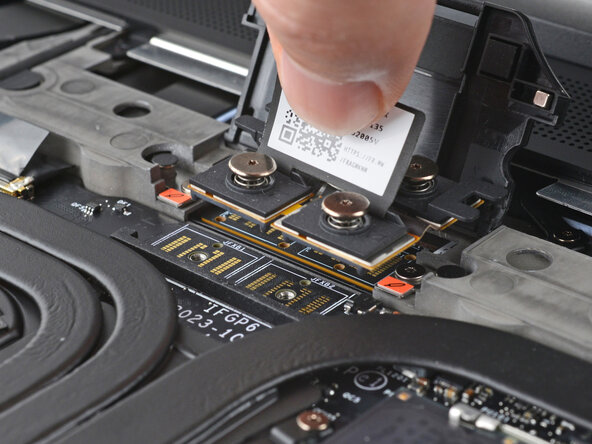
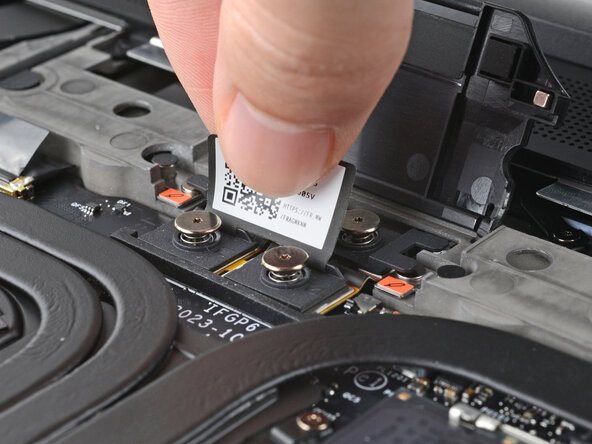
If you have the Graphics Module, use your Framework Screwdriver to loosen the four captive T5 Torx screws securing the interposer.
-
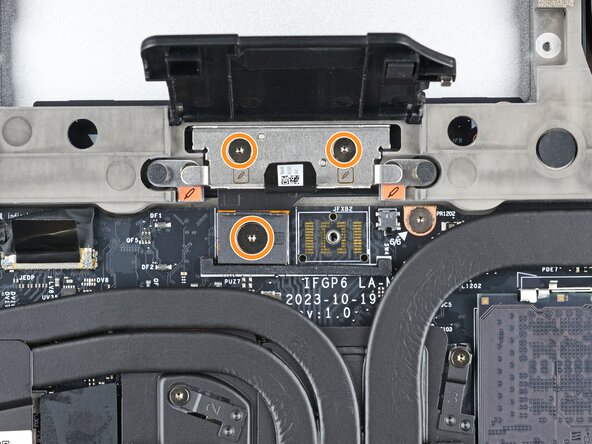
If you have the Expansion Bay Shell, use your Framework Screwdriver to loosen the three captive T5 Torx screws securing the interposer.
-
-
-
Use your Framework Screwdriver to loosen the two captive T5 Torx screws securing the module in the Expansion Bay.
-
Close the interposer door before continuing.
-
-
-
Close your laptop and flip it over.
-
Slide the Expansion Bay Module out of the laptop and remove it.
-
Flip your laptop and reopen it.
-
-
-
-
-
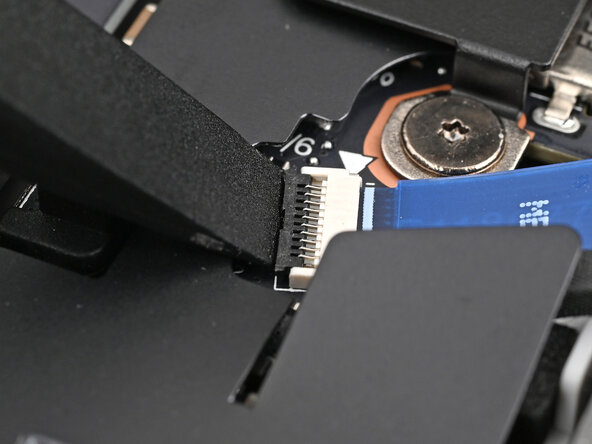
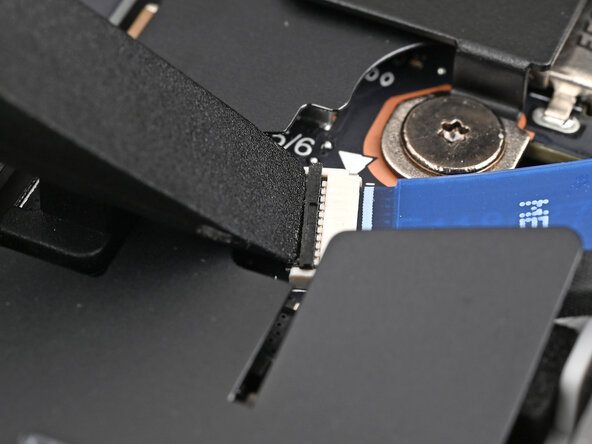
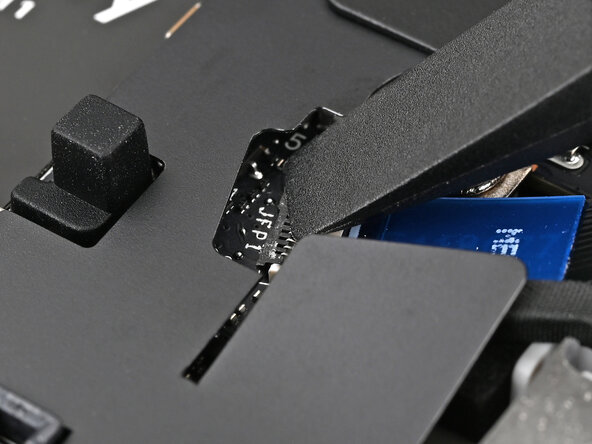
Use the flat end of your Framework Screwdriver, or a clean fingernail, to lift up the locking tab on the fingerprint reader ZIF connector next to the memory.
-
-
-
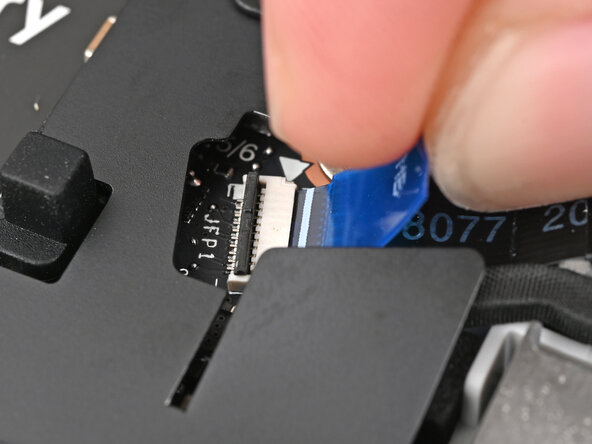
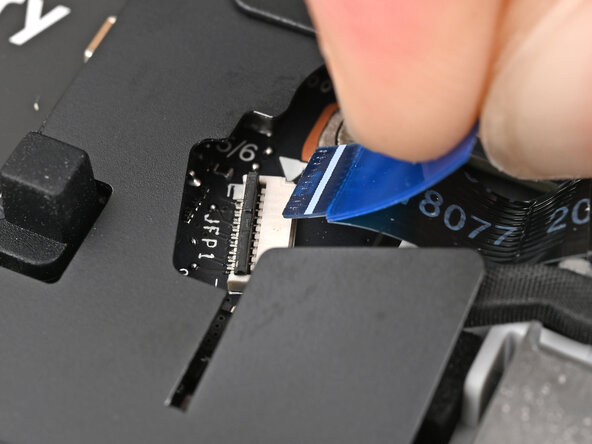
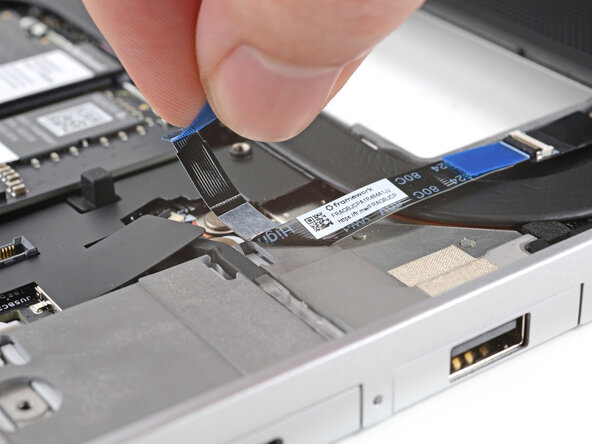
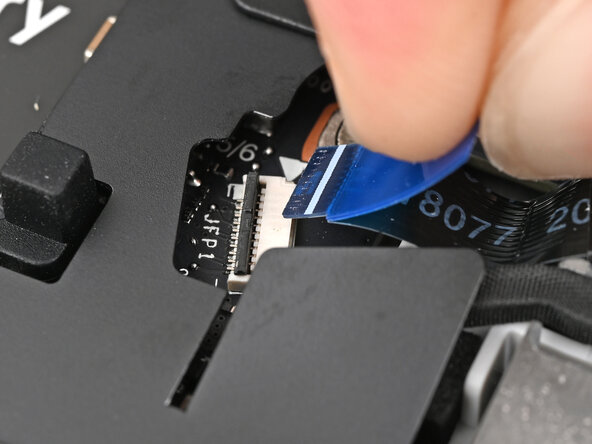
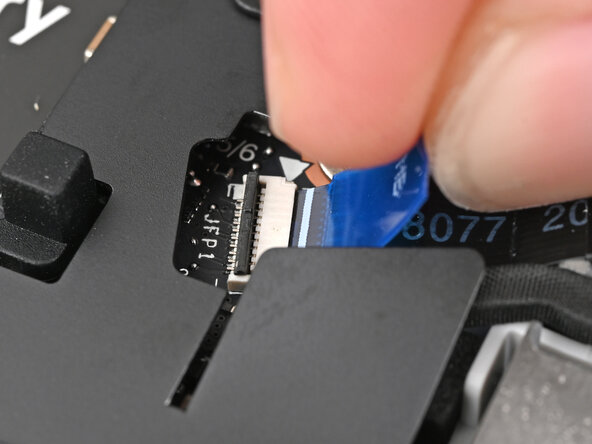
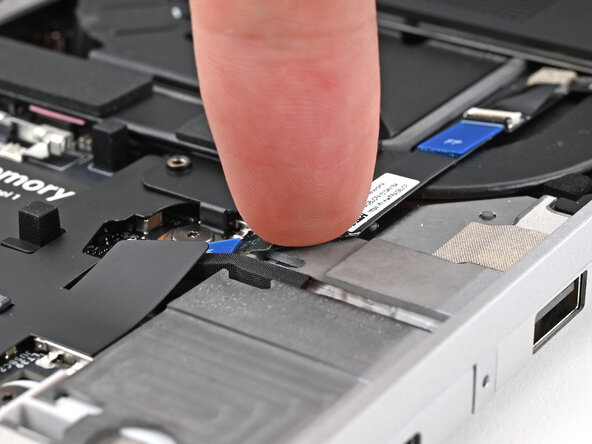
Use your fingers to grip the blue pull tab and slide the fingerprint reader cable straight out of its socket.
-
-
-
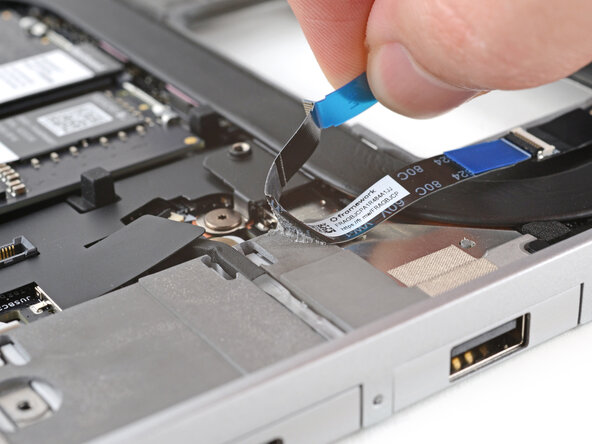
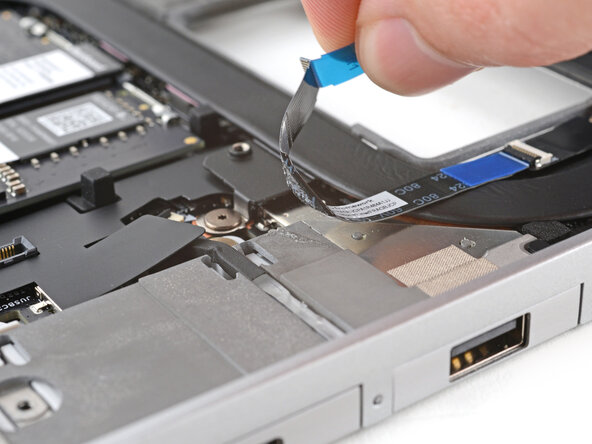
Use your fingers to peel the fingerprint reader cable away from the frame and separate the adhesive.
-
-
-
-
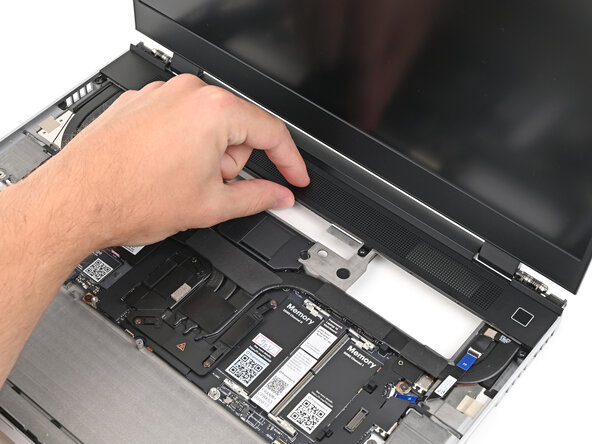
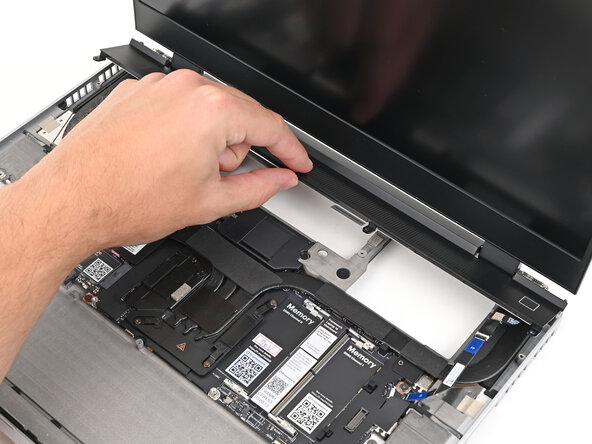
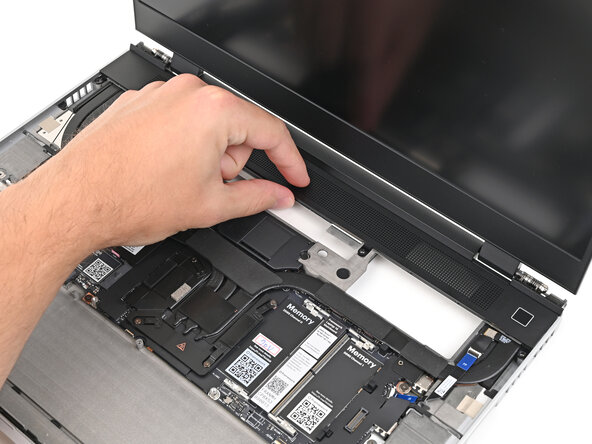
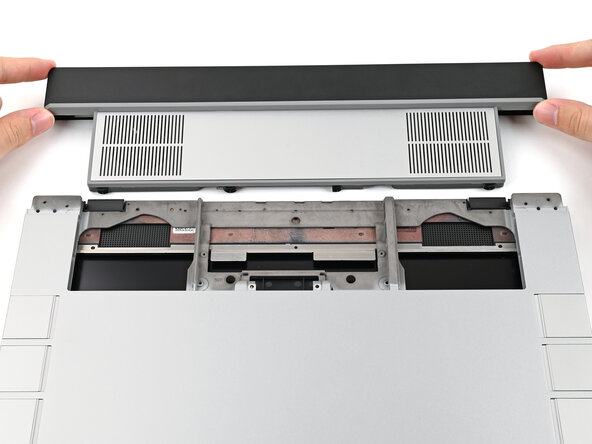
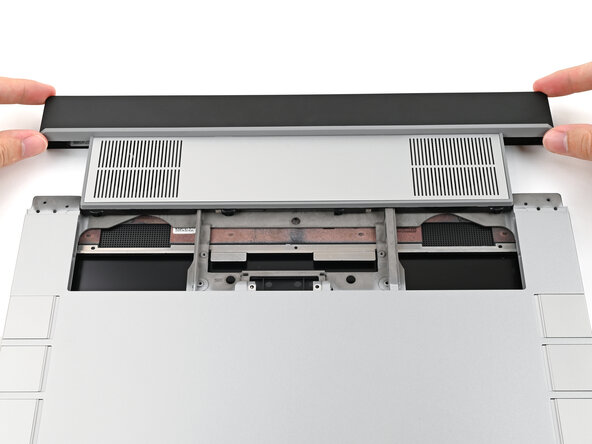
Lift the bottom of the ventilation plate and pull it away from the laptop until the magnets release.
-
Remove the ventilation plate.
-
-
-
-
-
Use your Framework Screwdriver to loosen the captive T5 Torx screw securing Wi-Fi module.
-
-
-
Slide the clear plastic cover straight off the module and remove it.
-
-
-
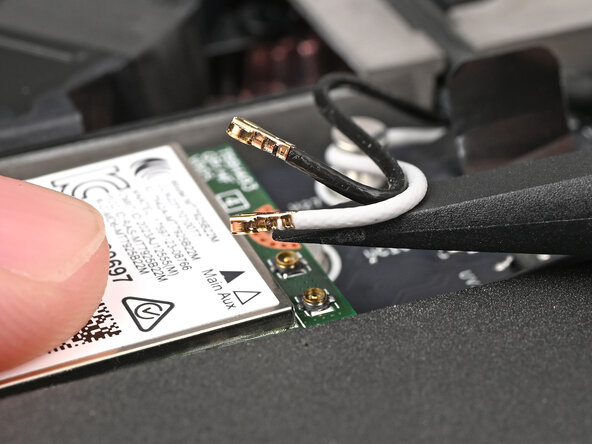
While holding the Wi-Fi module down, insert the flat end of your Framework Screwdriver one of the coaxial connectors, where the cable meets the metal head.
-
Lift the screwdriver straight up to disconnect the coaxial cable.
-
Repeat for the other coaxial cable.
-
-
-
-
-
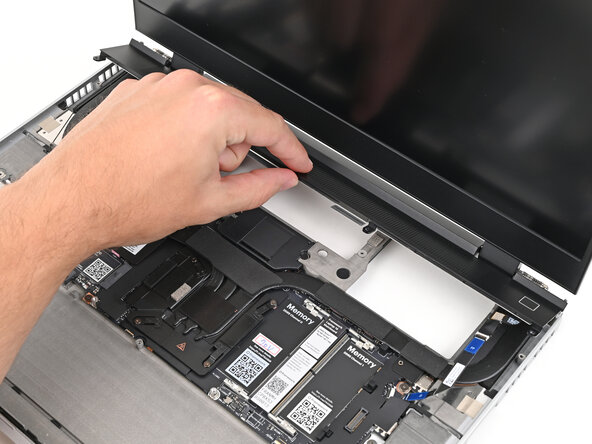
Slide your fingernail under the inside edge of either bottom corner of the bezel.
-
Pull the bezel away from the screen to release the first few magnets.
-
-
-
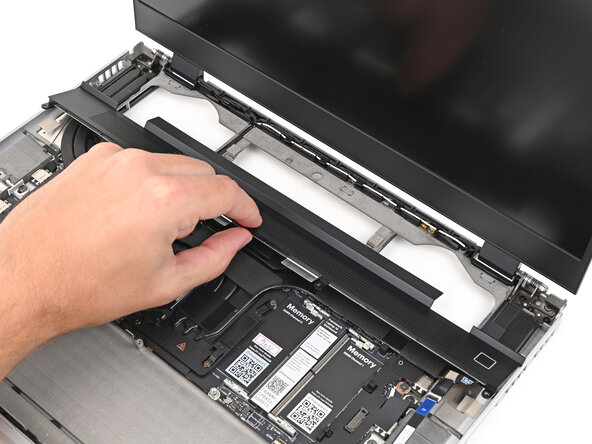
Lift the bezel around the perimeter of the screen until all of its magnets are released.
-
Remove the bezel.
-
-
-
-
-
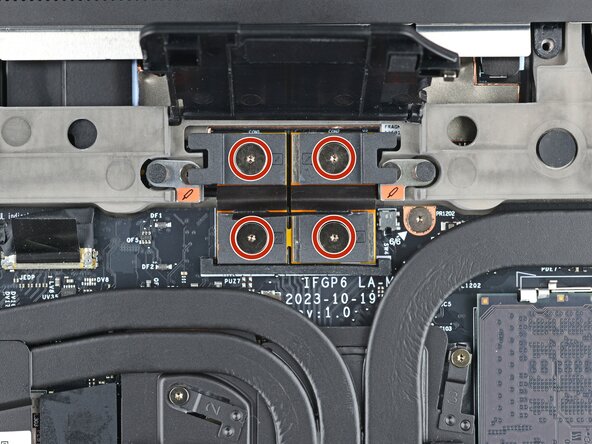
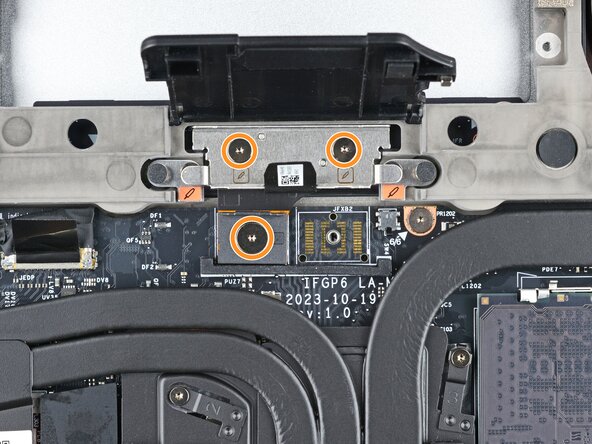
Grip the eDP cable connector to the right of the Wi-Fi module slot by its pull tab and lift up to disconnect it.
-
Repeat for the webcam cable connector next to it.
-
-
-
Lift the eDP, webcam, and antenna cables out of their vertical slot in the Bottom Cover.
-
-
-
Use your fingers to guide the eDP cable out of its clips along the top left edge of the Bottom Cover.
-
-
-
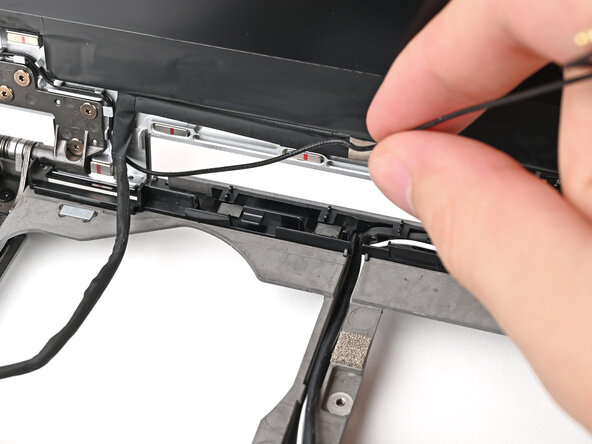
Use your fingers to guide the white antenna cable out of its clips along the top right edge of the Bottom Cover.
-
-
-
-
-
While supporting the Top Cover with one hand, use your Framework Screwdriver to remove the four 3.9 mm‑long screws on each hinge connected to the Bottom Cover (8 total).
-
-
-
Lift up the interposer door to reveal the screw underneath.
-
Use your Framework Screwdriver to remove the six 2.0 mm‑long T5 Torx screws securing the Mainboard.
-
-
-
Use your fingers to lift the bottom edge of the Mainboard enough to grip its edges.
-
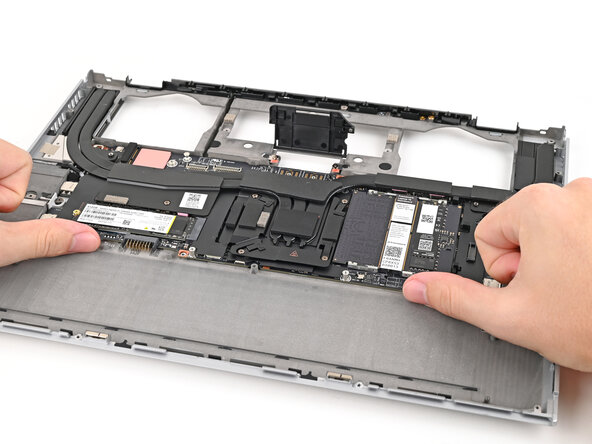
Lift the Mainboard off its alignment pegs and remove it.
-
-
-
-
-
Congratulations on completing disassembly! The remaining steps will show how to reassemble your Framework Laptop.
-
-
-
-
-
The replacement Bottom Cover comes with pre-installed screws for the hinge, Mainboard, and the speakers. During reassembly, use those screws to replace your old ones.
-
-
-
If you have a secondary SSD installed, remove the blue liner on the thermal pad.
-
-
-
Place the Mainboard into the laptop and onto its alignment pegs.
-
-
-
Use your Framework Screwdriver to install the six 2.0 mm‑long T5 Torx screws securing the Mainboard.
-
-
-
Place the Top Cover over Bottom Top Cover, making sure the hinges are slotted into their alignment pegs.
-
-
-
While supporting the Top Cover with one hand, use your Framework Screwdriver to install the four 3.9 mm‑long screws on each hinge connected to the Bottom Cover (8 total).
-
-
-
-
-
Use the flat end of your Framework Screwdriver, or your fingers, to press the webcam cable into its clips at the top right edge of the Bottom Cover.
-
-
-
Use the flat end of your Framework Screwdriver, or your fingers, to press the black antenna cable into its clips at the top left edge of the Bottom Cover.
-
-
-
Press the eDP, webcam, and antenna cables into their vertical slot in the Bottom Cover.
-
-
-
Press the eDP and webcam cable connectors straight down into their sockets to connect them.
-
-
-
-
-
Align the bezel over the perimeter of the display and let the magnets pull the bezel into place.
-
-
-
-
-
Hold the Wi-Fi module down with your finger.
-
Position the white antenna cable connector over the left Wi-Fi module's coaxial socket.
-
Use your finger to press the connector into place. You should feel a faint click, and the cable will stay attached to the socket by itself.
-
Repeat the procedure with the black antenna cable.
-
-
-
Slide the clear plastic cover on the module and align its screw with the screw hole cutout.
-
-
-
Use your Framework Screwdriver to tighten the captive T5 Torx screw securing Wi-Fi module.
-
-
-
-
-
Lay the ventilation plate along the top edge of the laptop and let its magnets pull into place.
-
-
-
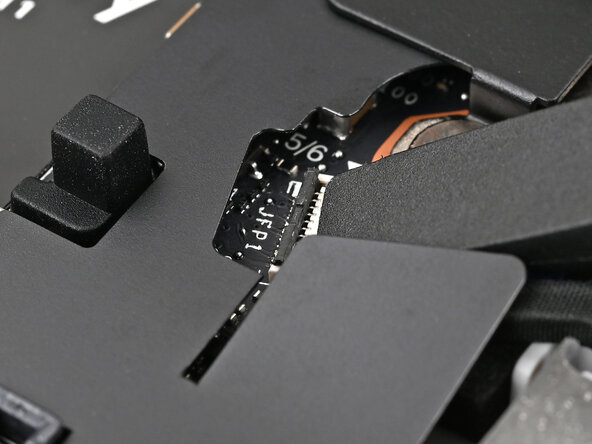
Use your fingers to grip the blue pull tab and slide the fingerprint reader cable straight into its socket.
-
-
-
Use the flat end of your Framework Screwdriver, or a clean fingernail, to press down the locking tab on the fingerprint reader ZIF connector.
-
-
-
-
-
If you have the Graphics Module, use your Framework Screwdriver to tighten the four captive T5 Torx screws securing the interposer.
-
If you have the Expansion Bay Shell, use your Framework Screwdriver to tighten the three captive T5 Torx screws securing the interposer.
-
Close the interposer door.
-
-
-
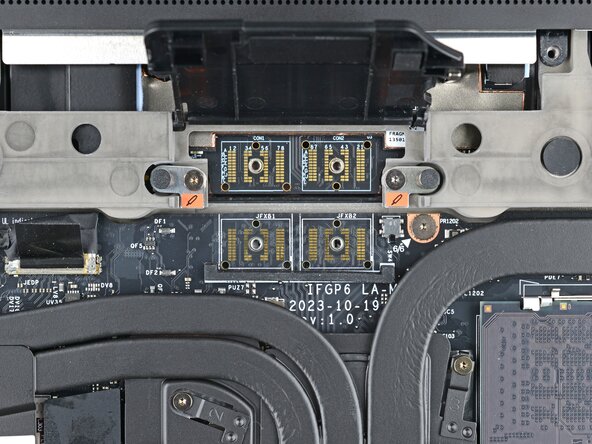
Place the interposer over its spot between the Mainboard and the module.
-
-
-
Use your Framework Screwdriver to tighten the two captive T5 Torx screws securing the Expansion Bay Module.
-
-
-
Close your laptop and flip it over.
-
Align the Expansion Bay Module with its slot in the laptop.
-
-
-
-
Align the speakers over their alignment pegs and press them down into place.
-
-
-
Use your Framework Screwdriver to install the two 2.0 mm‑long T5 Torx screws securing each speaker (four in total).
-
-
-
Use the flat end of your Framework Screwdriver to push the speaker cable back into its clips along the bottom edge of the laptop.
-
-
-
Press the speaker cable connector onto its socket to connect it.
-
-
-
-
-
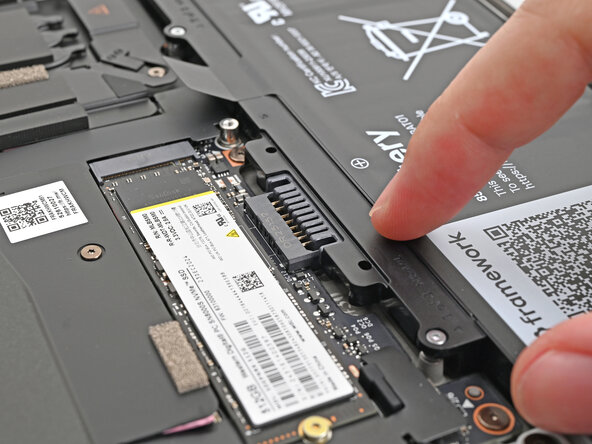
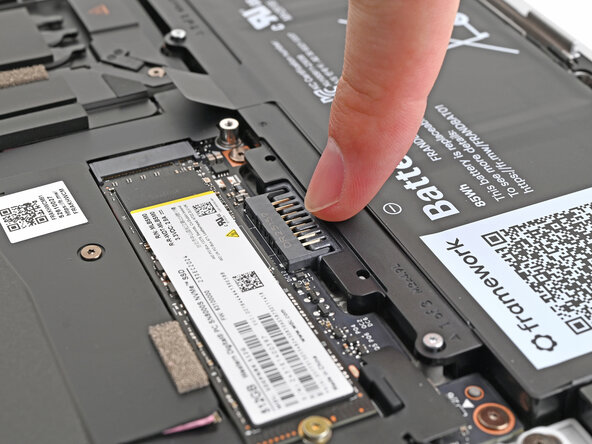
Align the battery connector over its socket and lay the battery into its well.
-
Lightly press the battery down to connect it.
-
-
-
Use your Framework Screwdriver to tighten the three captive T5 Torx screws securing the battery.
-
-
-
-
-
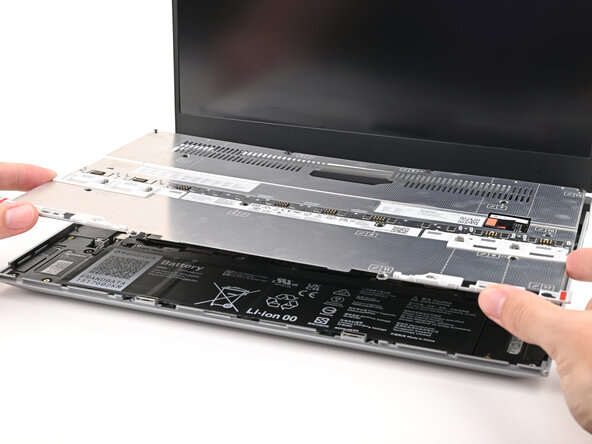
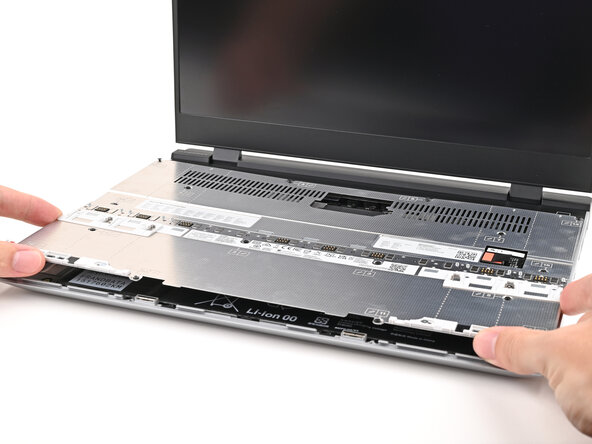
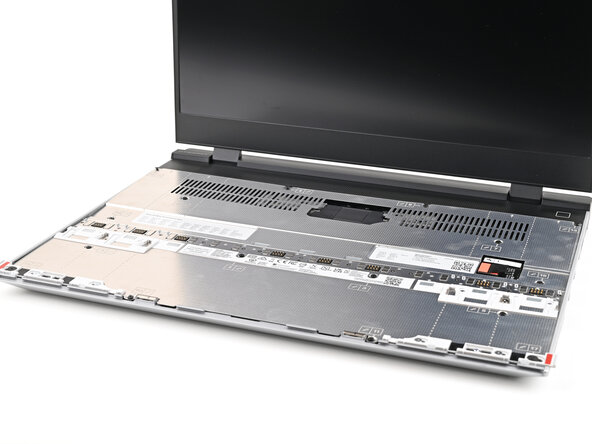
Place the Mid Plate on the laptop, making sure it sits evenly on its alignment pegs.
-
-
-
Use your Framework Screwdriver to tighten the 16 captive T5 Torx screws in order (starting with 2) to secure the Mid Plate evenly.
-
-
-
Align the Mid Plate cable press connector over its socket and press down to connect it.
-
-
-
-
-
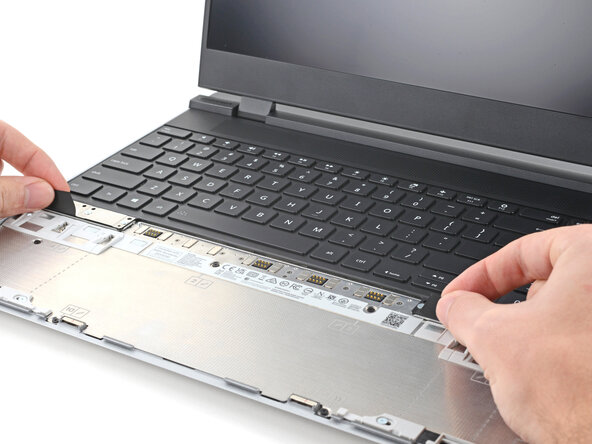
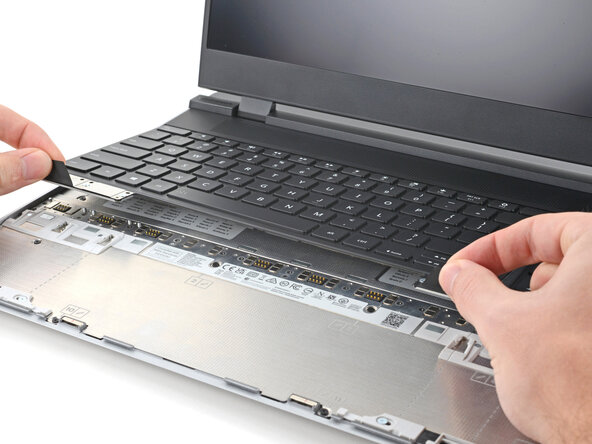
Align the top edge of the Input Module with the top edge of the laptop.
-
Lay the Input Module on the laptop and let the magnets pull the keyboard into place
-
Repeat for any remaining Input Modules.
-
-
-
-
-
Align the top edge of the keyboard with the top edge of the laptop.
-
Lay the keyboard on the laptop and let the magnets pull the keyboard into place
-
-
-
-
-
Place the Touchpad Module flat on its cutout so its clips are properly aligned.
-
Press the Touchpad Module down and slide it into place so it lines up evenly with the bottom edge of the laptop.
-
-
-
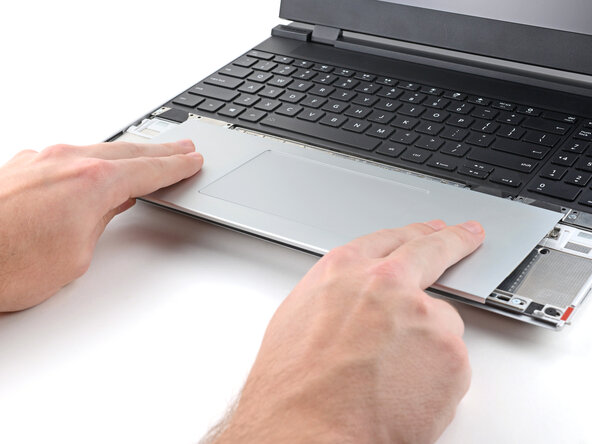
Place the Touchpad Spacer over its spot on the laptop with the bottom edge overhanging slightly.
-
Slide the Touchpad Spacer towards the top of the laptop to secure it.
-
Repeat the same procedure for the other Touchpad Spacer.
-
-
-
-
-
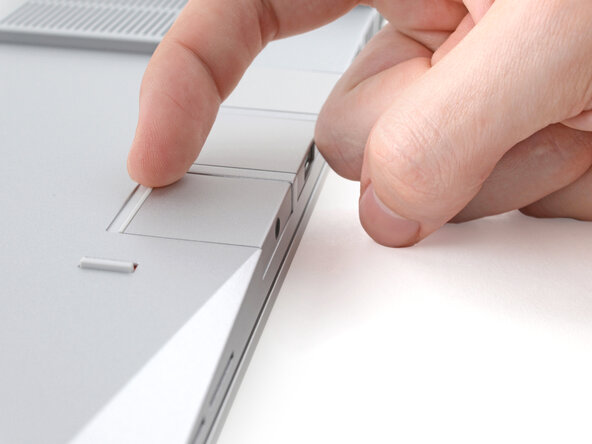
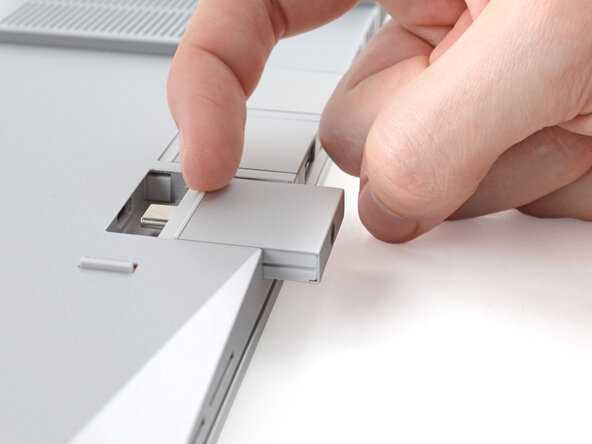
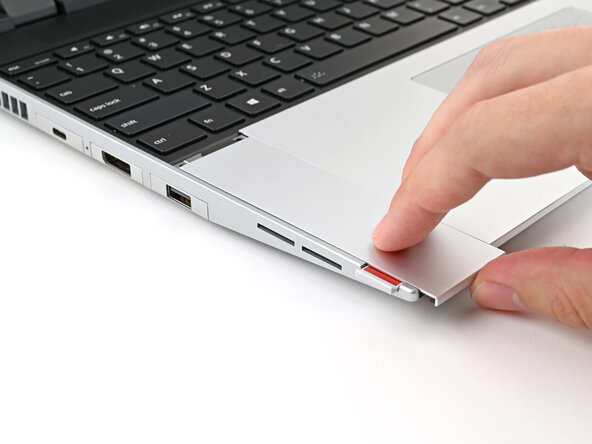
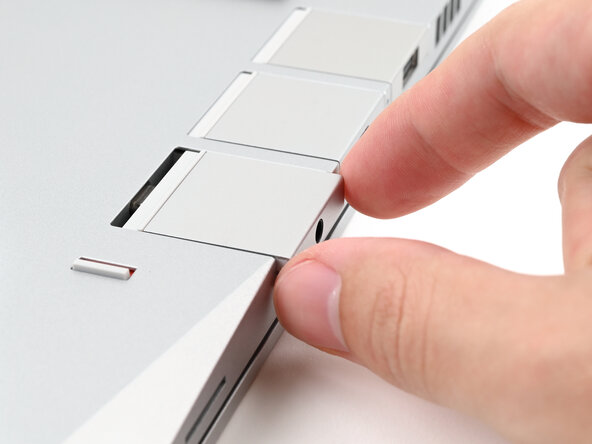
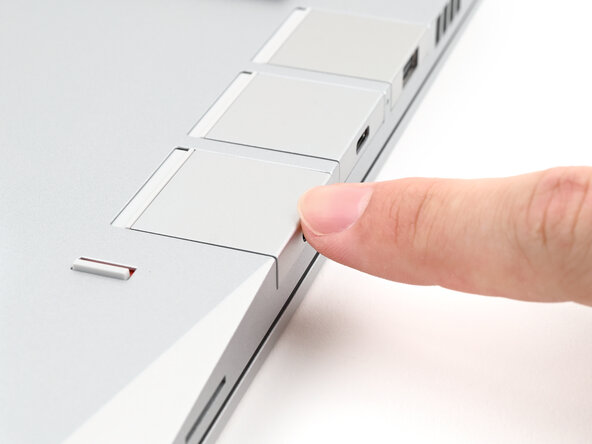
Slide an Expansion Card into an Expansion Card slot.
-
Repeat for all remaining Expansion Cards.
-
-
-
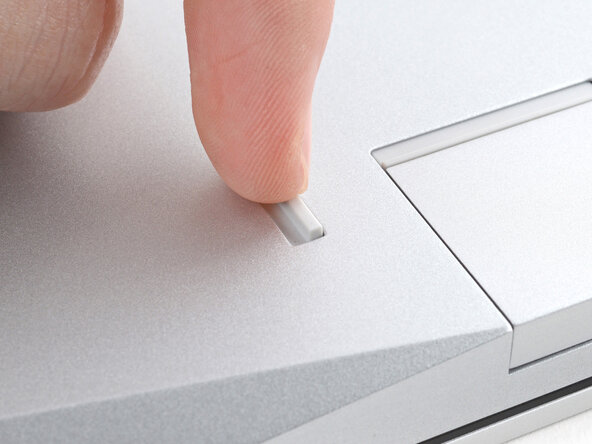
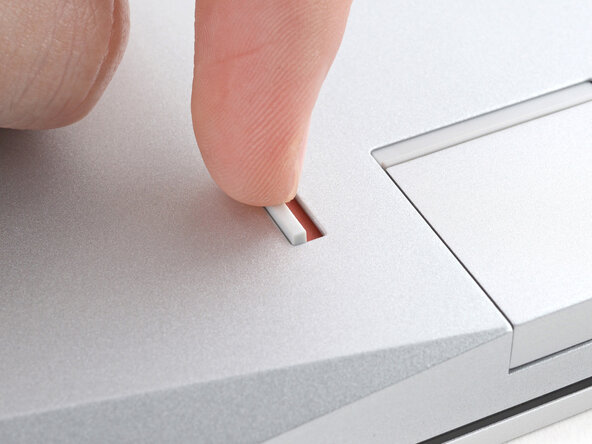
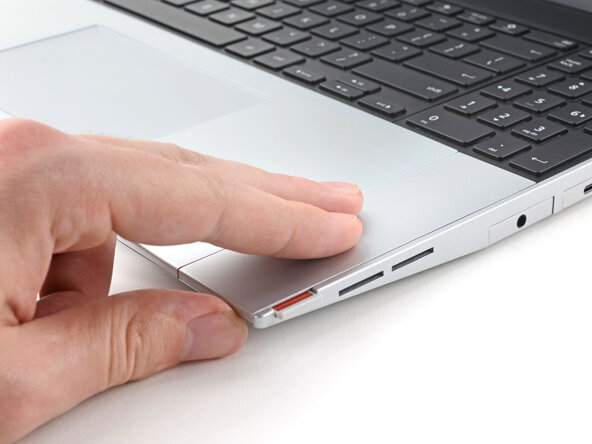
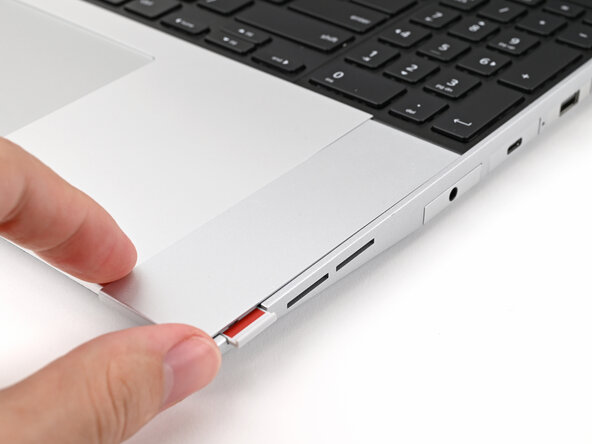
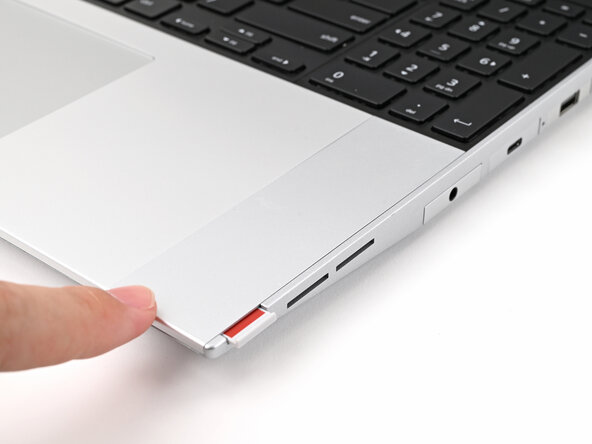
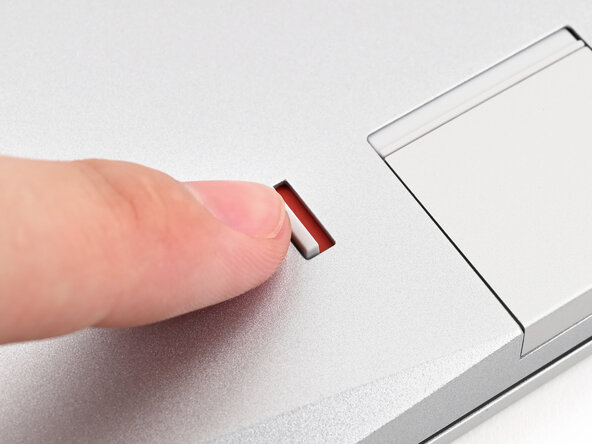
Use your finger to flip both latches and lock the row of Expansion Cards above them.
-

 Ask FixBot
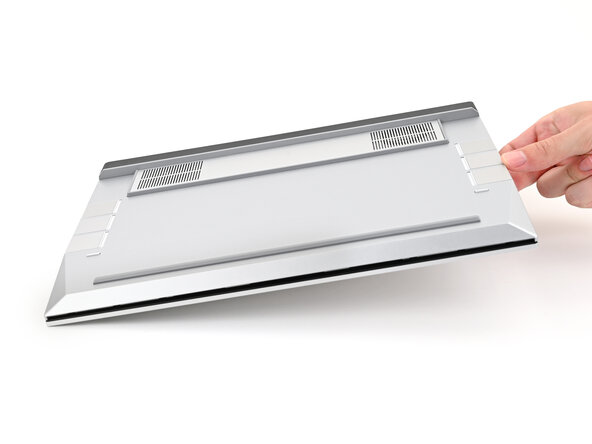
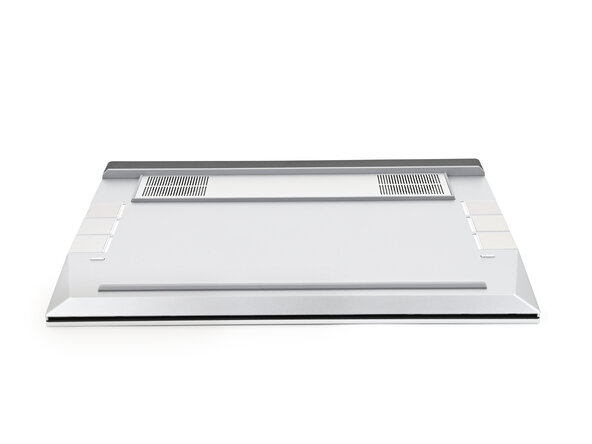



















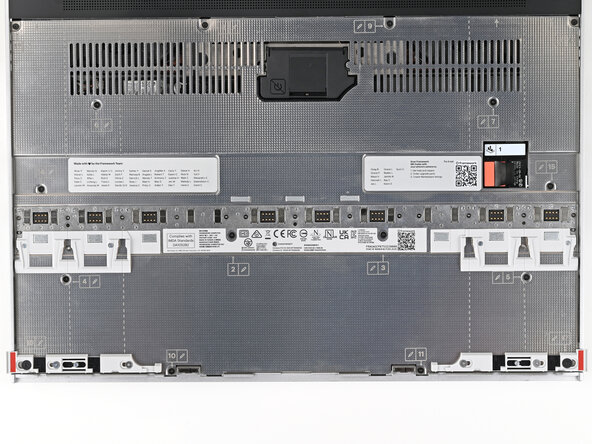


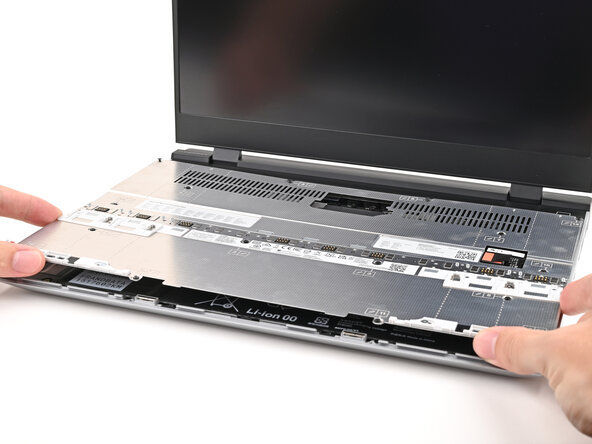










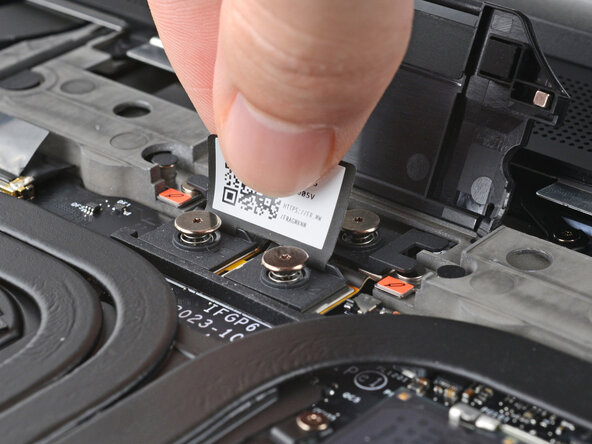
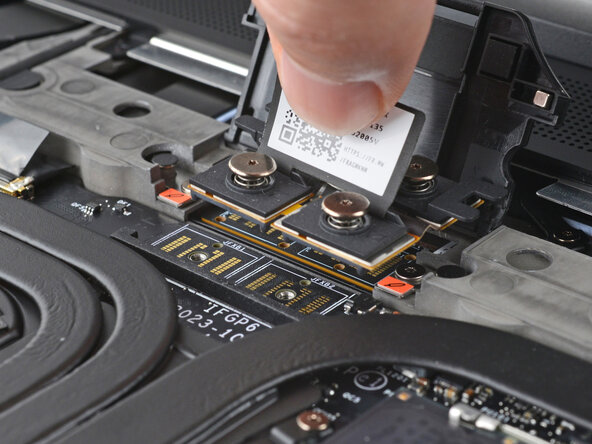


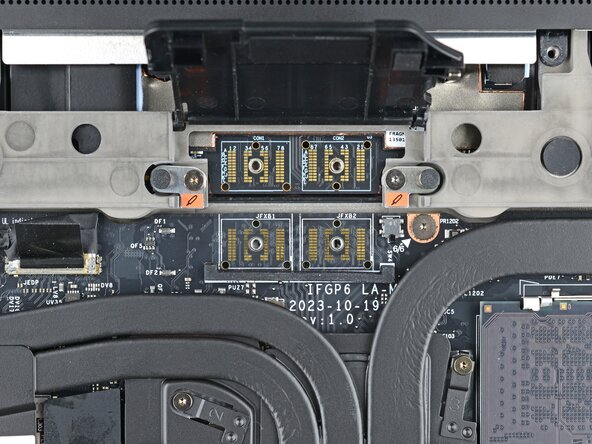
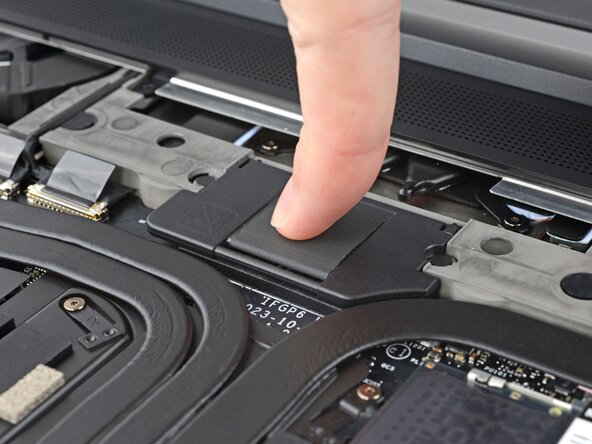
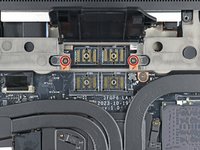


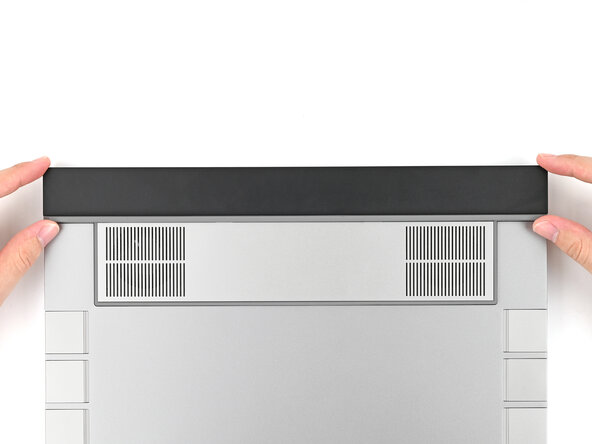
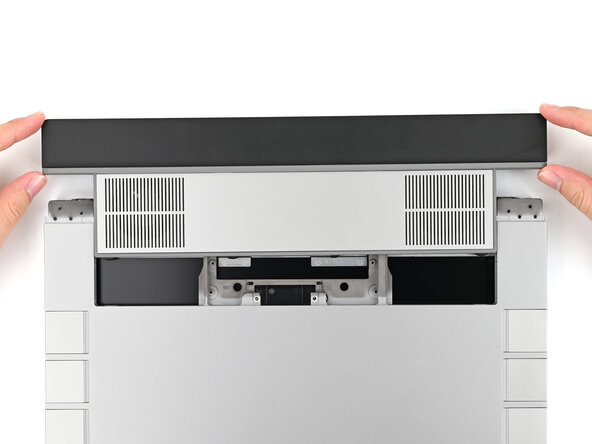
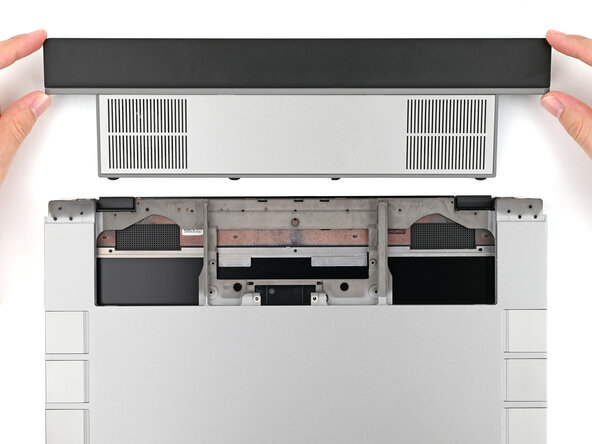





































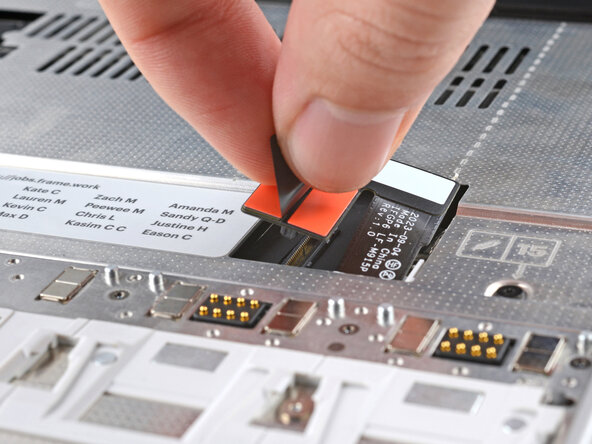
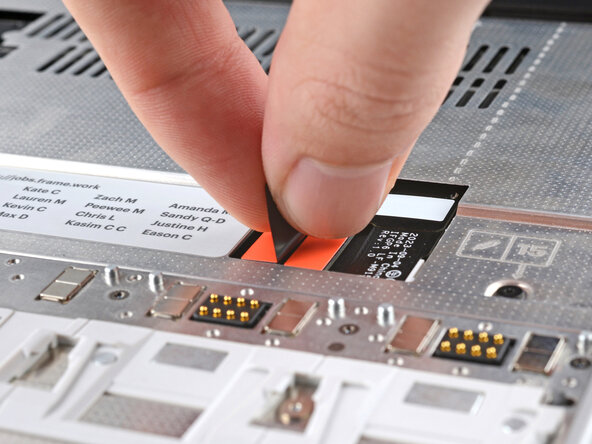


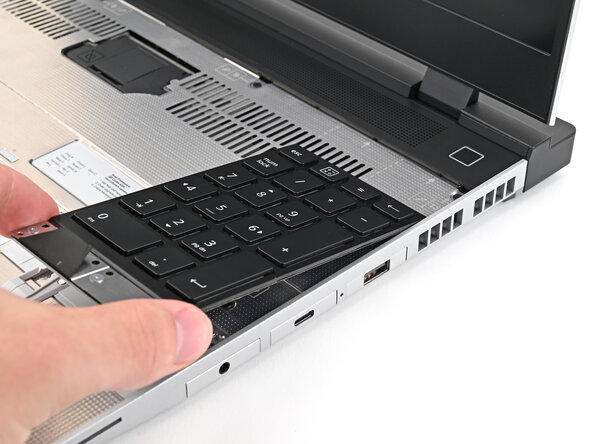
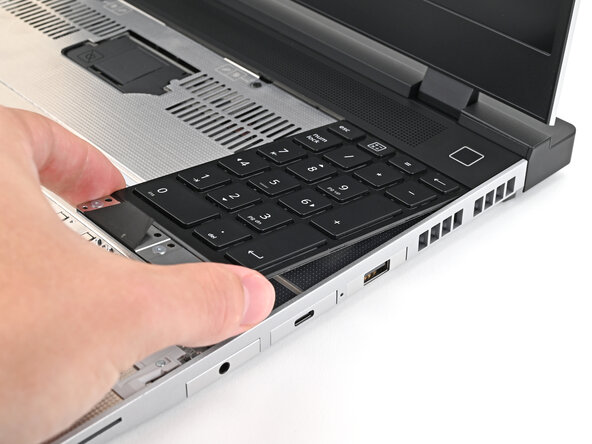






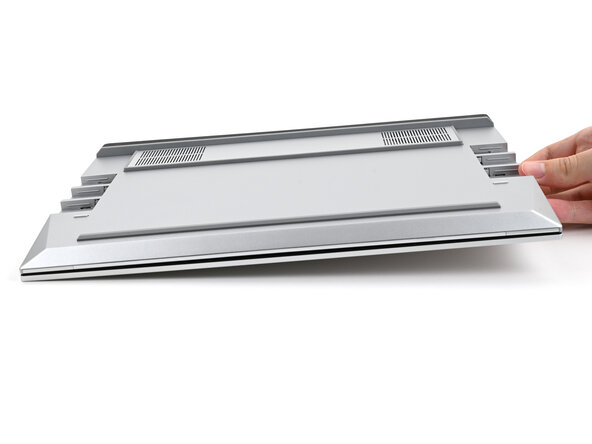
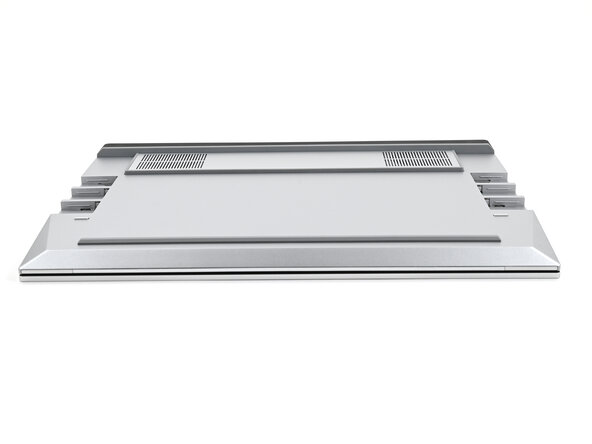






You finished fixing your Framework Laptop!
Take your e-waste to an R2 or e-Stewards certified recycler.
If you need help, contact Framework support.

