Free Shipping on Domestic Orders $75+

Framework Laptop 13 Touchpad Replacement

What you need

  1. Framework Laptop 13 Touchpad Replacement, Before you begin: step 1, image 1 of 2 Framework Laptop 13 Touchpad Replacement, Before you begin: step 1, image 2 of 2
    • Unplug all cables and fully shut down your laptop from the OS.

  2. Framework Laptop 13 Touchpad Replacement, Loosen the Input Cover screws: step 2, image 1 of 2 Framework Laptop 13 Touchpad Replacement, Loosen the Input Cover screws: step 2, image 2 of 2
    • Use your Framework Screwdriver to loosen the five captive T5 Torx screws securing the Input Cover.

    • The screw will make an audible "clicking" sound once it's fully loosened.

  3. Framework Laptop 13 Touchpad Replacement: step 3, image 1 of 2 Framework Laptop 13 Touchpad Replacement: step 3, image 2 of 2
    • Open the laptop.

  4. Framework Laptop 13 Touchpad Replacement, Lift the Input Cover: step 4, image 1 of 2 Framework Laptop 13 Touchpad Replacement, Lift the Input Cover: step 4, image 2 of 2
    • Use your fingers to lift the Input Cover up and release it from its magnets.

    • Don't fully remove the Input Cover yet, as it's still attached by the Touchpad Cable.

  5. Framework Laptop 13 Touchpad Replacement, Flip over the Input Cover: step 5, image 1 of 2 Framework Laptop 13 Touchpad Replacement, Flip over the Input Cover: step 5, image 2 of 2
    • Flip the top of the Input Cover so the keyboard is facing down.

    • Rest the Input Cover on the laptop, making sure the Touchpad Cable isn't being strained.

    • If the LEDs on the left and right sides of the Mainboard are flashing, then your laptop is still powered on. Make sure your laptop is completely powered off before continuing.

  6. Framework Laptop 13 Touchpad Replacement, Disconnect the Touchpad Cable: step 6, image 1 of 2 Framework Laptop 13 Touchpad Replacement, Disconnect the Touchpad Cable: step 6, image 2 of 2
    • Insert your finger into the Touchpad Cable press connector loop.

    • Lift up to disconnect the Touchpad Cable from the Mainboard.

  7. Framework Laptop 13 Touchpad Replacement, Remove the Input Cover: step 7, image 1 of 2 Framework Laptop 13 Touchpad Replacement, Remove the Input Cover: step 7, image 2 of 2
    • Remove the Input Cover.

  8. Framework Laptop 13 Touchpad Replacement, Touchpad connector information: step 8, image 1 of 3 Framework Laptop 13 Touchpad Replacement, Touchpad connector information: step 8, image 2 of 3 Framework Laptop 13 Touchpad Replacement, Touchpad connector information: step 8, image 3 of 3
    • The next six steps show how to disconnect the three cables that are connected to the touchpad. Use this photo as a reference for where they're located:

    • Fingerprint Reader Cable

    • Keyboard Membrane Cable

    • Keyboard Backlight Cable

    • The replacement touchpad comes with a Touchpad Cable pre‑installed, so you don't have to disconnect it.

  9. Framework Laptop 13 Touchpad Replacement, Disconnect the Fingerprint Reader Cable: step 9, image 1 of 2 Framework Laptop 13 Touchpad Replacement, Disconnect the Fingerprint Reader Cable: step 9, image 2 of 2
    • Use the flat end of your Framework Screwdriver, or a clean fingernail, to lift up the locking tab on the Fingerprint Reader ZIF connector on the touchpad.

  10. Framework Laptop 13 Touchpad Replacement: step 10, image 1 of 2 Framework Laptop 13 Touchpad Replacement: step 10, image 2 of 2
    • Use your fingers to lightly grip the Fingerprint Reader Cable and slide it straight out of its socket.

  11. Framework Laptop 13 Touchpad Replacement, Disconnect the keyboard membrane: step 11, image 1 of 2 Framework Laptop 13 Touchpad Replacement, Disconnect the keyboard membrane: step 11, image 2 of 2
    • Use the flat end of your Framework Screwdriver, or a clean fingernail, to lift up the locking tab on the keyboard membrane ZIF connector on the touchpad.

  12. Framework Laptop 13 Touchpad Replacement: step 12, image 1 of 2 Framework Laptop 13 Touchpad Replacement: step 12, image 2 of 2
    • Use your fingers to lightly grip the keyboard membrane cable and slide it straight out of its socket.

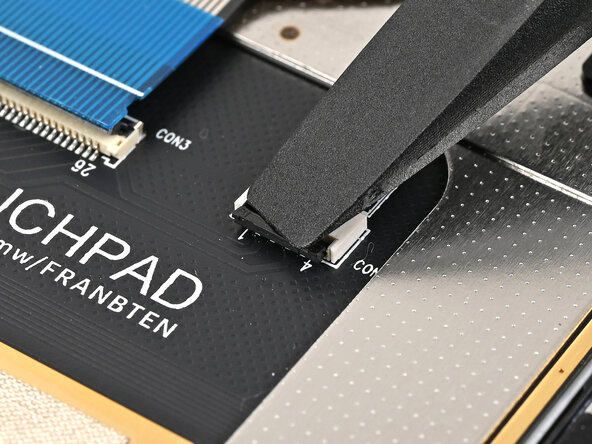
  13. Framework Laptop 13 Touchpad Replacement, Disconnect the keyboard backlight cable: step 13, image 1 of 2 Framework Laptop 13 Touchpad Replacement, Disconnect the keyboard backlight cable: step 13, image 2 of 2
    • Use the flat end of your Framework Screwdriver, or a clean fingernail, to lift up the locking tab on the keyboard backlight ZIF connector on the touchpad.

  14. Framework Laptop 13 Touchpad Replacement: step 14, image 1 of 2 Framework Laptop 13 Touchpad Replacement: step 14, image 2 of 2
    • Use your fingers to lightly grip the keyboard backlight cable and slide it straight out of its socket.

  15. Framework Laptop 13 Touchpad Replacement, Remove the touchpad bracket screws: step 15, image 1 of 2 Framework Laptop 13 Touchpad Replacement, Remove the touchpad bracket screws: step 15, image 2 of 2
    • Use your Framework Screwdriver to remove the two 1.8 mm‑long Phillips screws securing the touchpad bracket.

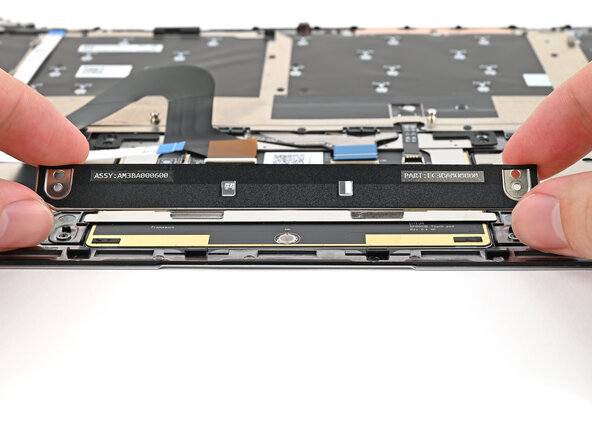
  16. Framework Laptop 13 Touchpad Replacement, Remove the touchpad bracket: step 16, image 1 of 3 Framework Laptop 13 Touchpad Replacement, Remove the touchpad bracket: step 16, image 2 of 3 Framework Laptop 13 Touchpad Replacement, Remove the touchpad bracket: step 16, image 3 of 3
    • Lift the touchpad bracket towards the top of the Input Cover to release its two metal clips.

    • Remove the touchpad bracket.

  17. Framework Laptop 13 Touchpad Replacement, Remove the touchpad screws: step 17, image 1 of 2 Framework Laptop 13 Touchpad Replacement, Remove the touchpad screws: step 17, image 2 of 2
    • Use your Framework Screwdriver to remove the two 1.8 mm‑long Phillips screws securing the touchpad.

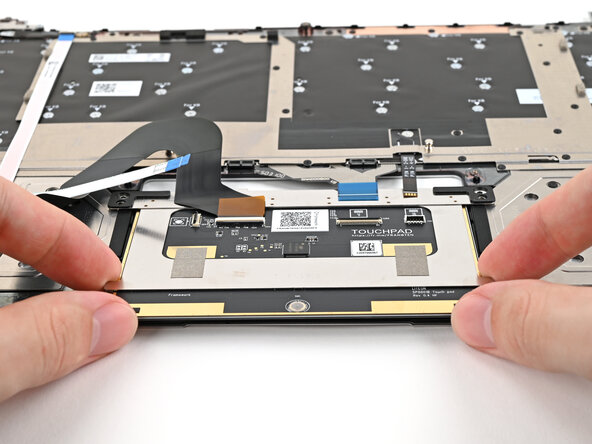
  18. Framework Laptop 13 Touchpad Replacement, Remove the touchpad: step 18, image 1 of 3 Framework Laptop 13 Touchpad Replacement, Remove the touchpad: step 18, image 2 of 3 Framework Laptop 13 Touchpad Replacement, Remove the touchpad: step 18, image 3 of 3
    • Use your fingers to lift the bottom edge of the touchpad and pull it towards the bottom edge of the Input Cover to release its two metal clips.

    • Remove the touchpad.

  19. Framework Laptop 13 Touchpad Replacement, Disassembly complete: step 19, image 1 of 1
    • Congratulations on completing disassembly! The remaining steps will show how to reassemble your Framework Laptop.

  20. Framework Laptop 13 Touchpad Replacement, Touchpad information: step 20, image 1 of 3 Framework Laptop 13 Touchpad Replacement, Touchpad information: step 20, image 2 of 3 Framework Laptop 13 Touchpad Replacement, Touchpad information: step 20, image 3 of 3
    • Your replacement touchpad comes with a protective film that helps center the module during reassembly. Do not remove it until you fully reassemble the laptop.

    • Fold the six plastic tabs over the edge of the Touchpad.

  21. Framework Laptop 13 Touchpad Replacement, Place the touchpad: step 21, image 1 of 3 Framework Laptop 13 Touchpad Replacement, Place the touchpad: step 21, image 2 of 3 Framework Laptop 13 Touchpad Replacement, Place the touchpad: step 21, image 3 of 3
  22. Framework Laptop 13 Touchpad Replacement, Install the touchpad screws: step 22, image 1 of 3 Framework Laptop 13 Touchpad Replacement, Install the touchpad screws: step 22, image 2 of 3 Framework Laptop 13 Touchpad Replacement, Install the touchpad screws: step 22, image 3 of 3
    • While holding the touchpad in place, use your Framework Screwdriver to install the two 1.8 mm‑long Phillips screws securing the top of the touchpad.

  23. Framework Laptop 13 Touchpad Replacement, Place the touchpad bracket: step 23, image 1 of 2 Framework Laptop 13 Touchpad Replacement, Place the touchpad bracket: step 23, image 2 of 2
    • Slide the metal clips on the touchpad bracket into its slots on the Input Cover.

    • Press the bracket flat onto the Input Cover.

  24. Framework Laptop 13 Touchpad Replacement, Install the touchpad bracket screws: step 24, image 1 of 2 Framework Laptop 13 Touchpad Replacement, Install the touchpad bracket screws: step 24, image 2 of 2
    • Use your Framework Screwdriver to install the two 1.8 mm‑long Phillips screws securing the touchpad bracket.

  25. Framework Laptop 13 Touchpad Replacement, Connect the keyboard backlight cable: step 25, image 1 of 2 Framework Laptop 13 Touchpad Replacement, Connect the keyboard backlight cable: step 25, image 2 of 2
    • Slide the keyboard backlight cable straight into its socket.

  26. Framework Laptop 13 Touchpad Replacement: step 26, image 1 of 2 Framework Laptop 13 Touchpad Replacement: step 26, image 2 of 2
    • Use the flat end of your Framework Screwdriver, or a clean fingernail, to press down the locking tab on the keyboard backlight ZIF connector.

  27. Framework Laptop 13 Touchpad Replacement, Connect the keyboard membrane: step 27, image 1 of 2 Framework Laptop 13 Touchpad Replacement, Connect the keyboard membrane: step 27, image 2 of 2
    • Slide the keyboard membrane cable straight into its socket.

  28. Framework Laptop 13 Touchpad Replacement: step 28, image 1 of 2 Framework Laptop 13 Touchpad Replacement: step 28, image 2 of 2
    • Use the flat end of your Framework Screwdriver, or a clean fingernail, to press down the locking tab on the keyboard membrane ZIF connector.

  29. Framework Laptop 13 Touchpad Replacement, Connect the Fingerprint Reader Cable: step 29, image 1 of 2 Framework Laptop 13 Touchpad Replacement, Connect the Fingerprint Reader Cable: step 29, image 2 of 2
    • Slide the Fingerprint Reader Cable straight into its socket.

  30. Framework Laptop 13 Touchpad Replacement: step 30, image 1 of 2 Framework Laptop 13 Touchpad Replacement: step 30, image 2 of 2
    • Use the flat end of your Framework Screwdriver, or a clean fingernail, to press down the locking tab on the Fingerprint Reader Cable ZIF connector.

  31. Framework Laptop 13 Touchpad Replacement, Remove the protective film: step 31, image 1 of 3 Framework Laptop 13 Touchpad Replacement, Remove the protective film: step 31, image 2 of 3 Framework Laptop 13 Touchpad Replacement, Remove the protective film: step 31, image 3 of 3
    • Flip over the Input Cover and peel off the Touchpad's protective film.

    • Check if the Touchpad is aligned evenly with the sides and the bottom of the Input Cover. If it's misaligned, remove the Touchpad screws, adjust the Touchpad, and reinstall the screws.

  32. Framework Laptop 13 Touchpad Replacement, Check the Touchpad Cable: step 32, image 1 of 3 Framework Laptop 13 Touchpad Replacement, Check the Touchpad Cable: step 32, image 2 of 3 Framework Laptop 13 Touchpad Replacement, Check the Touchpad Cable: step 32, image 3 of 3
    • Before continuing, check the Touchpad Cable's ZIF connector located on the back of the Touchpad:

    • Make sure the white line on the cable is parallel and adjacent with the socket.

    • If the cable isn't inserted far enough, use the flat end of the Framework screwdriver to flip up the black latch, reposition the cable, and lock the latch.

  33. Framework Laptop 13 Touchpad Replacement, Position the Input Cover: step 33, image 1 of 2 Framework Laptop 13 Touchpad Replacement, Position the Input Cover: step 33, image 2 of 2
    • Position the Input Cover, keyboard down, on top of the laptop so it just covers the battery.

    • This allows the Touchpad Cable to be folded over and reconnected without straining it.

  34. Framework Laptop 13 Touchpad Replacement, Connect the Touchpad Cable: step 34, image 1 of 2 Framework Laptop 13 Touchpad Replacement, Connect the Touchpad Cable: step 34, image 2 of 2
    • Insert your finger into the Touchpad Cable press connector loop.

    • Align the press connector over its socket and press down with your finger.

    • You should hear it "click" into place. Don't try to force the connector into place. If you're having trouble, reposition it and try again.

  35. Framework Laptop 13 Touchpad Replacement, Place the Input Cover: step 35, image 1 of 2 Framework Laptop 13 Touchpad Replacement, Place the Input Cover: step 35, image 2 of 2
    • Flip the Input Cover over the laptop and align the bottom edges.

  36. Framework Laptop 13 Touchpad Replacement: step 36, image 1 of 3 Framework Laptop 13 Touchpad Replacement: step 36, image 2 of 3 Framework Laptop 13 Touchpad Replacement: step 36, image 3 of 3
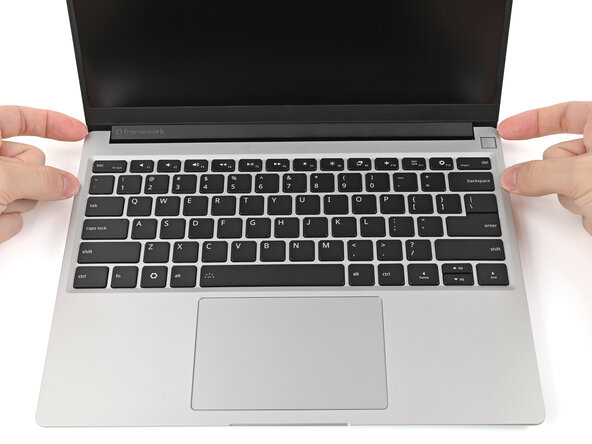
    • Lay the Input Cover over the laptop and let the magnets snap it into place.

    • The bottom right corner of the Input Cover won't sit flush with the laptop until you tighten its screws.

  37. Framework Laptop 13 Touchpad Replacement, Tighten the Input Cover screws: step 37, image 1 of 2 Framework Laptop 13 Touchpad Replacement, Tighten the Input Cover screws: step 37, image 2 of 2
    • Use your Framework Screwdriver to tighten the five captive T5 Torx screws securing the Input Cover.

    • Don't overtighten the screws—just make sure they're snug.

Conclusion

You finished fixing your Framework Laptop!

Take your e-waste to an R2 or e-Stewards certified recycler.

If you need help, contact Framework support.

Alex Diaz-Kokaisl

Member since: 01/16/22

234,441 Reputation

1,139 Guides authored

0 Guide Comments

Add Comment

View Statistics:

Past 24 Hours: 15

Past 7 Days: 30

Past 30 Days: 41

All Time: 72