Introduction
Follow this guide to replace or upgrade the SSD in your Framework Laptop 13.
Your Framework Laptop uses a M.2 2280 NVMe SSD (Solid State Drive) for storage.
What you need
-
-
-
Unplug all cables and fully shut down your laptop from the OS.
 Ask FixBot
-
-
-
-
-
Use your Framework Screwdriver to loosen the five captive T5 Torx screws securing the Input Cover.
-
-
-
Flip over your laptop and open it.
-
Use your fingers to lift the Input Cover up and release it from its magnets.
-
-
-
Flip the top of the Input Cover so the Keyboard is facing down.
-
Rest the Input Cover over the Battery, making sure the Touchpad Cable isn't being strained.
-
-
-
Insert your finger into the Touchpad Cable press connector loop.
-
Lift up to disconnect the Touchpad Cable from the Mainboard.
-
-
-
-
-
-
Use your Framework Screwdriver to remove the 3.0 mm‑long T5 Torx screw securing the SSD.
-
-
-
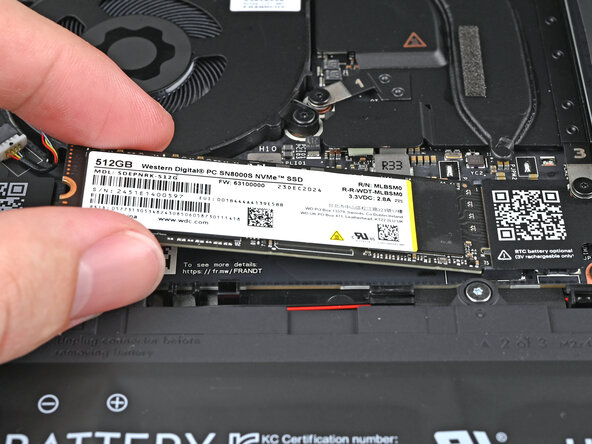
Grip the end of the SSD with the screw hole and slide it out of its socket.
-
Remove the SSD.
-
-
-
-
-
Congratulations on completing disassembly! The remaining steps will show how to reassemble your Framework Laptop.
-
-
-
-
-
Insert the SSD into the socket at a shallow angle. The gold contacts should mostly be covered by the socket.
-
-
-
While holding the SSD flat to the Mainboard, use your Framework Screwdriver to install the 3.0 mm‑long T5 Torx screw securing the SSD.
-
-
-
-
-
Before continuing, check the Touchpad Cable's ZIF connector located on the back of the Touchpad:
-
Make sure the white line on the cable is parallel to and adjacent with the socket.
-
If the cable isn't inserted far enough, use the flat end of the Framework Screwdriver to flip up the black latch, reposition the cable, and lock the latch.
-
-
-
Position the Input Cover, Keyboard down, on top of the laptop so it just covers the battery.
-
-
-
Insert your finger into the Touchpad Cable press connector loop.
-
Align the press connector over its socket and press down with your finger.
-
-
-
Flip the Input Cover over the laptop and align the bottom edges.
-
-
-
Use your Framework Screwdriver to tighten the five captive T5 Torx screws securing the Input Cover.
-
-




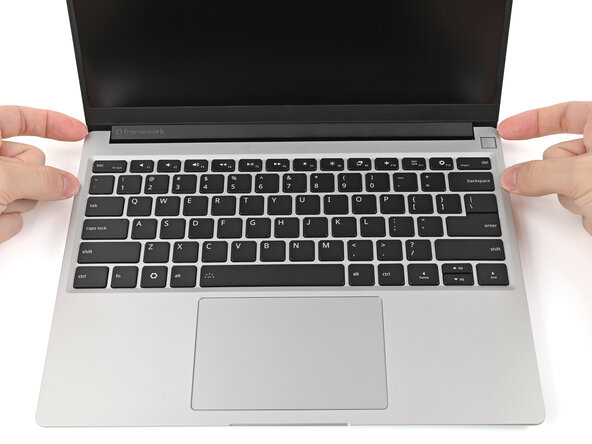


You finished fixing your Framework Laptop!
Take your e-waste to an R2 or e-Stewards certified recycler.
If you need help, contact Framework support.
Cancel: I did not complete this guide.
One other person completed this guide.

