Introduction
Follow this guide to remove and replace the memory (aka RAM) in your Framework Laptop 13.
Your Framework Laptop has two DDR5 SO-DIMM sockets that supports up to 48 GB each of DDR5-5600 memory. If you install memory faster than the supported speed, the laptop will work properly, but not use the full memory speed.
For a list of validated AMD Ryzen™ AI 300 Series memory modules, check out this link.
For a list of validated AMD Ryzen™ 7040 Series memory modules, check out this link.
What you need
-
-
-
Unplug all cables and fully shut down your laptop from the OS.
 Ask FixBot
-
-
-
-
-
Use your Framework Screwdriver to loosen the five captive T5 Torx screws securing the Input Cover.
-
-
-
Flip over your laptop and open it.
-
Use your fingers to lift the Input Cover up and release it from its magnets.
-
-
-
Flip the top of the Input Cover so the Keyboard is facing down.
-
Rest the Input Cover over the Battery, making sure the Touchpad Cable isn't being strained.
-
-
-
Insert your finger into the Touchpad Cable press connector loop.
-
Lift up to disconnect the Touchpad Cable from the Mainboard.
-
-
-
-
-
-
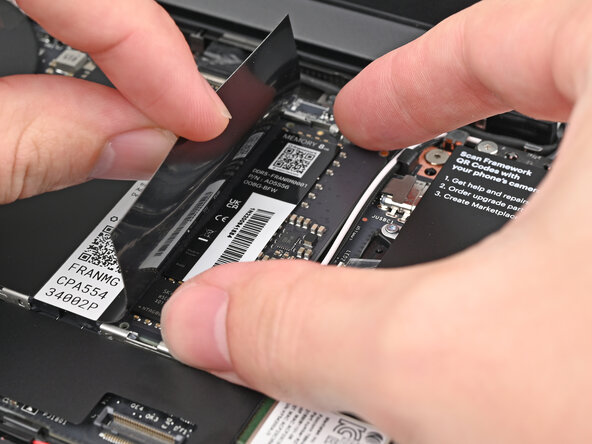
While holding up the black flap covering the left memory module, push the two metal arms on each side of the module outward until they disengage and the module pops up at a shallow angle.
-
Slide the memory module out of its socket and remove it.
-
-
-
-
-
Congratulations on completing disassembly! The remaining steps will show how to reassemble your Framework Laptop.
-
-
-
-
-
While holding up the black flap covering the left memory module, orient the module with its label facing down and align the gold contacts with the left socket.
-
Insert the contact edge into the socket at a shallow angle. The gold contacts should mostly be covered by the socket.
-
Press the edges of the module down until the side clips lock it in place.
-
-
-
Repeat the previous step for the right socket, except orient the module so its label is facing upward.
-
-
-
-
-
Before continuing, check the Touchpad Cable's ZIF connector located on the back of the Touchpad:
-
Make sure the white line on the cable is parallel to and adjacent with the socket.
-
If the cable isn't inserted far enough, use the flat end of the Framework Screwdriver to flip up the black latch, reposition the cable, and lock the latch.
-
-
-
Position the Input Cover, Keyboard down, on top of the laptop so it just covers the battery.
-
-
-
Insert your finger into the Touchpad Cable press connector loop.
-
Align the press connector over its socket and press down with your finger.
-
-
-
Flip the Input Cover over the laptop and align the bottom edges.
-
-
-
Use your Framework Screwdriver to tighten the five captive T5 Torx screws securing the Input Cover.
-
-




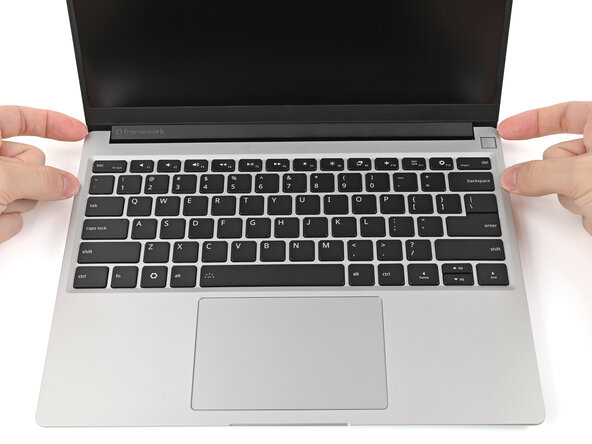


You finished fixing your Framework Laptop!
After installing new memory, the laptop will take longer to start up for the first time, and the screen will turn on slower. This is normal—the system is performing memory training.
Take your e-waste to an R2 or e-Stewards certified recycler.
If you need help, contact Framework support.
Cancel: I did not complete this guide.
One other person completed this guide.

