Introduction
Congratulations on getting your capable hands on a Framework Laptop 13 DIY Edition! Follow this quick start guide to assemble your laptop and get it running.
After assembling your laptop, you'll need to install an OS and download the correct drivers. Here are links to some useful resources:
What you need
-
-
-
Framework Laptop chassis with pre-installed Mainboard.
-
Input Cover
-
Expansion Cards
-
Bezel
-
Memory and Storage
-
Power Adapter
-
Framework Screwdriver
 Ask FixBot
-
-
-
While holding up the black flap covering the left memory module, orient the module with its label facing down and align the gold contacts with the socket.
-
Insert the contact edge into the socket at a shallow angle. The gold contacts should mostly be covered by the socket.
-
Press the edges of the memory module down until the side clips lock it in place.
-
-
-
Repeat the previous step for the right socket labeled ("Channel 1"), except orient the module so its label is facing up.
-
-
-
Use your Framework Screwdriver to remove the 3.0 mm‑long T5 Torx screw near the SSD connector.
-
-
-
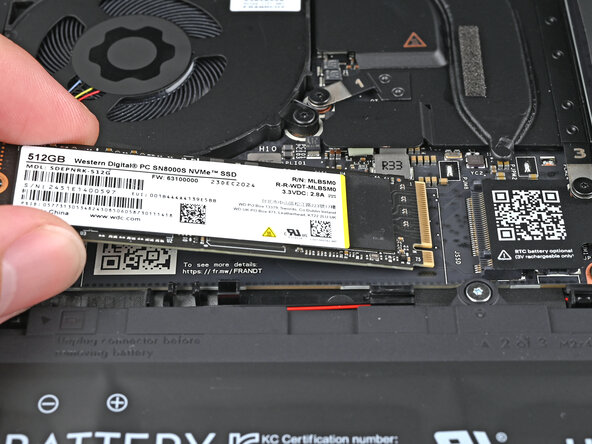
Insert the SSD into the socket at a shallow angle. The gold contacts should mostly be covered by the socket.
-
-
-
While holding the SSD flat to the Mainboard, use your Framework Screwdriver to install the 3.0 mm‑long T5 Torx screw securing the SSD.
-
-
-
-
Position the Input Cover, keyboard down, on top of the laptop so it just covers the battery.
-
-
-
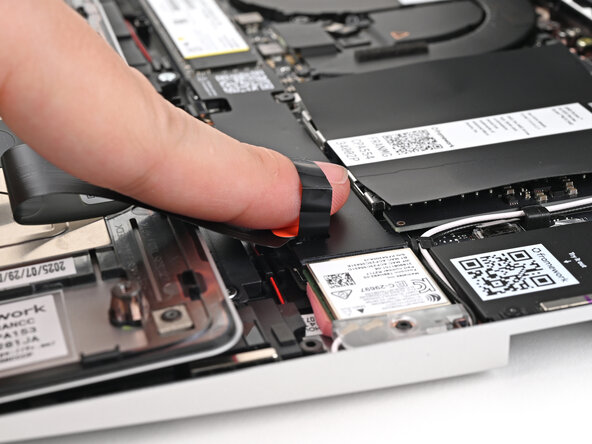
Insert your finger into the Touchpad Cable press connector loop.
-
Align the press connector over its socket and press down with your finger.
-
-
-
Flip the Input Cover over the laptop and align the bottom edges.
-
-
-
Open the laptop so the screen sits flat on your work surface.
-
-
-
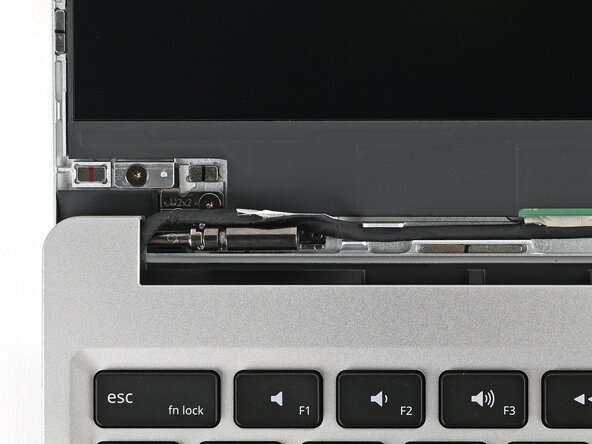
Before continuing, check if cables next to the hinges are routed properly:
-
The Display Cable should be routed just above the hinge without any large gaps.
-
The Display Cable should be routed between the metal clips.
-
The Webcam Cable should be routed just above the hinge without any large gaps and shouldn't overlap with the antenna cables.
-
-
-
Align the bottom edge of the Bezel with the top edge of the Input Cover and press down so the Bezel covers the hinges and cables.
-
Lay the rest of the Bezel over the screen and let the magnets pull it into place.
-
-
-
Use your fingers to press around the edge of the Bezel. The magnets should easily snap into place.
-
If the Bezel is still uneven, remove the Bezel and reseat it. Refer to this step for how the cables should be routed.
-
-
-
If there are any plastic liners covering the webcam and microphone, remove them.
-
-
-
Use your Framework Screwdriver to tighten the five captive T5 Torx screws securing the Input Cover.
-
-
-
Slide an Expansion Card into an Expansion Card slot.
-
Repeat for the remaining Expansion Cards along that edge.
-
-
-
Plug the AC Cable into the Power Adapter.
-
Plug the USB-C Cable into the Power Adapter.
-
Plug the AC Cable into a power outlet.
-
-
-
Your Framework Laptop ships in shipping mode, where the battery is disabled until you plug the laptop in for the first time.
-
Plug the USB-C Cable into any USB-C port on your laptop.
-
-
-
You're done assembling your Framework Laptop! Now, you'll need to install an OS.
-
After you install your OS, follow this guide to check your BIOS.
-
-








For drivers, firmware, and software updates, check out this page.
If you need help, contact Framework support.
Cancel: I did not complete this guide.
One other person completed this guide.

