Free Shipping on Domestic Orders $75+

Framework Laptop 12 Webcam Installation

Prerequisite Only
This is a prerequisite-only guide! This guide is part of another procedure and isn’t meant to be used alone.

What you need

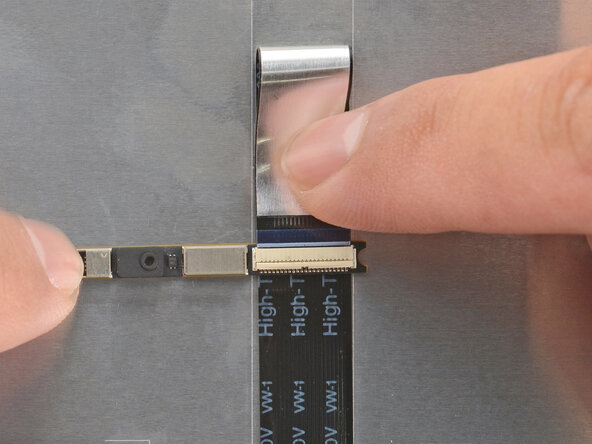
    1. Framework Laptop 12 Webcam Installation, Install the webcam: step 1, image 1 of 3 Framework Laptop 12 Webcam Installation, Install the webcam: step 1, image 2 of 3 Framework Laptop 12 Webcam Installation, Install the webcam: step 1, image 3 of 3
      • Bend an inch (2.5 cm) of the webcam cable over so that the shiny side is facing you.

      • Slide the webcam cable into the ZIF connector up to the printed line on the cable.

      • Use your finger to flip down and gently press the locking tab in place.

      Ask FixBot

      Add Comment

    2. Framework Laptop 12 Webcam Installation: step 2, image 1 of 2 Framework Laptop 12 Webcam Installation: step 2, image 2 of 2
      • Use your fingers to flip the webcam back into its recess in the Top Cover.

      Ask FixBot

      Add Comment

    3. Framework Laptop 12 Webcam Installation: step 3, image 1 of 3 Framework Laptop 12 Webcam Installation: step 3, image 2 of 3 Framework Laptop 12 Webcam Installation: step 3, image 3 of 3
      • Align the webcam bracket to the Top Cover and lay it in place.

      • Make sure the tabs on the top edge of the webcam bracket sit in their slots on the top edge of the display.

      Ask FixBot

      Add Comment

    4. Framework Laptop 12 Webcam Installation: step 4, image 1 of 1
      • Use your Framework Screwdriver to install the two 3.3 mm‑long T5 Torx screws to secure the webcam.

      Ask FixBot

      Add Comment

Finish Line

Cancel: I did not complete this guide.

Arthur Shi

Member since: 01/03/18

350,747 Reputation

938 Guides authored

0 Guide Comments

Add Comment

View Statistics:

Past 24 Hours: 1

Past 7 Days: 3

Past 30 Days: 9

All Time: 145