Free Shipping on Domestic Orders $75+

Framework Laptop 12 Touchpad Removal

Prerequisite Only
This is a prerequisite-only guide! This guide is part of another procedure and isn’t meant to be used alone.

What you need

    1. Framework Laptop 12 Touchpad Removal, Power down your laptop: step 1, image 1 of 3 Framework Laptop 12 Touchpad Removal, Power down your laptop: step 1, image 2 of 3 Framework Laptop 12 Touchpad Removal, Power down your laptop: step 1, image 3 of 3
      • Before you begin repairs, unplug your laptop and shut it down from the operating system. This ensures that the laptop isn't in standby/suspend mode.

      • The indicator LEDs along the edges should be unlit. The laptop should be silent.

      • If you accidentally turn on the laptop during repair, hold the power button down for 10 seconds to shut it down.

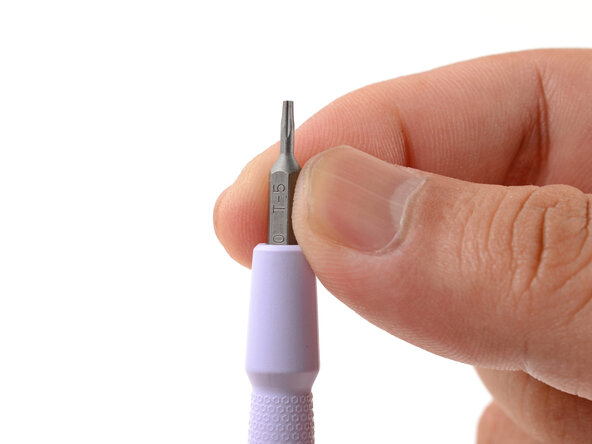
      • Make sure your Framework Screwdriver has the T5 Torx bit (labeled as T-5) facing outwards. If it's not, pull the bit out and flip it.

      Ask FixBot

      Add Comment

    1. Framework Laptop 12 Touchpad Removal, Set your laptop down: step 2, image 1 of 1
      • Set your Framework Laptop face-down on a clean work surface.

      Ask FixBot

      Add Comment

    2. Framework Laptop 12 Touchpad Removal, Loosen the bottom screws: step 3, image 1 of 2 Framework Laptop 12 Touchpad Removal, Loosen the bottom screws: step 3, image 2 of 2
      • Use your Framework Screwdriver to fully loosen the eight captive T5 Torx screws on the bottom of your laptop.

      • Most screws in your Framework Laptop (including these) are captive—they're designed to stay in place after you loosen them.

      Ask FixBot

      Add Comment

    3. Framework Laptop 12 Touchpad Removal, Flip your laptop over: step 4, image 1 of 1
      • Flip your laptop over so it's face-up on your work surface.

      Ask FixBot

      Add Comment

    4. Framework Laptop 12 Touchpad Removal, Open your laptop: step 5, image 1 of 2 Framework Laptop 12 Touchpad Removal, Open your laptop: step 5, image 2 of 2
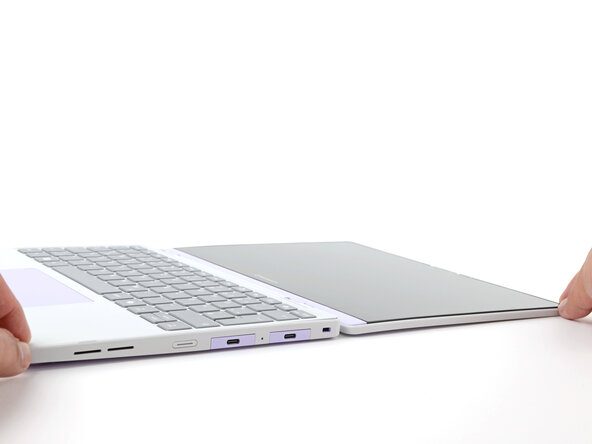
      • Open the laptop lid so that both the screen and the base lie flat on your work surface.

      Ask FixBot

      Add Comment

    5. Framework Laptop 12 Touchpad Removal, Remove the Input Cover: step 6, image 1 of 3 Framework Laptop 12 Touchpad Removal, Remove the Input Cover: step 6, image 2 of 3 Framework Laptop 12 Touchpad Removal, Remove the Input Cover: step 6, image 3 of 3
      • Use your fingers to grip the Input Cover in the hinge cutouts.

      • Lift upwards to swing the Input Cover up from the base of the laptop.

      • Magnets hold the Input Cover down, so you'll feel some resistance. If it feels stuck, check that you've fully loosened all the screws on the bottom of your laptop.

      • Remove the Input Cover.

      Ask FixBot

      Add Comment

    1. Framework Laptop 12 Touchpad Removal, Disconnect the touchpad: step 7, image 1 of 3 Framework Laptop 12 Touchpad Removal, Disconnect the touchpad: step 7, image 2 of 3 Framework Laptop 12 Touchpad Removal, Disconnect the touchpad: step 7, image 3 of 3
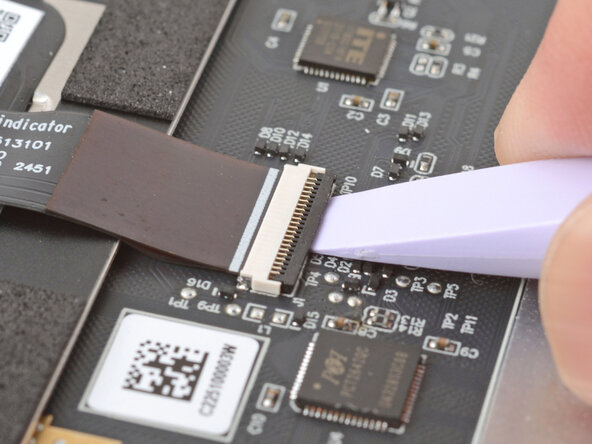
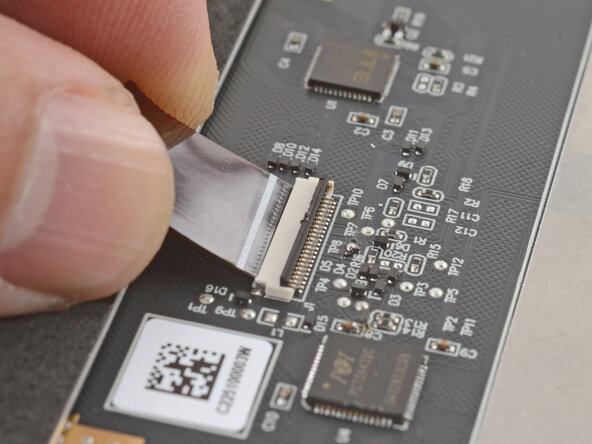
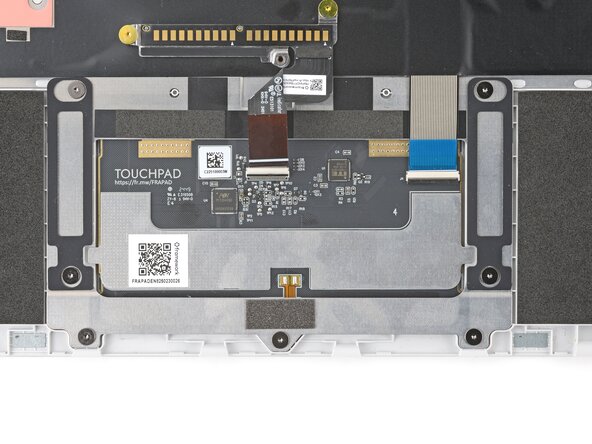
      • Use the flat end of your Framework Screwdriver or a fingernail to gently pry up the black locking tab on the touchpad cable ZIF connector, located on the back of the touchpad.

      Ask FixBot

      Add Comment

    2. Framework Laptop 12 Touchpad Removal: step 8, image 1 of 2 Framework Laptop 12 Touchpad Removal: step 8, image 2 of 2
      • Grab the touchpad cable by the brown tab and slide it out of its connector.

      Ask FixBot

      Add Comment

    3. Framework Laptop 12 Touchpad Removal: step 9, image 1 of 3 Framework Laptop 12 Touchpad Removal: step 9, image 2 of 3 Framework Laptop 12 Touchpad Removal: step 9, image 3 of 3
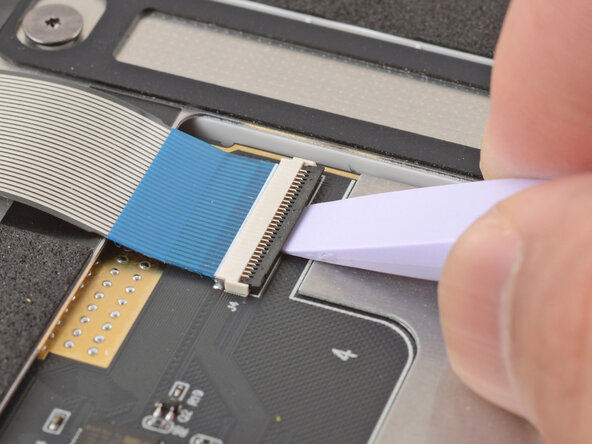
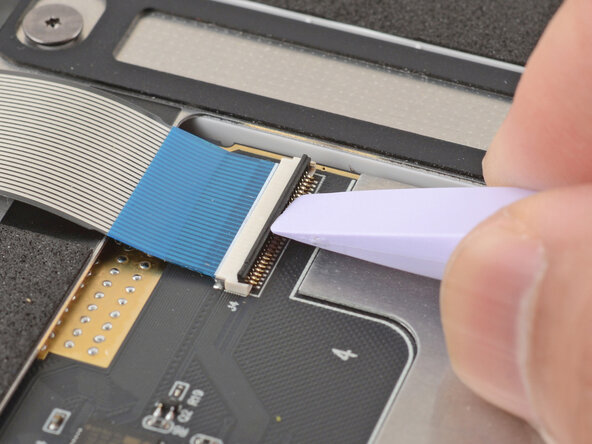
      • Use the flat end of your Framework Screwdriver or a fingernail to gently pry up the black locking tab on the keyboard cable ZIF connector, located on the back of the touchpad.

      Ask FixBot

      Add Comment

    4. Framework Laptop 12 Touchpad Removal: step 10, image 1 of 2 Framework Laptop 12 Touchpad Removal: step 10, image 2 of 2
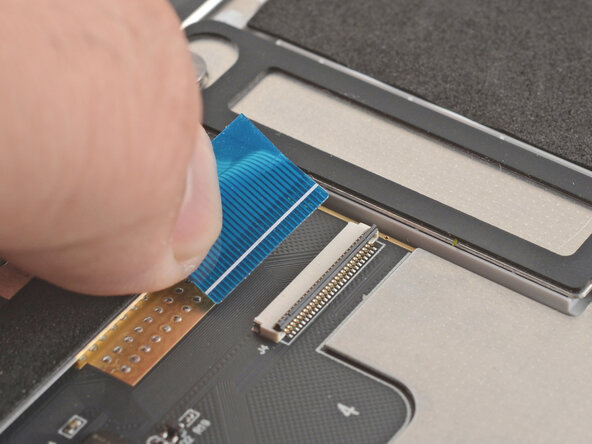
      • Grab the keyboard cable by the blue tab and slide it out of its connector.

      Ask FixBot

      Add Comment

    5. Framework Laptop 12 Touchpad Removal, Remove the touchpad screws: step 11, image 1 of 2 Framework Laptop 12 Touchpad Removal, Remove the touchpad screws: step 11, image 2 of 2
      • Use your Framework Screwdriver to remove the seven 2.1 mm‑long T5 Torx screws securing the touchpad.

      • If your replacement touchpad comes with screws, you don't need to keep these for reassembly.

      Ask FixBot

      Add Comment

    6. Framework Laptop 12 Touchpad Removal, Remove the touchpad: step 12, image 1 of 3 Framework Laptop 12 Touchpad Removal, Remove the touchpad: step 12, image 2 of 3 Framework Laptop 12 Touchpad Removal, Remove the touchpad: step 12, image 3 of 3
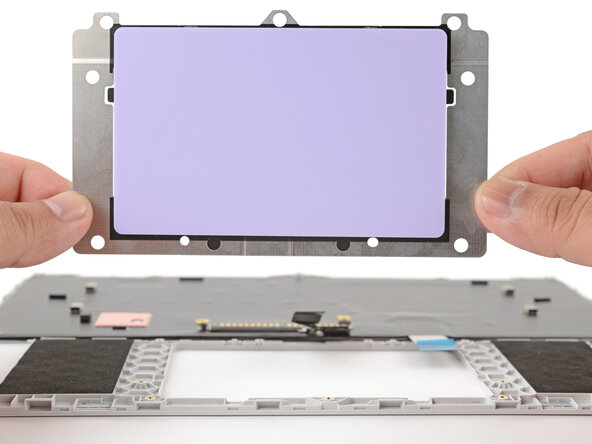
      • Use your fingers to pop the touchpad out of the Input Cover from the underside.

      • Lift and remove the touchpad.

      Ask FixBot

      Add Comment

Finish Line

Cancel: I did not complete this guide.

Arthur Shi

Member since: 01/03/18

350,754 Reputation

938 Guides authored

0 Guide Comments

Add Comment

View Statistics:

Past 24 Hours: 1

Past 7 Days: 5

Past 30 Days: 14

All Time: 186