Framework Laptop 12 SSD Installation

Prerequisite Only
This is a prerequisite-only guide! This guide is part of another procedure and isn’t meant to be used alone.

What you need

  1. Framework Laptop 12 SSD Installation, Install the SSD: step 1, image 1 of 2 Framework Laptop 12 SSD Installation, Install the SSD: step 1, image 2 of 2
    • Hold the SSD by its edges. Don't touch the gold contacts with your fingers. If you do, wipe the contacts with a clean, lint-free cloth to remove any finger oils.

    • Align the SSD's gold contacts with its socket.

    • Insert the SSD into the socket at a shallow angle. The gold contacts should mostly be covered by the socket.

    • The SSD fits into the socket in one orientation. If it doesn't feel like it fits, try flipping the module.

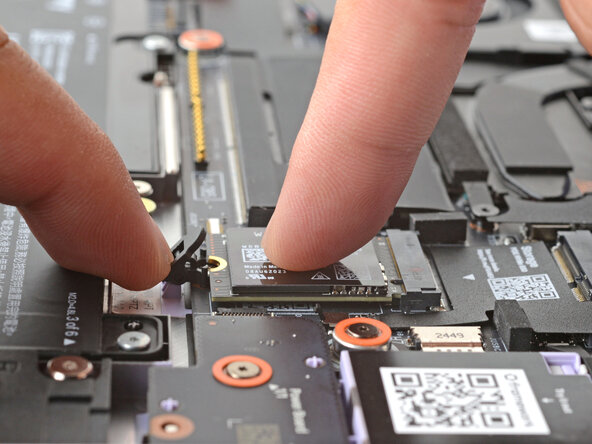
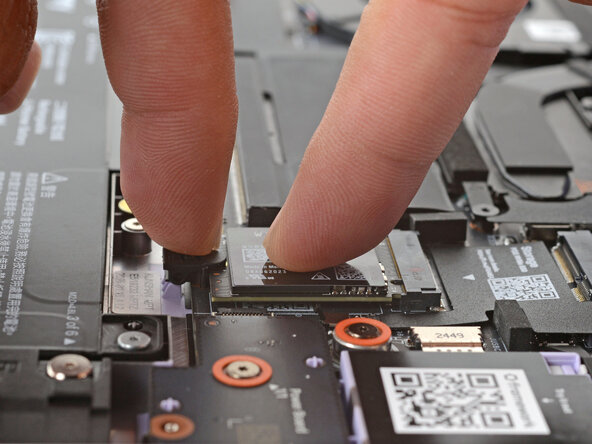
  2. Framework Laptop 12 SSD Installation: step 2, image 1 of 3 Framework Laptop 12 SSD Installation: step 2, image 2 of 3 Framework Laptop 12 SSD Installation: step 2, image 3 of 3
    • Use your finger to press down on the black SSD latch to keep it open.

    • Use another finger to press the SSD down until it lays flat.

    • If the SSD doesn't fit in the latch, you may need to insert the SSD further into its socket.

    • Use your finger to close the latch to secure the SSD.

    • You should hear a click, and the SSD should no longer pop up.

Finish Line

Arthur Shi

Member since: 01/03/18

313,333 Reputation

729 Guides authored

0 Guide Comments

Add Comment

View Statistics:

Past 24 Hours: 0

Past 7 Days: 0

Past 30 Days: 2

All Time: 33