Free Shipping on Domestic Orders $75+

Framework Laptop 12 Mainboard Reset

Prerequisite Only
This is a prerequisite-only guide! This guide is part of another procedure and isn’t meant to be used alone.
    1. Framework Laptop 12 Mainboard Reset, Plug the laptop in: step 1, image 1 of 2 Framework Laptop 12 Mainboard Reset, Plug the laptop in: step 1, image 2 of 2
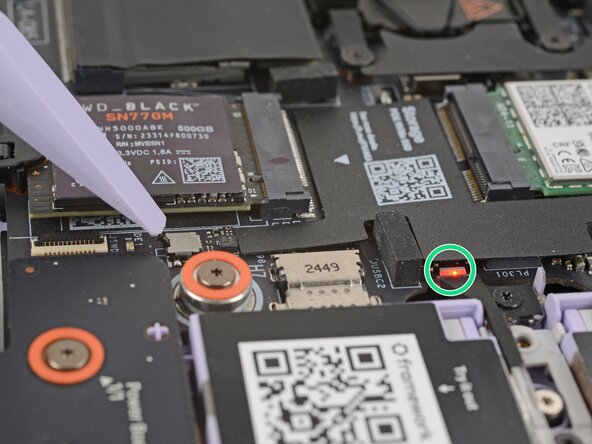
      • Plug the laptop into a power source using any USB-C port.

      • The red status LED near the right Expansion Card slots should blink continuously. If this LED isn't blinking, the laptop isn't receiving power correctly—try another USB-C port.

      • Don't proceed unless the LED is blinking.

      Ask FixBot

      Add Comment

    2. Framework Laptop 12 Mainboard Reset, Locate the chassis open switch: step 2, image 1 of 2 Framework Laptop 12 Mainboard Reset, Locate the chassis open switch: step 2, image 2 of 2
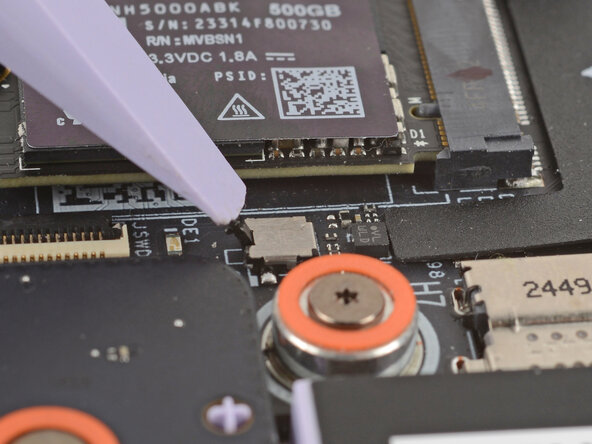
      • Locate the chassis open switch to the right of the SSD slot.

      • This switch is a sensor that detects if the Top Cover has been removed. It's a small silver block with a black toggle tab.

      Ask FixBot

      Add Comment

    3. Framework Laptop 12 Mainboard Reset, Press the switch: step 3, image 1 of 3 Framework Laptop 12 Mainboard Reset, Press the switch: step 3, image 2 of 3 Framework Laptop 12 Mainboard Reset, Press the switch: step 3, image 3 of 3
      • Use your finger or the flat end of a Framework Screwdriver to press the chassis open switch 10 times:

      • Press and hold the switch down for two seconds.

      • Release the switch and wait for the indicator LED to resume blinking.

      • Repeat the process 10 times total.

      Ask FixBot

      Add Comment

Conclusion

To reassemble your device, follow these instructions in reverse order.

Cancel: I did not complete this guide.

Arthur Shi

Member since: 01/03/18

350,754 Reputation

938 Guides authored

0 Guide Comments

Add Comment

View Statistics:

Past 24 Hours: 0

Past 7 Days: 4

Past 30 Days: 11

All Time: 54