Free Shipping on Domestic Orders $75+

Framework Laptop 12 Fan Removal

Prerequisite Only
This is a prerequisite-only guide! This guide is part of another procedure and isn’t meant to be used alone.

What you need

  1. Framework Laptop 12 Fan Removal, Power down your laptop: step 1, image 1 of 3 Framework Laptop 12 Fan Removal, Power down your laptop: step 1, image 2 of 3 Framework Laptop 12 Fan Removal, Power down your laptop: step 1, image 3 of 3
    • Before you begin repairs, unplug your laptop and shut it down from the operating system. This ensures that the laptop isn't in standby/suspend mode.

    • The indicator LEDs along the edges should be unlit. The laptop should be silent.

    • If you accidentally turn on the laptop during repair, hold the power button down for 10 seconds to shut it down.

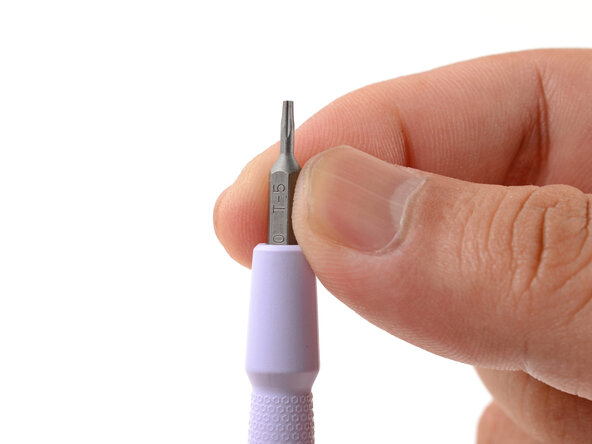
    • Make sure your Framework Screwdriver has the T5 Torx bit (labeled as T-5) facing outwards. If it's not, pull the bit out and flip it.

  2. Framework Laptop 12 Fan Removal, Set your laptop down: step 2, image 1 of 1
    • Set your Framework Laptop face-down on a clean work surface.

  3. Framework Laptop 12 Fan Removal, Loosen the bottom screws: step 3, image 1 of 2 Framework Laptop 12 Fan Removal, Loosen the bottom screws: step 3, image 2 of 2
    • Use your Framework Screwdriver to fully loosen the eight captive T5 Torx screws on the bottom of your laptop.

    • Most screws in your Framework Laptop (including these) are captive—they're designed to stay in place after you loosen them.

  4. Framework Laptop 12 Fan Removal, Flip your laptop over: step 4, image 1 of 1
    • Flip your laptop over so it's face-up on your work surface.

  5. Framework Laptop 12 Fan Removal, Open your laptop: step 5, image 1 of 2 Framework Laptop 12 Fan Removal, Open your laptop: step 5, image 2 of 2
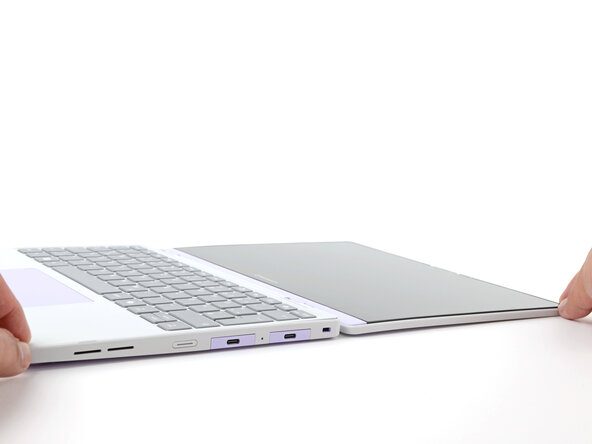
    • Open the laptop lid so that both the screen and the base lie flat on your work surface.

  6. Framework Laptop 12 Fan Removal, Remove the Input Cover: step 6, image 1 of 3 Framework Laptop 12 Fan Removal, Remove the Input Cover: step 6, image 2 of 3 Framework Laptop 12 Fan Removal, Remove the Input Cover: step 6, image 3 of 3
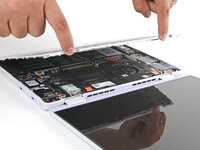
    • Use your fingers to grip the Input Cover in the hinge cutouts.

    • Lift upwards to swing the Input Cover up from the base of the laptop.

    • Magnets hold the Input Cover down, so you'll feel some resistance. If it feels stuck, check that you've fully loosened all the screws on the bottom of your laptop.

    • Remove the Input Cover.

  7. Framework Laptop 12 Fan Removal, Loosen the battery screws: step 7, image 1 of 1
    • Use your Framework Screwdriver to loosen the six captive T5 Torx screws securing the battery.

  8. Framework Laptop 12 Fan Removal, Disconnect the battery: step 8, image 1 of 2 Framework Laptop 12 Fan Removal, Disconnect the battery: step 8, image 2 of 2
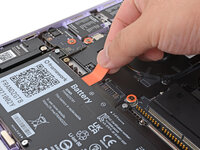
    • Grab the orange battery tab with your fingers and lift straight up to disconnect the battery.

    • The battery connector can be tight, requiring some force. If it feels like part of the battery won't come up, check that the battery screws are fully loosened.

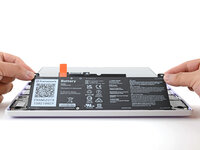
  9. Framework Laptop 12 Fan Removal, Remove the battery: step 9, image 1 of 2 Framework Laptop 12 Fan Removal, Remove the battery: step 9, image 2 of 2
    • Lift and remove the battery from the laptop.

  10. Framework Laptop 12 Fan Removal, Disconnect the fan connector: step 10, image 1 of 3 Framework Laptop 12 Fan Removal, Disconnect the fan connector: step 10, image 2 of 3 Framework Laptop 12 Fan Removal, Disconnect the fan connector: step 10, image 3 of 3
    • Use the flat end of your Framework Screwdriver to gently push on one of the fan connector's protruding edges, then the other, to loosen the connector out of its socket.

  11. Framework Laptop 12 Fan Removal: step 11, image 1 of 2 Framework Laptop 12 Fan Removal: step 11, image 2 of 2
    • Use your fingers and your Framework Screwdriver to slide the fan connector out of its socket.

  12. Framework Laptop 12 Fan Removal, Loosen the fan screws: step 12, image 1 of 1
    • Use your Framework Screwdriver to loosen the two captive T5 Torx screws securing the fan.

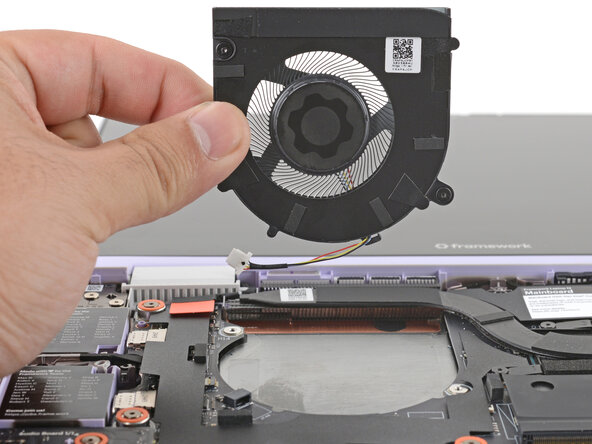
  13. Framework Laptop 12 Fan Removal, Remove the fan: step 13, image 1 of 2 Framework Laptop 12 Fan Removal, Remove the fan: step 13, image 2 of 2
    • Lift and remove the fan.

Finish Line

Arthur Shi

Member since: 01/03/18

327,270 Reputation

810 Guides authored

0 Guide Comments

Add Comment

View Statistics:

Past 24 Hours: 0

Past 7 Days: 1

Past 30 Days: 1

All Time: 51