Free Shipping on Domestic Orders $75+

Framework Laptop 12 Expansion Card Removal

Prerequisite Only
This is a prerequisite-only guide! This guide is part of another procedure and isn’t meant to be used alone.

What you need

    1. Framework Laptop 12 Expansion Card Removal, Set your laptop down: step 1, image 1 of 1
      • Set your Framework Laptop face-down on a clean work surface.

      Ask FixBot

      Add Comment

    2. Framework Laptop 12 Expansion Card Removal, Remove the Expansion Cards: step 2, image 1 of 2 Framework Laptop 12 Expansion Card Removal, Remove the Expansion Cards: step 2, image 2 of 2
      • Use your fingers to flip the two Expansion Card latches (one for each side) into the unlocked position.

      • The latches display a red bar when they're unlocked.

      Ask FixBot

      Add Comment

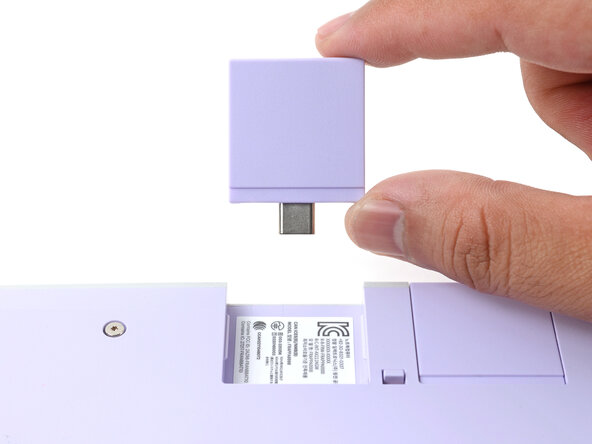
    3. Framework Laptop 12 Expansion Card Removal: step 3, image 1 of 3 Framework Laptop 12 Expansion Card Removal: step 3, image 2 of 3 Framework Laptop 12 Expansion Card Removal: step 3, image 3 of 3
      • Grip the lip of an Expansion Card with your fingers.

      • Pull the Expansion Card out of its slot and remove it.

      • If you have trouble pulling the Expansion Card out, you can also use the flat end of your Framework Screwdriver to push against the lip.

      • Repeat this procedure to remove all remaining Expansion Cards.

      Ask FixBot

      Add Comment

Finish Line

Cancel: I did not complete this guide.

Arthur Shi

Member since: 01/03/18

351,066 Reputation

938 Guides authored

0 Guide Comments

Add Comment

View Statistics:

Past 24 Hours: 0

Past 7 Days: 2

Past 30 Days: 10

All Time: 185