Free Shipping on Domestic Orders $75+

Framework Laptop 12 Bottom Cover Reconnect

Prerequisite Only
This is a prerequisite-only guide! This guide is part of another procedure and isn’t meant to be used alone.

What you need

  1. Framework Laptop 12 Bottom Cover Reconnect, Reconnect the Top Cover: step 1, image 1 of 3 Framework Laptop 12 Bottom Cover Reconnect, Reconnect the Top Cover: step 1, image 2 of 3 Framework Laptop 12 Bottom Cover Reconnect, Reconnect the Top Cover: step 1, image 3 of 3
    • Use your fingers to lift the Top Cover hinges over the Bottom Cover lip.

    • Lay the hinges in place in the Bottom Cover.

    • Use the plastic alignment pins to align each hinge in place.

  2. Framework Laptop 12 Bottom Cover Reconnect: step 2, image 1 of 2 Framework Laptop 12 Bottom Cover Reconnect: step 2, image 2 of 2
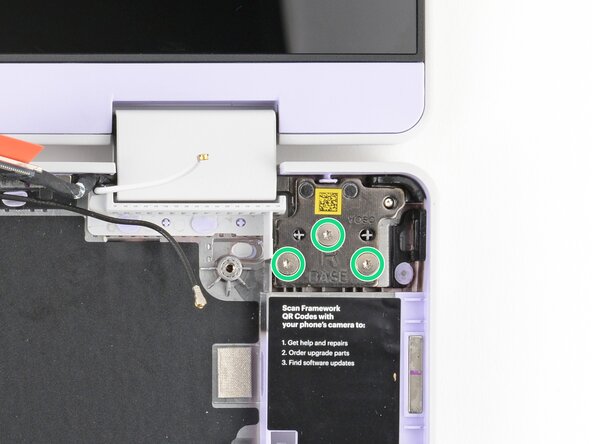
    • Use your Framework Screwdriver to install the six 4.5 mm‑long T5 Torx screws securing the two hinges.

  3. Framework Laptop 12 Bottom Cover Reconnect: step 3, image 1 of 2 Framework Laptop 12 Bottom Cover Reconnect: step 3, image 2 of 2
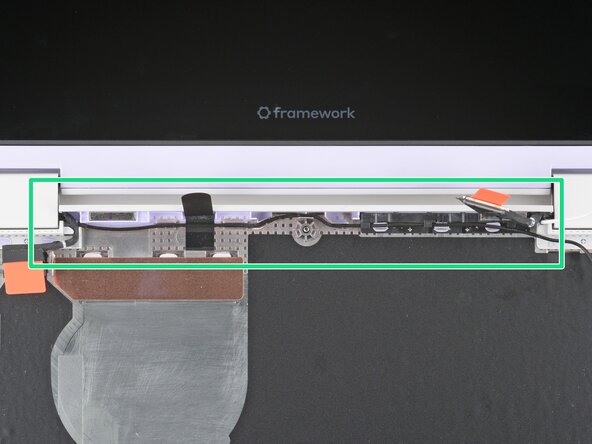
    • Use your fingers to gently press the webcam cable into its plastic channel.

  4. Framework Laptop 12 Bottom Cover Reconnect: step 4, image 1 of 2 Framework Laptop 12 Bottom Cover Reconnect: step 4, image 2 of 2
    • Use your fingers and your Framework Screwdriver to carefully press and guide the black antenna cable back into its channel.

    • Zoom in on the second image to see how the antenna cable sits in its channel.

  5. Framework Laptop 12 Bottom Cover Reconnect: step 5, image 1 of 2 Framework Laptop 12 Bottom Cover Reconnect: step 5, image 2 of 2
    • Press the black loop over the antenna cable and onto the Bottom Cover. If it doesn't stick, use a bit of thin double-sided tape to hold it down.

  6. Framework Laptop 12 Bottom Cover Reconnect, Install the Mainboard: step 6, image 1 of 2 Framework Laptop 12 Bottom Cover Reconnect, Install the Mainboard: step 6, image 2 of 2
    • Carefully lay the Mainboard in the laptop.

    • Use the two alignment pins to help align the Mainboard to the laptop.

    • Be careful not to trap the webcam, display, and antenna cables under the Mainboard as you set it in place.

  7. Framework Laptop 12 Bottom Cover Reconnect: step 7, image 1 of 1
    • Use your Framework Screwdriver to tighten the five captive T5 Torx screws to secure the Mainboard.

  8. Framework Laptop 12 Bottom Cover Reconnect: step 8, image 1 of 2 Framework Laptop 12 Bottom Cover Reconnect: step 8, image 2 of 2
    • Use your fingers to grab the orange tab on the display cable, located near the right hinge.

    • Align and press the display cable straight down onto its connector.

  9. Framework Laptop 12 Bottom Cover Reconnect: step 9, image 1 of 2 Framework Laptop 12 Bottom Cover Reconnect: step 9, image 2 of 2
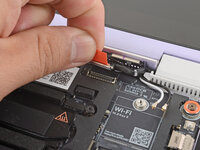
    • Use your fingers to grab the orange tab on the webcam cable, located near the left hinge.

    • Align and press the webcam cable straight down onto its connector.

Conclusion

To reassemble your device, follow these instructions in reverse order.

Arthur Shi

Member since: 01/03/18

327,342 Reputation

810 Guides authored

0 Guide Comments

Add Comment

View Statistics:

Past 24 Hours: 0

Past 7 Days: 0

Past 30 Days: 2

All Time: 50