Shop the Holiday Gift Guide
Free Shipping on Domestic Orders $75+

Dell Latitude ST Screen Replacement

Views: 975

View statistics:

Past 24 Hours:
3
Past 7 Days:
25
Past 30 Days:
77
All Time:
975
Comments: 0

No one has left comments on this guide. Will you be first?

Go to guide comments
Completed: 0

No one has marked this guide "completed." Will you be the first?

Favorites: 0

No one has favorited (and subscribed to) this guide. Will you be the first?

Time Required: 20 minutes
Difficulty: Moderate
Dell Latitude ST Screen Replacement

Introduction

Go to step 1 ↓

If the screen on your Dell latitude ST is displaying as black you should try rebooting the system. If this does not fix the screen you may want to replace the screen. This guide shows you how to safely replace your Dell Latitude ST screen.

What you need

Tools

    1. Dell Latitude ST Screen Replacement, Battery: step 1, image 1 of 3 Dell Latitude ST Screen Replacement, Battery: step 1, image 2 of 3 Dell Latitude ST Screen Replacement, Battery: step 1, image 3 of 3
      • Locate the back panel tab.

      • Press down on the tab to remove the panel.

      Ask FixBot

      Add Comment

    2. Dell Latitude ST Screen Replacement: step 2, image 1 of 3 Dell Latitude ST Screen Replacement: step 2, image 2 of 3 Dell Latitude ST Screen Replacement: step 2, image 3 of 3
      • Using a Phillips #0 screwdriver, remove the four 6mm screws attaching the inside panel to the device.

      Ask FixBot

      Add Comment

    3. Dell Latitude ST Screen Replacement: step 3, image 1 of 3 Dell Latitude ST Screen Replacement: step 3, image 2 of 3 Dell Latitude ST Screen Replacement: step 3, image 3 of 3
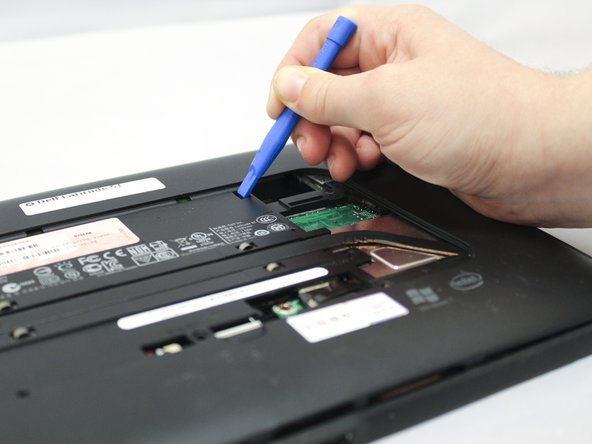
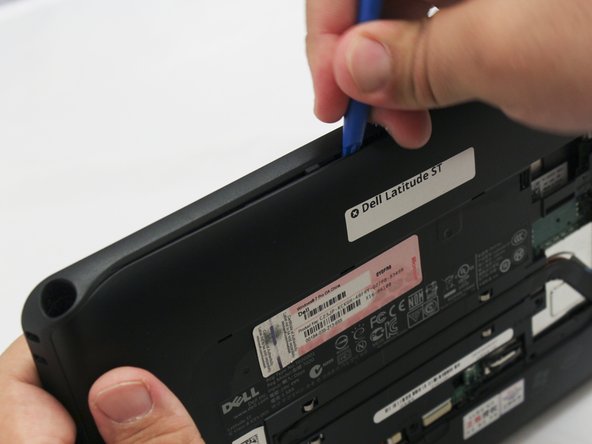
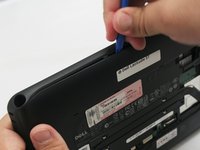
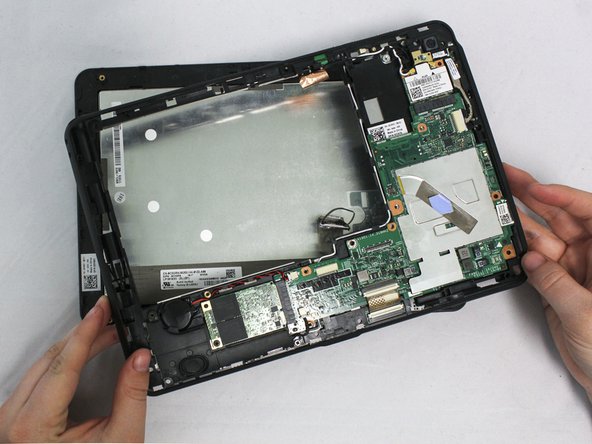
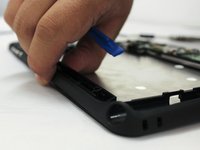
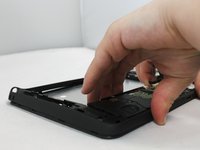
      • Use the blue plastic opening tool to push in the tab located on the backside of the device.

      • Slide the tool around the edges of the device to unsnap the tabs and pry the frame off.

      Ask FixBot

      Add Comment

    4. Dell Latitude ST Screen Replacement: step 4, image 1 of 3 Dell Latitude ST Screen Replacement: step 4, image 2 of 3 Dell Latitude ST Screen Replacement: step 4, image 3 of 3
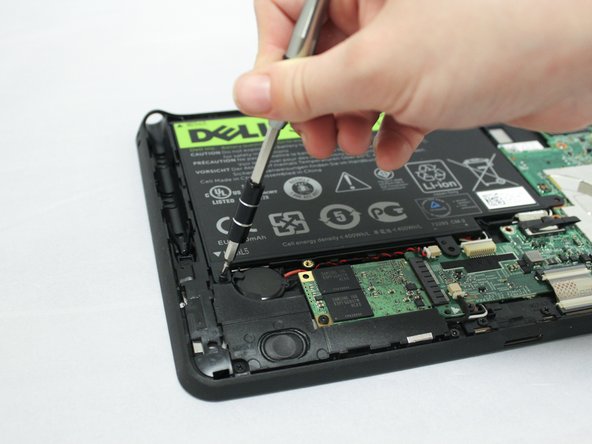
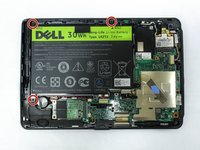
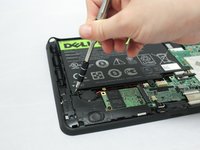
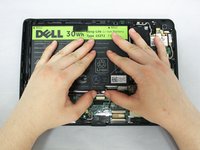
      • Remove the three 6mm Phillips #0 screws attaching the battery.

      Ask FixBot

      Add Comment

    5. Dell Latitude ST Screen Replacement: step 5, image 1 of 3 Dell Latitude ST Screen Replacement: step 5, image 2 of 3 Dell Latitude ST Screen Replacement: step 5, image 3 of 3
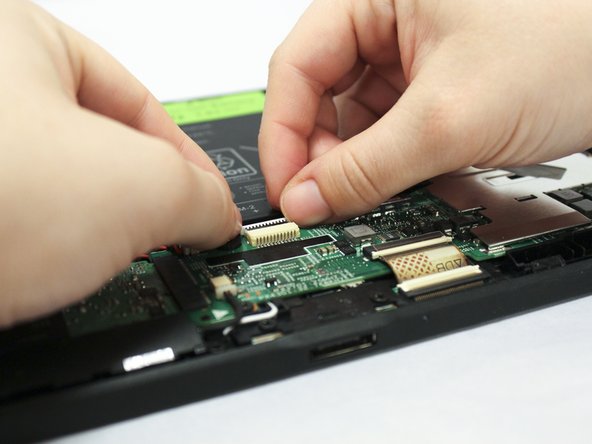
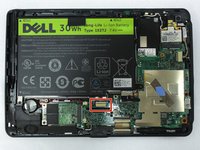
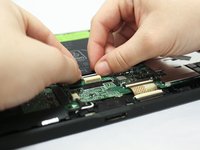
      • Using your hands or a plastic opening tool, unplug the white battery cable.

      • Push forward on the top part of the cable to disconnect it from the device.

      Ask FixBot

      Add Comment

    6. Dell Latitude ST Screen Replacement: step 6, image 1 of 3 Dell Latitude ST Screen Replacement: step 6, image 2 of 3 Dell Latitude ST Screen Replacement: step 6, image 3 of 3
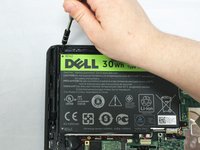
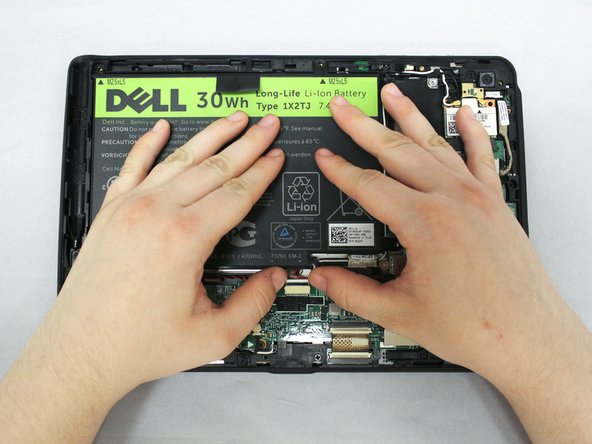
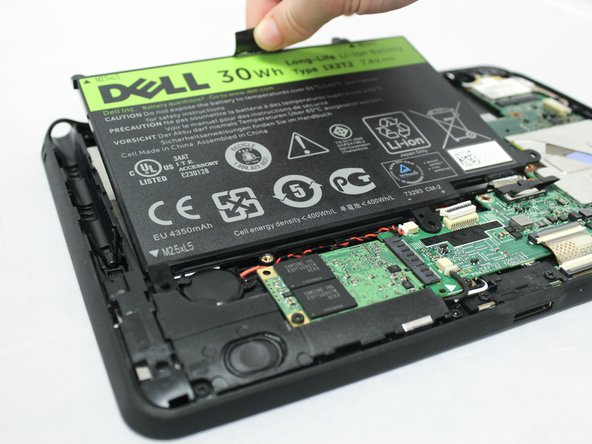
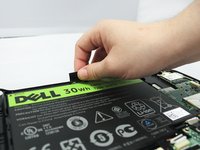
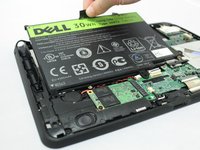
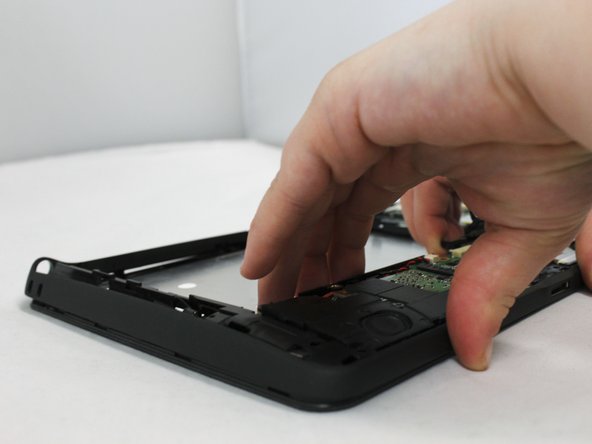
      • Pull up on the black tab located at the top of the battery to remove the battery from the device.

      Ask FixBot

      Add Comment

    1. Dell Latitude ST Screen Replacement, Screen: step 7, image 1 of 3 Dell Latitude ST Screen Replacement, Screen: step 7, image 2 of 3 Dell Latitude ST Screen Replacement, Screen: step 7, image 3 of 3
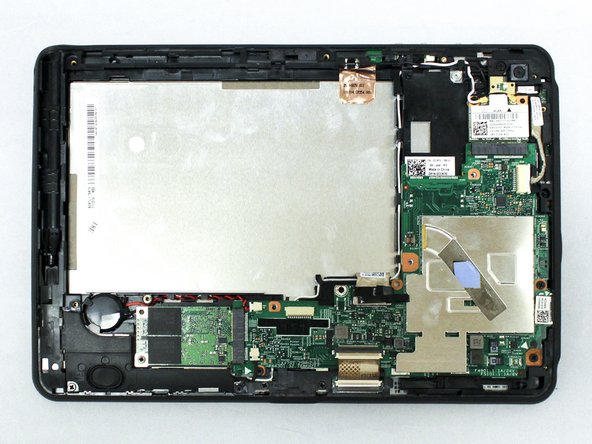
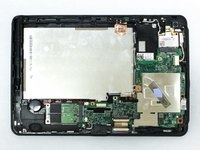
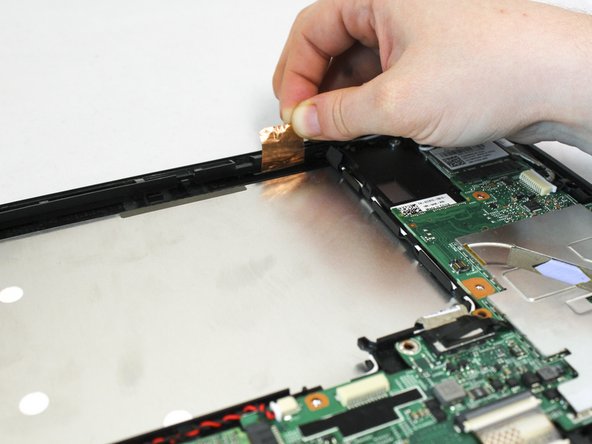
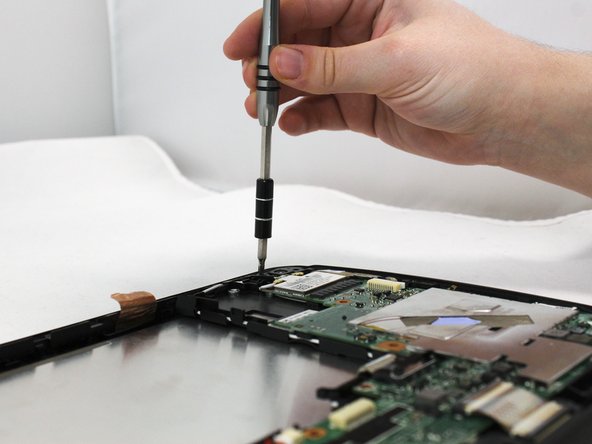
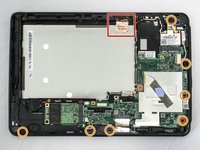
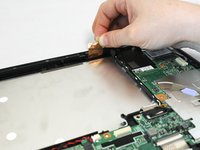
      • Pull up on the copper antenna tape to loosen it from the base.

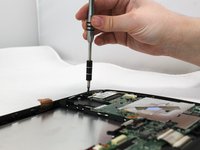
      • Unscrew the seven 6mm Phillips #0 screws from the base.

      Ask FixBot

      Add Comment

    2. Dell Latitude ST Screen Replacement: step 8, image 1 of 2 Dell Latitude ST Screen Replacement: step 8, image 2 of 2
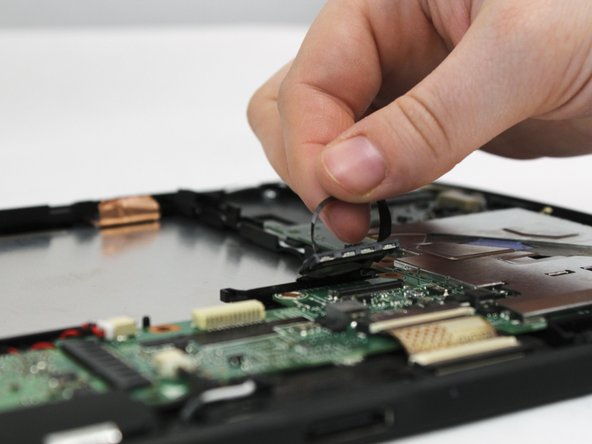
      • Locate the grey LCD cable attached to the motherboad on the device.

      • Pull up on the black tape handle attached to the LCD cable to disconnect the cable.

      • Be sure to pull on the back rather than the LCD cable itself.

      Ask FixBot

      Add Comment

    3. Dell Latitude ST Screen Replacement: step 9, image 1 of 3 Dell Latitude ST Screen Replacement: step 9, image 2 of 3 Dell Latitude ST Screen Replacement: step 9, image 3 of 3
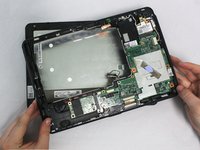
      • Using your hands or the blue plastic opening tool, go along the edges of the frame and unsnap the screen from the middle frame.

      • Lift the middle frame away from the screen.

      Ask FixBot

      Add Comment

Conclusion

To reassemble your device, follow these instructions in reverse order.

Cancel: I did not complete this guide.

Author

with

Addie Kenney

Member since: 04/11/17

416 Reputation

4 Guides authored

0 Guide Comments

Add Comment

View Statistics:

Past 24 Hours: 3

Past 7 Days: 25

Past 30 Days: 77

All Time: 975